Twitter is now X, tweets are now posts, and somehow the internet still cannot agree on what to call anything. But one thing has not changed: people still see a great video on the platform and immediately think, “I need to save that before it vanishes into the algorithmic soup.” Whether it is a funny clip, a product demo, a breaking-news moment, a tutorial, a sports highlight, or your own video that you forgot to back up, knowing how to download Twitter videos can be genuinely useful.
The good news is that downloading videos from X is easier than it used to be. The slightly less glamorous news is that not every video is downloadable, and not every download method is safe, legal, or worth trusting with your device. A random “free Twitter video downloader” website that demands your X password is not a helper; it is a raccoon in a trench coat.
This guide explains how to download Twitter videos on Android, iPhone, and desktop using the safest methods first. You will learn how to use X’s built-in download option when available, how to copy a post link, how to save videos through your own X archive, how screen recording can help when downloading is unavailable, and what to avoid when using third-party tools.
Can You Download Twitter Videos Directly From X?
Yes, sometimes. X now supports a native Download video option for certain videos. If the creator has allowed downloads, you may see a download option directly in the X app or on the post menu. This is the cleanest and safest way to save a video because it does not require handing a post link to an unknown website, installing a browser extension, or playing “security roulette” with your phone.
However, the option is not guaranteed. Video owners can disable downloading, and some videos uploaded through creator tools or Media Studio may not be downloadable unless the uploader specifically allows it. Direct Message videos may also have download settings controlled by the sender. In plain English: if the creator says “no downloads,” X may not show the download button.
That is why this guide covers several approaches. Start with the official download button. If that is missing, use a safe link-based method only for content you are allowed to save. For your own account history, use your X archive. For personal reference, screen recording may be enough. The best method depends on the device, the video, and your intended use.
Before You Download: Copyright, Privacy, and Common Sense
Downloading a video does not magically make it yours. If someone created the clip, edited the footage, recorded the music, or owns the rights, they may still control how it can be reused. Saving a video for private reference is very different from reposting it, monetizing it, re-editing it into an ad, or uploading it elsewhere without credit or permission.
As a practical rule, you are safest when downloading your own videos, videos from people who clearly allow downloads, public-domain or licensed clips, press materials made for distribution, or content where you have direct permission. If you plan to reuse a video in a blog, YouTube video, ad, social post, presentation, or commercial project, ask permission or make sure your use fits a valid legal exception. “But it was on the internet” is not a copyright strategy; it is the legal equivalent of wearing flip-flops to a snowstorm.
Privacy matters too. Do not download and redistribute videos from private accounts, private messages, minors, medical situations, personal emergencies, or clips showing sensitive information. If a video contains someone’s address, ID, private location, workplace badge, or personal documents, do not help that information travel further.
How to Download Twitter Videos on Android
Android is usually the easiest platform for saving X videos because file downloads and gallery access are more flexible than on iPhone. Here are the safest ways to do it.
Method 1: Use X’s Built-In Download Video Option
If the video owner allows downloading, this is the method you should try first.
- Open the X app on your Android phone.
- Find the post containing the video you want to save.
- Tap the video or open the post.
- Look for the three-dot menu or press and hold the video, depending on the interface shown.
- Tap Download video if the option appears.
- Check your Gallery, Photos, Downloads, or file manager for the saved video.
If you do not see Download video, the uploader may have disabled downloads, the video may not support native downloading, or your app version may need updating. Updating the X app from Google Play can sometimes restore missing interface options.
Method 2: Copy the Post Link and Use a Browser-Based Downloader
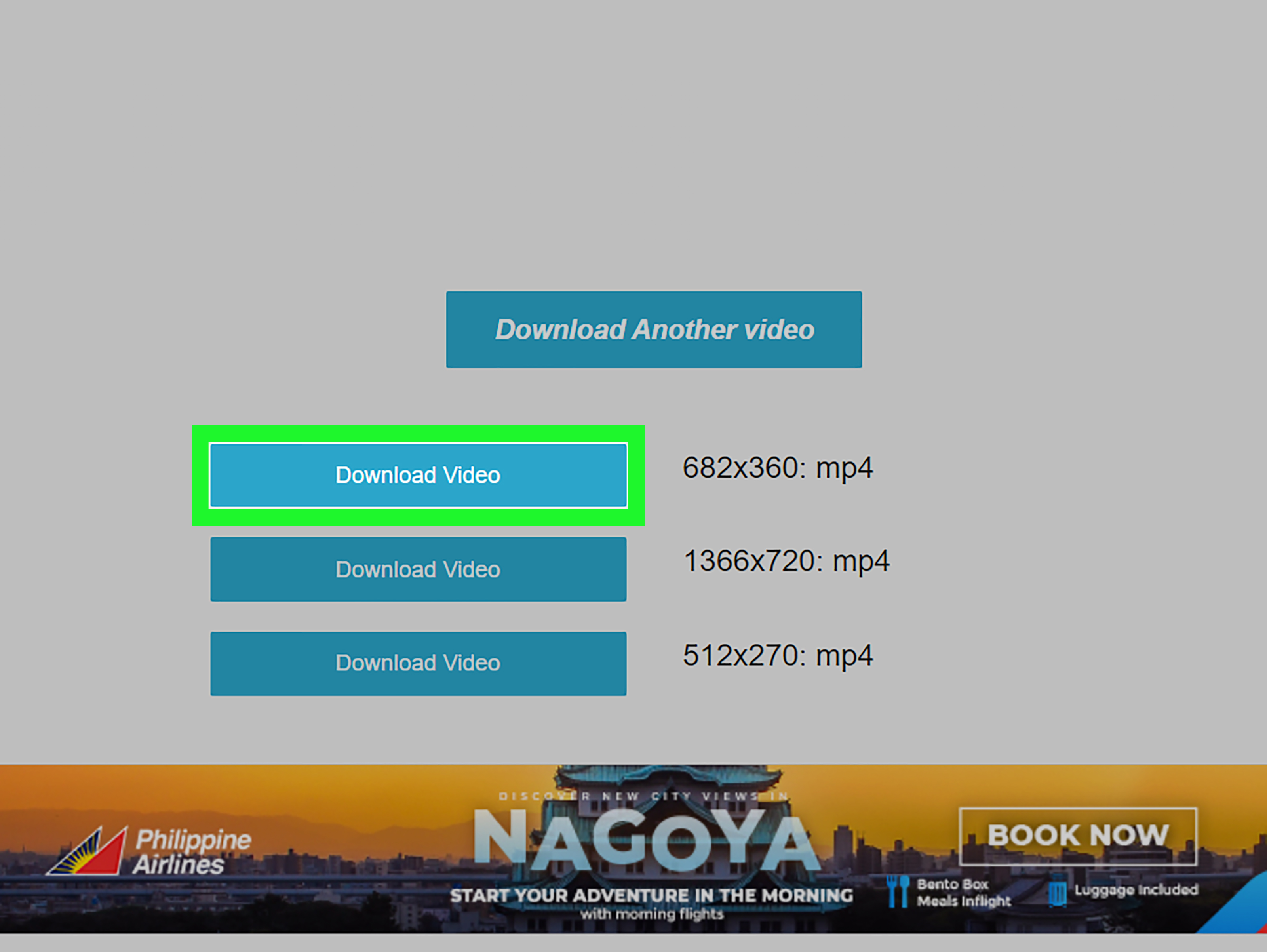
If the official download button is missing and you have permission to save the video, a browser-based downloader can work. This method usually converts the X video into an MP4 file that your phone can save.
- Open X and go to the video post.
- Tap the Share icon.
- Select Copy link to Post.
- Open Chrome or another trusted browser.
- Go to a reputable X video downloader website.
- Paste the copied post link into the download box.
- Choose the video quality if options appear.
- Tap Download and save the MP4 file.
Be picky about the tool you use. A normal downloader should not ask for your X password, email login, two-factor authentication code, banking information, or permission to install random files. If a site opens five pop-ups and one of them claims your phone has 37 viruses, close it. Your phone is probably fine; the website is the problem.
Method 3: Screen Record the Video on Android
Screen recording is useful when you only need a personal copy for reference and do not need the original file. Most modern Android phones include a built-in screen recorder.
- Swipe down twice from the top of the screen to open Quick Settings.
- Tap Screen record. You may need to swipe sideways or edit Quick Settings to add it.
- Choose whether to record device audio, microphone audio, or both if your phone offers those options.
- Start recording and play the X video.
- Stop recording from the notification shade.
- Trim the beginning and end in your Gallery or Photos app.
The downside is quality. A screen recording may capture notifications, status bars, buffering, taps, or accidental finger gymnastics. Turn on Do Not Disturb, use full-screen playback, and trim the clip afterward for a cleaner result.
How to Download Twitter Videos on iPhone
Downloading X videos on iPhone can feel like trying to put a fitted sheet back into its package. It is possible, but iOS handles files, permissions, and camera roll saving more strictly than Android. Start with the official option, then move to Files or screen recording if needed.
Method 1: Use the Native Download Video Option
When available, X’s own download button is the simplest iPhone method.
- Open the X app on your iPhone.
- Find the post with the video.
- Open the post or long press the video if the interface supports it.
- Tap the three-dot menu if needed.
- Select Download video.
- Check Photos, Files, or the app’s save destination.
If the button does not appear, the uploader probably did not allow downloads, or the video type does not support direct saving. You can still copy the post link or use screen recording for personal reference.
Method 2: Copy the Link and Save Through Safari
Safari can save downloadable files to the Files app, and some browser-based X video downloaders offer a Save Video or Download option that works on iPhone.
- Open the post in X.
- Tap the Share icon.
- Choose Copy link to Post.
- Open Safari.
- Paste the link into a reputable X video downloader.
- Select a quality option, usually MP4.
- Tap and hold the download button if needed, then choose Download Linked File.
- Open the Files app and check the Downloads folder.
- To move the clip to Photos, open the file, tap Share, and choose Save Video if available.
Some iPhone download flows save to Files instead of Photos. That is normal. Files is not a punishment folder; it is just where iOS likes to put downloads before you decide what to do with them.
Method 3: Use iPhone Screen Recording
Apple’s built-in screen recorder is reliable and avoids third-party download sites entirely. It is ideal for saving a short clip for your own reference.
- Open Control Center on your iPhone.
- If Screen Recording is not visible, add it through Control Center settings.
- Tap the Screen Recording button.
- Wait for the countdown.
- Play the X video in full screen.
- Tap the red recording indicator or return to Control Center to stop.
- Open Photos and trim the clip.
For best results, turn off notifications, raise the media volume before recording, and let the video fully load before you start. Nothing ruins a saved clip like a “low battery” pop-up making a surprise cameo.
How to Download Twitter Videos on Desktop
Desktop users usually have three practical options: use X’s official download option, use a browser-based downloader, or record the screen. The best choice depends on whether the video owner allows downloads and whether you need the original quality.
Method 1: Download Directly From X on Desktop
If X shows a download option for the video, use it. Open the post on X.com, click the video or the post menu, and look for Download video. If it appears, save the file to your computer. This method is clean, fast, and less risky than using outside services.
Method 2: Copy the Post URL and Use a Web Downloader
When direct downloading is unavailable and you have permission to save the content, a web downloader may work on Windows, macOS, ChromeOS, or Linux.
- Open X.com in your browser.
- Find the video post.
- Click the Share icon or the post menu.
- Choose Copy link to Post.
- Open a reputable X video downloader in a new tab.
- Paste the URL.
- Select MP4 quality if offered.
- Click Download.
- Rename the file clearly so you can find it later.
A good naming format might be x-video-topic-date-source.mp4. For example: x-video-product-demo-2026-05-14.mp4. Your future self will thank you, because “video_final_final_3.mp4” is where organization goes to retire.
Method 3: Use Screen Recording on Windows or Mac
If a download is not available, screen recording can capture the clip for personal use. On Windows, Xbox Game Bar can record many apps and browser windows. Press Windows + G to open Game Bar or Windows + Alt + R to start and stop recording. On Mac, you can use the built-in Screenshot toolbar by pressing Command + Shift + 5, choosing a recording area, and starting the capture.
Screen recording is not perfect for professional reuse because it may reduce quality. But for saving a temporary reference, a quote clip, a tutorial example, or something you need to review later, it is often good enough.
How to Download Your Own Twitter Videos From Your X Archive
If you want to recover your own old videos, request your X archive. This is the most official way to download a copy of your account data, including posts and media associated with your account.
- Open X and go to Settings and privacy.
- Select Your account.
- Choose Download an archive of your data.
- Confirm your password.
- Request the archive.
- Wait for X to notify you when the archive is ready.
- Download the ZIP file and extract it on your computer or phone.
- Look through the media folders for your videos.
This method is especially useful for creators, journalists, social media managers, and anyone who has posted videos over the years but did not keep a local backup. It may take time for the archive to be prepared, so it is not the fastest method for grabbing one clip. But for account backup, it is the grown-up option with matching socks.
Are Twitter Video Downloader Apps and Extensions Safe?
Some are fine. Some are not. That is the honest answer.
Browser extensions can be convenient because they add a download button directly to X. But extensions may request broad permissions, including access to the websites you visit or data on pages you open. A video downloader does not need access to your entire digital life. Before installing one, check the publisher, reviews, update history, privacy policy, permissions, and whether the extension is available through an official store.
Mobile apps deserve the same suspicion. Avoid apps that request contacts, SMS access, location, microphone, camera, or account login when all they supposedly do is download a public video link. Also avoid APK files from random websites unless you know exactly what you are doing. Installing unknown apps to save a 12-second meme is not a heroic tech adventure; it is how phones become haunted.
Troubleshooting: Why Can’t I Download a Twitter Video?
If downloading fails, the cause is usually one of these issues:
- The creator disabled downloads. X may hide the download option when the uploader does not allow saving.
- The post is private or restricted. Protected posts, deleted posts, region-restricted media, or age-limited content may not work with downloaders.
- The link is wrong. Copy the direct post link, not a profile URL, search URL, or notification link.
- The downloader is broken. X changes its systems often, and third-party tools may stop working.
- Your browser blocked the file. Check pop-up settings, download permissions, or the Downloads folder.
- The video is actually a GIF or embedded media. Some X “GIFs” are converted video files, while some embedded videos come from outside sources.
- Your storage is full. Yes, the least glamorous answer is often correct.
Best Practices for Saving X Videos
To keep things simple and safe, follow this order:
- Use X’s built-in Download video option when available.
- Use your X archive for your own old posts and media.
- Use screen recording for personal reference when downloading is unavailable.
- Use third-party downloaders only when you have permission and trust the tool.
- Do not install extensions or apps that ask for excessive permissions.
- Do not repost someone else’s video without permission, credit, or a valid legal basis.
Also, organize your saved videos. Create folders by topic, project, or date. Rename files immediately. Save source notes when necessary. If you are a creator or researcher, include the original post URL in a spreadsheet or document so you can trace the context later. A downloaded video without context can become confusing quickly, especially when your Downloads folder looks like a digital junk drawer wearing a fake mustache.
Experience-Based Tips: What Actually Works Best in Real Life
After working through different ways people save X videos on Android, iPhone, and desktop, the biggest lesson is simple: the “best” method is not always the fanciest one. It is the method that saves the clip cleanly without creating a security headache. Many users jump straight to third-party downloaders because they assume X has no download feature. That used to be more true than it is now. Today, the first thing worth checking is whether the post already offers Download video. It takes seconds, and when it works, it avoids almost every common problem.
On Android, the experience is usually smoothest. If the official option appears, the video often saves directly to a place users recognize, such as Gallery, Photos, or Downloads. When using a browser downloader, Android also handles MP4 files more openly. You can download, rename, move, share, or upload them without fighting the operating system too much. The main Android mistake is installing too many downloader apps. A web-based tool is often enough. Unless you download X videos every day for a real workflow, you probably do not need a permanent app sitting on your phone with mystery permissions.
On iPhone, patience helps. Many people think a download failed because the video does not appear in Photos immediately. In reality, Safari may have saved it to the Files app. Open Files, check Downloads, then use the Share button to save it to Photos if iOS allows it. Another helpful habit is to keep the video short and trim it afterward if you use screen recording. The built-in iPhone screen recorder is surprisingly dependable, but it records exactly what appears on screen. If you receive a notification, rotate the phone, pause accidentally, or forget to enter full-screen mode, congratulations: your recording now has a blooper reel.
On desktop, the most reliable workflow is to copy the post link, save the MP4 if allowed, and immediately rename the file. Desktop downloads pile up fast. A clear filename can save you from opening ten mystery files later while muttering, “Which one was the good version?” For Windows users, Xbox Game Bar is handy for recording a browser video when downloading is not possible. For Mac users, the built-in screen recording shortcut is clean and simple. In both cases, record a few seconds before and after the clip, then trim. It is easier to cut extra footage than to recreate a moment you missed.
One practical example: imagine you are writing a blog post about a software update and the company posts a short X video showing the new feature. If the company allows downloads, save the video directly and keep the post URL in your notes. If not, consider embedding the post instead of downloading it. If you only need to study the clip privately, screen recording may be enough. But if you plan to republish the clip in your own article or video, get permission or use official press materials. This is where many people get into trouble: downloading is easy, but reuse is the part that needs judgment.
Another example: suppose a friend posts a funny pet video and you want to keep it. Ask them first. Most people will say yes, and some will send you the original file, which is better quality than anything you can extract from X. The original file avoids compression, weird cropping, missing audio, and the awkward feeling of using a downloader on your friend’s content like a raccoon stealing a sandwich.
For creators and social media managers, the smartest long-term habit is to maintain your own media library outside X. Do not rely on a social platform as your only archive. Keep original videos in cloud storage, organize folders by campaign, and request your X archive occasionally. That way, when a client asks for a clip from eight months ago, you are not forced to scroll through your profile like an archaeologist with Wi-Fi.
The safest conclusion from real-world use is this: use official downloads when available, screen record when you only need a personal reference, and treat third-party tools as temporary helpers rather than trusted vaults. Never enter your X login into a downloader. Never install suspicious extensions for a one-time task. Never assume a public video is free to reuse. Do those three things, and downloading Twitter videos becomes much less stressful.
Conclusion
Learning how to download Twitter videos on Android, iPhone, and desktop is mostly about choosing the safest path. X’s built-in download feature is the best option when the uploader allows it. Android gives you the most flexible file handling. iPhone works well if you understand the difference between Photos and Files. Desktop is great for organized saving, renaming, and archiving. And screen recording remains the reliable backup plan when no download button appears.
The big warning is not technical; it is ethical and legal. Save videos responsibly. Respect creators, privacy, copyright, and platform rules. Use third-party tools carefully, avoid suspicious apps and extensions, and never trade account security for a quick MP4. A good video is worth saving. Your password, privacy, and common sense are worth saving too.
SEO Tags
Note: This article is for lawful personal saving, backup, research, and permitted reuse. Always respect creator rights, privacy, and X video download settings.