Adding spaces in HTML sounds like it should be the easiest thing in web development. Press the spacebar, sip coffee, publish page, become internet legend. Then the browser politely collapses your 17 carefully typed spaces into one tiny, unimpressed blank. Welcome to HTML whitespace: the place where your keyboard confidence meets browser reality.
The good news is that inserting spaces in HTML is not difficult once you understand which kind of space you need. Are you trying to keep two words together? Add breathing room around a button? Create columns in a code sample? Separate cards in a grid? Force a line break in an address? Each situation has a better solution than repeatedly smashing the spacebar like it owes you rent.
This guide explains five practical ways to insert spaces in HTML, complete with example code, best-use cases, SEO-friendly structure, and real-world advice. You will learn when to use , when CSS is smarter, when <br> is acceptable, when <pre> shines, and when layout spacing belongs to modern CSS tools like gap, margin, and padding.
Why Normal Spaces Collapse in HTML
Before we get into the five methods, let’s solve the mystery. In normal HTML text, browsers collapse repeated whitespace. That means multiple spaces, tabs, and line breaks in your source code are usually rendered as a single space on the page.
Example: Multiple Spaces in HTML Source
Even though the source code contains several spaces between words, the browser displays it like this:
This behavior is intentional. HTML is designed to structure content, not preserve every tap of the spacebar. If browsers kept every accidental space and newline, many web pages would look like a raccoon walked across the keyboard. Instead, HTML keeps the document readable in source code while CSS controls presentation.
So, when you want visible spacing, you need the right tool for the job.
1. Use for Non-Breaking Spaces
The most famous way to add a visible space in HTML is the non-breaking space entity: . It stands for “non-breaking space,” which means the browser treats it as a space but will not break the line at that point.
This is useful when two pieces of text should stay together, such as a number and unit, a title and name, or a short phrase that would look awkward if split across lines.
Example Code
Rendered Result
Save 20 % today only.
Dr. Smith will speak at 10 AM.
The file size is 5 MB.
You can also use multiple entities to create several visible spaces:
However, this should be used carefully. A few non-breaking spaces are fine. Using 47 of them to push a button across the screen is not layout design; it is digital furniture moving with a spoon.
When to Use
Use when the space is part of the content and you want to prevent an unwanted line break. Good examples include measurements, initials, short names, phone-number chunks, currency values, and small text pairs that belong together.
When Not to Use
Do not use for page layout, indentation, buttons, cards, menus, columns, or responsive design. CSS is cleaner, more flexible, and easier to maintain.
2. Use CSS margin to Add Space Around Elements
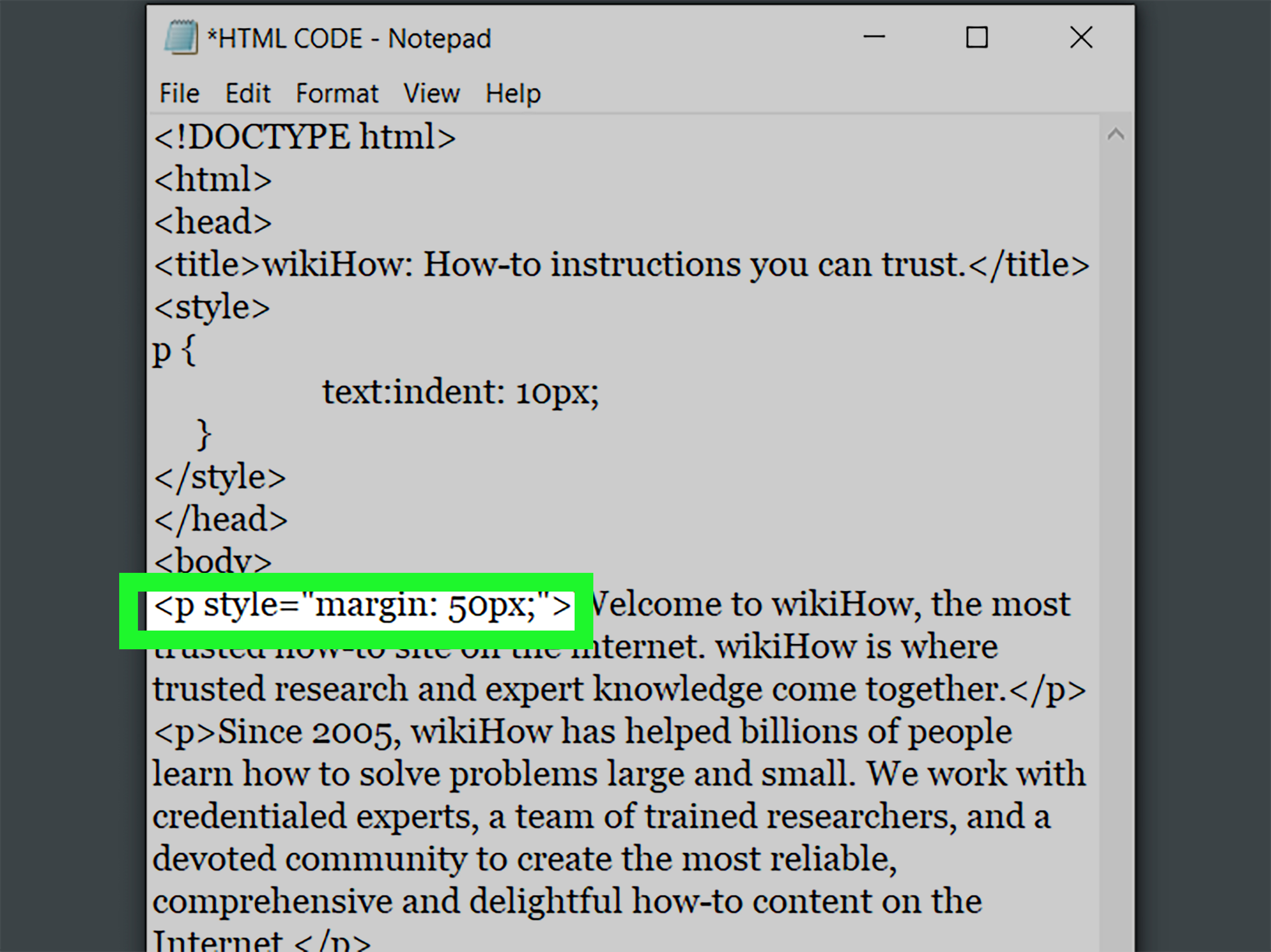
If you want to create space outside an element, use CSS margin. Margin controls the space around an element, separating it from neighboring elements. This is one of the most common and professional ways to handle spacing in web design.
Think of margin as the personal bubble of an HTML element. Some elements need a polite handshake. Others need three feet and a warning label.
Example Code
In this example, margin: 24px; creates space outside the card. The border and padding help show where the element begins and where its content sits.
Control One Side at a Time
You can target each side separately:
Or use shorthand:
The shorthand order is top, right, bottom, left. It moves clockwise, just like reading a tiny CSS compass.
Best Uses for Margin
Use margin to separate paragraphs, cards, sections, buttons, images, headings, forms, and layout blocks. It is especially useful for vertical rhythm, which is the consistent spacing between headings, paragraphs, and page sections.
3. Use CSS padding to Add Space Inside Elements
While margin creates space outside an element, padding creates space inside an element. Padding sits between the content and the element’s border. It is the reason buttons feel clickable instead of looking like text trapped in a tiny cardboard box.
Example Code
Here, padding: 12px 20px; means the element gets 12 pixels of space on the top and bottom and 20 pixels on the left and right.
Margin vs. Padding
Margin and padding are often confused, but the difference is simple:
- Margin adds space outside the element.
- Padding adds space inside the element.
Imagine a framed photo. Padding is the mat inside the frame. Margin is the wall space around the frame. Both matter, especially if you do not want your website to look like it was packed into a suitcase during an earthquake.
Best Uses for Padding
Use padding for buttons, cards, navigation links, alert boxes, form fields, table cells, containers, and any element where the content needs room to breathe inside its boundary.
4. Use <br> for Line Breaks in Text
The <br> element inserts a line break in HTML. It is useful when the line break is meaningful to the content, such as in an address, poem, song excerpt, or short contact block.
Example Code
Rendered Result
Jane Developer
123 Code Street
Austin, TX 78701
This is a correct use of <br> because each line break is part of the content’s meaning. The address is not just being spaced out for decoration; the lines are structurally relevant.
What Not to Do
A common beginner mistake is using several <br> tags to create vertical spacing between sections:
This works visually, but it is not ideal. For layout spacing, use CSS margin instead:
The second version is cleaner, easier to update, and better for responsive design. If your spacing needs change later, you adjust one CSS rule instead of hunting down a flock of wandering <br> tags.
5. Use <pre> and CSS white-space to Preserve Spaces
Sometimes you really do want spaces, tabs, and line breaks to appear exactly as written. That is where the <pre> element and the CSS white-space property come in.
The <pre> element represents preformatted text. It preserves whitespace and line breaks, making it ideal for code samples, ASCII art, poetry, command-line output, and text where spacing changes the meaning.
Example Using <pre>
The browser preserves the spacing, so the columns stay aligned. It is not a full replacement for tables, but it is perfect for preformatted text samples.
Example Using CSS white-space
The white-space property gives you more control than <pre> alone. Common values include:
normal: collapses spaces and wraps text normally.pre: preserves spaces and line breaks, but does not wrap long lines.pre-wrap: preserves spaces and line breaks while allowing wrapping.pre-line: preserves line breaks but collapses multiple spaces.nowrap: collapses spaces and prevents text wrapping.
Best Uses for Preserved Whitespace
Use <pre> or white-space when formatting is part of the message. Code snippets, terminal output, legal-style blocks, plain-text templates, poetry, and technical examples often need preserved spacing.
Bonus Method: Use CSS gap for Modern Layout Spacing
Although this article focuses on five core ways to insert spaces in HTML, modern CSS deserves a bonus mention. The gap property is one of the cleanest ways to add space between items in flexbox and grid layouts.
Example with Flexbox
Instead of adding margins to every link, gap creates consistent spacing between them. This is especially helpful for navigation menus, card layouts, button groups, image galleries, and product grids.
Example with CSS Grid
If you are spacing layout items, gap is often the neatest tool in the shed. And unlike a shed, it usually does not contain a mysterious box labeled “miscellaneous cables.”
Quick Comparison: Which HTML Spacing Method Should You Use?
| Spacing Method | Best For | Avoid Using It For |
|---|---|---|
|
Keeping words, numbers, or units together | Page layout or indentation |
margin |
Space outside elements | Internal button or card spacing |
padding |
Space inside elements | Separating neighboring blocks |
<br> |
Meaningful line breaks in text | Creating layout gaps |
<pre> / white-space |
Preserving spaces, tabs, and line breaks | General page layout |
gap |
Spacing flex and grid items | Regular paragraph text spacing |
Common Mistakes When Adding Spaces in HTML
Using Spaces for Alignment
Do not align page elements by typing spaces in HTML. Browser rendering, font differences, screen sizes, and responsive layouts will ruin the alignment quickly. Use CSS layout tools instead.
Using Too Many Entities
One or two non-breaking spaces can be helpful. Long chains of usually signal that CSS should be doing the work.
Using <br> for Section Spacing
Line breaks belong inside meaningful text. For space between sections, use margin, padding, or layout properties.
Ignoring Responsive Design
Spacing that looks good on a desktop screen may look strange on mobile. Use relative units like rem, flexible layout systems, and media queries when needed.
Practical Examples for Real Websites
Example 1: Keeping a Price Together
This keeps the price and phrase together so the line does not break awkwardly between them.
Example 2: Adding Space Between Buttons
This example uses gap between buttons and padding inside buttons. It is clean, readable, and easy to adjust.
Example 3: Preserving Code Indentation
Because indentation matters in code examples, <pre> keeps the format intact.
Example 4: Creating Better Section Spacing
This is better than stacking line breaks because it keeps the spacing controlled by CSS.
Accessibility and SEO Tips for HTML Spacing
Good spacing is not just visual polish. It affects readability, usability, accessibility, and user experience. Search engines do not reward a page just because it uses perfect padding, but they do care about helpful content, readable structure, mobile usability, and clean HTML. Proper spacing supports all of those goals.
Use semantic HTML first. Headings should describe the content hierarchy. Paragraphs should be actual paragraphs. Lists should be lists. Buttons should be buttons or links depending on the action. Then use CSS to control spacing. This approach helps screen readers, search engines, browsers, and future developers understand your page.
Avoid using spaces to create fake tables or fake columns in regular content. If you need tabular data, use a real <table>. If you need layout columns, use CSS grid or flexbox. If you need code formatting, use <pre> and <code>. The browser is a very capable machine, but it appreciates clear instructions.
of Practical Experience: What Developers Learn About HTML Spaces the Hard Way
Most developers have a funny first encounter with HTML spacing. You type several spaces into a paragraph, refresh the page, and wonder if the browser has developed an attitude. It has not. It is simply following the rules. The browser collapses ordinary whitespace because HTML is meant to describe content structure, not preserve every formatting detail from the editor. Once you understand that, spacing becomes less mysterious and much easier to control.
In real projects, the biggest lesson is this: choose spacing based on intent. If the space belongs to the text itself, an HTML entity like may be appropriate. For example, keeping “10 GB” or “Dr. Lee” together makes sense because the words or symbols function as a unit. But when spacing is visual, CSS should almost always handle it. This distinction saves hours of future cleanup.
Another practical lesson is that layout spacing should be consistent. Beginners often add random margins one element at a time: 10 pixels here, 37 pixels there, 14 pixels because it “looked right at midnight.” Eventually, the page feels uneven. Experienced developers usually create a spacing system using values like 0.5rem, 1rem, 1.5rem, 2rem, and 3rem. A simple spacing scale makes pages look cleaner and helps teams avoid design chaos.
Mobile design teaches another valuable lesson. A row of links with manual spaces might look acceptable on a desktop monitor, but on a phone it can wrap badly or overflow. CSS tools like flex-wrap, gap, and responsive media queries are safer because they adapt to different screen sizes. The page becomes flexible instead of fragile.
Code examples also reveal why preserved whitespace matters. When writing tutorials, documentation, or developer blogs, indentation is not decoration. It helps readers understand structure. That is why <pre> and <code> are so common in technical content. They keep examples readable and prevent the browser from flattening important spaces. Still, long lines inside <pre> can overflow on small screens, so adding CSS such as white-space: pre-wrap; or overflow-x: auto; can improve usability.
One of the best habits is to inspect spacing with browser developer tools. Instead of guessing why an element is too close or too far away, open the inspector and look at the box model. You can see content, padding, border, and margin clearly. This turns spacing problems from “the page feels weird” into “this heading has a default margin-bottom I forgot about.” That is progress, and progress deserves coffee.
Finally, clean spacing is a maintenance gift. Anyone can force a page to look right with enough entities and line breaks, but that approach becomes painful when the design changes. CSS-based spacing is reusable, scalable, and easier to debug. The best HTML spacing strategy is not just about making today’s page look good. It is about making tomorrow’s edits less annoying.
Conclusion
There are several ways to insert spaces in HTML, but the best method depends on what you are trying to accomplish. Use for non-breaking text spaces, margin for space outside elements, padding for space inside elements, <br> for meaningful line breaks, and <pre> or white-space when formatting must be preserved.
The golden rule is simple: HTML should describe the content, and CSS should control the presentation. Once you follow that rule, your spacing becomes cleaner, your pages become easier to maintain, and your future self becomes slightly less likely to mutter at a stylesheet before lunch.
Note: The examples in this article are intended for educational use and can be adapted to match your website’s design system, accessibility standards, and responsive layout needs.