Every Google Docs user eventually meets the mysterious extra page. It appears at the end of a report, squats in the middle of an essay, or sneaks into a resume right before you export it as a PDF. You delete a few lines. Nothing happens. You press Backspace like you are negotiating with a stubborn vending machine. Still there. Congratulations: you have entered the tiny but dramatic world of Google Docs formatting.
The good news is that learning how to delete a page on Google Docs is usually simple once you know what caused the page in the first place. Google Docs does not have a giant red “Delete Page” button like some users expect. Instead, pages disappear when you remove the content, blank spaces, page breaks, section breaks, paragraph spacing, or margin issues that created them.
This guide explains four practical tips and tricks for removing unwanted pages in Google Docs. Whether you are fixing a blank page at the end of a document, deleting a full page of text, removing a sneaky page break, or cleaning up spacing that refuses to behave, these steps will help you get your document looking neat again.
Why Extra Pages Appear in Google Docs
Before deleting anything, it helps to understand why Google Docs creates extra pages. Most unwanted pages come from one of five common causes: extra paragraph breaks, a manual page break, a section break, large paragraph spacing, or margins that leave too little room for your content.
Sometimes the culprit is obvious. Maybe you pressed Enter a few too many times and built a blank page brick by brick. Other times, the issue hides behind formatting. A copied section from Microsoft Word, a pasted table from a website, or a large image can carry invisible spacing that pushes content onto another page. Google Docs is helpful, but it is not a mind reader. It will faithfully preserve formatting even when that formatting behaves like a raccoon in your attic.
There is also a difference between a page with content and a blank page. A content page can usually be deleted by selecting and removing text, images, tables, or other objects. A blank page may require you to remove a break, reduce spacing, adjust margins, or change document layout settings.
Tip 1: Delete the Page Content Manually
The fastest way to delete a page in Google Docs is to remove whatever is on that page. This works best when the page contains visible text, images, tables, headings, or other content you no longer need.
How to delete a page with text or images
- Open your document in Google Docs.
- Scroll to the page you want to delete.
- Click and drag your cursor over the text, image, table, or blank area you want to remove.
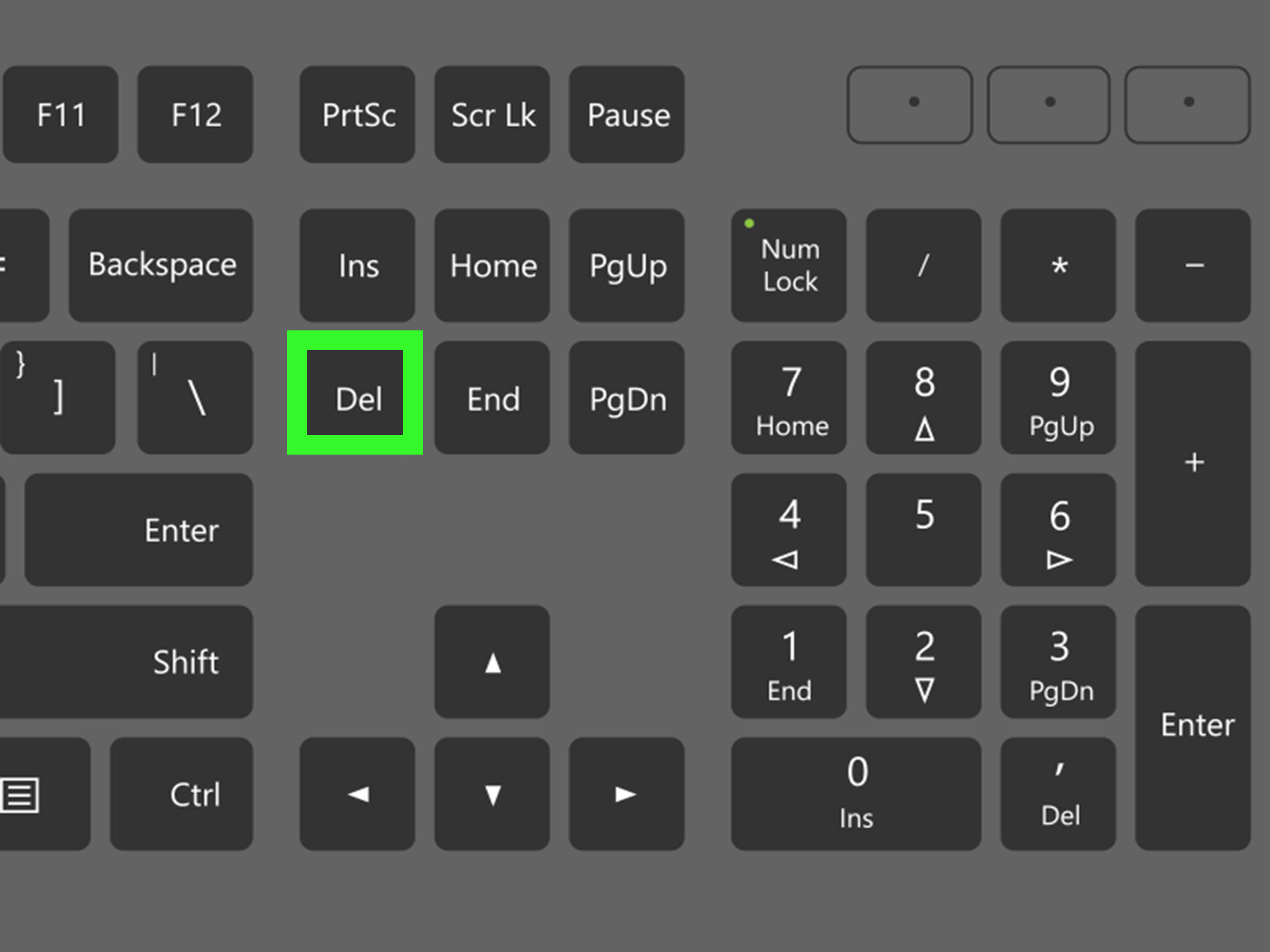
- Press Backspace or Delete on your keyboard.
- Check the surrounding pages to make sure the remaining content flows correctly.
For example, imagine you have a five-page project proposal and page three contains an outdated pricing section. Highlight that section, press Delete, and Google Docs will pull the next content upward. If the deleted material filled an entire page, that page disappears automatically. No magic wand required, although it would be nice.
If you are deleting several paragraphs from different parts of a document, the effect may be gradual. Remove enough text, and Google Docs may reduce the total page count by one. This is normal. A page in Google Docs is not a separate object like a slide in Google Slides. It is simply the result of how much content fits within the current page size, margins, and spacing.
When manual deletion does not work
If you delete visible content but the page remains, the problem is probably not the text itself. Look for extra blank lines, hidden page breaks, section breaks, wide spacing after paragraphs, oversized tables, or large margins. In other words, the page is being held open by formatting, not by content. That is when the next tips become useful.
Tip 2: Remove Extra Blank Lines and Page Breaks
Many blank pages in Google Docs are caused by extra paragraph breaks or manual page breaks. A paragraph break happens when you press Enter. A page break happens when someone uses Insert > Break > Page break or a keyboard shortcut to force content onto a new page.
Page breaks are useful when you actually want a new chapter, section, or title page. But if one lands in the wrong place, it can create an unwanted blank page that seems impossible to delete. Thankfully, it is not impossible. It is just being dramatic.
How to remove extra blank lines
- Click at the beginning of the blank page.
- Press Backspace several times.
- If that does not work, click at the end of the page before the blank page.
- Press Delete until the blank page disappears.
This works when the page is caused by extra empty paragraphs. You may need to press the key more than once because each press removes one paragraph break or one piece of spacing.
How to remove a page break
If the blank page jumps around or refuses to disappear, you may be dealing with a page break. Try this:
- Place your cursor at the end of the content before the blank page.
- Press Delete.
- Or place your cursor at the beginning of the content after the blank page and press Backspace.
- Repeat carefully until the page break is removed.
You can also make page boundaries easier to see by checking the layout view. In Google Docs, go to View and make sure Show print layout is turned on if you want to see page outlines. If you prefer to inspect the flow without page boundaries, turning print layout off can make large gaps easier to spot.
On mobile, the same general idea applies. Open the document in the Google Docs app, tap into editing mode, place the cursor near the unwanted break, and use Backspace to pull content together. Mobile editing is a little more finger-gymnastics than desktop editing, but it works.
Tip 3: Check Section Breaks and Document Layout
Section breaks are another common reason a page refuses to leave. A section break allows different parts of a document to have different formatting, such as unique margins, headers, footers, or page orientation. That is useful for complex documents, but it can also create extra pages when inserted accidentally.
Google Docs supports different break types, including page breaks and section breaks. A section break can start a new section on the next page or continue on the same page. If your document has unusual formatting, such as one landscape page in the middle of portrait pages, section breaks may be involved.
How to show section breaks
- Open your Google Docs file.
- Click View in the top menu.
- Select Show section breaks.
- Look for visible section break lines in the document.
- Place your cursor near the break and press Delete or Backspace to remove it if it is unnecessary.
Be careful when removing section breaks from professional documents. If the section break controls special formatting, deleting it may change margins, headers, footers, or page orientation in nearby sections. That does not mean you should fear the section break. Just treat it like hot sauce: useful, powerful, and best handled with attention.
Pages format vs. pageless format
Google Docs also offers two document formats: Pages and Pageless. Pages format displays traditional page boundaries, which is ideal for printing, exporting PDFs, school papers, business reports, resumes, and documents with page numbers. Pageless format removes traditional page divisions, making it useful for wide tables, flexible collaboration, and documents that will mostly be read online.
To switch formats, go to File > Page setup, then choose either Pages or Pageless. If you are trying to delete a page because page breaks are distracting you, pageless format may help. However, if your final document needs to be printed or exported as a PDF, stay in Pages format so you can control the layout accurately.
Tip 4: Adjust Line Spacing, Paragraph Spacing, and Margins
When the Delete key fails, spacing often deserves the blame. Google Docs can add space before or after paragraphs. This spacing is not always visible as blank lines, so pressing Backspace may not remove it. A paragraph may look innocent while secretly pushing a final sentence onto a new page.
How to reduce paragraph spacing
- Select the paragraph before the blank page, or press Ctrl + A on Windows or Command + A on Mac to select the whole document.
- Click Format.
- Choose Line & paragraph spacing.
- Select Custom spacing.
- Reduce the spacing before or after paragraphs. Setting “After” to 0 often fixes stubborn blank pages.
- Click Apply.
This is especially helpful when a blank page appears at the end of a document. For example, a resume may spill onto a second page because the spacing after headings is too large. Reducing paragraph spacing can bring the content back onto one page without shrinking the font into something only ants can read.
How to adjust margins
If spacing is not the issue, check your margins. Large top, bottom, left, or right margins reduce the usable writing area on each page. If the bottom margin is too large, Google Docs may push a line or paragraph onto a new page.
- Click File.
- Select Page setup.
- In the Pages tab, review the margin values.
- Reduce the top, bottom, left, or right margins slightly.
- Click OK.
Small changes can make a big difference. Reducing a bottom margin from 1 inch to 0.75 inch may be enough to rescue a final line from exile. Just avoid making margins too tiny if the document will be printed. Printers have limits, and they are not known for their emotional flexibility.
How to Delete a Blank Page at the End of Google Docs
A blank page at the end of a Google Doc is the classic formatting ghost. It usually appears because of extra paragraph marks, spacing after the final paragraph, a page break, or a table that extends beyond the page.
Start by clicking at the very end of the blank page and pressing Backspace. If nothing changes, click after the final visible content on the previous page and press Delete. If the blank page remains, check paragraph spacing and margins. For documents with tables, click inside the table and inspect whether the row height, padding, or content is forcing the table to occupy more space than expected.
If you copied material from another source, use Format > Clear formatting on the problem area. Pasted content can bring hidden styles, odd spacing, or table settings with it. Clearing formatting is like giving your document a polite reset button.
How to Delete a Page in Google Docs Before Exporting to PDF
Many users only notice an unwanted page after downloading a Google Doc as a PDF. This happens because PDF export uses the document’s page layout, margins, breaks, and spacing. If there is an extra blank page in Google Docs, it will usually appear in the PDF too.
Before exporting, scroll through the entire document in Pages format. Check the first page, final page, and any section transitions. Then use File > Download > PDF Document only after the layout looks correct. For important documents, such as resumes, contracts, school papers, or client proposals, open the exported PDF and inspect it before sending. Nothing ruins a polished file faster than a surprise blank page waving from the back like it paid rent.
Quick Troubleshooting Checklist
- If the page has content: Highlight the content and press Delete or Backspace.
- If the page is blank: Remove extra paragraph breaks by pressing Backspace or Delete near the blank area.
- If the blank page is caused by a break: Remove the page break or section break.
- If spacing is the problem: Go to Format > Line & paragraph spacing > Custom spacing.
- If content barely spills over: Adjust margins in File > Page setup.
- If pasted formatting is messy: Select the problem area and use Clear formatting.
Common Mistakes to Avoid
Deleting too much content
When highlighting a blank page, move slowly. If you drag too far, you may delete text from the next section. After deleting, scan the document to make sure headings, tables, and images are still where they belong.
Ignoring section breaks
If your document has different headers, footers, orientations, or margins, section breaks may be doing important work. Show section breaks before deleting them so you understand what is controlling the layout.
Using Enter for layout design
Pressing Enter repeatedly to move text to the next page is tempting, but it creates fragile formatting. Use page breaks, headings, spacing settings, and styles instead. Your future self will thank you, possibly with snacks.
Forgetting to preview the PDF
Always preview downloaded PDFs. A Google Doc can look fine while editing, but the final PDF is what teachers, clients, employers, or teammates may actually see.
Extra Experience: Real-World Lessons From Deleting Pages in Google Docs
After working with many Google Docs files, one lesson becomes painfully clear: unwanted pages rarely appear for no reason. They usually have a perfectly logical cause, even if that cause is hiding like a ninja in the formatting. The most common situation is a document that was copied from another source. A student copies research notes from a website, a job seeker pastes a resume from Word, or a business owner imports text from a PDF. Suddenly, Google Docs inherits invisible formatting that changes spacing, margins, or paragraph behavior.
One practical habit is to use Paste without formatting whenever possible. On Windows, the shortcut is usually Ctrl + Shift + V. On Mac, it is often Command + Shift + V. This keeps the text while leaving behind most unwanted formatting. It is like inviting the words to your document but asking their messy suitcase to stay outside.
Another useful habit is to fix formatting from the top down. If you start randomly deleting spaces near the end of a document, you may solve the blank page but accidentally damage the layout. Instead, check the structure. Are you using proper headings? Are paragraphs spaced consistently? Are page breaks placed intentionally? Are tables too large? A clean structure makes pages easier to control.
For resumes and one-page documents, margins and spacing are usually the heroes. Many people try to shrink the font first, but that can make the document harder to read. Before reducing font size, try adjusting paragraph spacing, removing unnecessary blank lines, shortening long bullet points, or slightly reducing margins. A resume should not look like it was printed on a postage stamp.
For long reports, page breaks are better than repeated Enter presses. If a new chapter must start on a fresh page, insert a real page break. That way, when you edit earlier text, the chapter still starts correctly. Repeated blank lines may look fine today, but after one paragraph changes, the entire layout can wobble like a shopping cart with one bad wheel.
Tables deserve special attention. A table near the bottom of a page can create a blank page if the row height, padding, or content does not fit. If a table is causing trouble, try reducing row padding, shortening text inside cells, or moving the table slightly higher. In some cases, splitting a large table into two smaller tables is cleaner than fighting one giant table that refuses to cooperate.
Finally, make peace with the Undo button. When troubleshooting stubborn pages, use Ctrl + Z or Command + Z freely. Try a fix, check the result, and undo it if the document gets worse. Formatting work is part editing, part detective work, and part convincing Google Docs that you are, in fact, the captain now.
Conclusion
Deleting a page in Google Docs is less about deleting a “page” and more about removing whatever forces that page to exist. Start with the simplest fix: highlight unwanted content and press Delete or Backspace. If the page is blank, remove extra paragraph breaks or page breaks. If the issue is more stubborn, show section breaks, adjust paragraph spacing, review margins, and clear pasted formatting.
Once you understand these four tips and tricks, Google Docs becomes much easier to control. The next time a blank page appears at the end of your document, you will not need to panic, start a new file, or blame the moon. You will know where to look, what to adjust, and how to make that extra page vanish politely.