Safari is already fast, private, and deeply woven into Apple devices, but let’s be honest: the default Start Page can look a little like a waiting room with Wi-Fi. Functional? Yes. Exciting? Not exactly. The good news is that Apple lets you change the Safari background on iPhone, iPad, and Mac, turning that plain new-tab screen into something more personal, calmer, brighter, or just more “you.”
Whether you want a soft gradient, a family photo, a mountain view, a minimalist texture, or a wallpaper that makes opening a new tab feel slightly less like paying bills, Safari’s background image feature is easy to use. This guide explains how to change the Safari background on iPhone, iPad, and Mac, how to use your own photo, how to sync the Start Page across Apple devices, and what to do when the option seems to have disappeared into the same mysterious place as your missing AirPods.
What Safari Background Can You Actually Change?
Before jumping into the steps, it helps to know what Apple means by “Safari background.” You are not changing the background of every website you visit. Apple, Google, Wikipedia, and your favorite recipe blog will still look the way they were designed. What you are changing is the background image on Safari’s Start Page, also known as the page that appears when you open a new tab.
The Safari Start Page can show Favorites, Frequently Visited websites, Reading List items, Privacy Report, iCloud Tabs, Shared with You links, and other helpful shortcuts. Behind those sections, Safari can display a background image. That image can be one of Apple’s built-in designs or a picture from your own photo library or files.
Think of it like decorating your browser’s front porch. The house still belongs to the internet, but at least the welcome mat is yours.
How to Change the Safari Background on iPhone
Changing the Safari background on iPhone only takes a minute once you know where Apple hid the button. The feature works through Safari’s Start Page customization menu.
Step-by-Step Instructions for iPhone
- Open the Safari app on your iPhone.
- Open a new tab. Depending on your Safari layout, tap the Tabs button, then tap the plus (+) button to create a new tab.
- On the Start Page, scroll all the way to the bottom.
- Tap Edit.
- Find Background Image and turn it on.
- Choose one of Apple’s preset background images, or tap the photo/library option to select your own image.
- Close the customization menu and return to the Start Page. Your new Safari background should appear immediately.
If you are using your own image, Safari will pull it from your Photos library. A clean image with soft contrast usually works best because the Start Page still needs to display icons, labels, and sections on top of it. A photo of fireworks, confetti, and your dog wearing sunglasses may be emotionally important, but it may also turn your Favorites into a visual treasure hunt.
How to Change or Remove the iPhone Safari Background
To change the image later, return to Safari > New Tab > Edit > Background Image and select a different picture. To remove the background entirely, turn off the Background Image toggle. Safari will return to a cleaner default look.
If you use Tab Groups, remember that Safari settings may apply to the current Start Page or Tab Group experience. If your background looks different in another Tab Group, open that group’s Start Page and check its customization settings.
How to Change the Safari Background on iPad
The process on iPad is similar to iPhone, but the larger display makes the background more noticeable. This is especially nice if you use your iPad as a laptop replacement, study device, travel planner, or “I’m definitely working” screen while watching videos in another window.
Step-by-Step Instructions for iPad
- Open Safari on your iPad.
- Tap the New Tab button to open the Safari Start Page.
- Scroll to the bottom of the Start Page.
- Tap Edit.
- Turn on Background Image.
- Select a built-in Safari background or choose a photo from your library.
- Tap away from the menu to view your updated Start Page.
Because the iPad screen is wider than an iPhone, landscape photos often look better here. City skylines, wide beach shots, desk setups, soft gradients, abstract art, and nature photos all tend to work well. Portrait photos can still look good, but Safari may crop them in ways you did not expect. If someone’s head disappears from the frame, Safari is not being rude; it is just trying to fit the image.
Best Image Types for iPad Safari
- Minimalist wallpapers: Great for readability and focus.
- Landscape photos: Good for iPad’s wider screen, especially in horizontal orientation.
- Soft gradients: Stylish without making icons hard to read.
- Dark backgrounds: Useful if you prefer a calmer browsing experience.
- Personal photos: Best when the subject is centered and not too busy.
How to Change the Safari Background on Mac
On Mac, the Safari Start Page has even more room to show off a background image. A good wallpaper can make Safari feel less generic and more like part of your workspace. The Mac version also gives you a convenient way to drag an image onto the Start Page, which is one of those small Apple touches that feels obvious after you discover it.
Step-by-Step Instructions for Mac
- Open Safari on your Mac.
- Choose Bookmarks > Show Start Page from the menu bar if the Start Page is not already visible.
- Click Edit in the bottom-right corner of the Safari window.
- Check or enable Background Image.
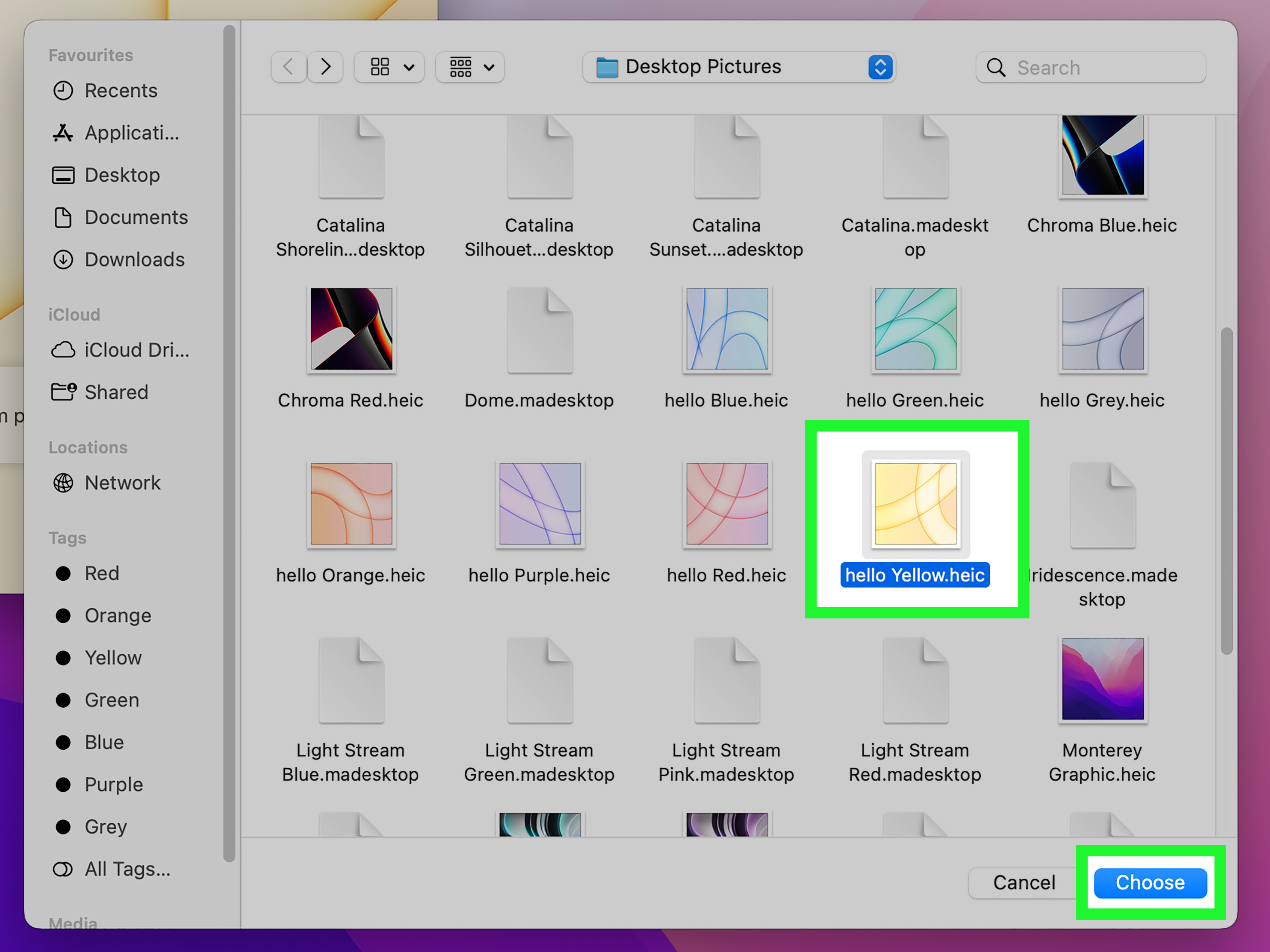
- Choose one of the built-in background images, or select the add/photo option to pick your own image.
- You can also drag a photo directly onto the Start Page to use it as the background.
- Click back into the Safari window to close the customization panel.
For Mac, choose images with enough resolution to look crisp on a larger screen. A tiny photo downloaded years ago from a group chat may look like a potato painting when stretched across a MacBook or external display. For best results, use a high-resolution image, ideally wide enough for your screen.
How to Remove or Replace the Safari Background on Mac
Open the Start Page, click Edit, then either uncheck Background Image or choose a different image. If your current custom photo appears as the first image option, you may see a close or remove button that lets you clear it and choose another one.
How to Use the Same Safari Background Across iPhone, iPad, and Mac
If you want your Safari Start Page to look consistent across all your Apple devices, turn on Use Start Page on All Devices. This option syncs your Start Page settings when your devices are signed in with the same Apple Account and have Safari enabled in iCloud.
Here is the basic idea: customize Safari on one device, enable Start Page syncing, and Apple will try to keep the layout and appearance consistent on your other devices. This can include sections like Favorites, Reading List, iCloud Tabs, and the background image settings.
Checklist for Safari Start Page Sync
- Use the same Apple Account on iPhone, iPad, and Mac.
- Turn on iCloud for Safari.
- Enable Use Start Page on All Devices in Safari’s Start Page customization menu.
- Make sure your devices are updated to a recent version of iOS, iPadOS, or macOS.
- Give iCloud a little time to sync changes, especially if one device has been offline.
If syncing does not happen instantly, do not panic. iCloud sometimes behaves like it is walking to your other device with a clipboard. Check your internet connection, confirm Safari is enabled in iCloud settings, and reopen Safari.
Why You Might Not See the Background Image Option
If you cannot find the Safari background setting, one of a few common issues is usually responsible. First, make sure you are on the Start Page, not a regular website. The Edit button appears at the bottom of Safari’s Start Page, so if you are staring at a webpage, you will not see the right menu.
Second, check your software version. Safari background customization on iPhone and iPad became available with modern iOS and iPadOS versions, so older devices or outdated software may not show the same options. On Mac, the customizable Start Page has been available since Safari 14 and continues in current versions.
Quick Fixes
- Open a new tab: The background setting only appears on the Start Page.
- Scroll down: On iPhone, the Edit button can be hidden below Favorites and other sections.
- Update your device: Go to Settings or System Settings and check for software updates.
- Check Tab Groups: Different Tab Groups may show different Start Page behavior.
- Restart Safari: Close and reopen Safari if the menu does not respond.
Safari Background vs. Homepage vs. Wallpaper: What’s the Difference?
Many people search for “Safari background,” “Safari homepage,” and “Safari wallpaper” as if they are the same thing. Close, but not quite.
Safari background usually means the image behind the Safari Start Page. Safari homepage means the website Safari opens when you click Home or when you set new windows or tabs to open with a specific webpage. Device wallpaper means your iPhone Lock Screen, iPad Home Screen, or Mac desktop background.
Changing your Safari Start Page background will not change your iPhone wallpaper. Changing your Mac desktop wallpaper will not automatically change Safari’s Start Page. They are separate settings. Apple likes clean ecosystems, but it has not yet reached the point where your browser background and desktop wallpaper exchange friendship bracelets automatically.
Tips for Choosing the Best Safari Background Image
A beautiful image is not always a useful Safari background. Since your Favorites, Reading List, Privacy Report, and other sections appear on top of the image, readability matters. The best Safari backgrounds are attractive but not chaotic.
Choose Images With Simple Composition
Look for photos with open space, soft colors, or gentle patterns. A foggy forest, blurred city lights, a calm ocean, a pastel gradient, or a clean desk photo can look excellent. A crowded concert photo might be fun, but your Start Page icons may vanish into the visual noise.
Watch the Brightness
Very bright backgrounds can make text harder to see. Very dark backgrounds often work well, especially if you like a focused browsing environment. If the image feels too intense, edit it in Photos first by lowering brightness, reducing contrast, or adding a subtle blur.
Use High-Resolution Images
For iPhone, most modern photos from your camera will look fine. For iPad and Mac, higher-resolution images are better. If the photo looks blurry, grainy, or stretched, choose a larger version.
Keep Personal Privacy in Mind
If you share your screen often, avoid using private family photos, personal documents, screenshots, or images that reveal sensitive information. Your Safari Start Page may appear during meetings, screen recordings, presentations, or casual “let me just look that up” moments.
Best Safari Background Ideas
Need inspiration? Here are background ideas that usually look good without making Safari harder to use:
- Nature: Mountains, forests, oceans, clouds, desert landscapes, and soft sunsets.
- Minimalist gradients: Smooth color blends that feel modern and clean.
- Abstract shapes: Subtle patterns with low contrast.
- Productivity themes: Calm desk setups, notebooks, coffee, or warm lighting.
- Travel photos: A favorite city, beach, road trip, or vacation memory.
- Dark aesthetic images: Excellent for late-night browsing and reduced visual glare.
- Seasonal backgrounds: Snow in winter, flowers in spring, beaches in summer, cozy tones in fall.
Common Questions About Changing Safari Background
Can I use a GIF or video as my Safari background?
No. Safari’s Start Page background is designed for still images. You can use photos or built-in static backgrounds, but not animated GIFs or videos.
Does changing Safari background affect private browsing?
No. Changing the Start Page background is a visual customization. It does not change private browsing, tracking prevention, cookies, or website permissions.
Can I set different backgrounds for different devices?
Yes. If you do not use Start Page syncing across devices, you can customize Safari separately on iPhone, iPad, and Mac. This is useful if you want a fun image on your iPhone but a cleaner professional look on your Mac.
Can I set different Safari backgrounds for different Tab Groups?
Safari’s Start Page customization can behave differently depending on device, software version, and Tab Group context. If you notice one Tab Group showing a different background, open that Tab Group’s Start Page and check the Edit menu.
Why does my photo look cropped?
Safari automatically fits the image to the Start Page area. On iPhone, the crop may change between portrait and landscape orientation. On iPad and Mac, wide images generally fit better than narrow vertical photos.
My Real-World Experience Changing Safari Backgrounds
After testing Safari background customization across iPhone, iPad, and Mac, the biggest lesson is simple: the easiest image to love is not always the easiest image to use. The first instinct is to pick a favorite photo, and that is a perfectly reasonable place to start. I tried a busy travel photo once, full of buildings, signs, people, sky, and one very enthusiastic pigeon. It looked great in the Photos app. On Safari’s Start Page, it looked like my Favorites had been dropped into a Where’s Waldo puzzle.
The best results came from images with “quiet space.” A soft mountain photo worked beautifully on Mac because the sky gave the icons room to breathe. A dark blue gradient looked excellent on iPhone because it made the Start Page feel calmer without stealing attention. On iPad, a wide beach photo was the winner because the screen had enough space to show the image without awkward cropping. The common pattern was not the subject of the image; it was balance. If the picture had a clear focal point, gentle contrast, and open areas, Safari looked polished.
Another useful discovery: Safari background customization is more noticeable on devices where you open new tabs frequently. On an iPhone, the Start Page may appear for only a second before you search. On a Mac, especially if you keep Safari open all day, the background becomes part of your workspace. A good image can make the browser feel less sterile, which sounds small until you realize how many times a day you open a new tab. Tiny design choices add up. So does browser clutter, but that is an emotional issue for another article.
I also found that syncing the Start Page across devices is convenient, but not always ideal. A background that looks perfect on a MacBook screen may look too crowded on an iPhone. If you love consistency, turn on Use Start Page on All Devices. If you care more about each screen looking its best, customize each device separately. My personal preference is a clean, dark background on iPhone, a wider scenic image on iPad, and a subtle gradient on Mac. It keeps each device feeling intentional instead of copied and pasted.
For anyone setting this up for the first time, I recommend trying three types of images: one personal photo, one minimalist wallpaper, and one dark or muted background. Use each for a day. The one that feels good after repeated browsing is the right choice. A Safari background should not shout for attention. It should quietly make the Start Page feel nicer, like a good desk lamp or a coffee mug that somehow improves your personality before 9 a.m.
Conclusion
Changing the Safari background on iPhone, iPad, and Mac is one of the fastest ways to make Apple’s browser feel more personal. Open Safari’s Start Page, tap or click Edit, enable Background Image, and choose a built-in design or your own photo. On Mac, you can even drag an image onto the Start Page for a quick custom look.
For the best results, choose a high-quality image that is calm, readable, and not too busy. If you want the same look across devices, enable Use Start Page on All Devices and make sure Safari is turned on in iCloud. If not, customize each device separately for the best fit. Either way, your Safari Start Page does not have to stay plain forever. Give it a background with a little personality. Your new tabs deserve better wallpaper than “default.”