A PDF can contain a polished presentation, a digital textbook, a product catalog, a training manual, or a 97-page report that somebody insists is “just a quick read.” Whatever is inside, viewing a PDF document in full screen removes menus, toolbars, side panels, browser tabs, and other visual clutter so you can focus on the actual pages.
Full-screen PDF viewing is especially useful when presenting slides, reading detailed documents, sharing your screen during a meeting, displaying a restaurant menu, or turning an old monitor into an information kiosk. The exact controls depend on whether you use Adobe Acrobat Reader, a web browser, Apple Preview, Foxit PDF Reader, or a mobile app. However, the basic process remains pleasantly simple.
This guide explains how to view a PDF document in full screen in 15 practical steps, followed by shortcuts, alternative methods, troubleshooting advice, and real-world lessons that can save you from clicking random buttons while an audience watches.
What Is PDF Full Screen View?
PDF full screen view displays the document across most or all of your screen while hiding the application’s regular interface. In Adobe Acrobat, this mode hides the menu bar, toolbars, task panes, and window controls. The document remains interactive, so links, navigation keys, page transitions, and certain presentation features may still work.
Do not confuse full screen with simply maximizing a window. A maximized window still displays its title bar, menus, tabs, and toolbars. True PDF full screen mode removes those distractions and gives the page as much display space as possible.
How to View a PDF Document in Full Screen View: 15 Steps
Step 1: Decide Which PDF Viewer to Use
Start by identifying the program currently opening your PDF. Common options include Adobe Acrobat Reader, Adobe Acrobat Pro, Microsoft Edge, Google Chrome, Mozilla Firefox, Apple Preview, and Foxit PDF Reader.
For a formal presentation, Adobe Acrobat Reader or another dedicated PDF application usually provides more dependable page controls than a browser. For casual reading, a browser’s built-in PDF viewer may be perfectly adequate.
Step 2: Download the PDF When Necessary
If the document is embedded inside a website, email preview, cloud-storage page, or learning platform, download a local copy before presenting it. Embedded viewers may restrict full-screen controls, reduce image quality, or place their own buttons over the document.
Saving the PDF locally also protects you from a weak internet connection. Nothing adds drama to a presentation quite like a spinning loading icon, but it is rarely the kind of drama you planned.
Step 3: Open the PDF in Adobe Acrobat Reader
Locate the downloaded PDF in File Explorer on Windows or Finder on a Mac. Right-click or Control-click the file, choose Open with, and select Adobe Acrobat Reader or Adobe Acrobat.
You can also launch Acrobat first, choose File > Open, select the document, and click Open. Adobe Acrobat Reader is free and supports viewing, printing, signing, sharing, and annotating PDF files.
Step 4: Check the Document Before Going Full Screen
Review several pages before hiding the interface. Confirm that the pages appear in the correct order, text is readable, images are sharp, and landscape pages have not mysteriously decided to live sideways.
Test any links, embedded media, form fields, or page transitions you intend to use. If the PDF contains confidential notes, comments, bookmarks, or attachments, make sure they will not appear unexpectedly during screen sharing.
Step 5: Choose an Appropriate Page Layout
Open Acrobat’s page display controls and decide how the document should appear. Single Page is usually best for presentations because it displays one complete page at a time. Continuous Scroll works better for articles, manuals, and reports that you want to read naturally.
For scanned books or magazines, a two-page layout may feel more familiar. Remember that displaying two pages simultaneously can make smaller text difficult to read on a projector or laptop screen.
Step 6: Set the Zoom Level
Select Fit Page when you need every edge of the current page visible. Choose Fit Width when reading text and you do not mind scrolling vertically. You can also enter a specific zoom percentage, such as 100%, 125%, or 150%.
Fit Page is usually the safest setting for slide-style PDFs because it prevents titles, charts, and footers from being cropped.
Step 7: Enter Acrobat Full Screen Mode
On Windows, open the hamburger menu, choose View, and select Full Screen Mode. On macOS, open the View menu and select Full Screen Mode.
The fastest method is the keyboard shortcut Ctrl + L on Windows. On many Mac versions of Acrobat, the equivalent Command-based shortcut or the View menu can be used. Because application shortcuts may vary by version, the menu command is a reliable fallback.
Step 8: Approve the Full-Screen Warning
Acrobat may display a security or confirmation message before allowing a document to enter full screen. This is normal, especially when the PDF itself has been configured to request full-screen presentation mode.
Read the message, confirm that you trust the file, and continue. Avoid disabling warnings globally unless you understand the security implications, particularly when opening PDFs received from unfamiliar senders.
Step 9: Move to the Next Page
Once the PDF fills the screen, move forward with the Right Arrow, Down Arrow, Page Down, or Enter key. Depending on your preferences, clicking the left mouse button may also advance one page.
For presentations, use deliberate key presses instead of aggressive scrolling. A sensitive mouse wheel can send you from page 4 to page 17 before anyone has finished reading the heading.
Step 10: Return to the Previous Page
Use the Left Arrow, Up Arrow, Page Up, or Shift + Enter to move backward. If mouse navigation is enabled, right-clicking may return to the previous page.
Practice these controls before presenting. Knowing how to go backward is important when someone says, “Could we return to that chart?”which someone almost certainly will.
Step 11: Jump to a Specific Page
If you need to reach a distant page, exit full screen temporarily and use the page-number field, bookmarks panel, or thumbnail sidebar. You can then reenter full screen after selecting the correct page.
For a long presentation, create a small reference sheet listing important page numbers. This is faster and more professional than repeatedly scrolling through 80 nearly identical pages.
Step 12: Use Interactive Links Carefully
The mouse pointer remains available in Acrobat full screen mode, allowing you to select hyperlinks, buttons, and certain annotations. Test every interactive element in advance because external links may open a browser window and pull you out of the presentation.
If a link is essential, open the destination beforehand. That reduces loading time and helps prevent an unrelated collection of browser tabs from making a surprise appearance.
Step 13: Enable the Full-Screen Navigation Bar
If keyboard navigation feels uncomfortable, open Acrobat’s Preferences, select Full Screen, and enable Show Navigation Bar. Acrobat can then display minimal controls for moving backward, moving forward, and closing full screen.
The same preferences area may let you choose which monitor displays the document, whether the Escape key exits full screen, whether one page fills the screen, and whether the mouse pointer remains visible.
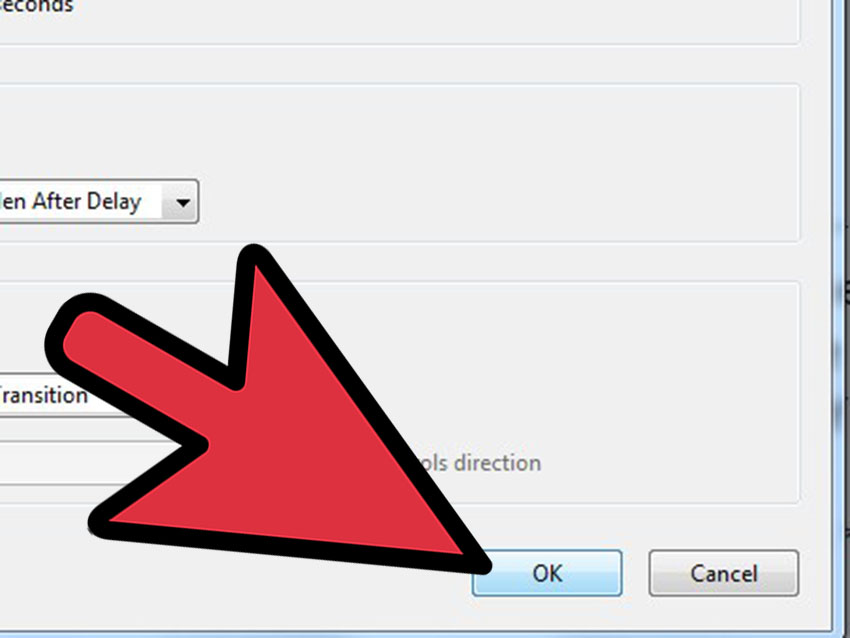
Step 14: Configure Automatic Page Advancement
For unattended displays, trade-show screens, menus, photo collections, or digital signage, Acrobat can automatically advance the PDF after a chosen number of seconds. You may also enable looping so the document returns to page one after reaching the end.
Use automatic advancement carefully. Five seconds may be enough for a photograph but wildly optimistic for a page containing four charts and a paragraph written in eight-point type.
Step 15: Exit Full Screen View
Press Esc to leave full screen. If Escape does not work because the related preference is disabled, press Ctrl + L again in Acrobat. Some versions may require pressing Escape twice when a form field or interactive element currently has focus.
After returning to the regular interface, verify that the document is still on the expected page before closing it. Save the file only if you intentionally made annotations or other changes.
How to View a PDF Full Screen in a Web Browser
Microsoft Edge
Open the PDF directly in Microsoft Edge and press F11 on Windows to toggle browser full screen. On macOS, use Control + Command + F. Edge also supports Ctrl + \ on Windows or Command + \ on Mac to switch a PDF between Fit Page and Fit Width.
Browser full screen hides the address bar and tabs, although the PDF viewer’s floating controls may appear when you move the pointer.
Mozilla Firefox
Firefox includes a dedicated PDF Presentation Mode. With the PDF open, press Ctrl + Alt + P on Windows or Command + Option + P on a Mac. Use the arrow keys to navigate between pages.
Google Chrome
Open the PDF in Chrome, select Fit to Page from the viewer controls, and press F11 on Windows. On a Mac, use the standard macOS browser full-screen command. Some Chrome versions also provide a presentation option inside the PDF viewer’s menu.
If F11 changes your laptop’s brightness or volume instead, hold the Fn key while pressing F11. Laptop manufacturers occasionally turn the function-key row into a tiny control panel for everything except the function you actually requested.
How to Display a PDF Full Screen on a Mac
Apple Preview offers a slideshow mode designed for presenting PDF pages. Open the document in Preview and choose View > Slideshow. The PDF pages fill the display, and controls appear near the bottom of the screen for navigation and exiting the slideshow.
Before starting, choose View > Single Page or another suitable page layout. Preview also supports thumbnails, continuous scrolling, two-page viewing, zoom controls, and direct page navigation.
How to Use Foxit PDF Reader in Full Screen
In Foxit PDF Reader, open the View menu and choose Full Screen, or select the full-screen button in the status bar. Press Esc to exit. Foxit can display one page at a time, show or hide navigation elements, enable mouse-based page turning, loop the document, and advance pages automatically.
Viewing a PDF Full Screen on a Phone or Tablet
On Android, iPhone, or iPad, open the PDF in your Files app, browser, cloud-storage app, or preferred PDF reader. Tap the center of the page to hide visible controls, then rotate the device to landscape orientation for a wider view.
Mobile interfaces vary considerably. Some applications offer a full-screen or presentation icon, while others simply hide their toolbars after a tap. For long reading sessions, lock the screen orientation after choosing portrait or landscape so the page does not rotate whenever you adjust your grip.
Common PDF Full Screen Problems and Solutions
The PDF Opens in a Browser Instead of Acrobat
Download the file, right-click it, and choose Open with > Adobe Acrobat Reader. To make this permanent, change the default application associated with .pdf files in Windows or macOS settings.
The Page Is Cropped
Switch from Actual Size or Fit Width to Fit Page. If the PDF contains mixed portrait and landscape pages, test both orientations before presenting.
Escape Does Not Exit Full Screen
Press Escape twice, move the focus away from any form field, or use the application’s full-screen shortcut again. In Acrobat, verify that Escape Key Exits is enabled under Full Screen preferences.
The PDF Appears on the Wrong Monitor
Move the application window to the intended display before entering full screen. Acrobat also includes a Full Screen preference for choosing which monitor should be used.
The PDF Is Blank or Displays Incorrectly
Download the document and open it in a dedicated PDF reader. Browser viewers occasionally struggle with unusual fonts, very large graphics, protected documents, complex forms, or specialized PDF features.
The Toolbars Keep Reappearing
Move the pointer away from the top or bottom edge of the screen. Browser and PDF controls often reappear when the cursor approaches their hidden location.
Practical Experiences When Presenting PDFs Full Screen
The first lesson from presenting PDF documents is that preparation matters more than the full-screen button itself. Entering presentation mode takes one second. Discovering that page 12 contains an outdated price, a private comment, or a broken chart can occupy the rest of your afternoon.
Before an important meeting, I recommend opening the exact PDF that will be shown, disconnecting from unnecessary accounts, closing unrelated applications, and advancing through every page once. This simple rehearsal reveals formatting problems that may not appear in the original Word, PowerPoint, or design file. Fonts can shift, transparent images can develop strange backgrounds, and hyperlinks can lead to pages that no longer exist.
Another useful habit is creating two copies of the file: a master PDF and a presentation PDF. The master may contain detailed notes, links, appendices, comments, or high-resolution images. The presentation copy can be simplified, compressed, and stripped of anything the audience does not need. Smaller files generally open faster and behave more predictably on older computers.
For online meetings, share the application window rather than the entire desktop whenever the conferencing software allows it. Window sharing reduces the chance that private notifications, email previews, desktop icons, or surprise software-update messages will become supporting characters in your presentation.
Dual-monitor setups require their own rehearsal. Presenters often assume the PDF will appear on the projector, only to discover that full screen has taken over the laptop display while the audience enjoys a beautiful view of the desktop wallpaper. Move the PDF window to the presentation monitor first, enter full screen, and confirm the result from the audience’s angle.
Page navigation should also match the document. Arrow keys work well for slide-style pages, while a mouse wheel or trackpad is better for continuous reports. For interactive PDFs, use the pointer cautiously. In some configurations, clicking advances the page; in others, it selects links. A casual click intended to highlight a chart can therefore send the presentation forward or open a browser.
Automatic page advancement is excellent for lobby displays, event schedules, menus, portfolios, and unattended kiosks. It is less useful for live presentations because speaking times vary. A page that advances while you are answering a question creates the impression that the PDF has become impatient with you.
Finally, keep a fallback nearby. Store the PDF on the computer, a USB drive, and a trusted cloud service. If the presentation is critical, export important pages as images or keep the original slide deck available. Redundancy may feel excessive until the moment it saves the meeting.
The best full-screen PDF experience is not necessarily the one with the most transitions or clever controls. It is the one in which the audience sees readable pages, navigation feels effortless, and the technology quietly stays out of the way.
Conclusion
To view a PDF document in full screen, open it in a reliable viewer, select a suitable page layout, choose Fit Page, and activate the application’s full-screen or presentation command. Adobe Acrobat users can generally press Ctrl + L, Edge and Chrome users can use browser full screen, Firefox provides a dedicated Presentation Mode shortcut, and Mac users can select View > Slideshow in Preview.
Test the document before presenting, learn the forward and backward navigation keys, and keep Escape or the relevant full-screen shortcut ready. With those basics covered, your PDF can take center stage without toolbars, browser tabs, or frantic mouse movements competing for attention.
Note: Software interfaces and shortcut assignments may change after updates. When a menu name or shortcut differs on your device, check the application’s View menu, keyboard-shortcut settings, or current help documentation.