Bluetooth is one of those tiny computer features you barely think about until your headphones refuse to connect five minutes before a meeting. Suddenly, the calm Windows 11 desktop becomes a detective scene: Where did the Bluetooth button go? Why does the mouse work on your tablet but not your laptop? Did the earbuds join a witness protection program?
The good news: turning on Bluetooth in Windows 11 is usually simple. The even better news: when it is not simple, the fix is often simple too. This guide walks you through every practical way to turn on Bluetooth in Windows 11, pair your devices, solve missing Bluetooth toggles, repair driver problems, and avoid the classic “connected but not really connected” headache.
Whether you are connecting wireless earbuds, a Bluetooth mouse, a keyboard, a speaker, a game controller, or your phone, this guide gives you the clean steps first and the fast fixes right after. No tech panic. No mystery rituals. Just Windows 11 Bluetooth, explained like a normal human uses it.
Quick Answer: How to Turn on Bluetooth in Windows 11
The fastest way to turn on Bluetooth in Windows 11 is through Quick Settings:
- Click the Network, Sound, or Battery area on the right side of the taskbar.
- Find the Bluetooth button.
- Click it once to turn Bluetooth on.
You can also use the Settings app:
- Press Windows + I to open Settings.
- Select Bluetooth & devices.
- Turn the Bluetooth toggle on.
Once Bluetooth is enabled, Windows 11 can search for nearby devices, pair accessories, and reconnect to previously paired devices automatically when they are powered on and within range.
Method 1: Turn on Bluetooth from Quick Settings
Quick Settings is the fastest route, especially when you only need to connect headphones before a video call or turn Bluetooth off to save battery.
Steps
- Look at the lower-right corner of your taskbar.
- Click the area that contains your Wi-Fi, volume, or battery icons.
- In the Quick Settings panel, click Bluetooth.
- If the button lights up or changes state, Bluetooth is now on.
If the Bluetooth tile says Not connected, do not worry. That usually means Bluetooth is turned on, but your PC is not currently connected to a Bluetooth accessory. It is like having your front door open but no guests have arrived yet.
What if the Bluetooth Button Is Missing?
If you do not see Bluetooth in Quick Settings, click the edit option in the Quick Settings panel and add Bluetooth if it is available. If Bluetooth is not available to add, Windows may not detect a Bluetooth adapter, the adapter may be disabled, or the driver may be missing.
Method 2: Turn on Bluetooth from Windows 11 Settings
The Settings app gives you more control than Quick Settings. It is also the best place to pair, remove, rename, and manage devices.
Steps
- Click Start.
- Select Settings, or press Windows + I.
- Choose Bluetooth & devices.
- Switch Bluetooth to On.
After Bluetooth is on, you should see options to add a device and manage connected accessories. Windows 11 may also show your computer’s Bluetooth name, which is helpful when pairing from a phone or another device.
How to Pair a Bluetooth Device in Windows 11
Turning on Bluetooth is step one. Pairing is step two. Pairing creates the trusted connection between your Windows 11 PC and your accessory.
Steps to Pair Headphones, Mouse, Keyboard, Speaker, or Controller
- Turn on the Bluetooth device.
- Put the device into pairing mode. This often means holding the power or Bluetooth button until a light blinks.
- On your PC, go to Settings > Bluetooth & devices.
- Click Add device.
- Select Bluetooth.
- Choose your device from the list.
- Follow any on-screen instructions.
If the device does not appear, keep it close to your PC and confirm it is not already connected to another phone, tablet, or laptop. Many Bluetooth earbuds are loyal little gadgets; if they are already connected to your phone, they may ignore your PC like it owes them money.
Fast Fixes When Bluetooth Will Not Turn On
If Bluetooth refuses to turn on, disappears, or acts like it took a long lunch break, start with these fixes in order. The early steps are quick, safe, and surprisingly effective.
1. Restart Your PC
Yes, it is the classic tech support line. No, it is not just a joke. Restarting Windows 11 can reload wireless services, refresh drivers, and clear temporary glitches. If Bluetooth worked yesterday and vanished today, restart before digging deeper.
2. Check Airplane Mode
Airplane mode can affect wireless communication, including Bluetooth. Open Quick Settings and make sure Airplane mode is turned off. If you recently traveled, worked offline, or clicked buttons too quickly while half-awake, this is worth checking.
3. Turn Bluetooth Off and Back On
Go to Settings > Bluetooth & devices, switch Bluetooth off, wait a few seconds, and switch it back on. This can refresh the connection without restarting the entire computer.
4. Move the Device Closer
Bluetooth is short-range wireless technology. Walls, desks, USB 3.0 interference, low battery, and other wireless devices can make connections unstable. Move the accessory closer to your PC and try again.
5. Charge the Bluetooth Device
A low-battery mouse or headset may appear, disappear, connect, disconnect, or behave like it is auditioning for a magic show. Charge the device fully, then try pairing again.
What to Do When the Bluetooth Toggle Is Missing
A missing Bluetooth toggle is different from Bluetooth being turned off. If Windows 11 does not show the toggle at all, the system may not detect Bluetooth hardware.
Check Device Manager
- Right-click Start.
- Select Device Manager.
- Look for a category named Bluetooth.
- Expand it and check whether your Bluetooth adapter appears.
Your adapter may have a name such as Intel Wireless Bluetooth, Realtek Bluetooth, Qualcomm Bluetooth, MediaTek Bluetooth, or something similar. The exact name depends on your laptop, desktop motherboard, or USB Bluetooth adapter.
Enable the Bluetooth Adapter
If you see the Bluetooth adapter but it has a downward arrow icon, it may be disabled. Right-click the adapter and select Enable device. After that, return to Settings and check whether the Bluetooth toggle has returned.
Scan for Hardware Changes
In Device Manager, select your computer name at the top, then choose Action > Scan for hardware changes. Windows may rediscover the adapter and reload it.
Check Hidden Devices
In Device Manager, select View > Show hidden devices. If Bluetooth appears faded or hidden, the driver may be installed but the hardware is not currently active or properly detected.
Update, Roll Back, or Reinstall Bluetooth Drivers
Bluetooth problems in Windows 11 often come down to drivers. A driver is the software layer that lets Windows talk to your Bluetooth hardware. When it is outdated, damaged, or mismatched, Bluetooth can disappear, fail to pair, or show device errors.
Update the Bluetooth Driver
- Right-click Start.
- Select Device Manager.
- Expand Bluetooth.
- Right-click your Bluetooth adapter.
- Select Update driver.
- Choose Search automatically for drivers.
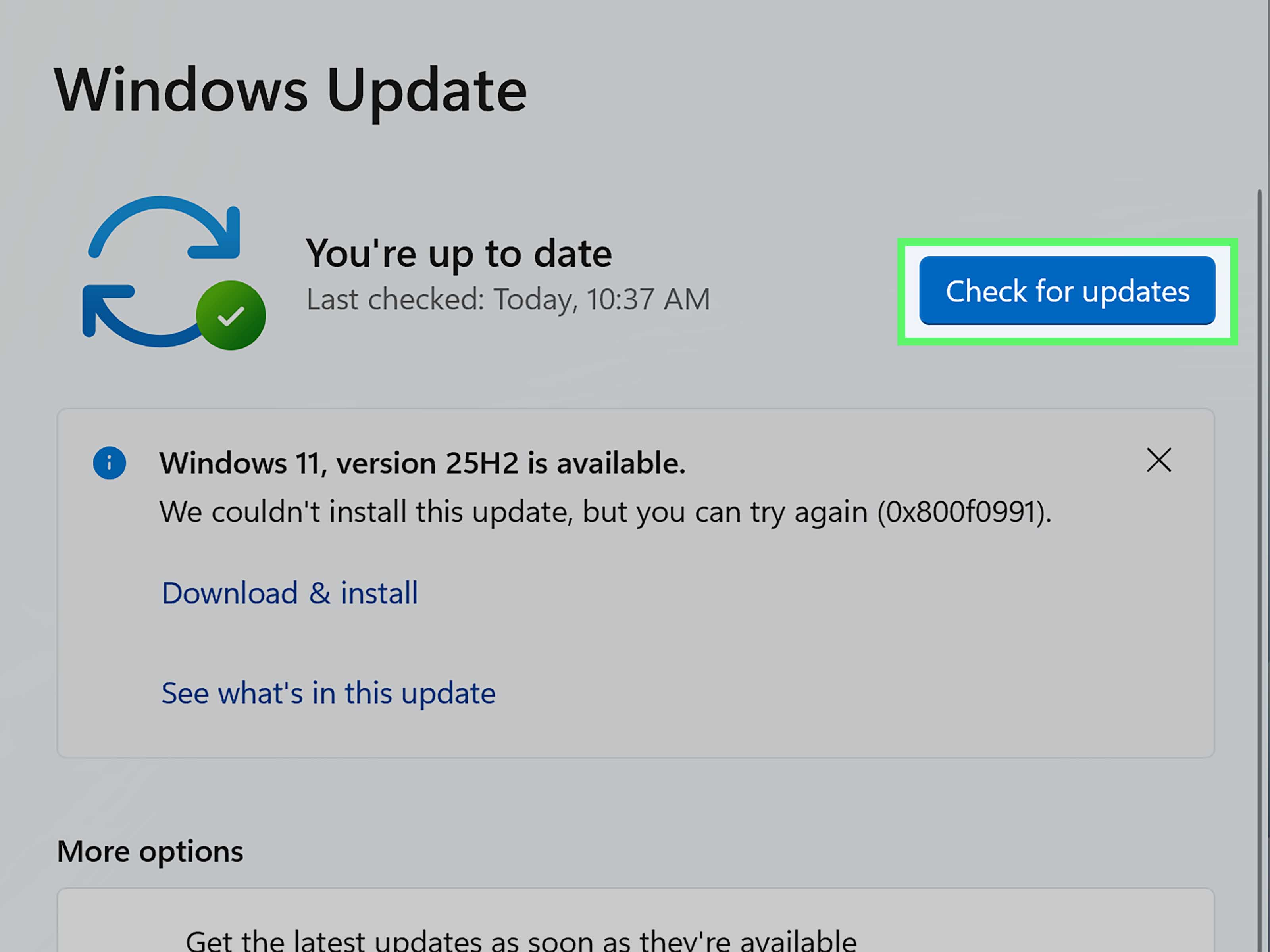
You can also check Settings > Windows Update > Advanced options > Optional updates. Some driver updates appear there instead of installing automatically.
Download the Driver from Your PC Maker
If automatic updates do not help, visit the support page for your laptop or motherboard brand. Dell, HP, Lenovo, ASUS, Acer, and other manufacturers often provide model-specific Bluetooth drivers. This matters because two laptops can both run Windows 11 but use different wireless chipsets.
For Intel wireless adapters, Intel’s support pages may provide Bluetooth driver packages for supported adapters. However, your PC maker’s driver is often the safest first choice, especially for laptops with custom power management.
Roll Back the Driver
If Bluetooth stopped working after a recent update, rolling back the driver may help.
- Open Device Manager.
- Expand Bluetooth.
- Right-click the Bluetooth adapter and choose Properties.
- Open the Driver tab.
- Select Roll Back Driver if the option is available.
If the button is grayed out, Windows does not have a previous driver stored for that device.
Uninstall and Reinstall the Bluetooth Device
If the driver appears corrupted, uninstalling the device can force Windows to reinstall it.
- Open Device Manager.
- Expand Bluetooth.
- Right-click your Bluetooth adapter.
- Select Uninstall device.
- Restart your PC.
After the restart, Windows may reinstall the adapter automatically. If it does not, install the correct driver from your PC manufacturer’s website.
Run the Windows 11 Bluetooth Troubleshooter
Windows 11 includes automated troubleshooting through the Get Help app. This tool can check common Bluetooth issues and attempt repairs without requiring you to manually inspect every setting.
How to Run It
- Open Settings.
- Go to System > Troubleshoot.
- Select Other troubleshooters, or search for Bluetooth troubleshooter from Start.
- Run the Bluetooth troubleshooting tool and follow the prompts.
This is especially useful when Bluetooth is present but pairing fails, devices disconnect, or Windows says Bluetooth is unavailable even though your computer should support it.
Restart the Bluetooth Support Service
If Bluetooth keeps disconnecting or behaves inconsistently, restarting the Bluetooth Support Service can help.
- Press Windows + R.
- Type services.msc and press Enter.
- Find Bluetooth Support Service.
- Right-click it and choose Restart.
You can also open its properties and make sure the startup type is not disabled. For most everyday users, restarting the service is enough.
Fix Bluetooth Pairing Problems
Sometimes Bluetooth is turned on, but the device still will not pair. That usually means the problem is with discovery, distance, battery, saved pairing data, or another device already holding the connection.
Remove and Re-Pair the Device
- Go to Settings > Bluetooth & devices.
- Find the device.
- Select the three-dot menu next to it.
- Choose Remove device.
- Restart the accessory.
- Click Add device and pair it again.
This works well for headphones, speakers, keyboards, mice, and controllers that used to connect but now fail repeatedly.
Make Sure the Device Is Discoverable
Bluetooth devices do not stay in pairing mode forever. If the blinking light stops, restart pairing mode and scan again from Windows 11. For earbuds, this may mean placing them back in the case, holding the case button, or resetting them according to the manufacturer’s instructions.
Disconnect from Other Devices
If your headphones are connected to your phone, they may not appear correctly on your PC. Turn off Bluetooth on the phone temporarily, then try pairing with Windows 11 again.
Bluetooth Connected but No Sound? Try This
If your headset connects but audio still plays from the laptop speakers, Windows may be using the wrong output device.
- Click the Sound icon on the taskbar.
- Select the audio output menu.
- Choose your Bluetooth headphones or speaker.
- Open Settings > System > Sound if you need more options.
Also check app-level audio settings. Video meeting apps, games, browsers, and recording tools can sometimes use a different microphone or speaker than Windows itself.
Can You Send Files with Bluetooth in Windows 11?
Yes. Windows 11 still supports Bluetooth file transfer, although Nearby Sharing is often faster for Windows-to-Windows transfers.
How to Send or Receive Files via Bluetooth
- Go to Settings > Bluetooth & devices > Devices.
- Look under related settings.
- Select Send or receive files via Bluetooth.
- Choose whether to send or receive files.
- Follow the prompts.
If the file transfer option is missing, your PC may not have a Bluetooth adapter installed, or the Bluetooth driver may not be working properly.
Does Every Windows 11 PC Have Bluetooth?
No. Many modern laptops include Bluetooth, but some desktops do not unless the motherboard has built-in wireless hardware. A custom-built desktop may have Wi-Fi but not Bluetooth, or Bluetooth may require the motherboard’s antenna to be attached. Yes, that tiny antenna in the box actually has a job.
If your PC does not have built-in Bluetooth, you can use a compatible USB Bluetooth adapter. After plugging it in, Windows 11 may install the driver automatically. If not, use the adapter manufacturer’s driver instructions.
Best Practices for a Stable Bluetooth Connection
- Keep Windows 11 updated.
- Install Bluetooth drivers from your PC or adapter manufacturer.
- Keep devices charged.
- Avoid placing the PC behind thick metal objects or inside enclosed cabinets.
- Use the rear USB ports carefully on desktops; some adapters work better with a short USB extension cable.
- Remove old pairings you no longer use.
- Restart Bluetooth devices after firmware updates.
Bluetooth is convenient, but it is still wireless. A little distance, interference, or old pairing data can turn a smooth connection into a tiny opera of frustration.
Quick Troubleshooting Checklist
Use this checklist when Bluetooth in Windows 11 is not working:
- Confirm Bluetooth is turned on in Quick Settings.
- Check Settings > Bluetooth & devices.
- Turn off Airplane mode.
- Restart the PC.
- Charge the Bluetooth accessory.
- Move the device closer.
- Remove and re-pair the device.
- Run the Bluetooth troubleshooter.
- Check Device Manager.
- Update, roll back, or reinstall the Bluetooth driver.
- Restart Bluetooth Support Service.
- Install the correct driver from the PC maker.
Conclusion
Learning how to turn on Bluetooth in Windows 11 is easy once you know where Microsoft placed the controls. For most people, the fastest method is Quick Settings. For deeper control, Settings > Bluetooth & devices is the better place to pair, remove, and manage accessories.
If Bluetooth is missing, do not assume your PC is broken. Start with the basics: restart Windows, check Airplane mode, run the troubleshooter, and inspect Device Manager. If the toggle still does not appear, the most likely causes are a disabled adapter, a missing driver, a failed driver update, or a computer that does not include Bluetooth hardware.
The best fix is usually the least dramatic one. Before you reinstall half the internet, try toggling Bluetooth off and on, removing and re-pairing the device, updating the driver, and moving the accessory closer. Your headphones may not be haunted. They may simply be connected to your phone in the next room.
Experience Notes: Real-World Lessons from Turning on Bluetooth in Windows 11
In real use, Bluetooth problems rarely arrive politely. They usually appear right when you need something: a wireless mouse before school or work, earbuds before a call, a speaker before a party, or a controller before you finally get one quiet hour to play. From experience, the biggest mistake people make is jumping straight to complicated fixes when the issue is often basic.
The first thing I always check is whether the Bluetooth device is already connected somewhere else. This is incredibly common with earbuds. You open your laptop, try to connect, and Windows 11 sees nothing. Meanwhile, your phone is happily holding the connection like a jealous dragon sitting on treasure. Turning off Bluetooth on the phone for a moment often makes the earbuds appear instantly on the PC.
The second lesson is that “paired” and “connected” are not the same thing. A device can be saved in Windows 11 but not actively connected. If a headset shows in the Bluetooth list but sound still comes from the laptop speakers, the fix may be in the sound output menu, not the Bluetooth menu. This is why checking Settings > System > Sound can save a lot of unnecessary driver drama.
Another useful habit is removing old pairings. Bluetooth devices store connection history, and Windows does too. When something has been paired with several laptops, phones, tablets, and maybe that one mystery device from three years ago, the connection can get messy. Removing the device from Windows 11 and pairing it again gives both sides a fresh handshake.
For laptops, driver updates are usually the turning point when Bluetooth disappears completely. If the Bluetooth toggle is gone, Device Manager is the truth-teller. If the adapter is missing there too, the system may not be detecting the hardware. A full shutdown and restart sometimes brings it back, but if it keeps vanishing, installing the latest driver from the laptop manufacturer is a smarter move than downloading random driver tools from the web.
For desktop PCs, the most overlooked issue is hardware support. Some people assume every Windows 11 desktop has Bluetooth because it has Wi-Fi, but that is not always true. On some motherboards, Bluetooth also depends on the external antenna being attached. Without it, the signal may be weak or unreliable. A simple USB Bluetooth adapter can solve the problem, but buying one is only useful after confirming the PC truly lacks working Bluetooth hardware.
The final experience-based tip is to fix one thing at a time. Do not update drivers, reset earbuds, change services, remove devices, and restart everything all at once. That makes it impossible to know what actually worked. Start with Quick Settings, then Settings, then pairing mode, then Device Manager, then drivers. Bluetooth troubleshooting is much less annoying when you treat it like a checklist instead of a guessing contest.