If your Calibre library is the cozy little bookshelf on your computer and your Android phone is the backpack you actually carry around, syncing the two is how you stop living in two separate reading universes. Calibre is fantastic for organizing ebooks, fixing metadata, converting formats, downloading covers, and making a giant digital pile of books look like a civilized library. Android, meanwhile, is where many people actually read: on the couch, in bed, on the bus, or while pretending they are “just checking one chapter” before accidentally finishing half a novel.
The good news: syncing Calibre with Android is very doable. The slightly less magical news: Calibre itself does not run as a full Android app. Instead, you connect your Android device to the Calibre library on your computer through USB, Wi-Fi, browser access, OPDS catalogs, or carefully managed folder sync tools. Once you understand the options, the process becomes much less mysteriousand much less likely to end with you emailing EPUB files to yourself like it is 2009.
What “Syncing Calibre With Android” Really Means
Before choosing a method, it helps to define what you actually want to sync. Some readers simply want to move ebooks from Calibre to Android. Others want their phone to browse the entire library wirelessly. A few want automatic file syncing across devices, including folders, covers, and metadata. These are related goals, but they are not the same.
Calibre is a desktop ebook manager. It keeps a structured library folder, a database file, book files, cover images, and metadata. Android reading apps, on the other hand, usually care about the book file itself: EPUB, PDF, AZW3, MOBI, CBZ, or another supported format. Many reader apps can detect books in local storage, but they do not become “Calibre for Android.” They read the files you give them.
So the best sync method depends on your reading style. If you only add books occasionally, USB transfer is simple and dependable. If you want to browse your library from your phone while your computer is on, the Calibre Content Server is excellent. If you want books to appear automatically in a folder on Android, Syncthing or another folder-sync tool can work, as long as you do not sync the live Calibre database carelessly.
Method 1: Sync Calibre to Android With a USB Cable
The classic USB method is still the most reliable way to transfer books from Calibre to Android. It is not fancy, but neither is a hammer, and hammers have been getting the job done for a very long time.
Step-by-step USB setup
- Install a reading app on your Android device. Popular choices include ReadEra, Moon+ Reader, FBReader, Librera Reader, Lithium, or KOReader.
- Open Calibre on your Windows, Mac, or Linux computer.
- Connect your Android phone or tablet with a USB cable.
- Unlock the Android screen and choose File Transfer or MTP mode from the USB notification.
- Wait for Calibre to detect the device. You should see a device button appear in the toolbar.
- Select the books you want to transfer.
- Click Send to device.
- Safely eject the device, then open your Android reader app and scan or import the transferred books.
For most Android phones, EPUB is the best everyday format. It is widely supported, lightweight, and comfortable for reflowable reading. PDFs are better for fixed-layout documents, manuals, textbooks, and files where the page design matters. AZW3 and MOBI may work in some apps, but they are less universal on Android than EPUB.
If your book is in an awkward format, Calibre can convert it before transfer. Select the book, click Convert books, choose EPUB as the output format, and let Calibre do its little librarian wizardry. Just remember that conversion works best with DRM-free books and clean source files. A messy PDF converted to EPUB may come out looking like it lost a bar fight with a photocopier.
Why USB is often the best beginner method
USB transfer is ideal if you want control. You choose exactly which books go to Android. You avoid network issues. You do not expose your library to the internet. You do not have to troubleshoot routers, ports, firewalls, passwords, or mysterious “connection refused” messages that sound like your computer is being emotionally unavailable.
The only real downside is that USB is manual. If you frequently add new books and want them to appear on Android automatically, USB may feel repetitive. But for a clean, safe, no-drama workflow, it remains hard to beat.
Method 2: Use the Calibre Content Server Over Wi-Fi
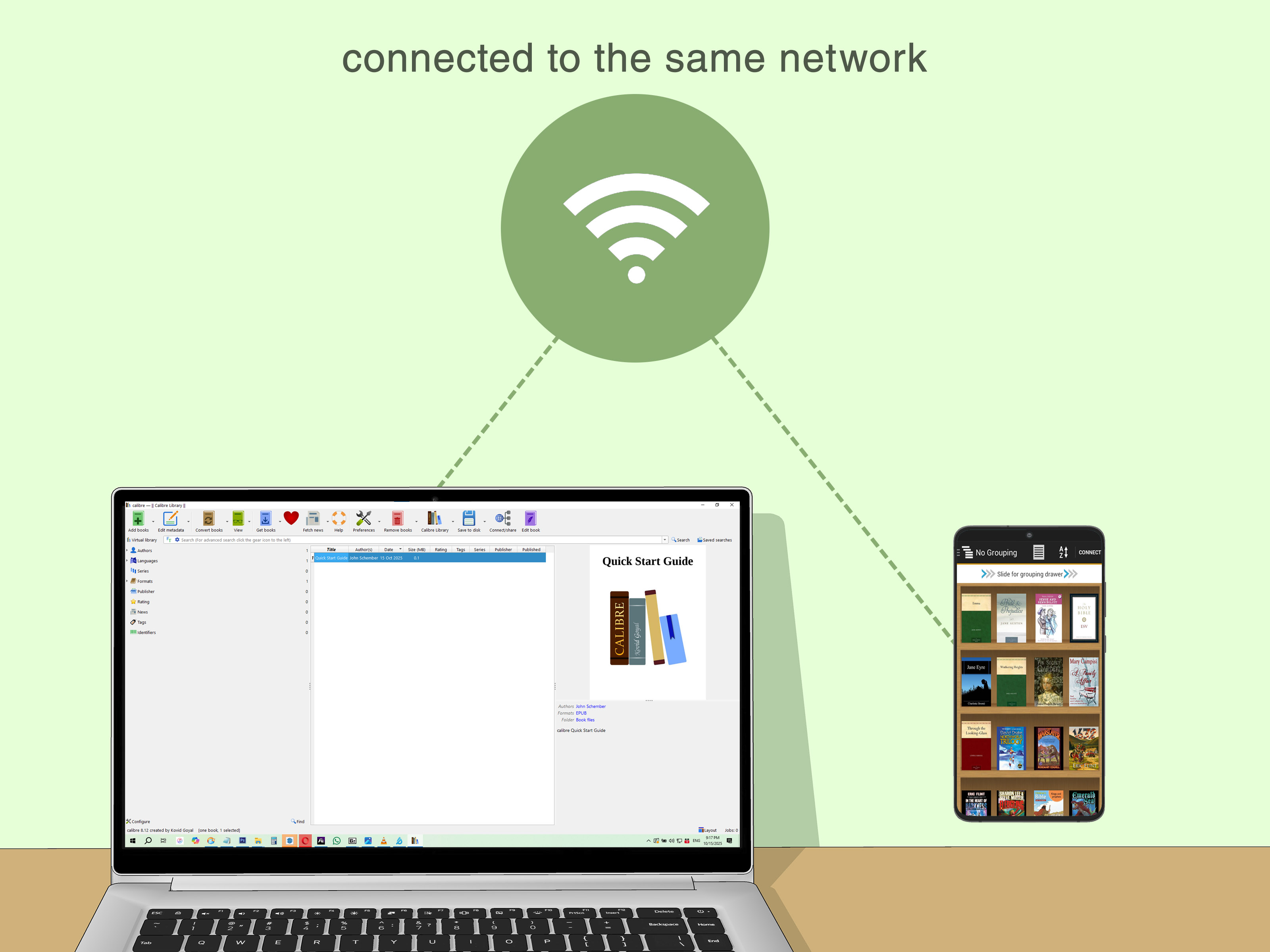
The Calibre Content Server is the most elegant wireless option built into Calibre. It turns your desktop Calibre library into a local web library that your Android phone can browse through Chrome, Firefox, or another browser. You can view metadata, download books, and even read inside the browser.
How to start the Content Server
- Open Calibre on your computer.
- Click Connect/share.
- Select Start Content server.
- Allow Calibre through your firewall if your computer asks.
- Find your computer’s local IP address, such as 192.168.1.25.
- On your Android device, connect to the same Wi-Fi network.
- Open a browser and visit http://your-computer-ip:8080.
For example, if your computer’s IP address is 192.168.1.25, you would open http://192.168.1.25:8080 on Android. If everything is working, your Calibre library appears in the browser like a private ebook storefront where every title is already yours and the cashier is your own computer.
When the Content Server works best
This method is perfect when you want to browse your library casually from Android without plugging in a cable. It is also great for households with multiple devices. A tablet, phone, and secondary e-reader can all access the same Calibre library while the host computer is running.
The Content Server also supports an OPDS-style catalog, which many reading apps can use as an online library source. In practical terms, that means compatible apps can browse your Calibre library directly instead of forcing you to download books through the browser first.
Method 3: Connect an Android Reading App to Calibre OPDS
OPDS sounds like something a printer would scream before refusing to work, but it is actually useful. It stands for Open Publication Distribution System, a catalog format that lets reader apps browse ebook libraries. Calibre’s Content Server can expose your library in a way that OPDS-capable Android apps understand.
Apps such as Moon+ Reader, Librera Reader, FBReader, KOReader, and some other ebook readers can work with online catalogs or personal library servers. The exact menu names vary, but the general pattern is similar.
General OPDS setup
- Start the Calibre Content Server on your computer.
- Make sure Android and the computer are on the same Wi-Fi network.
- Find the Calibre server address, usually something like http://192.168.1.25:8080.
- In your Android reader app, open the online catalog, network library, or OPDS section.
- Add a new catalog using the Calibre server address.
- If needed, try adding /opds to the end of the address.
- Browse the catalog and download books into the app.
For example, your OPDS URL might look like http://192.168.1.25:8080/opds. If one version does not work, test the basic server address in your Android browser first. If the browser cannot reach it, the reader app will not magically succeed. Apps are talented, not supernatural.
Method 4: Use Calibre Sync or a Similar Android Library Browser
Some Android apps are designed specifically to browse Calibre-style libraries or connect to cloud copies of a library. Calibre Sync is one example. It can access supported cloud storage and download books to Android while treating the desktop library as read-only. This is useful for people who want a mobile catalog experience without running the Calibre desktop server all the time.
The key phrase here is read-only. A safe mobile app should not randomly rewrite your Calibre database. Your Calibre library is more than a folder full of books; it includes a database that tracks authors, titles, tags, series, formats, covers, custom columns, and other metadata. If multiple tools write to that database at the same time, your tidy library can become a digital junk drawer with a headache.
This method is best for readers who want to browse a large library from Android, download selected books, and keep the master library managed on the computer. It is not the best choice if your goal is two-way editing of metadata from Android. For that, stick with Calibre on desktop.
Method 5: Sync a Book Export Folder With Syncthing
Folder syncing is powerful, but it requires discipline. The safest approach is not to sync your entire live Calibre library folder. Instead, create a separate export folder for Android books and sync that folder to your phone.
A safer export-folder workflow
- Create a folder on your computer called something like Android Books.
- In Calibre, select the books you want on Android.
- Use Save to disk to export EPUB files into that folder.
- Install Syncthing or a similar sync tool on your computer and Android device.
- Sync only the export folder to a readable folder on Android, such as Books or Documents/Books.
- Open your Android reader app and scan that folder.
This gives you an automatic-ish workflow without risking the original Calibre database. When you want more books on Android, export them to the synced folder. Your Android device receives the files, and your reader app imports them. Clean, simple, and far less likely to make future-you mutter at past-you.
Why you should not casually sync the live Calibre library
Calibre’s library folder is structured for Calibre, not for casual cloud juggling. It includes a database file and carefully organized author/title folders. Putting the live library directly inside certain cloud-sync folders or network locations can lead to conflicts, partial syncs, locked files, duplicate database copies, or corruption. Google Drive in particular is a poor choice for hosting the active Calibre library.
A better strategy is to keep the master Calibre library on a local drive, back it up regularly, and sync exported copies of books to Android. Think of your Calibre library as the kitchen and your Android folder as the lunchbox. You can pack the lunchbox every day, but you probably should not install your entire kitchen in a backpack.
Best Android Reading Apps for Calibre Users
The “best” reader app depends on how you read. If you want a simple offline reader, ReadEra or Lithium may be enough. If you want deep customization, Moon+ Reader is a favorite among power users. If you like open formats, file browsing, and advanced e-reader-style features, KOReader is worth exploring. If you want broad format support, Librera Reader is a flexible option.
Good app choices by reading style
- For simple EPUB reading: Lithium or ReadEra.
- For heavy customization: Moon+ Reader.
- For OPDS and broad format support: Librera Reader or Moon+ Reader.
- For advanced ebook-device features: KOReader.
- For a familiar multi-platform reader: FBReader.
When choosing an app, check format support, OPDS support, folder scanning, backup options, highlighting, notes, fonts, themes, and whether reading progress sync matters to you. Some apps are excellent readers but do not sync progress across devices unless you use their paid features or cloud account system.
Recommended Setup for Most People
For most Calibre users, the best setup is surprisingly simple: keep Calibre as the master library on your computer, convert books to EPUB when needed, use USB for reliable transfers, and enable the Content Server when you want wireless browsing. That combination covers 90 percent of real-world use without turning your reading hobby into a part-time network administration internship.
Here is a practical setup:
- Keep your main Calibre library on your computer’s local drive.
- Back up the library to an external drive or backup service when Calibre is closed.
- Use EPUB as the default Android format.
- Install one strong Android reading app and learn it well.
- Use USB for bulk transfers.
- Use the Content Server for browsing and downloading over Wi-Fi.
- Use an export folder if you want automatic folder syncing.
This setup avoids the biggest mistakes: scattering duplicate books everywhere, syncing the live database recklessly, and using five reading apps until you no longer know where chapter 17 went.
Troubleshooting: Why Calibre Is Not Seeing Your Android
If Calibre does not detect your Android phone, start with the obvious things. Unlock the phone. Check the USB cable. Some cables only charge and do not transfer data, because apparently cables also enjoy having secret personalities. Try another cable, another USB port, and another transfer mode.
On Android, pull down the notification shade after plugging in the device. Tap the USB notification and select File Transfer or MTP. If the device is in charging-only mode, Calibre may never see it. Restarting Calibre after changing USB mode can also help.
On macOS and Linux, avoid having another file manager or Android transfer utility open the device at the same time. Only one program may be able to talk to the Android device properly, and Calibre does not appreciate a crowd around the USB port.
Troubleshooting: Why the Content Server Is Not Working
If your Android browser cannot open the Calibre Content Server, check the network first. Your phone and computer must be on the same local network unless you have intentionally configured remote access. Guest Wi-Fi networks, VPNs, hotel Wi-Fi, and school networks may block device-to-device connections.
Next, confirm the server is running in Calibre. Then check your computer’s firewall. If Windows, macOS, or a security suite blocks Calibre, Android will not connect. Test the server from the computer itself using http://127.0.0.1:8080. If that works on the computer but not Android, the issue is probably network access, firewall rules, or the wrong local IP address.
If your router changes IP addresses often, reserve a local IP for your computer in the router settings. That way, your Android bookmark does not break every time the router wakes up and chooses chaos.
Privacy, DRM, and Copyright Notes
This guide assumes you are syncing books you own, public-domain books, personal documents, or DRM-free ebooks. Calibre is excellent at managing ebook files, but it is not a magic permission slip. Respect copyright, library lending rules, publisher terms, and author rights.
If a purchased ebook is protected by DRM, it may only open in the official app or ecosystem connected to that purchase. In that case, syncing the file through Calibre may not make it readable on a third-party Android app. For smooth Calibre-to-Android reading, DRM-free EPUB files are usually the least painful format.
My Field-Tested Experience Syncing Calibre With Android
The cleanest Calibre-to-Android setup I have seen is not the most complicated one. It is the one that separates “library management” from “reading.” Calibre stays on the computer as the control center. Android stays light, fast, and focused on reading. This sounds boring until you experience the alternative: duplicate books, missing covers, weird filenames, and three different copies of the same novel with slightly different punctuation in the title.
In practice, USB is still the method I trust when moving a serious batch of books. If I am preparing for travel, I select a reading list in Calibre, convert anything odd to EPUB, and send the books to the Android device in one session. Then I open the reader app, scan the folder, and confirm the covers and titles look right. It takes a few minutes, but it feels finished. No waiting for a cloud queue, no wondering whether the hotel Wi-Fi will behave, and no dramatic “sync conflict” message appearing right when I want to read.
For everyday browsing, the Content Server feels more modern. It is great when the computer is already on and I am sitting at home with my phone or tablet. I can search the library, download one book, and start reading without touching a cable. The trick is to bookmark the server address on Android and keep the setup simple. If you change networks often or use a VPN, expect occasional hiccups. Local Wi-Fi is friendly; complicated network setups are where convenience goes to wear a tiny hard hat.
The export-folder method is my favorite compromise for people who want automation but do not want to gamble with the Calibre database. Instead of syncing the whole library, create a curated “phone shelf.” Export finished, cleaned EPUBs into that folder, then let Syncthing or another tool copy that folder to Android. This is especially good for readers with huge libraries. Your phone does not need 8,000 books. It needs the 20 you might actually read before your next digital decluttering crisis.
Another lesson: pick one Android reading app and stick with it long enough to understand its folder behavior. Some apps automatically detect books. Others need a manual scan. Some copy imported files into their own library area. Others read from the original folder. If you keep changing apps, your books may appear duplicated or scattered. That is not Calibre’s fault; that is app-hopping gremlin behavior.
Finally, keep your master Calibre library boring and safe. Store it locally. Back it up. Do not let multiple programs edit it at once. Do not treat the live library folder like a random pile of files. Calibre works beautifully when it is allowed to be the librarian. Android works beautifully when it receives clean books in a reader-friendly format. Put those two jobs together correctly, and syncing becomes less like troubleshooting and more like having a private bookstore in your pocket.
Conclusion
Syncing your Calibre library with Android is not about finding one perfect button labeled “make everything work forever.” It is about choosing the right workflow for the way you read. USB transfer is the safest and simplest. The Calibre Content Server is the best built-in wireless option. OPDS-capable apps make browsing smoother. Calibre-focused Android apps can help with cloud-based access. Export-folder syncing gives you automation without putting your main library at unnecessary risk.
For most readers, the winning formula is simple: manage everything in Calibre on your computer, use EPUB for Android whenever possible, transfer by USB when reliability matters, and use the Content Server when convenience matters. Your books stay organized, your phone stays useful, and your reading life becomes pleasantly boring in the best possible way.
Note: This article is intended for personal ebook organization and assumes you are working with books, documents, and files you have the right to store and read.