If your Spotify playlist is a masterpiece and not just 47 versions of the same sad song, it deserves an audience. Maybe you built the perfect gym mix, a road-trip playlist that never fumbles the mood, or a dinner-party setlist that makes you look suspiciously cool. Whatever the case, making a playlist public on Spotify is the move that turns your private music cave into a shared listening experience.
The good news? It only takes a few taps or clicks. The slightly confusing news? Spotify treats public, private, and visible on your profile like related cousins, not identical twins. That is why people often make a playlist public and then wonder why nobody can find it, or remove it from their profile and assume it became private. Spotify loves music, but sometimes its menu labels act like they were written by a cryptic indie band.
In this guide, you will learn exactly how to make playlists public on Spotify using your phone or computer, how to make them private again, how to show them on your profile, and what to do if the setting seems to be missing. Along the way, we will also cover playlist privacy, sharing tips, and a few practical examples so your carefully curated bangers do not end up hidden in a digital attic.
Public vs. Private vs. Profile Visibility: Know the Difference First
Before you start poking around in Spotify’s three-dot menu, it helps to understand what each setting actually does. This is where most of the confusion lives.
Public playlist
A public Spotify playlist can be found, followed, and shared more easily. It is the version you want if you are trying to let other people listen, save it to their library, or stumble across your impeccable taste.
Private playlist
A private playlist is locked down. It is designed for listening on your own or for tighter control over access. This is the right choice for personal mixes, draft playlists, or anything titled “Songs I Pretend I Don’t Like but Absolutely Do.”
Visible on your profile
This setting affects whether a playlist shows up on your Spotify profile page. A playlist can be public without becoming the star of your profile lineup, depending on how your visibility settings are configured. In other words, public does not always mean front-and-center.
Collaborative playlist
Collaboration is a separate feature. It controls whether other people can add, remove, and reorder songs. A playlist being collaborative does not automatically mean it should be public, and a public playlist does not automatically mean everyone gets editing privileges. That would be chaos, and not the fun kind.
How to Make a Spotify Playlist Public on Your Phone
If you use Spotify on an iPhone or Android device, making a playlist public is quick. The wording may vary slightly depending on your app version, but the overall path is the same.
- Open the Spotify app on your phone.
- Tap Your Library.
- Open the playlist you want to change.
- Tap the three-dot menu near the top of the playlist page.
- Look for Make public.
- Tap it once, and your playlist should switch from private to public.
That is it. No dramatic loading screen. No tiny wizard appears to judge your music choices. Spotify just updates the setting and moves on with its day.
If you do not see “Make public” on mobile
If the option is missing, one of a few things is usually happening:
- The playlist may already be public.
- You might be looking at a playlist you do not own.
- Your app may need an update.
- Spotify may be showing a slightly different menu label based on your device or app version.
A good sanity check is to reopen the playlist menu and see whether the option now says Make private. If it does, your playlist is already public.
How to Make a Spotify Playlist Public on a Computer
Using Spotify on a desktop app is just as easy, and the web player often follows the same general flow. So whether you are on a Windows PC, a Mac, or working from the browser because you do not feel like installing another app today, the steps are usually very similar.
- Open Spotify on your computer.
- Select the playlist from the left sidebar.
- Click the three-dot menu on the playlist page.
- Choose Make public.
Once you do that, the playlist should be public. If you later regret letting the world see your “Extremely Specific Songs for Folding Laundry Like a Champion” playlist, you can return to the same menu and choose Make private.
Desktop tip: app and web player can behave slightly differently
Spotify changes interface details often enough to keep tech writers employed. In most current versions, the desktop app and web player behave similarly for playlist privacy. But if one version does not show the option clearly, try the desktop app, refresh the browser, or log out and back in. Sometimes the issue is not your playlist. It is just Spotify being Spotify.
How to Show a Public Playlist on Your Spotify Profile
Making a playlist public is step one. Making sure people can actually see it on your profile is step two.
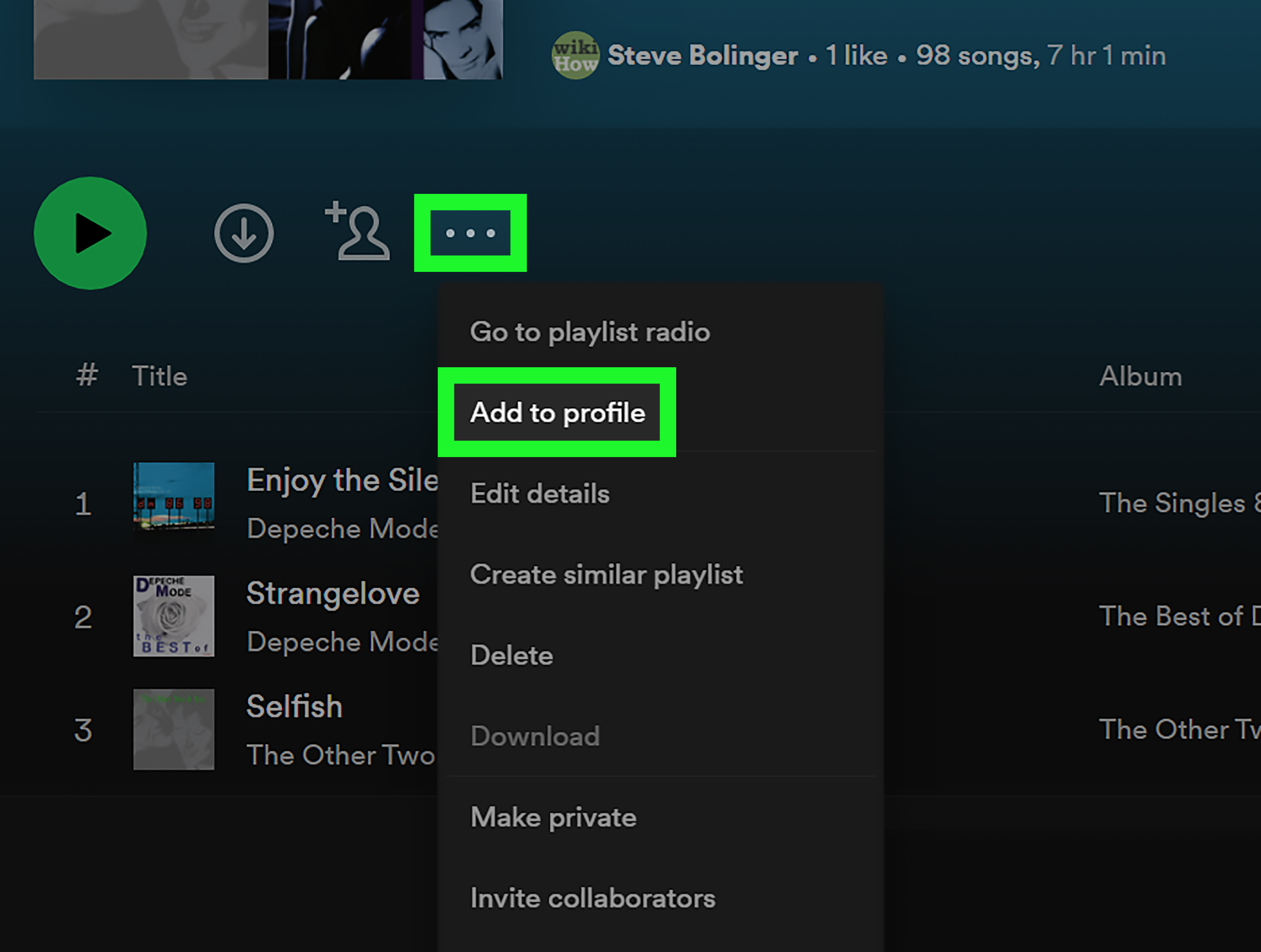
If you want your playlist to appear on your profile page, check the playlist’s options for a setting like Add to profile or review your profile visibility controls. On mobile, Spotify also offers privacy and social controls that affect whether playlists appear on your profile by default.
This matters if you are building a creator profile, sharing themed playlists regularly, or simply want people to visit your account and immediately understand that yes, you do have excellent taste in late-night synth-pop and acoustic heartbreak songs.
How to Make a Spotify Playlist Private Again
Sometimes you want to make a playlist public. Sometimes you realize that maybe the world did not need access to your “Songs That Got Me Through Spreadsheet Season” playlist after all. No problem.
On phone
- Open the playlist.
- Tap the three-dot menu.
- Select Make private.
On computer
- Open the playlist in Spotify.
- Click the three-dot menu.
- Select Make private.
Once you do this, the playlist is no longer publicly available in the normal way. If privacy is your goal, this is the setting you want.
How to Share a Public Spotify Playlist
Once your playlist is public, sharing it is easy. Open the playlist, tap or click the three-dot menu, and choose Share. From there, you can copy the link, send it through a messaging app, or post it to social media.
For example, if you made a public playlist called Morning Coffee Without Drama, you could copy the link and send it to friends, drop it into a group chat, or add it to your bio page. Public playlists are great for creators, small brands, fitness coaches, event hosts, and anyone who likes turning music taste into a personality trait.
If you are sharing a private playlist selectively from the mobile app, keep in mind that private-share links are more limited than standard public sharing. So if your goal is broad discoverability, public is the cleaner option.
Common Reasons a Public Playlist Still Feels Invisible
If you made the playlist public but it still seems to be hiding under a digital blanket, check these issues first:
1. You made it public, but not visible on your profile
This is the big one. The playlist may be public but not prominently displayed on your profile. Review the playlist menu and your profile settings.
2. You are signed into the wrong account
Many people have an old Spotify login floating around somewhere like a ghost from streaming services past. Double-check that you are editing the correct account.
3. The app is outdated
If menu options look strange or missing, update Spotify first. Old versions can cause menu weirdness, and nobody wants to lose a fight to an outdated app.
4. The playlist is not yours
You can only change the privacy settings of playlists you own. If you are following someone else’s playlist, you can save it, share it, or follow it, but you cannot decide its public status.
5. You are mixing up public access with collaborative access
These are different settings. A collaborative playlist lets other people edit. A public playlist lets people find, follow, or share it more openly. One does not automatically turn on the other.
Best Practices Before You Make a Playlist Public
If you are planning to share a playlist widely, do not just make it public and sprint away. Give it a little polish first.
- Choose a clear playlist title. “Road Trip Songs 2026” is easier to understand than “stuff lol.”
- Add a description. A short description helps people know the vibe fast.
- Set a good cover image. Visuals matter more than many people admit.
- Check the song order. The first five tracks do a lot of heavy lifting.
- Remove accidental duplicates. Unless repeating that one song three times is the bit.
- Decide whether you want collaboration. Public is for visibility. Collaboration is for shared editing.
Think of a public Spotify playlist like a mini digital product. Even if it is just for fun, people respond better when it feels intentional.
Quick FAQ
Can I make Spotify playlists public on both iPhone and Android?
Yes. The basic process is the same on both mobile platforms: open the playlist, tap the three-dot menu, and choose Make public.
Can I make a playlist public from the Spotify web player?
Usually, yes. The web player generally mirrors the desktop workflow. If the option is missing, try the desktop app or refresh your session.
Do public playlists automatically appear on my Spotify profile?
Not always in the way users expect. Public status and profile display are closely related, but profile visibility can involve separate controls.
Can people find my private playlist if I change my mind later?
Not in the normal public sense. If you want discoverability, switch it to public. If you want selective access, use Spotify’s sharing tools more carefully.
Can I make someone else’s playlist public?
No. You can only manage privacy settings for playlists you own.
Final Thoughts
Making playlists public on Spotify is simple once you understand the menu logic. On a phone, open the playlist, tap the three dots, and choose Make public. On a computer, open the playlist, click the three dots, and do the same. The bigger lesson is that public visibility, profile display, and collaboration are not the exact same thing, so it pays to double-check what setting you actually changed.
Once your playlist is public, Spotify becomes more fun. Your mixes become shareable. Your profile looks more alive. Your friends can finally stop asking, “Wait, can you send me that playlist?” because yes, yes you can. And if the playlist is good enough, it may even collect followers while you sleep, which is honestly one of the nicest forms of low-effort validation the internet has to offer.
So go ahead. Open the menu. Make that playlist public. Let the people hear what you have been up to.
Experiences Related to Making Spotify Playlists Public
For a lot of Spotify users, making a playlist public feels like a tiny act of bravery. It sounds silly at first, because it is “just a playlist,” but music taste is personal in a way that few other digital choices are. Sharing a public playlist is basically saying, “Hello, this is how my brain sounds on a Tuesday.” That can be a little vulnerable, especially when the playlist jumps from classic rock to indie folk to one extremely dramatic movie soundtrack that has no business being there and yet absolutely belongs there.
One common experience is surprise. People make a playlist public for one practical reason, like sending a workout mix to a friend, and then discover that others start following it too. Suddenly, a playlist that was originally built for one person has ten followers, then thirty, then more. That tends to change how people build playlists. They start thinking more about titles, track order, cover art, and whether the opening song is strong enough. In other words, the playlist stops being a random dump of songs and becomes a curated experience.
Another familiar experience is confusion the first time around. Many users assume that making a playlist public automatically means it will be obvious on their profile and easy for everyone to find. Then nothing seems to happen. The playlist is technically public, but it is not getting noticed the way they expected. That moment is usually when people learn that Spotify has separate layers of visibility, and once they understand that, everything suddenly makes more sense. Annoying? A little. Useful to know? Absolutely.
There is also the social side. Public playlists often become conversation starters. A student shares a study playlist with classmates. A couple makes a public road-trip playlist before vacation. A friend group turns a party mix into a collaborative and public playlist so everyone can revisit the chaos later. A small business owner shares a shop soundtrack that helps define the brand vibe. These are not huge tech moments, but they are meaningful ones. A public playlist can act like a mood board, a memory capsule, or a calling card.
Then there is the oddly satisfying experience of being followed by strangers. It is not celebrity-level attention, but seeing that a playlist gained followers overnight is still fun. It tells you that something you made resonated with real people. Maybe they liked the theme. Maybe they appreciated the sequencing. Maybe they also needed a playlist called Sunday Reset but Make It Funky. Whatever the reason, it feels good.
And of course, not every public-playlist experience is glamorous. Sometimes you make a playlist public and immediately notice a typo in the title, an embarrassing duplicate song, or a cover image that now looks like it was chosen during a nap. That is part of the experience too. Public playlists teach people to refine, edit, and present their music more intentionally. Over time, most users get better at it.
In the end, making Spotify playlists public is not only about sharing songs. It is about sharing mood, identity, humor, and taste. Sometimes it is polished and strategic. Sometimes it is chaotic and heartfelt. Often, it is both. And that is exactly why public playlists are so much fun.