Emoji may be tiny, but they carry a lot of emotional luggage. One smiling face can save a text from sounding cold, one thumbs-up can end a group chat debate, and one carefully chosen kaomoji can say, “I am fun, mysterious, and possibly powered by snacks.” The good news is that your iPhone already includes built-in emoji support, and iOS also lets you unlock text-based Japanese-style emoticons called kaomoji without installing a third-party keyboard.
This guide explains how to enable the Emoji keyboard on iPhone, how to access the hidden emoticon keyboard using the Japanese Kana keyboard, and how to fix common issues when the emoji button disappears. The steps work across recent iOS versions, though button placement may look slightly different depending on your iPhone model, keyboard layout, and installed languages.
Note: In this article, “emoji” means colorful pictographs like 😄, 🎉, and 🚀. “Emoticons” or “kaomoji” means text-based faces like (^_^) and ¯\_(ツ)_/¯.
Why Enable the Emoji and Emoticon Keyboard on iPhone?
The iPhone keyboard is more flexible than many users realize. You can add multiple language keyboards, switch between them while typing, search for emoji, use predictive emoji suggestions, change skin tones for supported emoji, and access Japanese-style text faces. That means your keyboard can go from “professional email mode” to “chaotic group chat goblin mode” in about two taps.
Enabling the Emoji keyboard is useful if the smiley-face icon is missing, if you recently reset your iPhone, if a software update changed your keyboard settings, or if you removed the Emoji keyboard earlier and now regret living in a world without tiny digital tacos. Enabling the Japanese Kana keyboard is useful if you want classic emoticons and kaomoji that look more expressive than old-school sideways faces such as 🙂 or :-P.
Before You Start: Check Your iOS Keyboard Setup
Most iPhones already have the Emoji keyboard enabled by default. If you see a smiley-face icon or a globe icon near the lower-left corner of the keyboard, you may already be ready to use emoji. However, if you only see letters and numbers, or if the emoji icon vanished after changing keyboard settings, you can manually add it again.
The hidden emoticon keyboard is different. To access kaomoji, you usually need to add the Japanese keyboard, especially the Kana layout. Once added, iOS gives you a special face-style key that opens a row of expressive text emoticons. It sounds like a secret menu item, except instead of fries, you get faces like (╯°□°)╯︵ ┻━┻.
How to Enable the Emoji Emoticon Keyboard in iOS: 14 Steps
Step 1: Open the Settings App
Start from your iPhone Home Screen or App Library and tap Settings. This is where iOS stores your keyboard controls, language options, and enough toggles to make any normal person briefly question whether they are configuring a phone or launching a spaceship.
Step 2: Tap General
Scroll down and tap General. This menu contains broad system settings, including software updates, language options, transfer settings, and keyboard controls.
Step 3: Tap Keyboard
Inside General, select Keyboard. This is the main area for autocorrect, predictive text, text replacement, smart punctuation, dictation, and installed keyboards.
Step 4: Tap Keyboards
At the top of the Keyboard screen, tap Keyboards. You will see a list of active keyboards, such as English, Emoji, or other language keyboards you have added.
Step 5: Check Whether Emoji Is Already Installed
Look through the list. If you see Emoji, the Emoji keyboard is already active. You do not need to add it again. You can skip ahead to the section about using emoji in Messages, Mail, Notes, and social apps.
Step 6: Tap Add New Keyboard
If Emoji is missing, tap Add New Keyboard. iOS will show a long list of language keyboards and built-in keyboard options.
Step 7: Select Emoji
Scroll through the list or use the search field if available, then tap Emoji. Once selected, iOS adds the Emoji keyboard to your active keyboard list. No extra app, no subscription, no mysterious “premium smiley pack” required.
Step 8: Open an App That Uses the Keyboard
Open an app such as Messages, Mail, Notes, Safari, or a social media app. Tap a text field so the keyboard appears.
Step 9: Tap the Emoji or Globe Icon
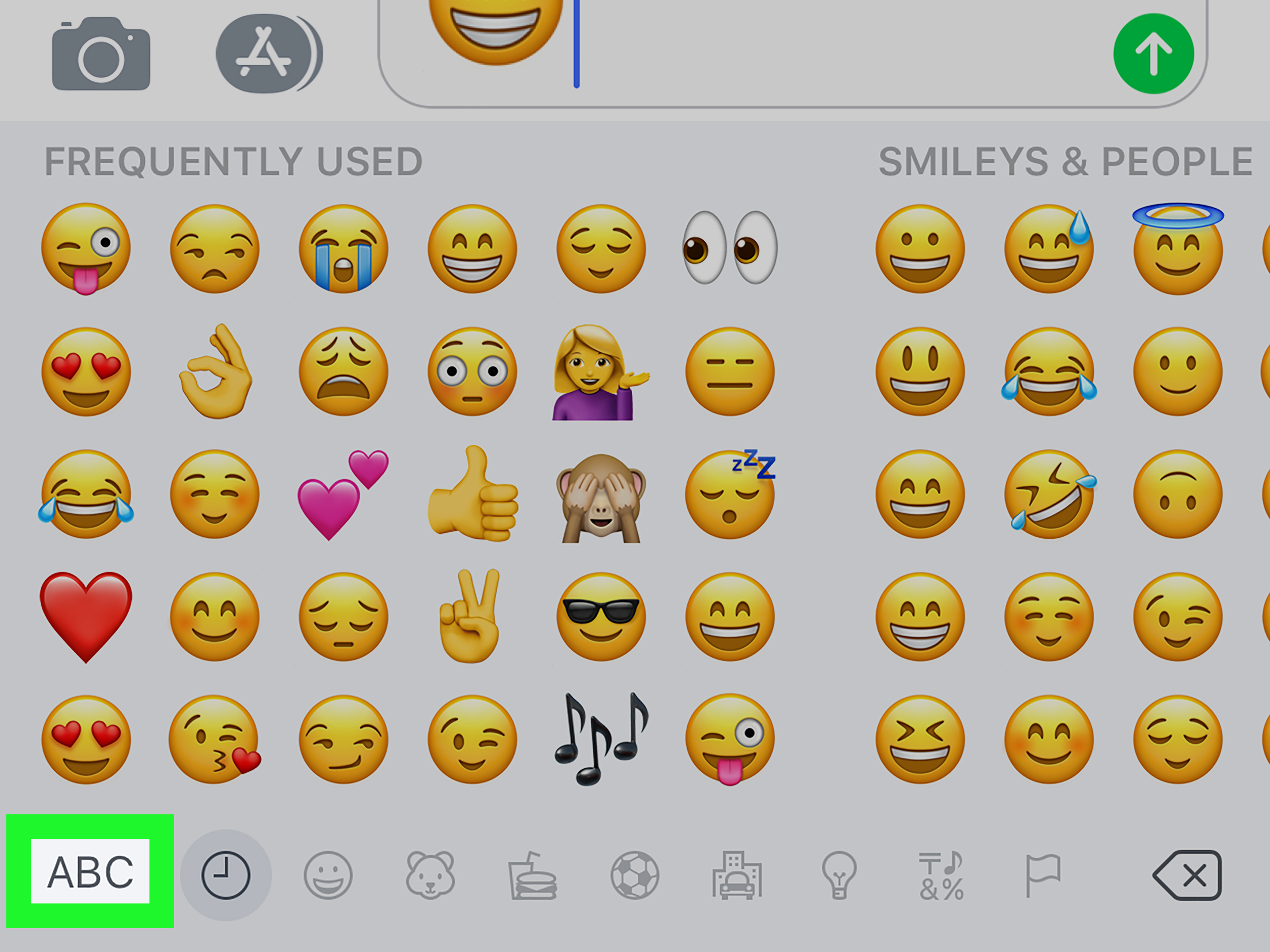
Look near the lower-left corner of the keyboard. You may see a smiley-face icon, an Emoji button, or a globe icon. Tap it to switch to the Emoji keyboard. If you have multiple keyboards installed, tapping may cycle through them, while touching and holding the globe usually opens a keyboard selection menu.
Step 10: Browse or Search for an Emoji
Once the Emoji keyboard opens, you can swipe left or right through categories, tap icons at the bottom to jump between sections, or use the Search Emoji field to find something specific. Search is especially helpful when you need “owl,” “party,” or “that one face that says I am fine but spiritually buffering.”
Step 11: Add the Japanese Keyboard for Emoticons
To enable text-based emoticons, return to Settings > General > Keyboard > Keyboards, then tap Add New Keyboard. Choose Japanese. Depending on your iOS version, you may see options such as Kana and Romaji. Select Kana for the easiest access to built-in kaomoji.
Step 12: Switch to the Japanese Kana Keyboard
Open an app with a text field again. Touch and hold the globe icon, then select the Japanese Kana keyboard. Your keyboard layout will change. Do not panic. You did not accidentally enroll your phone in language school.
Step 13: Tap the Face or ^_^ Key
On the Japanese Kana keyboard, look for a face-style key such as ^_^. Tap it to reveal kaomoji and text emoticons. You may see a row of faces first, with an arrow or expansion option that lets you view more.
Step 14: Tap an Emoticon to Insert It
Choose the emoticon you want, tap it, and it will appear in your text field. You can then send it, edit it, combine it with normal text, or pair it with emoji for maximum personality. For example: “I finished my homework (^_^) 🎉” feels much more cheerful than “done.”
How to Use Emoji After Enabling the Keyboard
After the Emoji keyboard is active, using it is simple. Tap a text field, open the Emoji keyboard, then tap any emoji to insert it. You can move between categories such as smileys, animals, food, activities, objects, symbols, and flags. Recently used emoji appear in the clock section, which is convenient unless your recent emoji history reveals that you communicate mostly through fire, skulls, and crying-laughing faces.
Some emoji support skin tone variations. To change the skin tone, touch and hold a supported emoji, then choose the version you want. This works for many hand gestures and people emoji. It does not work for every emoji, so if you long-press a pizza slice and nothing happens, that is not a bug. Pizza remains pizza. Beautiful, democratic pizza.
Using Predictive Emoji
iOS can suggest emoji while you type if Predictive text is enabled. For example, if you type “pizza,” the keyboard may suggest 🍕. If you type “love,” it may suggest ❤️. These suggestions usually appear in the predictive text bar above the keyboard. Tap the suggestion to insert it.
In Messages, iOS can also highlight words that can be replaced with emoji. Type a sentence, switch to the Emoji keyboard, and watch for words that change color. Tap a highlighted word to replace it with an emoji. This is a fun trick when you want to make a message more visual without manually searching for each symbol.
How to Use the Hidden Emoticon Keyboard on iPhone
The hidden emoticon keyboard is best for people who like expressive text faces. These are often called kaomoji, a Japanese style of emoticon made from letters, punctuation, and symbols. Unlike traditional Western emoticons, which are often sideways, kaomoji are usually read straight on. Compare 🙂 with (^_^). One asks you to tilt your head. The other politely arrives ready to be understood.
After adding the Japanese Kana keyboard, switch to it from the globe icon, then tap the ^_^ key. You can browse through built-in faces and tap one to insert it into your message. These work in many apps because they are plain text characters, not images. That means they can appear in Messages, Notes, emails, social posts, and other places where text is allowed.
Examples of Kaomoji You Might Use
Here are a few practical examples:
- (^_^) for friendly happiness
- (T_T) for dramatic sadness
- (¬_¬) for suspicion
- ¯\_(ツ)_/¯ for “what can you do?” energy
- (╯°□°)╯︵ ┻━┻ for theatrical frustration, preferably not during math class
Emoji Keyboard vs. Emoticon Keyboard: What Is the Difference?
Emoji are graphic symbols standardized across platforms through Unicode. They appear as colorful icons on your iPhone, though the design can look different on Android, Windows, or other systems. Emoji include faces, animals, food, flags, gestures, objects, and many other categories.
Emoticons are made from typed characters. Classic examples include 🙂 and :D. Kaomoji are a more detailed style of emoticon, often using Japanese characters and punctuation. Because kaomoji are text, they can be copied, pasted, edited, and combined with other characters. They also carry a charming retro-internet vibe, like a tiny digital postcard from the days before every app had animated stickers.
How to Remove the Emoji Keyboard If You Change Your Mind
If you decide you no longer want the Emoji keyboard, go to Settings > General > Keyboard > Keyboards. Tap Edit, select the red delete button next to Emoji, then tap Delete and Done. The same method works for removing the Japanese keyboard or any other keyboard you have added.
Removing Emoji can also change the icon shown on your keyboard. If Emoji is your only extra keyboard, you may see a smiley-face button. If you have several keyboards, iOS often shows a globe icon because it needs one button to switch among multiple keyboards. In other words, the globe icon is not trying to be mysterious. It is just very busy.
Troubleshooting: What If the Emoji Keyboard Is Missing?
Check the Active Keyboard List
The most common fix is to add Emoji again from Settings > General > Keyboard > Keyboards > Add New Keyboard > Emoji. If Emoji appears in the active list, it is installed.
Restart Your iPhone
If the keyboard is installed but the button still does not appear, restart your iPhone. A quick restart can refresh keyboard behavior after an update, settings change, or temporary glitch.
Update iOS
Software updates often include keyboard fixes, security updates, and new emoji support. Go to Settings > General > Software Update to check for available updates. Before updating, make sure your iPhone is charged and backed up.
Remove and Re-add the Keyboard
If emoji or kaomoji behave strangely, remove the keyboard, restart the phone, and add it again. This can help when a keyboard layout looks stuck, the emoji button disappears, or the Japanese keyboard does not show the expected face key.
Check Third-Party Keyboard Conflicts
Third-party keyboards can be useful, but they may change how the globe key behaves. If you use keyboards such as Gboard, SwiftKey, Grammarly, or another custom keyboard, switch back to the default Apple keyboard to test whether Emoji works normally. Also review keyboard permissions carefully, because third-party keyboards may request access that affects what they can process.
Best Practices for Using Emoji Without Overdoing It
Emoji are powerful because they add tone. A simple “Thanks!” can sound polite, but “Thanks! 😊” feels warmer. A plain “Sure” can sound annoyed, while “Sure 👍” feels clear and friendly. However, too many emoji can make a message look like a confetti cannon exploded inside your keyboard.
For everyday texting, one or two emoji are usually enough. For social posts, emoji can help organize ideas, draw attention, or make captions feel more human. For school, work, or formal communication, use emoji sparingly. Your teacher may appreciate enthusiasm, but a five-paragraph essay ending with twelve fire emoji is probably not the academic flourish you think it is.
Privacy and Safety Notes for iPhone Keyboards
Apple’s built-in Emoji and Japanese keyboards are part of iOS, so you do not need to download a separate app to use basic emoji or kaomoji. That is the safest and simplest route for most users.
If you install a third-party keyboard, choose one from a reputable developer, read its privacy information, and be careful with permissions. Keyboards are sensitive because they handle what you type. Even when an app is legitimate, it is smart to understand what access it requests. For most people, the built-in iOS keyboards are enough: fast, free, and far less likely to turn your typing life into a privacy mystery novel.
Extra Experience: What It Is Really Like to Use Emoji and Kaomoji on iOS
After using the Emoji keyboard and the Japanese kaomoji keyboard for everyday messaging, the biggest lesson is this: small symbols can change the entire mood of a conversation. Without emoji, short messages can sound colder than intended. “Okay” can feel annoyed. “Fine” can feel dangerous. “Sure” can feel like the beginning of a courtroom drama. Add the right emoji, and suddenly the message has a smile, a wink, or a friendly nudge.
The Emoji keyboard is best for speed. It is perfect when you want to react quickly, decorate a message, or replace a word with a visual symbol. Search makes a huge difference. Instead of swiping through endless categories like you are browsing a tiny museum of vegetables, vehicles, animals, and mysterious symbols, you can type “cake,” “cat,” “rocket,” or “sleep” and find what you need fast. The frequently used section also learns your habits, which is helpful unless your habits are embarrassing. If your top emoji are 😭, ☕, and 💀, congratulations: your keyboard has written your autobiography.
Kaomoji feel different. They are less polished than emoji but often more expressive. A face like (T_T) has a dramatic, handmade charm. It feels like something a tiny keyboard actor performed personally for your message. Kaomoji are especially fun in casual chats because many people do not realize they are built into iOS. When you send one, someone may ask, “Where did you get that?” That is your moment. You can explain the Japanese Kana keyboard and briefly become the tech wizard of the group chat.
One useful habit is to keep both keyboards enabled but not overload your keyboard list. If you add too many language keyboards and third-party keyboards, switching becomes slower. The globe menu can get crowded, and tapping the globe repeatedly may cycle through keyboards when you only wanted one emoji. A clean setup works better: your main language keyboard, Emoji, and Japanese Kana if you use kaomoji often.
Another practical tip is to use emoji for clarity, not decoration alone. A calendar emoji can make a date stand out. A check mark can confirm a completed task. A warning symbol can highlight something important. In friendly writing, emoji can soften tone. In professional writing, one carefully chosen emoji may be fine in casual team chats, but formal emails should usually stay clean. The goal is to communicate better, not make every sentence look like it fell into a sticker drawer.
The hidden kaomoji keyboard is also a great reminder that iOS has many useful features tucked away in plain sight. You do not always need another app. Sometimes the feature is already on your phone, waiting behind Settings like a shy little productivity gremlin. Once you know where to find it, the Emoji and emoticon keyboards become simple tools for adding personality, tone, and a little harmless fun to your messages.
Conclusion
Enabling the Emoji emoticon keyboard in iOS is quick once you know where to look. For standard emoji, go to Settings > General > Keyboard > Keyboards > Add New Keyboard > Emoji. For hidden text emoticons, add the Japanese Kana keyboard and use the ^_^ key to access kaomoji. Together, these keyboards give your iPhone a much wider range of expression, from a simple smiley face to full dramatic table-flip energy.
Whether you are texting friends, writing captions, replying in Messages, or adding personality to notes, emoji and kaomoji make communication warmer and clearer when used thoughtfully. Just remember: the best emoji is the one that helps your meaning, not the one that makes your sentence look like a parade float.