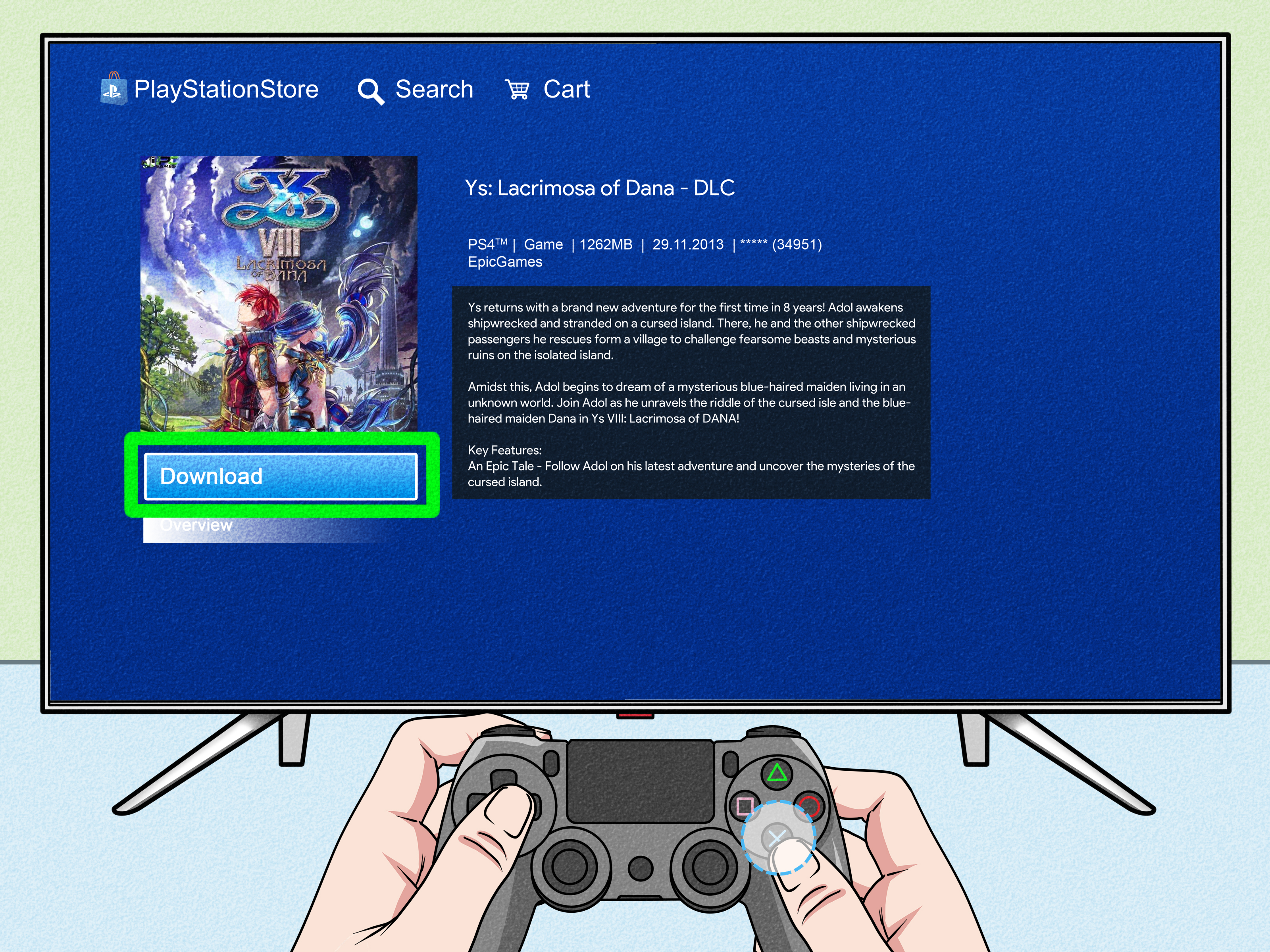
Deleting PS4 add-ons sounds like it should be as easy as deleting a photo you regret taking at 2 a.m. Unfortunately, PlayStation 4 ations, patches, and save files in a slightly awkward way. In many cases, the PS4 does not give you a simple “delete this DLC only” button. Instead, add-ons are usually tied to the main game application, which means removing unwanted DLC often requires deleting the game installation, then reinstalling the base game without downloading the extra content again.
The good news is that this process does not have to erase your saved game progress. Your trophies, campaign progress, character saves, settings, and other save files are stored separately from the game application. As long as you avoid deleting saved dataand preferably back it up firstyou can remove add-ons, free up storage, and keep your game data safe.
This guide explains how to delete add-ons on PS4, how to remove DLCs without losing save data, what to back up before touching anything, and what to do when a game keeps reinstalling DLC like it has separation anxiety.
Can You Delete Individual Add Ons on PS4?
Here is the honest answer: sometimes, but usually not directly. Unlike PS5, where some games offer more flexible “manage game content” options, PS4 is more limited. For many PS4 games, installed DLC is bundled into the game application data. That means you cannot always highlight one expansion, press Options, and delete only that piece of content.
On PS4, add-ons may include expansion packs, bonus missions, character packs, map packs, language packs, cosmetic packs, pre-order bonuses, season pass content, or in-game currency entitlements. Some of these are actual downloaded files. Others are simply licenses that unlock content already inside the game update. That is why one game may let you control add-ons more easily while another behaves like everything is glued together with digital superglue.
In most cases, the cleanest method is:
- Back up your saved data.
- Delete the game application from your PS4.
- Reinstall the base game.
- Download only the add-ons you actually want.
- Avoid re-downloading unwanted DLC from the “Your Add-Ons” menu.
This may sound like using a bulldozer to remove a garden chair, but on PS4 it is often the safest and most reliable approach.
What Gets Deleted When You Delete a PS4 Game?
When you delete a game from your PS4, the console removes the game application from storage. That usually includes the installed game files, patches, updates, and downloaded add-ons connected to that installation. However, your saved data is stored in a separate area of the system.
In plain English: deleting the game is like uninstalling an app from your phone. Your app disappears, but your account and cloud data may still exist. On PS4, your save files normally remain unless you specifically go into saved data management and delete them yourself.
Game Application Data vs. Saved Data
This distinction is very important:
- Game application data includes the installed game, updates, and often DLC files.
- Saved data includes your progress, character files, campaign saves, settings, and local save slots.
- License data tells PlayStation Network that your account owns certain games or add-ons.
So if you delete The Witcher 3, Monster Hunter: World, Call of Duty, or another large PS4 game to remove DLC, your save data should stay on the console unless you delete it from the saved data menu. Still, “should” is not the same as “I enjoy gambling with 200 hours of progress,” so make a backup first.
Before You Delete Anything: Back Up Your PS4 Saved Data
Before removing a game or DLC, back up your save files. This step is boring, yes. It is also the step that prevents you from staring at your TV in silence after realizing your level 87 character is now a memory.
Option 1: Back Up Saved Data to a USB Drive
You can copy PS4 saves to a compatible USB storage device. Plug the USB drive into your console, then follow this path:
Settings > Application Saved Data Management > Saved Data in System Storage > Copy to USB Storage Device
Select the game, choose the save files you want to copy, then confirm the transfer. This is a practical option if you do not have PlayStation Plus or if you like having a local backup you can physically control.
Option 2: Upload Saved Data to PlayStation Plus Online Storage
If you have PlayStation Plus, you can upload your save files to online storage. Go to:
Settings > Application Saved Data Management > Saved Data in System Storage > Upload to Online Storage
Choose the game, select the save files, and upload them. This is especially useful if you are reinstalling games often, switching consoles, or simply do not trust your household not to move your USB drive into the mysterious drawer where cables go to retire.
How to Delete Add Ons on PS4 Without Losing Game Data
Because PS4 often links DLC to the game installation, the most reliable way to remove add-ons is to delete the game application and reinstall it carefully. Follow these steps.
Step 1: Check Your Saved Data First
Go to:
Settings > Application Saved Data Management > Saved Data in System Storage
Find the game you want to clean up. If your save files are listed there, your PS4 is storing them separately. Back them up to USB or online storage before continuing. Do not choose “Delete” in this menu unless your goal is to remove saved progress.
Step 2: Delete the Game Application
From the PS4 home screen, highlight the game you want to remove. Press the Options button on your controller, then choose Delete. Confirm the deletion.
You can also delete games through storage settings:
Settings > Storage > System Storage > Applications
Select the game, press Options, choose Delete, and confirm. This removes the installed application data, which usually includes the DLC files attached to that game installation.
Step 3: Reinstall the Base Game
If you own the game on disc, insert the disc and let the PS4 install it again. If you own the digital version, go to:
Library > Purchased
Select the game and download it. The base game will reinstall. Depending on the game, updates may also download automatically because many online features require the latest version.
Step 4: Control Which Add Ons Download Again
After reinstalling the game, check the add-ons menu before downloading everything. Go to:
Library > Purchased > Select the Game > PlayStation Store > Your Add-Ons
From there, you can usually see available DLC connected to that game. Download only the add-ons you want to keep. If the unwanted DLC appears in your download queue, go to Notifications > Downloads, highlight the item, press Options, and delete or cancel the download if available.
Step 5: Launch the Game and Confirm Your Save Data
Open the game after reinstalling. Your saved data should still be available. If the game does not detect your save, check whether you need to download the save from online storage or copy it back from USB.
If your save file was created while using a major expansion, the game may warn that certain content is missing. For example, if your character is standing in a DLC-only area or wearing DLC-only gear, the game may require that expansion before loading the save properly. In that case, you may need to reinstall that specific add-on, load the save, move your character or change equipment, save again, and then try removing the DLC later.
How to Reinstall DLC on PS4 Later
Deleting add-ons does not usually remove your ownership. If you bought DLC through PlayStation Store, your account license remains tied to your PlayStation Network account. You can reinstall add-ons later through the game’s PlayStation Store page or your Library.
Use this path:
Library > Purchased > Select the Game > PlayStation Store > Your Add-Ons
Choose the arrow icon next to the DLC you want to download. If the DLC asks you to buy it again even though you already own it, do not panic-buy it twice. First, make sure you are signed into the correct PSN account, then try restoring licenses.
How to Restore Licenses on PS4
If your PS4 does not recognize purchased DLC, restore your licenses. Go to:
Settings > Account Management > Restore Licenses
Select Restore. This process does not delete your saved data. It simply refreshes your account’s access to purchased digital content. It is useful when DLC appears locked, missing, unavailable, or strangely expensive even though you already paid for it.
Why Some PS4 Add Ons Keep Coming Back
Sometimes DLC returns automatically after you thought you removed it. There are a few reasons this happens.
The DLC Is Part of a Game Update
Some “DLC” content is not really a separate download. It may be included inside a required update, while your purchase only unlocks access. In that case, you cannot delete the content without deleting or avoiding the update, and avoiding updates may block online play or bug fixes.
You Own a Complete Edition or Bundle
If you bought a “Game of the Year Edition,” “Complete Edition,” “Ultimate Edition,” or similar bundle, the DLC may be treated as part of the package. The console may download the full bundle automatically, especially for digital versions.
The Game Requires the Add-On for Your Save File
If your save depends on expansion content, the game may complain when the DLC is missing. Open-world RPGs are famous for this. Your save might reference DLC quests, locations, items, vehicles, characters, or inventory content.
Automatic Downloads Are Enabled
Your PS4 may automatically download game updates or queued content. Check your download notifications after reinstalling the base game so you can stop unwanted add-ons before they finish installing.
Can You Delete DLC but Keep Trophies?
Yes. Trophies are connected to your PSN profile and synced separately from installed game files. Deleting a game or DLC from your PS4 does not remove trophies you already earned. If you want to be extra cautious, open the Trophies app while online and make sure your trophies are synced with PlayStation Network before uninstalling anything.
Can You Delete DLC but Keep Screenshots and Videos?
Usually, yes. Screenshots and video clips are stored in the Capture Gallery, not inside the game installation itself. Deleting a game application should not delete your captures. However, if storage cleanup is your goal, the Capture Gallery can secretly take up a lot of space. Those 47 near-identical screenshots of one boss fight are emotionally important, of course, but your hard drive may disagree.
What If the Game Is Installed on External Storage?
If your PS4 game is installed on an external hard drive, deleting the game from storage removes it from that external device. The same general rule applies: saved data is still stored separately on the console unless you manually delete it. You can also move applications between internal and external storage, but moving a game does not usually give you fine control over individual DLC files.
Best Practices for Removing PS4 DLC Safely
To remove PS4 add-ons without creating a mess, use a careful routine. First, back up your saved data. Second, delete the game application, not the save file. Third, reinstall the base game from disc or Library. Fourth, manually choose add-ons instead of downloading every available item. Finally, launch the game and verify that your saves load correctly.
If the game refuses to load without a missing expansion, reinstall that expansion temporarily. Load your save, move away from DLC-only areas, remove DLC-only items if needed, save again, then try the cleanup process once more. Not every game supports this perfectly, but it is a practical workaround for many titles.
Common Mistakes to Avoid
Mistake 1: Deleting Saved Data Instead of the Game
The PS4 has a saved data deletion menu. That menu is not where you remove DLC. If you delete files there, you may erase your progress. Only use that area to back up, upload, copy, or intentionally delete saves.
Mistake 2: Downloading Every Add-On Again
After reinstalling a game, it is tempting to select everything in “Your Add-Ons.” Resist the urge. That is how you end up right back where you started, except now you also lost an hour and had a staring contest with a progress bar.
Mistake 3: Ignoring Region Compatibility
PS4 DLC must match the region of the game version. If you own a European disc but buy DLC from the U.S. PlayStation Store, the add-on may not work. Before reinstalling or repurchasing anything, check that the game and DLC regions match.
Mistake 4: Assuming Every Game Works the Same Way
Some games separate DLC neatly. Others bundle it into updates. Some require expansions for certain saves. Always check the game’s add-on screen and download list before assuming the PS4 will behave consistently. The console is reliable, but it is not exactly a mind reader in a stylish black box.
Troubleshooting: DLC Still Appears After Deleting the Game
If unwanted DLC still appears after reinstalling, check the download queue. Go to Notifications, open Downloads, and cancel any add-on that is downloading again. If the DLC is already included in the latest patch, you may not be able to remove it separately.
If the game icon remains after deletion or the system behaves strangely, rebuild the PS4 database from Safe Mode. This does not normally delete your games or saves, but you should still back up important data first. Rebuilding the database can clean up system organization issues, missing icons, broken listings, and storage weirdness.
500-Word Experience Section: What It Feels Like to Remove PS4 Add Ons in Real Life
In real use, deleting add-ons on PS4 feels less like pressing a magic cleanup button and more like organizing a closet where every box is labeled “miscellaneous.” You start with one simple goal: remove a DLC pack you no longer want. Maybe it is a huge multiplayer map pack for a mode you never play. Maybe it is an expansion you finished years ago. Maybe it is a language pack, bonus content, or extra campaign chapter taking up space on a drive that already groans every time you install a new game. Then you open the PS4 menus and realize the console does not always separate content as clearly as you hoped.
The first lesson most players learn is that save data is the crown jewel. The game can be reinstalled. DLC can be downloaded again. Updates can return overnight while the console hums quietly like it has a secret job. But a save file represents time. It is the completed campaign, the rare armor, the tuned car, the customized team, the settlement you spent three weekends building, or the character whose inventory looks like a digital garage sale. That is why backing up saves before deleting anything feels like putting your passport in a safe before cleaning the house.
The second lesson is that PS4 storage management rewards patience. If you rush, you may reinstall the game and accidentally queue every add-on again. Many players delete a large game to free space, reinstall it later, and wonder why the same giant DLC packs returned. The trick is to watch the download list carefully. After selecting the base game, check Notifications and pause or cancel anything you do not want. Then visit the game’s add-on page and download only the content you actually need.
A practical example: imagine you own a large RPG with two expansions. You finished Expansion A but still want the base game installed. On PS4, you may need to delete the whole game, reinstall the base game, then avoid downloading Expansion A again. But if your current save was made inside Expansion A’s area, the game may ask for that content before loading. The smart move is to reinstall the expansion temporarily, load your save, travel back to a base-game area, remove DLC-only equipment if necessary, save again, and then repeat the cleanup. It is slightly annoying, but it is better than losing the save.
The third lesson is that not all DLC is truly removable. Some content is baked into patches, especially in games with online modes. In those cases, your “DLC” may be more like a license than a separate file. You can remove the game installation, but once the update returns, the content may return too. That does not mean you did anything wrong. It means the game publisher packaged the content that way.
The best experience-based advice is simple: slow down, back up saves, delete the application only, reinstall carefully, and verify everything before celebrating. PS4 storage cleanup is not glamorous, but when you recover 40 GB without losing your progress, it feels like finding money in an old jacketexcept the jacket is a console menu and the money is enough space for one more game.
Conclusion
Deleting add-ons on PS4 is possible, but it is not always as direct as players expect. Because many PS4 DLC files are tied to the main game installation, the safest method is usually to back up your saved data, delete the game application, reinstall the base game, and selectively download only the add-ons you still want. Your saved game data is stored separately, so deleting the game should not erase your progress unless you manually delete the save files too.
Think of the process as a controlled reset: remove the bulky installation, protect the save data, and rebuild the game library on your terms. It takes a little patience, but it can free valuable storage space while keeping your hard-earned progress intact.