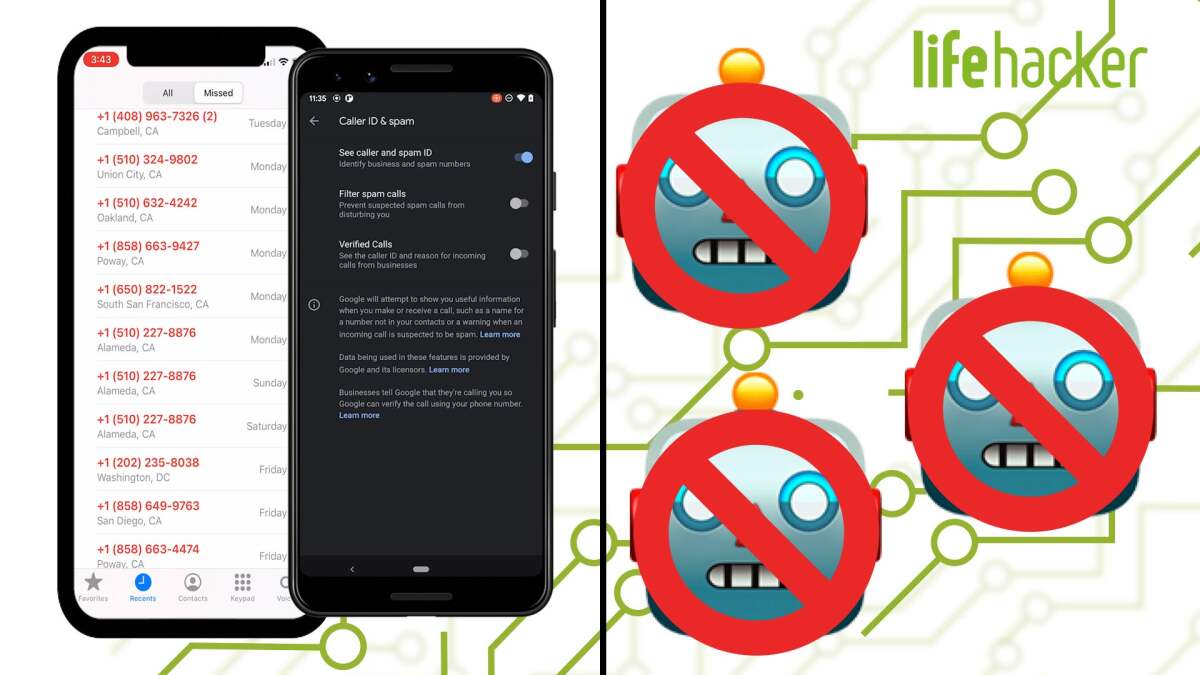
Spam calls are the mosquitoes of modern life: tiny, persistent, and somehow able to find you at the exact moment you sit down with hot coffee. Whether the caller claims your car warranty has risen from the dead, your “bank” needs your password, or a robot wants to discuss solar panels with the enthusiasm of a tired fax machine, the goal is the same: interrupt your day and possibly steal your money.
The good news is that you do not have to accept this nonsense as the cost of owning a phone. Both Android and iPhone include built-in tools to block spam calls, silence unknown callers, report robocalls, and filter suspicious numbers before your phone starts screaming from the couch cushions. Major U.S. carriers also offer free spam protection, and third-party call blocker apps can add another layer when the built-in settings are not enough.
This guide explains how to block spam calls on Android and iPhone using practical, real-world methods. You will learn how to stop robocalls, block repeated nuisance numbers, use carrier tools, set up call filtering apps, and avoid accidentally blocking the dentist, your delivery driver, or your aunt who still thinks voicemail is “the internet.”
What Counts as a Spam Call?
A spam call is any unwanted call that wastes your time, pressures you, misleads you, or tries to trick you into giving away information. Some are legal but annoying, such as aggressive telemarketing calls. Others are illegal robocalls or scam calls pretending to be government agencies, banks, delivery companies, tech support teams, insurance offices, charities, or debt collectors.
Spam calls often use caller ID spoofing, which means the number on your screen may not be the real number placing the call. That is why blocking one number does not always solve the problem. A scammer can rotate numbers faster than a toddler can lose a sock. Effective protection usually requires a layered approach: phone settings, carrier filtering, app-based screening, reporting, and smart personal habits.
How to Block Spam Calls on Android
Android phones vary by brand, carrier, and version, but most modern devices include spam protection in the Phone app. Google Pixel phones and many Android models using the Phone by Google app have especially strong caller ID and spam filtering options.
Turn On Caller ID and Spam Protection in the Phone App
On many Android phones, start with the built-in spam filter:
- Open the Phone app.
- Tap the three-dot menu in the top-right corner.
- Tap Settings.
- Choose Caller ID & spam or Spam and Call Screen.
- Turn on See caller and spam ID.
- Turn on Filter spam calls if available.
When spam filtering is enabled, suspected spam calls may be labeled, silenced, or sent to voicemail depending on your device and settings. You may still see the calls in your call history, which is useful if you want to review what was blocked without letting every “final notice” ruin lunch.
Block a Specific Number on Android
If the same number keeps calling, block it directly:
- Open the Phone app.
- Go to Recents.
- Tap the number you want to block.
- Choose Block or Block/report spam.
- Confirm your choice.
Blocking individual numbers works well for repeat offenders, but it is not a magic shield. Scammers often change numbers, so combine this with caller ID and spam protection.
Use Call Screen on Google Pixel
Google Pixel phones offer Call Screen in many regions. With Call Screen, Google Assistant can answer an unknown call, ask who is calling and why, and show you a live transcript. You can then decide whether to answer, hang up, or mark the call as spam.
To find it, open the Phone app, go to Settings, then look for Spam and Call Screen or Call Screen. Options vary by model and country, but if your Pixel supports it, this is one of the best tools for dealing with unknown callers without personally interviewing every suspicious number like a detective in a bad crime drama.
Block Spam Calls on Samsung Galaxy Phones
Samsung Galaxy phones include caller ID and spam protection through the Phone app. To activate it:
- Open the Phone app.
- Tap the three-dot menu.
- Tap Settings.
- Select Caller ID and spam protection.
- Turn the feature on.
- Enable Block spam and scam calls.
- Choose whether to block all spam/scam calls or only high-risk scam calls.
If you are worried about missing legitimate calls, start with the more conservative setting that blocks only high-risk calls. If your phone is being attacked by robocalls like it owes them money, increase the blocking level.
How to Block Spam Calls on iPhone
Apple gives iPhone users several useful spam call controls, including manual number blocking, Silence Unknown Callers, carrier-based spam filtering, and third-party call identification apps.
Block a Number on iPhone
To block a specific number on iPhone:
- Open the Phone app.
- Tap Recents.
- Tap the info icon next to the number.
- Scroll down and tap Block Caller.
- Confirm by tapping Block Contact.
After that, calls from the number will not ring through as normal. You can manage blocked numbers later by going to Settings, then Apps, then Phone, and checking blocked contacts or call-related settings. Menu wording may vary slightly depending on your iOS version.
Use Silence Unknown Callers
The fastest iPhone setting for reducing spam calls is Silence Unknown Callers. When enabled, calls from numbers not in your contacts, recent outgoing calls, or Siri suggestions are silenced and sent to voicemail. They still appear in your recent calls list.
To turn it on:
- Open Settings.
- Tap Apps, then Phone.
- Find Silence Unknown Callers.
- Turn it on.
This setting is powerful, but use it carefully. If you are job hunting, expecting medical calls, waiting for a contractor, or coordinating deliveries, unknown numbers may be legitimate. A smart habit is to save important contacts before turning it on and check voicemail regularly.
Enable Spam Filtering on iPhone
On supported iPhones and carriers, you may also see options for spam filtering or call blocking and identification. These settings can allow your carrier or a trusted app to identify, silence, or block suspected spam calls.
To check:
- Open Settings.
- Tap Apps, then Phone.
- Look for Call Blocking & Identification or Call Filtering.
- Enable available spam filters from your carrier or installed call blocker app.
If you do not see these settings, install a reputable call blocking app or check whether your carrier offers an app that integrates with iOS call identification.
Use Your Carrier’s Spam Call Blocking Tools
Your phone’s built-in settings are only one piece of the puzzle. Wireless carriers can filter calls at the network level before they even reach your device. That matters because scammers constantly rotate numbers and spoof caller ID.
Verizon Call Filter
Verizon offers Call Filter for eligible customers. It can identify suspected spam, automatically block high-risk callers, provide spam risk information, and allow users to report unwanted numbers. Some features are free, while premium options may include expanded caller ID and category-based blocking.
AT&T ActiveArmor
AT&T ActiveArmor includes fraud and spam call blocking, call routing settings, a personal block list, and security alerts. Users can decide how certain call categories should be handled, such as blocking fraud calls or sending spam calls to voicemail. As with any filter, there is always a small chance a wanted call could be misclassified.
T-Mobile Scam Shield
T-Mobile provides Scam Shield tools such as Scam ID, Scam Block, and Caller ID features. Customers can activate Scam Block through the app, account tools, or by dialing #662# from a T-Mobile device. T-Mobile also offers settings to report suspicious calls and manage protection levels.
Carrier tools are worth using because they add protection outside your phone’s operating system. Think of them as the bouncer at the door, while your phone settings are the second bouncer standing near the snack table.
Register With the National Do Not Call Registry
The National Do Not Call Registry is managed by the Federal Trade Commission and is designed to reduce unwanted telemarketing calls. It will not stop every spam call, and it will not scare off criminals who are already ignoring the law. However, it can reduce legitimate telemarketing calls and make illegal callers easier to identify.
You can register your mobile or landline number for free. After your number is registered, legitimate telemarketers should stop calling. If you still receive suspicious sales calls, you can report them. The registry is not a silver bullet, but it is a useful baseline step, especially when combined with call filtering.
Try a Third-Party Spam Call Blocker App
If built-in settings and carrier tools do not solve the problem, a third-party call blocker app may help. Popular options include Hiya, Truecaller, RoboKiller, Nomorobo, and similar apps available through the App Store or Google Play.
These apps typically use large databases of reported spam numbers, caller ID information, user reports, machine learning, and call patterns to detect suspicious callers. Some apps simply warn you. Others silence calls, block numbers, send robocalls to voicemail, or provide a reverse phone lookup.
Before installing any call blocker app, review its privacy policy. Some apps need access to call information to work properly. That does not automatically mean they are unsafe, but it does mean you should choose a reputable provider, read permissions carefully, and avoid random apps with suspicious reviews. A spam blocker should reduce problems, not become the digital raccoon living in your contacts list.
Best Practices to Stop Spam Calls Before They Start
Blocking tools help, but your habits also matter. Scammers look for signs that a number is active, responsive, and attached to a real person. The less you engage, the better.
Do Not Answer Unknown Calls Unless Necessary
If you do not recognize a number, let it go to voicemail. Legitimate callers usually leave a message. Scammers often do not, because their goal is volume, not thoughtful conversation.
Do Not Press Buttons During Robocalls
Some robocalls say “press 1 to speak to an agent” or “press 9 to be removed.” Do not do it. Pressing a button may confirm that your number is active, which can lead to more calls.
Never Share Sensitive Information
Do not give passwords, verification codes, Social Security numbers, banking details, or credit card numbers to an unexpected caller. Real banks, government agencies, and major companies do not call out of nowhere demanding secret codes like a villain at a toll booth.
Report Spam Calls
Report unwanted calls through your phone app, carrier app, the FTC, or the FCC. Reporting helps improve spam databases and enforcement efforts. On Android, you may see Block/report spam. On iPhone, spam reporting often depends on your carrier or third-party app.
Be Careful Where You Share Your Phone Number
Use caution when entering your number on forms, contests, downloads, quote requests, and “free trial” pages. If a website does not truly need your phone number, do not provide it. Your number is personal data, not confetti.
Why Spam Calls Still Get Through
Even with strong protection, some spam calls may reach you. That does not mean your phone is broken. Spam callers use spoofing, number rotation, VoIP services, overseas call centers, compromised numbers, and constantly changing scripts. Filters improve over time, but scammers adapt quickly.
The goal is not perfection. The goal is reduction. If your phone goes from twelve spam calls a day to one or two a week, that is a victory. You have not eliminated the mosquitoes, but you have installed screens, citronella, and a tiny “do not disturb” sign for your sanity.
Recommended Setup for Most People
For most users, the best setup is simple:
- Turn on built-in spam protection in Android or iPhone settings.
- Block repeat nuisance numbers manually.
- Activate your carrier’s free spam protection tool.
- Register with the National Do Not Call Registry.
- Let unknown calls go to voicemail when possible.
- Use a trusted third-party app only if spam calls remain a serious problem.
This layered approach works better than relying on one setting. Phone settings catch some calls, carriers catch others, apps add extra intelligence, and your own habits prevent scammers from learning that your number belongs to someone who answers mystery calls during dinner.
Real-Life Experience: What Actually Works When Spam Calls Get Out of Hand
Here is the practical truth: the best spam call strategy is not one dramatic setting. It is a routine. Most people start caring about spam call blocking only after the calls become unbearable. Maybe the phone rings during a meeting. Then again during lunch. Then again while you are trying to watch one episode of a show and somehow five different numbers want to discuss “urgent account activity.” At that point, blocking spam calls stops being a tech chore and becomes emotional self-defense.
The first experience many users have is manually blocking numbers. It feels satisfying at first. You tap “Block Caller” or “Block/report spam,” and for a moment you feel like a cybersecurity wizard in sweatpants. But then another number appears with the same area code. Then another. This is when people realize that individual blocking is useful, but not enough. It is like swatting flies with a receipt while the window is still open.
The biggest improvement usually comes from turning on built-in spam protection. On Android, enabling Caller ID and spam filtering can immediately reduce obvious junk calls. On Samsung phones, Smart Call-style filtering is especially helpful because it labels suspicious numbers and can block known spam or scam calls. On iPhone, Silence Unknown Callers can be wonderfully peaceful if your life allows it. The first day with unknown callers silenced can feel strangely luxurious, like your phone finally learned manners.
However, there is a trade-off. If you are waiting for calls from doctors, schools, recruiters, repair companies, delivery drivers, banks, or clients, silencing every unknown caller can create missed connections. A useful personal rule is to turn on aggressive filtering during quiet periods and relax it when expecting important calls. Another smart habit is to save temporary contacts. If a plumber, clinic, airline, hotel, or customer service line may call you back, save the number before enabling stricter filters.
Carrier tools often provide the next noticeable improvement. Many users ignore carrier apps because they sound like bloatware wearing a business suit. But spam filtering from Verizon, AT&T, T-Mobile, and other carriers can help because it works at the network level. When the carrier labels a call as “Scam Likely” or blocks high-risk traffic before it rings, your phone has less work to do. The carrier filter is not perfect, but it can stop a large chunk of the nonsense before it reaches your pocket.
Third-party apps are best for people who still get hammered by unwanted calls after enabling phone and carrier settings. Apps like Hiya, Truecaller, RoboKiller, and Nomorobo can be powerful, especially when they maintain large spam databases and offer call screening or automatic blocking. The experience varies, though. Some users love them. Others dislike subscriptions, battery usage, or privacy trade-offs. Before installing one, ask a simple question: “Do I need more protection badly enough to share more call-related data with this app?” If yes, choose a reputable app and review permissions carefully.
The most underrated tactic is not answering. Scammers want engagement. Even saying “hello” to a suspicious robocall may confirm your number is active. Pressing a button to “remove yourself” can backfire. Calling back unknown numbers can also create problems, especially with spoofed or premium-rate numbers. Let voicemail do the awkward work. Real humans with real reasons will leave messages. Robots selling imaginary warranties usually will not write a thoughtful voicemail essay.
A good spam call routine looks like this: keep spam filtering on, keep carrier protection active, block and report repeat offenders, avoid engaging, and check voicemail once or twice a day. Also, protect your number like you protect your email address. Do not enter it into every coupon form, random giveaway, comparison quote page, or suspicious “exclusive offer.” Once a number enters marketing databases, getting it fully clean is difficult.
The final lesson is patience. Spam calls may not disappear completely, but they can become rare enough that your phone feels usable again. The goal is not to build a fortress with laser beams. The goal is to make your number less rewarding for scammers and less disruptive for you. With the right Android or iPhone settings, carrier tools, and a few careful habits, your phone can go back to being a communication device instead of a tiny panic rectangle.
Conclusion
Learning how to block spam calls on Android and iPhone is one of the easiest ways to take back control of your day. Start with the tools already built into your phone: Caller ID and spam protection on Android, Smart Call on Samsung, Call Screen on Pixel, manual number blocking, and Silence Unknown Callers on iPhone. Then activate your carrier’s spam protection, register with the National Do Not Call Registry, and consider a trusted call blocker app if the problem continues.
No method blocks every spam call forever, because scammers constantly change tactics. But a layered setup can dramatically reduce robocalls, scam calls, spoofed numbers, and unwanted interruptions. Your phone may still ring sometimes, but it no longer has to behave like a public suggestion box for criminals with autodialers.