Your snacks are ready, your couch has accepted you as one of its own, and the next episode is waiting. Then your Fire TV remote suddenly stops responding. You press Home. Nothing. You press it harder, because apparently buttons understand intimidation. Still nothing.
Fortunately, a Fire TV remote not working does not automatically mean it has joined the great electronics graveyard. Most failures come from drained batteries, lost Bluetooth pairing, temporary software glitches, wireless interference, or compatibility problems. Many of these issues can be fixed in a few minutes without buying a replacement.
This guide explains five practical Fire TV remote troubleshooting tips, starting with the simplest checks and moving toward more advanced resets. The instructions apply to many Fire TV Stick, Fire TV Cube, Alexa Voice Remote, and Fire TV smart television combinations, although exact button sequences may vary on older models.
Why Is My Fire TV Remote Not Working?
Before pressing every button combination you find on the internet, it helps to identify what kind of failure you are dealing with. Common symptoms include:
- The remote does not respond at all.
- The remote works only when held close to the Fire TV device.
- The navigation buttons work, but power or volume controls do not.
- The remote disconnects repeatedly.
- The LED flashes, but the Fire TV does not respond.
- A replacement remote refuses to pair.
Fire TV remotes generally use Bluetooth for navigation and voice commands. This means they do not require the same direct line of sight as a basic infrared remote. However, many Alexa Voice Remotes also use infrared to control television power, volume, or compatible audio equipment. That distinction matters: if navigation works but the TV volume buttons do not, the remote may still be paired correctly while its equipment-control settings need attention.
The following troubleshooting order is intentional. Start with batteries and power before attempting a full remote reset. There is no reason to perform digital surgery when the patient simply needs two fresh AAA batteries.
Tip 1: Replace the Batteries and Inspect the Contacts
Drained or poorly seated batteries are among the most common reasons an Amazon Fire TV remote stops working. Even when the remote worked yesterday, weak batteries may no longer provide enough stable power to maintain its wireless connection.
Use a Completely Fresh Pair
Remove both batteries and replace them with two new alkaline AAA batteries from the same package. Avoid mixing an old battery with a new one or combining different brands and battery types. A lonely new battery cannot carry its exhausted partner through another season of television.
Confirm that the positive and negative ends match the symbols inside the compartment. Fire TV battery placement can feel slightly less intuitive than expected because both batteries may not face the direction your muscle memory predicts.
Check for Dirty or Loose Contacts
While the batteries are removed, examine the metal terminals inside the compartment. Look for dust, corrosion, discoloration, or a contact that appears compressed. Battery leakage may leave a white or powdery residue that interrupts power.
Light dust can be removed with a clean, dry cloth or cotton swab. Do not pour cleaning liquid into the remote. If corrosion is extensive, a terminal is broken, or the batteries feel loose after installation, the remote may have physical damage that requires repair or replacement.
After installing the batteries, wait about 30 seconds and test the remote again. On compatible models, pressing the Alexa button may cause the LED to flash, confirming that the remote is at least receiving power.
Tip 2: Restart the Fire TV Device Properly
Sometimes the remote is innocent. The Fire TV Stick, Cube, or television may be frozen, asleep in an unusually committed way, or experiencing a temporary Bluetooth problem.
Perform a Full Power Cycle
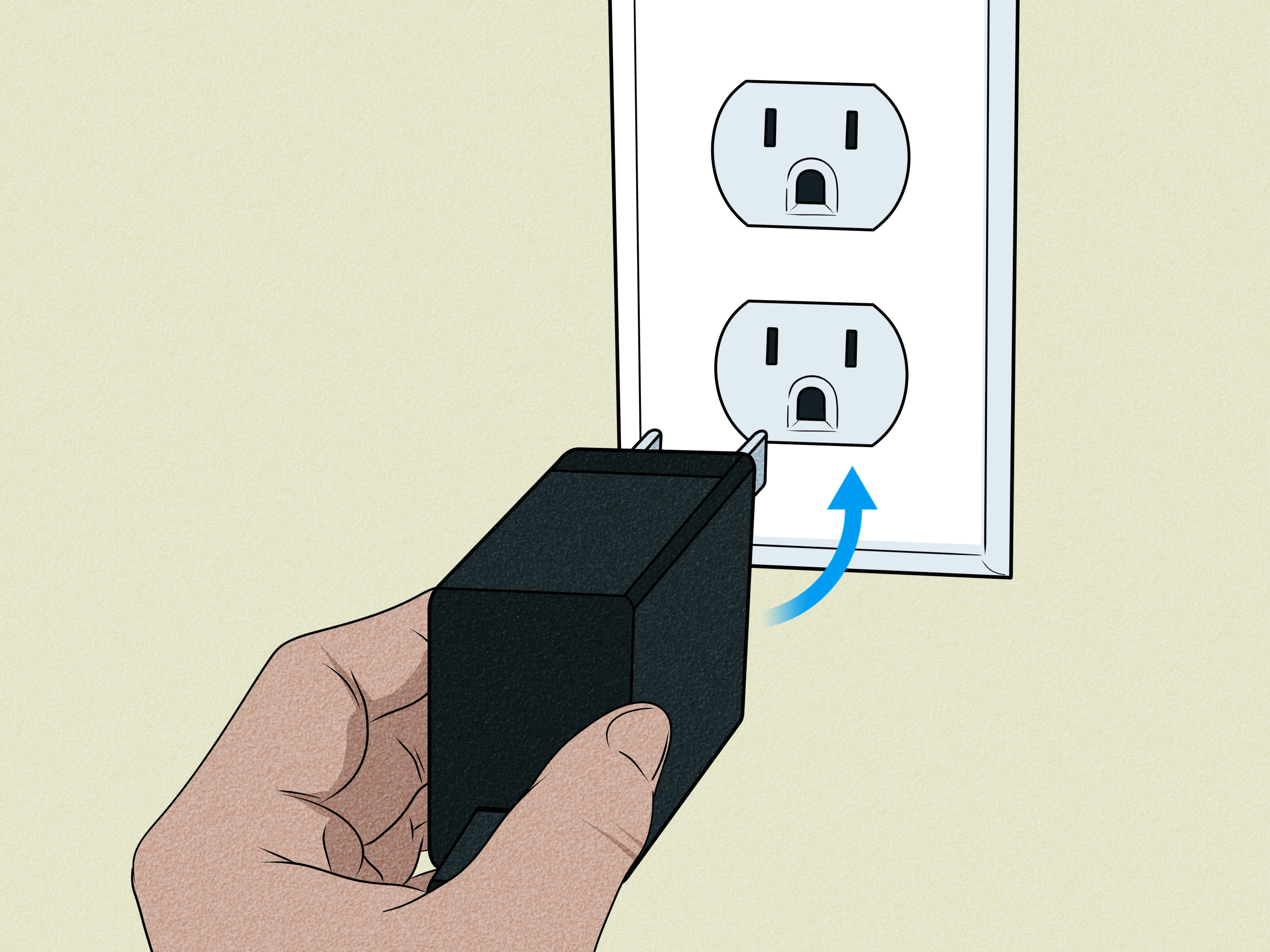
- Unplug the Fire TV device from its power source.
- Wait approximately 60 seconds.
- Reconnect the power cable.
- Allow the Fire TV home screen to load completely.
- Test the remote again from a few feet away.
Disconnecting only the Fire TV Stick from the HDMI port is not always enough because HDMI carries the video signal, not necessarily the device’s main power. Unplug its USB power cable or wall adapter so the device fully shuts down.
Whenever possible, use the original power adapter connected to a wall outlet. Some television USB ports do not provide consistent power, especially when the television is starting, entering sleep mode, or switching inputs. Unstable power can make a Fire TV appear frozen and may prevent the remote from reconnecting reliably.
Verify the Television Input
If the screen is black or displays “No Signal,” use the television’s original remote or physical controls to select the HDMI port where the Fire TV is connected. A perfectly functional Fire TV remote cannot fix a television that is displaying HDMI 2 while the streaming stick is relaxing in HDMI 1.
Try another HDMI port if the screen remains blank. Also inspect the Fire TV power cable, adapter, and HDMI connection for looseness or damage.
Tip 3: Diagnose the Connection and Pair the Remote Again
A Fire TV remote may lose its pairing after a power interruption, software update, device reset, or extended period without batteries. A replacement remote must also be paired before it can control the Fire TV.
Try Standard Fire TV Remote Pairing
- Place the remote within about 10 feet of the Fire TV device.
- Make sure the Fire TV is powered on and fully booted.
- Press and hold the Home button for approximately 10 seconds.
- Watch for a blinking LED or an on-screen pairing confirmation.
- If pairing fails, wait 30 seconds and repeat the process.
Pairing may require more than one attempt. Remove the batteries for 30 seconds, reinstall them, and try again if the remote is not discovered immediately.
Use the Built-In Troubleshooting Mode
Many newer Alexa Voice Remotes include an LED-based troubleshooting mode. To check whether your remote supports it, press the Alexa button and look for an LED response near the top of the remote.
On supported remotes, enter troubleshooting mode by holding Rewind and Right together for three seconds, then pressing the Menu button. The LED should turn green. Press any button and interpret the resulting color:
- Slow red blinking: The batteries are low.
- Fast red blinking: The remote has encountered an error.
- Orange: The remote is not paired.
- White: The Fire TV device may be powered off.
- Blue: The remote itself is not reporting a problem.
To exit troubleshooting mode, hold Play/Pause and Up for three seconds, press Menu, and then briefly remove and reinstall the batteries.
If the indicator is blue but nothing moves on the screen, focus on the Fire TV device, HDMI input, software, or wireless environment rather than assuming the remote is dead.
Tip 4: Reset the Fire TV Remote
If ordinary pairing fails, resetting the remote clears its stored connection state and allows it to establish a fresh relationship with the Fire TV. Think of it as couples counseling, except one participant is a small plastic rectangle.
Reset Most Recent Fire TV Remotes
The following process works with many recent Alexa Voice Remote models:
- Unplug the Fire TV device from power and wait 60 seconds.
- On the remote, press and hold Left, Menu, and Back simultaneously.
- Continue holding the buttons for approximately 12 seconds.
- Release the buttons and wait five seconds.
- Remove the remote’s batteries.
- Reconnect the Fire TV device and allow it to start.
- Reinstall the batteries.
- Press the Home button once.
- If the remote does not pair, hold Home for another 10 seconds.
A blue LED typically indicates successful pairing on remotes that include an indicator light. Alexa Voice Remote Lite models may pair successfully without showing the same LED behavior.
Older Remotes May Use Different Instructions
The first-generation Alexa Voice Remote and Fire TV Basic Edition remote use different reset combinations. Do not assume that one sequence works with every model. Before resetting an older controller, identify the remote and Fire TV generation through your Amazon account’s registered-device information or the original product documentation.
Also verify compatibility before buying a replacement. Fire TV remotes are not universally interchangeable, and a remote that looks nearly identical may not support an older Fire TV Stick, a particular Fire TV smart television, or every equipment-control feature.
Tip 5: Remove Interference, Update Software, and Use the Fire TV App
When the remote works inconsistently rather than failing completely, investigate signal interference, software updates, device placement, and physical damage.
Reduce Bluetooth Interference
Fire TV navigation relies primarily on Bluetooth, which has a theoretical range of roughly 30 feet under ideal conditions. Real homes are not ideal laboratories. Televisions, cabinets, walls, Wi-Fi routers, wireless speakers, game consoles, cordless devices, and other electronics can reduce practical range.
Move within 10 feet of the Fire TV and test again. If the remote works only at close range, temporarily switch off or relocate nearby wireless equipment. Avoid hiding the Fire TV inside a closed cabinet. For a Fire TV Stick positioned tightly behind a television, the included HDMI extender may help move it away from the TV chassis and improve connectivity.
Remember that power and volume buttons may use infrared even while navigation uses Bluetooth. If only those television controls fail, point the remote directly at the TV and check the Fire TV equipment-control setup under Settings > Equipment Control.
Install Fire TV and Remote Updates
Outdated system or remote firmware can contribute to bugs and connection problems. Once you regain temporary control, navigate to:
Settings > My Fire TV or Device & Software > About > Check for Updates
To check for remote firmware, open:
Settings > Controllers & Bluetooth Devices > Amazon Fire TV Remotes
Select the paired remote and install an update if one is offered. Menu names may differ slightly depending on the Fire TV model and software version.
Use Your Phone as a Temporary Remote
The Amazon Fire TV mobile app can control a Fire TV Stick, Fire TV Cube, or compatible Fire TV smart television while you troubleshoot the physical remote.
- Install the official Amazon Fire TV app on an Android phone or iPhone.
- Connect the phone to the same Wi-Fi network as the Fire TV.
- Open the app and select the Fire TV device.
- Enter the four-digit code displayed on the television.
- Use the on-screen controls to navigate settings or pair another remote.
The mobile app also provides a keyboard, which is significantly less painful than entering a complicated Wi-Fi password one letter at a time with a directional pad.
The app may not discover the Fire TV if the television device is connected to an old Wi-Fi network or has no network connection. In that situation, restoring the previous network name temporarily or using a compatible physical remote may be necessary.
What If Only Certain Fire TV Remote Buttons Fail?
A remote that responds to some commands but not others usually has a more specific problem than pairing.
Navigation Works, but Power and Volume Do Not
Open Settings > Equipment Control > Manage Equipment and repeat the television or sound system setup. Confirm that the selected TV brand is correct. You may be asked to test multiple infrared profiles before the correct one is found.
One Navigation Button Is Stuck
Remove the batteries and press the affected button repeatedly to release debris around its edge. Wipe the surface with a slightly damp microfiber cloth, keeping moisture away from openings. If a button remains physically stuck or feels different from the others, the internal button membrane may be damaged.
The Alexa Button Does Not Respond
Confirm that the Fire TV has an internet connection and that the remote model supports Alexa voice input. If ordinary navigation works, restart the Fire TV and check for software updates. Microphone failure after drops or liquid exposure may indicate permanent hardware damage.
When Should You Replace the Fire TV Remote?
Replacement becomes reasonable when fresh batteries, power cycling, re-pairing, resetting, software updates, and interference checks all fail. Other warning signs include visible battery leakage, cracked housing, liquid damage, a missing battery terminal, or several dead buttons.
Before purchasing, confirm the exact Fire TV model and generation. Check the compatibility list in the replacement remote’s product description rather than assuming that every Alexa Voice Remote works with every Fire TV device.
Third-party Bluetooth controllers and universal remotes may provide basic navigation, but some lack Alexa voice search, app shortcut buttons, or complete television controls. An official compatible replacement is generally the simplest choice when you want all original functions.
Should You Factory-Reset the Fire TV?
A Fire TV factory reset should be the final troubleshooting step, not the opening move. It removes downloaded apps, account information, preferences, saved networks, and other local settings. You will need to configure the device again afterward.
Use the Fire TV mobile app or another working controller to open Settings > My Fire TV > Reset to Factory Defaults. Perform this reset only after confirming that the problem is not caused by batteries, pairing, power, compatibility, or physical damage.
A factory reset may also create a new obstacle if you have no functioning compatible controller, because the setup process requires an input method. Do not erase the device simply because the remote has decided to take an unscheduled vacation.
Real-World Fire TV Remote Troubleshooting Experiences
The following composite scenarios reflect common Fire TV troubleshooting experiences. They show why diagnosing the symptom before replacing hardware can save time, money, and a surprising amount of muttering at the television.
Experience 1: The “New” Batteries That Were Not Actually New
In one common situation, a remote stops responding overnight. The user replaces its batteries with two AAA cells found in a kitchen drawer, but nothing changes. That seems to rule out battery troubleuntil a battery tester reveals that the “new” batteries have been sitting there since flip phones were fashionable.
A genuinely fresh pair restores the remote immediately. The useful lesson is to test with unopened, recently purchased batteries rather than assuming that any battery without visible corrosion is healthy. Weak batteries may sometimes power the LED while failing to support a stable Bluetooth connection, creating a particularly convincing mystery.
Experience 2: The Remote Was Fine, but the Fire TV Had Frozen
Another user sees no response from the Fire TV and assumes the remote is broken. Fresh batteries do not help, and the LED appears normal. After unplugging the Fire TV’s power adapter for a full minute, the device reboots and the remote reconnects automatically.
The important clue was that the LED responded normally. The controller had power, but the streaming device was frozen. Restarting the Fire TV solved the problem without resetting the remote or changing any account settings.
Experience 3: A Replacement Remote That Refused to Cooperate
A replacement Alexa Voice Remote may arrive looking almost identical to the original, yet holding Home produces no pairing confirmation. After several unsuccessful attempts, the owner discovers that the purchased model is not compatible with that generation of Fire TV Stick.
Remote appearance is not a dependable compatibility test. Product listings may specify exclusions for early Fire TV devices or certain Fire TV Edition televisions. Checking the exact streaming-device generation before ordering prevents the frustrating experience of performing the correct pairing procedure with hardware that was never designed to connect.
Experience 4: The Remote Worked Only From Two Feet Away
Intermittent behavior often points to interference rather than complete failure. In a typical setup, the Fire TV Stick is squeezed behind a wall-mounted television next to a Wi-Fi router, game console, wireless soundbar, and enough cables to begin an independent civilization.
Moving the Fire TV Stick onto its HDMI extender and creating a little space between wireless devices improves the connection. The remote begins working reliably from across the room. This illustrates why Bluetooth range figures describe ideal conditions, not crowded entertainment centers filled with competing signals and large pieces of metal.
Experience 5: The Phone App Saved Movie Night
Sometimes the physical remote is genuinely damaged. A drink spills across it, several buttons stop responding, and no reset changes the situation. Instead of abandoning the evening, the user installs the official Fire TV app, connects the phone to the same Wi-Fi network, enters the code shown on the TV, and regains control.
The app then provides access to the Fire TV settings, where a replacement remote can be added later. It is not merely an emergency substitute; its phone keyboard can make searches and password entry faster than the physical remote. The key limitation is network access: both devices generally need to be connected to the same Wi-Fi network before the app can find the Fire TV.
Across these experiences, the most effective strategy is consistent: begin with fresh batteries, restart the Fire TV, re-pair the remote, perform the correct model-specific reset, and only then investigate replacement hardware. Troubleshooting in that order prevents a five-minute glitch from becoming a two-hour adventure through factory resets and online shopping.
Conclusion
When your Fire TV remote is not working, resist the urge to declare it permanently dead after the first unresponsive click. Replace both batteries, inspect the contacts, restart the Fire TV, and hold Home to restore pairing. If those steps fail, use the correct remote-reset sequence and check for Bluetooth interference, software updates, physical damage, and model compatibility.
The Fire TV mobile app can keep your streaming setup usable while you diagnose the problem or wait for a compatible replacement. Save a factory reset for the very end because it erases your setup and may still leave you needing a working input device.
In most cases, one of these five troubleshooting tips will bring the remote back to life. Your couch-based entertainment plans may continue, and the remote can return to its natural habitat: disappearing between the cushions exactly when you need it.
Note: This article synthesizes current guidance from official Amazon support and established consumer technology, retail-support, and repair resources, including Android Authority, Asurion, Lifewire, Digital Trends, Best Buy, How-To Geek, SlashGear, TechRadar, iFixit, and HelloTech. Reset procedures and menu names can vary by remote generation and Fire TV model.