A corrupted flash drive has a special talent: it waits until you need one file right now, then suddenly acts like it has never met you before. One minute your USB stick is holding vacation photos, work docs, tax files, or the only copy of that school project you definitely meant to back up. The next minute Windows says the drive is unreadable, macOS refuses to mount it, or both operating systems politely suggest formatting it like that is somehow comforting.
The good news is that a corrupted flash drive does not always need to be formatted immediately. In many cases, the problem is logical corruption rather than total hardware failure. That means the file system, partition data, or directory structure may be damaged while the actual files are still there. If you move carefully, you may be able to repair the drive, recover your data, and avoid the nuclear option.
This guide walks you through how to fix a corrupted flash drive without formatting on both Windows and Mac. It also explains when built-in tools can help, when they can make things worse, and when your flash drive is no longer “corrupted” so much as “quietly retiring from public service.”
What a corrupted flash drive usually looks like
Flash drive corruption does not always announce itself with dramatic flair. Sometimes the symptoms are subtle at first. Common signs include:
- The drive appears in File Explorer or Finder, but you cannot open it.
- You see messages like “The file or directory is corrupted and unreadable.”
- The USB drive shows up, then disappears a few seconds later.
- Your computer asks you to format the drive before using it.
- Files are missing, renamed oddly, or open as gibberish.
- The drive mounts as read-only, or copy operations fail halfway through.
- Disk Utility or Windows tools can see the drive, but normal file browsing cannot.
Those symptoms usually point to one of three categories: a connection problem, a file system problem, or a failing piece of hardware. Your job is to figure out which one you are dealing with before clicking Format out of frustration.
Before you repair anything, protect your data first
1. Stop writing new files to the drive
If the flash drive is corrupted but still semi-readable, do not use it like nothing happened. Do not copy more files onto it. Do not run random “USB fixer” tools from the internet. Do not let your computer create a bunch of fresh temporary files there. Every new write increases the chance of overwriting data you may still be able to recover.
2. Try the boring fixes first
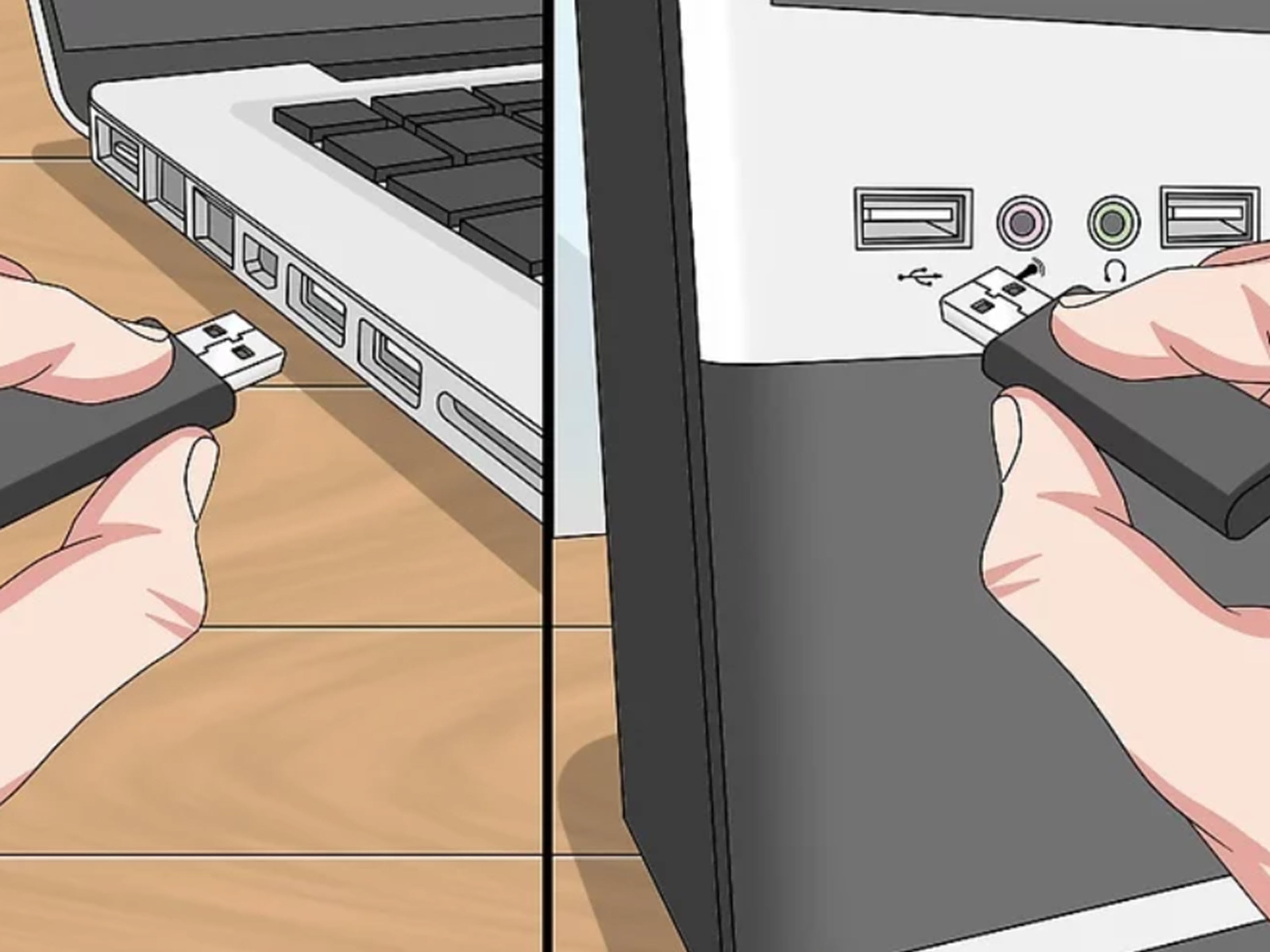
Yes, the humble “try another port” advice is annoyingly unglamorous. It is also often correct. Connect the flash drive directly to a different USB port, skip the hub, and test it on another computer if possible. A flaky port, bad adapter, low-power hub, or loose connector can mimic corruption and waste an hour of your life before you realize the drive itself was innocent.
3. Do not format just because the operating system asks
When Windows or macOS says the drive needs to be formatted, that is a suggestion, not a court order. Formatting may restore usability, but it also rewrites file system structures and makes a simple repair harder. If the files matter, treat formatting as Plan Z, not Plan A.
How to fix a corrupted flash drive without formatting on Windows
Method 1: Check whether the drive is visible in Disk Management
If your USB drive does not appear in File Explorer, open Disk Management. If the drive shows there, Windows may recognize the hardware but not the volume correctly. This is common when a drive letter is missing, the disk is offline, or the partition information is damaged.
If you can see the flash drive in Disk Management, check these details:
- Does it have a drive letter?
- Does it show as Online?
- Does it show a normal partition instead of raw or unallocated space?
If the drive is healthy enough and simply lacks a letter, assigning one can make it reappear instantly. That is the storage-equivalent version of finding out the TV remote just needed batteries.
Method 2: Run Windows Error Checking
If the drive opens at least partially, try Windows’ built-in error-checking tool before diving into command-line land. Right-click the drive, open Properties, go to Tools, and run Check under Error checking.
This is a good first-line fix for minor file system errors because it is simple and less intimidating than a terminal window full of stern-looking text. It can repair directory issues, cross-linked files, and basic structural inconsistencies without reformatting the drive.
Method 3: Use CHKDSK carefully
If Error Checking does not work, open Command Prompt as an administrator and run:
Replace X with your actual drive letter. The /f switch tells Windows to fix logical file system errors. If the drive keeps throwing unreadable-file errors, CHKDSK is often the next best step.
You may also see advice to use:
The /r switch checks for bad sectors and attempts recovery of readable information, but it takes longer. On a flash drive, that can be worth trying if the simpler scan fails, but it is smarter to attempt file recovery first if the data is irreplaceable. CHKDSK can repair a damaged structure, but on a severely failing drive it can also rearrange the file system in ways that complicate recovery later.
Method 4: Reinstall the USB device driver
Sometimes the corruption is not on the flash drive at all. Windows may be choking on the USB mass storage driver or the controller stack. Open Device Manager, expand the USB-related sections, find the flash drive or USB mass storage device, uninstall it, then disconnect and reconnect the drive or restart the PC.
If the drive suddenly works after that, congratulations: your flash drive was not haunted, just badly introduced to Windows.
Method 5: Scan the drive for malware
If the drive started acting strangely after being used on public, school, office, or shared computers, run a malware scan. Right-click the removable drive in File Explorer and scan it with your security software or Microsoft Defender. Malware can hide files, alter folder attributes, or create autorun-style messes that make a healthy drive look corrupted.
Method 6: Recover files before you keep experimenting
If the files are more important than the flash drive itself, pause the repair attempts and recover what you can to a different storage location. On Windows, Microsoft’s Windows File Recovery app can help retrieve deleted or inaccessible files from local, external, and USB storage.
The key rule is simple: recover from the bad drive, but save recovered files to a different drive. Do not send rescued files back onto the same wounded USB stick like a doctor discharging a patient into a burning building.
Method 7: Use PowerShell if you know what you are doing
Advanced users can also try Repair-Volume in PowerShell. This is basically a more administrative way to do what CHKDSK does. It is useful in some edge cases, but for most people, CHKDSK and the GUI tools are enough.
How to fix a corrupted flash drive without formatting on Mac
Method 1: Open Disk Utility and show the full device list
On Mac, the first mistake many people make is troubleshooting the wrong item. Open Disk Utility, then choose View > Show All Devices. This displays the physical drive, any containers, and the volume underneath. If you only look at the volume layer, you may miss where the real issue lives.
If the USB appears in Disk Utility but not in Finder, that is actually encouraging. It means the hardware is at least being detected. Your problem is more likely logical than electrical.
Method 2: Run First Aid in the right order
Select the flash drive and run First Aid. If the device includes multiple layers, start with the volume, then the container if present, then the physical device. First Aid checks and repairs directory and formatting errors, and it is the best built-in Mac option when you want to avoid formatting.
If First Aid succeeds, immediately copy your important files somewhere safe. A repaired flash drive is like a wobbly chair that has just been tightened: usable, maybe, but not something to trust with your full body weight forever.
Method 3: Unmount and reconnect the drive
If the drive mounts inconsistently, eject it properly, disconnect it, wait a few seconds, and reconnect it to a different port. If a Finder process or app is hanging onto the device, a clean remount can sometimes solve the issue without touching the file system.
Method 4: Use Terminal to identify the device
If Disk Utility is being vague, open Terminal and run:
This shows all connected disks and helps you confirm that macOS still sees the flash drive at the system level. Even if the volume is not mounting normally, the device may still appear here. That tells you the controller is alive and the file system is the likelier culprit.
Method 5: Copy anything readable right away
If the flash drive mounts on Mac but opens slowly, throws occasional errors, or disappears after a few minutes, do not keep testing it for fun. Copy your files off immediately. When removable storage starts acting dramatic, it rarely calms down with age.
If the flash drive works on one computer but not another
This is a crucial clue. If the drive opens on one Mac or PC but not another, you may not be dealing with severe corruption. Instead, the problem might be:
- a missing driver or stale USB controller state on one computer,
- a missing drive letter in Windows,
- a permissions or mounting issue,
- or a file system compatibility limitation.
In that situation, use the computer that can still read the drive to copy off everything important first. Then troubleshoot the non-working system separately. The flash drive’s first job is data transport, not character development.
Signs the problem is hardware, not just corruption
Sometimes a flash drive is not fixable without formatting because it is not really fixable at all. Watch for these warning signs:
- The drive gets unusually hot within seconds.
- It disconnects and reconnects repeatedly on multiple computers.
- It shows 0 bytes, no media, or nonsense capacity.
- Neither Windows nor Mac sees it reliably, even in low-level disk tools.
- Repairs succeed temporarily, but corruption returns almost immediately.
At that point, the issue may be failing NAND flash memory, a damaged controller, or a broken connector. Software repair tools cannot negotiate with dead hardware. If the data is important, professional recovery may be the only sensible move.
Common mistakes that make flash drive corruption worse
- Pulling the drive out without ejecting it properly.
- Using the drive while the computer is low on power or crashing.
- Editing files directly from the flash drive instead of copying them locally first.
- Moving the drive constantly between random shared computers.
- Ignoring early warning signs like slow transfer speeds and intermittent errors.
- Treating a repaired flash drive like a permanent archive.
USB flash drives are great for convenience, transfers, and quick backups. They are not immortal, and many of them are not nearly as sturdy as their marketing photos suggest.
If you eventually have to format the drive
Sometimes formatting becomes unavoidable. That is usually the case when the file system is too damaged to repair, the volume keeps reverting to raw or unreadable, or the drive has already been emptied and you simply want it usable again.
Before formatting, make sure you have copied or recovered everything you can. If you want cross-platform compatibility between Windows and Mac, exFAT is usually the practical choice for a standard flash drive. If the drive will stay on Windows only, NTFS may make more sense. For Mac-only use, Apple-native formats can be fine, but only if you do not need to move the drive back and forth.
Formatting may restore function, but it does not restore trust. If the drive was corrupted once because of age or hardware weakness, use it only for temporary transfers after that, not as the sole home for precious files.
Real-world experiences with corrupted flash drives
In real life, corrupted flash drives rarely fail in a clean, textbook way. More often, they fail like a distracted employee on their last day: half-working, inconsistent, and weirdly confident about it. One of the most common experiences is the drive that opens perfectly on one computer but refuses to cooperate on another. A user plugs it into a Windows laptop and gets “The file or directory is corrupted and unreadable,” then tries it on an older desktop and the files appear just fine. In cases like that, the smartest move is not to celebrate too early. It is to copy everything off immediately before the drive changes its mind.
Another common scenario is the “I clicked safely remove… probably” mystery. A flash drive gets pulled too quickly during a transfer, maybe after a large video file or a folder full of photos. The next time it is inserted, the folders are still there, but one opens slowly, another says access denied, and a few filenames look like keyboard-smash poetry. Windows Error Checking or CHKDSK can sometimes clean that up, but not always perfectly. The repair might restore the folder tree while a few damaged files remain unreadable. That is still a win compared with a full format and total loss.
Mac users often run into a different flavor of confusion. The drive does not appear in Finder, which feels like bad news, but it does show up in Disk Utility. That usually means the hardware connection is still alive. Running First Aid may repair the volume, or at least confirm that the problem is at the file system level rather than a dead device. The most frustrating part is that people often assume “not in Finder” means “gone forever,” when in reality the Mac is quietly telling them, “I see it, but I do not like what I see.”
There is also the classic work-or-school flash drive disaster. Someone uses the same USB stick on a home PC, a library computer, an office workstation, and maybe one printer kiosk that looked like it had seen things. Then the drive starts hiding folders, changing file attributes, or showing shortcuts instead of actual documents. At that point, a malware scan matters just as much as a file system repair. What looks like corruption can sometimes be malicious mischief wearing corruption’s nametag.
And then there is the harsh lesson nearly everyone learns eventually: a repaired flash drive is not a trustworthy flash drive. Many people successfully fix a USB stick once and assume it is back to factory-fresh reliability. Then a month later, the same drive starts disconnecting randomly or asking to be formatted again. That pattern usually means the drive is aging out or physically failing. The best long-term experience is not heroic recovery; it is using recovery as your cue to retire the drive, back up more often, and stop treating a tiny plastic rectangle like a vault.
Final thoughts
If your flash drive is corrupted, resist the urge to format first and ask questions later. Start with the gentle fixes: different port, different computer, Disk Management, Error Checking, CHKDSK on Windows, and First Aid on Mac. If the drive is still readable at all, copy your files off before trying anything more aggressive. And if the device shows clear signs of hardware failure, skip the wishful thinking and focus on recovery instead of repair.
The short version is this: a corrupted flash drive is often fixable without formatting, but only if you move carefully and stop pretending removable storage is invincible. Tiny drive, big ego, limited lifespan.