Wondering why your iMessage doesn’t say Delivered? Don’t panic, don’t start writing your “why have you abandoned me?” speech, and definitely don’t assume the worst after one missing delivery receipt. When iMessage does not show the familiar Delivered label under a blue bubble, it usually means the message has not successfully reached the recipient’s Apple device yet. But the reason can be simple: weak internet, iMessage settings, Apple server issues, a phone that is off, or a recipient who no longer uses iMessage.
This guide breaks down what it means when iMessage doesn’t say Delivered, how to tell the difference between a normal delay and a real problem, and the seven most useful fixes to try before you emotionally prosecute your iPhone in the court of public opinion.
What Does “Delivered” Mean on iMessage?
In iMessage, the word Delivered usually appears beneath a blue message bubble after Apple’s messaging system successfully sends the message to the recipient’s Apple device. It does not necessarily mean the person has read it. It simply means the message reached a device connected to that person’s iMessage account.
That distinction matters. Delivered is not the same as Read. A read receipt only appears when the recipient has enabled read receipts and has opened your message. So if your message says Delivered but not Read, the message probably arrived; the person just has not opened it, has read receipts off, or is ignoring their phone like a responsible adult at dinner.
Blue Bubble vs. Green Bubble
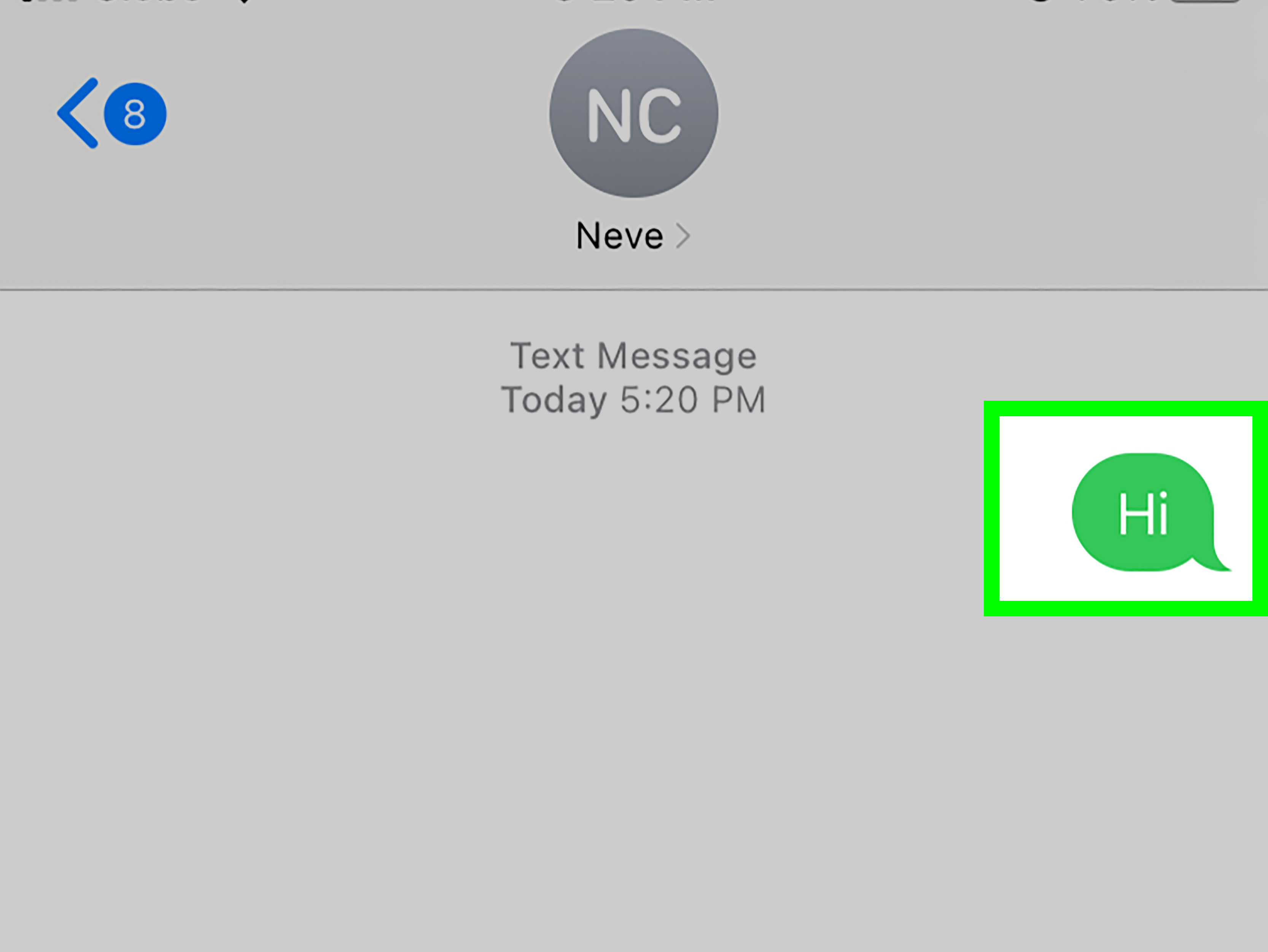
A blue bubble means your iPhone is trying to send the message through iMessage. A green bubble means the message is going through SMS, MMS, or RCS, depending on the device, carrier, and settings involved. With newer iOS versions, RCS can improve texting with non-Apple users by supporting richer media, typing indicators, and delivery or read receipts when available. Still, iMessage remains Apple’s own system, while SMS, MMS, and RCS depend more heavily on carrier support.
Why iMessage Doesn’t Say Delivered
When iMessage doesn’t say Delivered, it usually means one of three things: your iPhone couldn’t send the message properly, the recipient’s device couldn’t receive it, or Apple’s iMessage service is having a temporary hiccup. The tricky part is that iMessage is polite but not always chatty. It may not explain exactly what went wrong.
Common causes include poor Wi-Fi, weak cellular data, Airplane Mode, disabled iMessage, outdated carrier settings, a phone number not selected under Send & Receive, a recipient who switched from iPhone to Android, or a temporary service issue. Sometimes the recipient’s phone is simply off, out of battery, or disconnected from the internet. Yes, the “mysterious silence” may just be a dead battery. Dramatic, but common.
There is also the uncomfortable possibility that you have been blocked, but that should not be your first assumption. A missing Delivered label alone is not reliable proof. Technology fails far more often than people admit, especially when Wi-Fi routers are involved.
7 Fixes When iMessage Doesn’t Say Delivered
1. Check Your Internet Connection
iMessage needs an internet connection. That can be Wi-Fi or cellular data. If your iPhone is barely hanging onto one bar of signal, sitting in a basement, or connected to a Wi-Fi network that looks strong but loads pages at the speed of a sleepy turtle, iMessage may fail to deliver.
Start simple. Open Safari and try loading a website. If nothing loads, your message probably has nowhere to go. Toggle Wi-Fi off and on, switch to cellular data, or move to a better signal area. You can also turn Airplane Mode on for about ten seconds, then turn it off again to refresh your connection.
If the message sends after you change networks, congratulations: the culprit was not your friendship, your phone, or the moon phase. It was the internet.
2. Make Sure iMessage Is Turned On
Sometimes iMessage stops behaving because the feature is disabled, stuck during activation, or not properly linked to your phone number. Go to Settings > Apps > Messages and make sure iMessage is turned on. If it is already on, turn it off, wait a few seconds, and turn it back on.
This tiny toggle is surprisingly powerful. It forces your iPhone to reconnect to Apple’s iMessage service. If you recently changed SIM cards, activated an eSIM, upgraded your iPhone, or moved your number to a new carrier, toggling iMessage can help refresh the setup.
After turning it back on, give it a little time. If you see a “Waiting for Activation” message, Apple and your carrier may still be verifying your number. In some cases, activation can take several hours.
3. Confirm Your Send & Receive Settings
If iMessage is on but your messages still do not say Delivered, check which phone number or email address your iPhone is using. Go to Settings > Apps > Messages > Send & Receive. Make sure your phone number is selected under the section for sending and receiving iMessages.
This is especially important after switching phones, changing carriers, adding an eSIM, or signing into a different Apple Account. If your iPhone is trying to send iMessages from an email address the recipient does not recognize, conversations can get messy. You may even appear as a new contact, which is a wonderful way to accidentally confuse everyone in your life.
Choose the phone number or email address you want people to use. Then send a short test iMessage to a trusted contact. A simple “test” is fine. No need to write a novel unless you want your troubleshooting to have a plot arc.
4. Restart Your iPhone
Restarting your iPhone sounds like the oldest tech advice in the book because it is also one of the most useful. A restart clears temporary glitches, refreshes network connections, and gives your iPhone a chance to stop being dramatic.
To restart newer iPhones, hold the side button and a volume button until the power slider appears. Turn the phone off, wait about 30 seconds, then turn it back on. After the restart, open Messages and try sending the iMessage again.
This fix is particularly helpful if Messages has been lagging, bubbles are stuck, or several conversations are failing at once. Think of it as giving your phone a tiny nap. Many devices, like many humans, perform better after a reset and a moment of silence.
5. Turn On “Send as Text Message”
If iMessage is unavailable, your iPhone can try sending the message as a regular SMS text instead. Go to Settings > Apps > Messages and turn on Send as Text Message. This allows your iPhone to fall back to SMS when iMessage cannot complete the delivery.
There are a few important details here. SMS messages use your cellular network, not Apple’s iMessage system. They may count against your texting plan, depending on your carrier. SMS also does not offer the same features as iMessage, such as Apple’s end-to-end encrypted blue-bubble experience.
Still, when you need the message to arrive, SMS fallback can be a lifesaver. If a blue iMessage refuses to deliver, press and hold the message bubble and look for an option to send it as a text message. If the bubble turns green, your iPhone has moved from Apple’s system to carrier texting.
6. Update iOS and Carrier Settings
Outdated software can cause strange messaging issues. Go to Settings > General > Software Update and install any available iOS update. Apple often includes bug fixes, security improvements, and connectivity updates in new iOS releases.
You should also check carrier settings. These are small updates from your mobile carrier that help your iPhone connect correctly to cellular networks. Go to Settings > General > About. If a carrier settings update is available, your iPhone should show a prompt.
This step matters more than many people realize. Since SMS, MMS, RCS, phone-number activation, and cellular data all depend partly on carrier support, outdated carrier settings can create delivery problems. In plain English: your iPhone and your carrier need to speak the same language. If they are not, your message may get lost in the awkward translation.
7. Reset Network Settings
If nothing else works, reset your network settings. Go to Settings > General > Transfer or Reset iPhone > Reset > Reset Network Settings. This does not erase your photos, apps, messages, or personal files. However, it does remove saved Wi-Fi networks, VPN settings, and some cellular-related network preferences.
Because of that, make sure you know your Wi-Fi passwords before you do it. Resetting network settings is like clearing the communication cobwebs from your iPhone. It can fix stubborn problems caused by corrupted network preferences, broken Wi-Fi behavior, or cellular confusion.
After the reset, reconnect to Wi-Fi, make sure cellular data is on, check iMessage again, and send a test message. If your iMessage finally says Delivered, your network settings were probably the gremlin hiding under the keyboard.
Does No “Delivered” Mean You’re Blocked?
Maybe, but do not jump there immediately. If your iMessage does not say Delivered, blocking is one possible explanation, but it is not the only one. The recipient’s phone may be off, disconnected, out of storage, signed out of iMessage, or temporarily unable to receive messages. They may also have switched to Android and not deregistered their phone number from iMessage.
If every message to one specific person fails, but messages to everyone else work, the issue may be on that person’s side. If all your iMessages fail, the problem is more likely your connection, settings, Apple Account, carrier, or device.
Also remember that Focus mode, Do Not Disturb, and silenced notifications do not necessarily stop delivery. They usually affect alerts, not whether the message reaches the device. In other words, “notifications silenced” is not the same as “you have been banished from the kingdom.”
What If the Person Switched from iPhone to Android?
If someone recently moved from iPhone to Android, your iPhone may still try to send messages to that phone number as iMessages. That can cause delivery problems because the recipient no longer has an Apple device receiving iMessages for that number.
The fix is on the recipient’s side. They need to turn off iMessage before switching phones or deregister their number from Apple’s iMessage system. Once their number is removed from iMessage, your iPhone should send messages as SMS or RCS instead of trying to force a blue bubble into a place it no longer belongs.
If you suspect this is the case, try sending the message as a text message. If it goes through as a green bubble, the issue may be related to the recipient’s iMessage registration.
When to Check Apple System Status
Sometimes the problem is not your iPhone at all. Apple services can occasionally experience outages or slowdowns. If iMessage suddenly stops working for many people, or if your settings look perfect but nothing sends, check Apple’s System Status page to see whether iMessage is having a service issue.
If Apple reports an iMessage outage, the best fix is patience. You can use SMS, RCS, phone calls, email, or another messaging app while waiting. Yes, patience is not the most exciting troubleshooting step, but sometimes the server is the server, and the server does not care about our feelings.
How to Tell Whether the Problem Is Yours or Theirs
To narrow it down, send an iMessage to another iPhone user. If that message says Delivered, your iMessage service is probably working. The problem may involve the original recipient’s device, settings, phone number, or connection.
If no iMessages say Delivered to anyone, focus on your own phone. Check Wi-Fi, cellular data, iMessage activation, Send & Receive settings, iOS updates, carrier settings, and network settings. A pattern is your best clue. One failed conversation points one way; every failed conversation points another.
You can also try sending a normal SMS. If SMS fails too, the issue may be cellular service, your carrier, or your phone’s network connection. If SMS works but iMessage fails, the problem is more likely related to iMessage, Apple Account settings, internet access, or the recipient’s iMessage status.
Practical Examples
Example 1: The Message Stays Blue but Never Says Delivered
This often means your iPhone is trying to use iMessage, but the message has not reached the recipient’s Apple device. Check your internet connection first. Then check whether the recipient still uses iMessage.
Example 2: The Message Turns Green
Your iPhone may have sent the message as SMS, MMS, or RCS instead of iMessage. This can happen when iMessage is unavailable, the recipient is not using an Apple device, or your phone falls back to carrier messaging.
Example 3: It Only Happens with One Person
If iMessage works with everyone except one contact, the problem is probably connected to that recipient. Their phone may be off, their number may not be registered with iMessage, or they may have changed devices.
Example 4: It Happens After Changing SIM or eSIM
If delivery problems start after switching carriers, adding an eSIM, or setting up a new iPhone, check iMessage activation and Send & Receive settings. Make sure your phone number is selected and verified.
Extra Experience: What Real-Life iMessage Delivery Problems Usually Feel Like
In real life, iMessage delivery problems rarely arrive politely. They usually appear at the worst possible moment: when you are confirming dinner plans, asking someone where they parked, sending a time-sensitive work update, or texting “I’m outside” while standing in the rain like a rejected movie character.
One common experience is the “almost delivered” moment. You send a blue bubble, stare at it for a second, and wait for the tiny Delivered label to appear. Nothing happens. You lock your phone, unlock it again, open Messages, and stare harder, as if intense eye contact will improve Apple’s server communication. It will not, but we all try.
The first lesson from these moments is simple: do not troubleshoot emotionally. A missing Delivered label can feel personal, but most of the time it is technical. Maybe your Wi-Fi is connected but not actually working. Maybe cellular data is weak. Maybe the recipient’s phone is dead. Maybe they are on a plane. Maybe they are in a movie theater being considerate for once. There are many explanations that do not involve social disaster.
The second lesson is to look for patterns. If your iMessages fail only when you are at home, your Wi-Fi may be the problem. If they fail only when you are away from Wi-Fi, cellular data may be the issue. If they fail only with one person, that person’s iMessage setup may be the problem. If they fail after a new phone setup, your Send & Receive settings may need attention.
A very common situation happens after someone upgrades their iPhone. They restore from backup, sign in with their Apple Account, and assume everything is ready. Most things are, but iMessage may still be activating in the background. During that awkward waiting period, messages may send from an email address instead of a phone number, or they may not deliver consistently. The fix is often just checking Send & Receive and giving activation time to finish.
Another real-world issue appears when people travel. Hotel Wi-Fi, airport Wi-Fi, school networks, and office networks can be weirdly restrictive. Your phone may show Wi-Fi bars, but iMessage may still struggle because the network requires a login page or blocks certain traffic. In that case, switching to cellular data can instantly solve the problem. The Wi-Fi icon can be a little liar wearing a trustworthy hat.
Group chats add another layer of chaos. If one person in a group does not have iMessage, or if the group switches from iMessage to SMS, MMS, or RCS, delivery behavior can change. Photos may send differently, reactions may appear differently, and delivery receipts may not behave the same way. This is not always a bug. Sometimes it is just the messy reality of mixing Apple messaging with carrier-based messaging.
The most useful habit is to keep your troubleshooting calm and boring. First, check connection. Second, resend. Third, toggle iMessage. Fourth, restart. Fifth, check Send & Receive. Sixth, update software and carrier settings. Seventh, reset network settings if the issue refuses to leave. Boring steps fix exciting problems more often than people expect.
Finally, remember that messaging is not a perfect emotional thermometer. A missing Delivered label does not prove someone is ignoring you. A green bubble does not mean your phone has betrayed you. A delayed message does not mean disaster. Most of the time, it means one small piece of the communication chain tripped over its own shoelaces.
So before you panic, breathe, test another contact, check your settings, and let your iPhone do what iPhones do best: work beautifully most of the time and occasionally require a restart like it just needs a tiny digital vacation.
Conclusion
When iMessage doesn’t say Delivered, it means your message has not confirmed successful delivery to the recipient’s Apple device. The cause might be your internet connection, iMessage activation, Send & Receive settings, outdated carrier settings, the recipient’s device, or a temporary Apple service issue. In some cases, the person may have switched away from iPhone or may be unreachable, but a missing Delivered label alone is not enough evidence to assume you are blocked.
The best approach is calm, step-by-step troubleshooting. Check your connection, toggle iMessage, confirm your phone number, restart your iPhone, enable Send as Text Message, update iOS and carrier settings, and reset network settings if necessary. Most iMessage delivery problems are fixable without drama, detective work, or sending six follow-up texts that begin with “hello???”