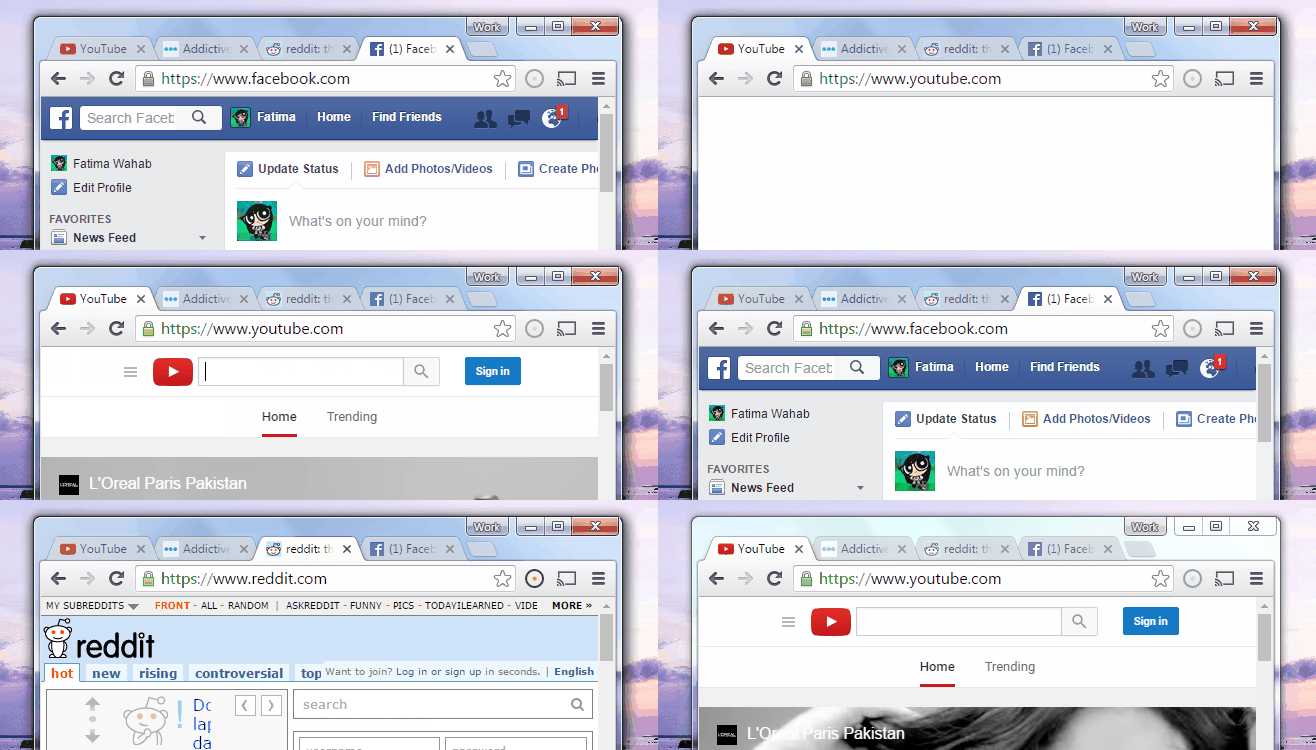
There are keyboard shortcuts everyone knows, keyboard shortcuts everyone pretends to know, and keyboard shortcuts that quietly save your sanity while nobody writes them a thank-you note. This little gem belongs in the third category: when you are cycling through open apps or browser tabs, adding the Shift key often sends you in reverse.
That means if you overshoot the window you wanted by one click, you do not need to keep looping forward like a caffeinated hamster on a productivity wheel. You can simply reverse direction. It is a tiny trick, but it makes multitasking feel much less clumsy.
If you live inside Chrome tabs, keep a dozen apps open, or bounce between work windows all day, learning how to use the Shift key to cycle backward can shave seconds off hundreds of little actions. And those seconds add up. Faster navigation means less mouse hunting, less visual clutter, and fewer “Why do I have 19 tabs open and none of them are the right one?” moments.
The Small Shortcut Trick That Feels Weirdly Powerful
At its core, this trick is wonderfully simple: a lot of keyboard navigation shortcuts move forward by default, and Shift flips them backward. Think of it as the keyboard’s polite way of saying, “Oops, went too far? No problem. Back it up.”
Once you see the pattern, you start noticing it everywhere. Tab usually moves you forward. Shift + Tab usually moves you backward. Ctrl + Tab often goes to the next browser tab. Ctrl + Shift + Tab goes to the previous one. On a Mac, Command + Tab moves through open apps, while Command + Shift + Tab walks back the other way.
It is one of those rare computer habits that is both easy to learn and immediately useful. No complicated setup. No extension download. No secret menu hidden behind four layers of settings. Just one extra key and a much smoother workflow.
Why This Matters More Than It Sounds
People tend to underestimate small keyboard shortcuts because each use seems trivial. But modern computer life is basically an endless parade of tiny repetitive actions. Open a tab. Switch to Slack. Back to your browser. Into your notes app. Over to email. Back to the tab you actually needed five seconds ago. Repeat until lunch.
That is where the Shift key shortcut becomes more than a nerdy party trick. It reduces friction. Instead of breaking your focus, grabbing the mouse, and visually scanning your screen, you stay in motion. Your hands remain on the keyboard. Your eyes stay on the task. Your brain gets one less reason to derail itself.
For people who write, research, code, edit, compare documents, work in spreadsheets, or juggle multiple chat and browser windows, the ability to cycle backward through open apps and browser tabs is not just convenient. It is a real productivity upgrade.
How To Cycle Backward Through Open Apps
Windows: Reverse the App Switcher
On Windows, most people know Alt + Tab as the classic shortcut for switching between open apps. It is the old reliable of desktop multitasking. But the smarter move is knowing what to do when you pass the app you wanted.
That is where Alt + Shift + Tab comes in. It lets you move backward through open windows instead of continuing forward. In plain English, you are rewinding the app switcher rather than marching around the loop again.
This is especially handy when you have a crowded desktop: maybe Outlook, Excel, Teams, two browser windows, a PDF, and a half-finished document glaring at you from the digital abyss. One backward step is faster than five forward ones.
Windows users should also remember that app switching and tab switching are different layers. Alt + Tab handles windows and apps. Browser shortcuts handle tabs within a browser. Mixing those up is how people end up angrily pressing keys while blaming the laptop for “being weird.”
Mac: The App Switcher Works Backward Too
On a Mac, the equivalent move is Command + Tab to move through open apps and Command + Shift + Tab to move backward. Same idea, different modifier key, same feeling of smug efficiency once it becomes muscle memory.
Mac users often work with several open apps at once: Safari, Notes, Mail, Messages, Preview, maybe a calendar window, and probably a document that was supposed to be finished yesterday. Reverse app cycling keeps that flow cleaner.
There is one more useful distinction on macOS: switching apps is not the same thing as switching windows inside one app. If you have three Safari windows open, app switching gets you to Safari, but browser and window shortcuts help you move around once you are there. In other words, the keyboard is powerful, but it still expects you to know which maze you are in.
How To Cycle Backward Through Browser Tabs
If app switching is the broad, room-to-room version of multitasking, browser tabs are the junk drawer version. Everything is in there. Somewhere. Hopefully. The good news is that cycling backward through browser tabs is usually just as easy.
Chrome and Edge on Windows
In both Chrome and Microsoft Edge on Windows, Ctrl + Tab moves to the next tab and Ctrl + Shift + Tab moves to the previous tab. This is the shortcut pair many people end up using dozens of times per day without ever learning the backward version.
That backward command is gold when you are comparing two pages, flipping between research tabs, or trying to return to the tab you just left instead of wandering into tab number 17 and wondering what your past self was thinking.
Chrome on Mac
On a Mac, Chrome users often use Command + Option + Right Arrow for the next tab and Command + Option + Left Arrow for the previous tab. So yes, the principle stays the same even when the exact keys change: forward has a backward twin, and Shift or an equivalent modifier often helps you reverse direction in a shortcut family.
Firefox: Useful, With a Tiny Twist
Firefox supports backward tab navigation too, including Ctrl + Shift + Tab on Windows and Control + Shift + Tab on Mac. But Firefox also has a quirk that power users should know about: depending on your settings, Ctrl + Tab can cycle through tabs in recently used order instead of simply moving left to right.
That sounds small, but it changes the feel of the shortcut a lot. If you like bouncing between your most recent tabs, it can be fantastic. If you expect strict tab-strip order, it can feel like your browser drank too much espresso. Either way, it is worth knowing that Firefox gives you a little more flexibility than some people realize.
Safari on Mac
Safari gives Mac users a couple of ways to move between tabs. For the previous tab, you can use Control + Shift + Tab or Shift + Command + [. That second one looks intimidating the first time you see it, but it becomes natural pretty quickly if you spend your life in Safari.
Safari is a good reminder that keyboard shortcuts are not always identical across browsers, even when the concept is the same. The rule is simple: learn the pattern first, then learn the exact keys for your favorite browser.
The Bigger Pattern: Shift Usually Means “Go Back”
Once you learn this idea, your keyboard starts making more sense. Shift + Tab often moves to the previous field in a form. Ctrl + Shift + Tab often moves to the previous browser tab. Command + Shift + Tab moves to the previous open app on a Mac. In many shortcut systems, Shift is the “reverse gear” for navigation.
That is why this trick is so useful. It is not just one shortcut. It is a pattern you can reuse across operating systems, browsers, and interfaces. Instead of memorizing a random pile of hotkeys, you start understanding how keyboard navigation is built.
And once that clicks, you stop feeling like shortcuts are a secret society. They become logical. Predictable. Almost friendly. Well, as friendly as a row of plastic keys can be.
Common Reasons the Shortcut Feels Like It Is Not Working
You Are Switching the Wrong Layer
This is the big one. If you are trying to move between browser tabs with an app-switching shortcut, nothing good happens. Likewise, if you are trying to jump between apps using a browser-only tab shortcut, your computer will simply stare back at you with silent judgment.
Use app switchers for apps and windows. Use tab shortcuts for tabs inside a browser. Same family, different relatives.
Your Browser Uses a Different Mac Shortcut
Mac shortcuts vary more across browsers than many users expect. Chrome, Firefox, and Safari are cousins, not clones. If one shortcut feels wrong, it may not be broken; it may just belong to a different browser.
Firefox Settings May Change Tab Behavior
Firefox deserves another mention here because its recently used tab option can make Ctrl + Tab feel different from Chrome or Edge. If tab movement seems out of order, check whether Firefox is cycling by recent use instead of tab position.
You Let Go Too Soon
This sounds silly, but it matters. With app switchers especially, you often need to keep the main modifier key held down while tapping the navigation key. Let go too early and you may land on the wrong app. It is not a bug. It is just your fingers being a little dramatic.
How To Turn This Into a Real Productivity Habit
The easiest way to build this habit is to stop reaching for the mouse every time you miss a target by one step. Make yourself reverse with the keyboard instead. Do it for a day. By the end of the week, it will feel normal.
Another smart trick is to learn your shortcut pairs together. Do not memorize only the forward version. Learn the backward one at the same time.
- Forward: Alt + Tab
- Backward: Alt + Shift + Tab
- Forward: Ctrl + Tab
- Backward: Ctrl + Shift + Tab
- Forward: Command + Tab
- Backward: Command + Shift + Tab
That pairing makes the logic stick. Your brain stops storing isolated shortcuts and starts storing direction.
Real-World Experiences With Using Shift To Move Backward
Here is where this shortcut stops being theory and starts earning its keep. Picture a normal workday. You are drafting a document, checking a reference page, peeking at a chat app, opening a spreadsheet, and trying not to lose your train of thought. Without keyboard shortcuts, that routine turns into a lot of mousing, clicking, and tiny pauses that feel harmless but quietly chew through your focus.
Now imagine the same day with the reverse shortcut habit. You jump from your writing app to the browser, overshoot the tab you wanted, and instantly hit the backward combo instead of circling the long way around. You switch from Slack to your notes app, realize you needed the email window instead, and reverse one step. The motion feels almost physical, like backing up one square instead of walking around the whole block.
Writers and researchers probably notice this first. When you are comparing several sources, checking dates, or moving between drafts and reference tabs, you rarely move in a perfectly straight line. Real work is messy. You go forward, then back, then sideways, then back again because the answer was absolutely in that tab with the suspiciously vague title. Reverse cycling matches the way people actually think.
It is also great for people in meetings, where speed matters more than elegance. Maybe you are sharing your screen and flipping between a slide deck, a browser window, and a document full of notes. One wrong tap can land you on the wrong thing. Instead of panicking and over-correcting with three more keystrokes, you reverse once and keep moving like you meant to do it all along. Very professional. Very composed. No one needs to know your heart rate briefly doubled.
Students, analysts, developers, designers, and customer support teams all get the same benefit: less interruption. The shortcut does not perform magic. It simply removes unnecessary motion. And that matters, because attention is fragile. Every extra click, every glance away from the keyboard, every small search for the correct tab is a chance for your brain to wander off and start thinking about lunch, the weather, or whether you really need 28 tabs open. You probably do not. But that is another article.
After a while, the experience becomes automatic. You stop consciously thinking, “I should use the Shift key to cycle backward through open apps and browser tabs.” You just do it. And that is the sweet spot with any useful keyboard shortcut: when it disappears into muscle memory and starts making your work feel smoother without demanding applause.
Conclusion
The beauty of this shortcut trick is that it is simple, practical, and immediately useful. Whether you are switching between open apps on Windows or Mac, or moving backward through browser tabs in Chrome, Edge, Firefox, or Safari, the Shift key often acts as the reverse button you did not realize you needed.
It will not clean up your desktop, organize your bookmarks, or explain why you still have a tab open from last Tuesday. But it will make everyday multitasking faster and less annoying. And honestly, that is a pretty respectable job description for one little key.
So the next time you overshoot the app, miss the tab, or fly past the page you wanted, do not keep marching forward out of habit. Hit Shift, reverse direction, and enjoy the tiny thrill of finally making your keyboard work with you instead of against you.