The Windows 10 Clipboard is one of those quiet little tools that works all day without asking for applause. You copy a sentence, paste a password, move a file name, grab an image, reuse an email address, andpoofit all happens through the Clipboard. For years, most people knew it only as the invisible “thing” behind Ctrl + C and Ctrl + V. But Windows 10 made the Clipboard much smarter with Clipboard history, pinned items, cloud sync, and simple cleanup options.
In this guide, you’ll learn exactly how to use the Clipboard on Windows 10 in 11 practical steps. We’ll cover copying, cutting, pasting, opening Clipboard history, pinning favorite items, syncing across devices, clearing sensitive data, and fixing common copy-and-paste problems. Think of this as your friendly tour of the copy-paste command centerminus the boring tech lecture and plus a few “why didn’t I use this sooner?” moments.
What Is the Clipboard on Windows 10?
The Windows 10 Clipboard is a temporary storage area for content you copy or cut. When you highlight text and press Ctrl + C, Windows places that text on the Clipboard. When you press Ctrl + V, Windows pastes the most recent item from the Clipboard into your document, email, browser, spreadsheet, chat, or another compatible app.
Originally, the Clipboard was simple: it usually remembered one thing at a time. Copy something new, and the previous item disappeared like a snack left unattended in a break room. Windows 10 improved that system with Clipboard history, which lets you view and reuse multiple recently copied items. This means you can copy several pieces of text or images and paste the exact one you need later.
Clipboard history can store recent text, HTML, and bitmap image items, with limits on item size and history capacity. It is especially useful for writers, students, office workers, developers, researchers, designers, and anyone who spends a suspicious amount of time moving information from one place to another.
How to Use the Clipboard on Windows 10: 11 Steps
Step 1: Copy Text, Images, or Files the Basic Way
The classic Clipboard shortcut is still the best place to start. Select the content you want to copy, then press Ctrl + C. You can copy text from a web page, a paragraph from Word, a cell from Excel, a file name from File Explorer, or an image from a compatible app.
You can also right-click the selected item and choose Copy. This is handy if you prefer using the mouse or if your keyboard is currently covered by coffee, papers, or a cat with strong opinions.
Example: If you are writing a report and need to reuse a client’s business address, highlight the address, press Ctrl + C, then move to the destination document.
Step 2: Cut Content When You Want to Move It
Copying duplicates content. Cutting moves it. To cut selected text or files, press Ctrl + X. The item is placed on the Clipboard, but it is also removed from its original location once you paste it somewhere else.
Use cut carefully. It is perfect for rearranging paragraphs, moving files between folders, or shifting bullet points around in a presentation. It is less perfect when you accidentally cut a whole section of your document and then panic like you just deleted the moon. The good news: Ctrl + Z often saves the day by undoing the last action.
Step 3: Paste the Most Recent Item
To paste the latest copied or cut item, click where you want the content to appear and press Ctrl + V. You can also right-click and choose Paste. In many Windows apps, Shift + Insert may also paste the latest Clipboard item.
This standard paste command inserts the newest item on your Clipboard. If Clipboard history is turned off, this is the only item Windows remembers. If Clipboard history is turned on, Ctrl + V still pastes the most recent item, while Windows key + V lets you choose from multiple saved items.
Step 4: Turn On Clipboard History
Clipboard history is the feature that makes the Windows 10 Clipboard feel like a real productivity tool instead of a one-item memory box. To turn it on, press Windows key + V. If Clipboard history is not enabled yet, Windows will show a prompt. Select Turn on.
You can also enable it through Settings:
- Select Start.
- Open Settings.
- Choose System.
- Select Clipboard.
- Turn on Clipboard history.
Once enabled, Windows can keep a list of recent copied items so you can paste something other than the very last thing you copied. This is excellent when collecting quotes, addresses, product names, code snippets, notes, or multiple pieces of research.
Step 5: Open Clipboard History with Windows Key + V
After Clipboard history is enabled, press Windows key + V any time you want to view your saved Clipboard items. A small Clipboard panel appears near your cursor or active text field. From there, choose the item you want to paste.
Here’s a practical example: You copy a customer name, phone number, email address, and order ID. Instead of bouncing back and forth between windows four times, you can copy each item once, open Clipboard history, and paste each piece where it belongs. It is like having a tiny assistant who remembers your last few copy-paste errands.
Step 6: Select an Older Clipboard Item to Paste
When the Clipboard history panel opens, scroll through your recent entries and click the item you want. Windows pastes that item into the current app, assuming the app supports that type of content.
This is one of the most helpful Windows 10 Clipboard tricks because it reduces repetitive copying. Instead of copying the same email signature, phrase, tracking number, or file path again and again, open the history panel and pick it from the list.
For writers and editors, this can save real time. You can copy several headline ideas, source notes, or formatting snippets and insert them later without losing your train of thought. And let’s be honest, trains of thought are delicate creatures. One unnecessary tab switch and they vanish into the internet wilderness.
Step 7: Pin Clipboard Items You Use Often
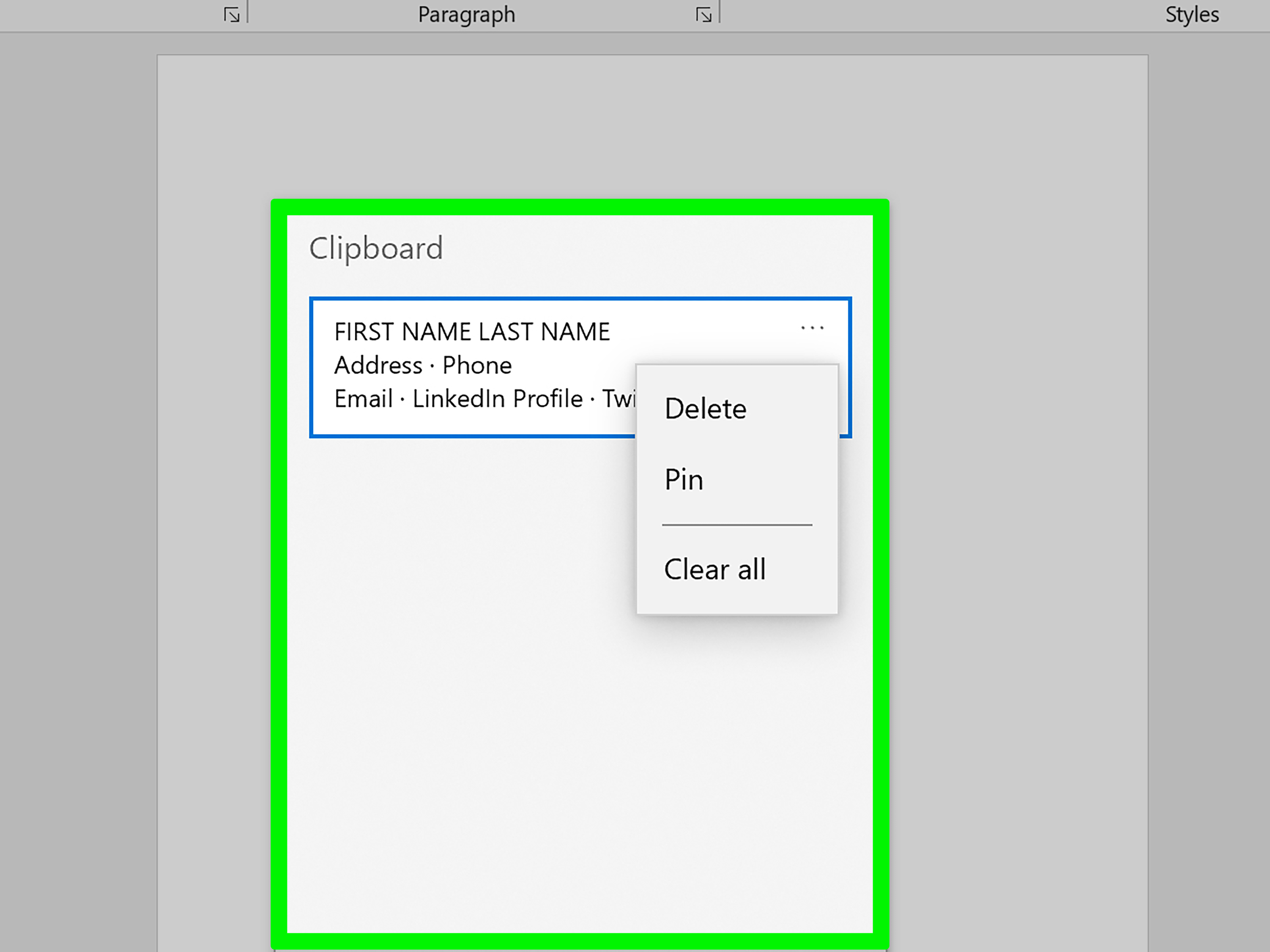
If you use certain Clipboard items repeatedly, pin them. Open Clipboard history with Windows key + V, find the item, select the three-dot menu, and choose Pin. Pinned items stay available even when regular Clipboard history is cleared or when Windows removes older unpinned items to make room for new ones.
Good items to pin include:
- A frequently used email signature
- A standard customer service reply
- A business address
- A common disclaimer
- A reusable code snippet
- A short bio or company description
Pinning turns Clipboard history into a mini text-expander. It is not as advanced as dedicated productivity software, but for everyday Windows 10 work, it can be wonderfully convenient.
Step 8: Sync Clipboard Across Windows Devices
Windows 10 can sync Clipboard items across devices when you use the same Microsoft account or work account. To enable sync, go to Start > Settings > System > Clipboard, then turn on Sync across devices or Clipboard history across your devices, depending on your Windows version.
You may see options such as automatically syncing copied text or manually choosing which items to sync. Automatic sync is convenient, but manual sync gives you more control, especially if you sometimes copy private information.
Clipboard sync is useful when you work on a desktop and laptop. For example, you can copy a paragraph on your office PC and paste it into a document on your laptop. However, use this feature thoughtfully. Avoid syncing passwords, private financial details, medical information, or confidential business data unless your organization’s security rules allow it.
Step 9: Clear Clipboard History for Privacy
Your Clipboard may contain sensitive information: names, addresses, login codes, account numbers, draft messages, or private notes. Clearing Clipboard history is a smart habit, especially on shared computers.
To clear Clipboard history from the panel, press Windows key + V, open the menu, and choose Clear all. To clear it through Settings, go to Start > Settings > System > Clipboard, then select Clear under the clear Clipboard data section.
Clearing removes most Clipboard history, but pinned items can remain unless you unpin and delete them separately. If you copied something sensitive, check your pinned items too. The Clipboard is helpful, but it is not a vault. Treat it more like a desk drawer: useful, accessible, and occasionally in need of cleaning.
Step 10: Delete Individual Clipboard Items
You do not always need to clear everything. If only one item is private, outdated, or embarrassingperhaps a typo-filled sentence you copied before your coffee began workingyou can delete it individually.
Press Windows key + V, find the item, select the three-dot menu beside it, and choose Delete. This removes that specific Clipboard entry while leaving the rest of your history available.
Individual deletion is useful when you want to keep helpful snippets but remove sensitive ones. For example, you may want to keep a shipping address and a project title but delete a copied password reset code.
Step 11: Fix Clipboard Problems When Copy and Paste Stop Working
Even the Clipboard has bad days. If copy and paste are not working on Windows 10, start with the simple fixes first. Close and reopen the app where the problem occurs. Try copying from another app to see whether the issue is app-specific. Restart your computer if the problem continues.
Next, clear Clipboard history. A cluttered or glitchy Clipboard can sometimes cause trouble. You can also restart Windows Explorer from Task Manager if File Explorer, the taskbar, or desktop interactions feel frozen. Installing Windows updates, checking keyboard function, scanning for malware, and disabling third-party clipboard managers may also help.
If your workplace manages your computer, Clipboard history or sync may be controlled by company policy. In that case, the setting may be unavailable, and your IT department gets to be the Clipboard boss.
Windows 10 Clipboard Shortcuts You Should Know
| Action | Shortcut | What It Does |
|---|---|---|
| Copy | Ctrl + C | Copies selected text, images, or files to the Clipboard. |
| Cut | Ctrl + X | Moves selected content to the Clipboard. |
| Paste | Ctrl + V | Pastes the most recent Clipboard item. |
| Open Clipboard history | Windows key + V | Shows recent copied items so you can choose what to paste. |
| Undo | Ctrl + Z | Reverses the last action in many apps. |
| Paste as plain text | Ctrl + Shift + V | Pastes text without formatting in supported apps. |
Best Ways to Use Clipboard History for Productivity
The Clipboard is not just for copying one line at a time. Used well, it can make your Windows 10 workflow smoother and faster. Here are some everyday ways to get more value from it.
Use It for Repetitive Writing
If you regularly type the same phrases, Clipboard history can help. Pin your standard email sign-off, business description, meeting link phrase, or support response. Instead of typing it every time, press Windows key + V and paste it.
Use It for Research
When gathering information, copy several important snippets first, then paste them into your notes in the right order. This works well for students, bloggers, researchers, and office professionals building outlines or summaries.
Use It for Forms and Data Entry
Clipboard history is a lifesaver when filling repetitive forms. You can copy a name, address, phone number, email, and reference number, then paste each item from history without returning to the original source repeatedly.
Use It for Coding and Technical Work
Developers and tech users can copy commands, file paths, small code blocks, or error messages. Pinning frequently used snippets can reduce typing mistakes and speed up routine tasks.
Privacy and Security Tips for the Windows 10 Clipboard
The Clipboard is convenient, but convenience and privacy need to shake hands politely. Because Clipboard history stores recent copied items, anyone using your unlocked PC may be able to see them by pressing Windows key + V. That is not ideal if your Clipboard contains private messages, passwords, financial details, or client information.
Follow these practical safety tips:
- Clear Clipboard history after copying sensitive information.
- Do not pin passwords, security codes, or private account details.
- Be careful with Clipboard sync on shared or work-managed devices.
- Use a trusted password manager instead of copying passwords repeatedly.
- Lock your PC with Windows key + L when stepping away.
For most everyday tasks, Clipboard history is safe and useful. Just remember that anything copied may temporarily live in your history. If the information would make you nervous on a sticky note, do not leave it sitting in Clipboard history either.
Common Questions About the Windows 10 Clipboard
Where Is the Clipboard on Windows 10?
You can open Clipboard history by pressing Windows key + V. You can manage Clipboard settings by going to Start > Settings > System > Clipboard.
Why Can’t I See Clipboard History?
Clipboard history may be turned off. Press Windows key + V and choose Turn on. If the option is missing or blocked, your Windows version, update status, or organization policy may be limiting the feature.
Does Windows 10 Clipboard Save Everything Forever?
No. Clipboard history is limited and temporary. Older unpinned items are removed as new items are added, and Clipboard history is cleared after restarting your PC except for pinned items.
Can I Copy Images with Clipboard History?
Yes, Windows 10 Clipboard history can support compatible image content, but there are size and format limits. Very large images or unsupported content may not appear in history.
Is Clipboard Sync Worth Using?
Clipboard sync is helpful if you move between Windows devices often. It is less ideal if you frequently copy sensitive information. For privacy, consider manual sync or leave sync turned off.
Real-World Experiences: What Using the Windows 10 Clipboard Feels Like in Daily Work
After using Clipboard history regularly, the biggest surprise is how quickly it becomes second nature. At first, you may press Windows key + V only when you remember it exists. Then one day you are filling out a form, copying five different pieces of information, and suddenly the old one-item Clipboard feels like writing with a feather quill. Charming in a museum, not ideal on a deadline.
For writing and editing, Clipboard history is especially useful. Imagine drafting an article while comparing notes from several documents. You copy a product name, a quote, a statistic, a heading idea, and a reminder to check formatting. Without Clipboard history, each new copy replaces the last one. With Clipboard history, all those little pieces wait in a tidy panel. You can paste them when needed instead of hunting through tabs like a detective in a very boring mystery.
In office work, the feature shines during repetitive tasks. Customer support agents can pin standard replies. Administrative assistants can reuse addresses and meeting details. Sales teams can paste product descriptions or follow-up phrases. Teachers can move comments between student documents. Even casual users benefit when copying tracking numbers, coupon codes, Wi-Fi passwords, recipe notes, or travel details.
One practical habit is to pin only items that are genuinely reusable. If everything is pinned, nothing feels organized. Keep a short list: your email signature, company address, standard greeting, or a frequently used message. Review pinned items once in a while and delete anything outdated. A Clipboard history full of old snippets can become digital junk mail with better keyboard shortcuts.
Another good habit is clearing the Clipboard after sensitive tasks. If you copy a bank reference number, personal ID, medical note, or private message, clear it when you are done. Clipboard history is not dangerous by itself, but it is easy to forget what you copied. On shared computers, clearing history is not just tidy; it is basic digital manners.
There are small limitations. Some apps do not handle Clipboard history perfectly. Formatting may change when pasting between programs. Large images may not appear. Work computers may block syncing. Occasionally, copy and paste may stop working until you restart an app or clear the Clipboard. Still, the benefits easily outweigh the quirks for most people.
The best experience comes from treating the Windows 10 Clipboard as a workflow helper, not a storage system. It is great for temporary information, reusable snippets, quick transfers, and short-term productivity. It is not the place for permanent notes, passwords, or sensitive records. Use it lightly, clean it often, and let it save you from unnecessary clicking. Once you get used to it, Windows key + V may become one of those shortcuts you wonder how you lived without.
Conclusion
Learning how to use the Clipboard on Windows 10 is a small upgrade that can make your daily computer work noticeably faster. The basics are simple: Ctrl + C copies, Ctrl + X cuts, and Ctrl + V pastes. But the real productivity boost comes from Clipboard history, opened with Windows key + V. With it, you can paste older items, pin frequently used snippets, clear private data, and even sync copied text across Windows devices.
Whether you are writing, researching, coding, filling forms, organizing files, or just trying to avoid copying the same address for the tenth time, the Windows 10 Clipboard can save time and reduce frustration. It is simple, built in, and surprisingly powerfulbasically the office assistant you already had, hiding behind two keyboard keys.