There are two kinds of Messenger users: people who send thoughtful, carefully typed paragraphs and people who reply with one crying-laughing face and somehow communicate everything. If you are aiming for the second kind of power, welcome. Learning how to use emoji on Facebook Messenger on Android is easy, fast, and surprisingly useful when words feel too serious, too long, or just plain boring.
Whether you want to add a simple smiley, react to a friend’s message with a fire emoji, or set a custom quick reaction so your favorite symbol is always one tap away, Messenger makes it pretty painless. On Android, the process usually works through your phone’s keyboard, which means the exact look can vary depending on whether you use Gboard, Samsung Keyboard, or another on-screen keyboard. The good news? The basic flow stays familiar.
In this guide, you will learn the seven simple steps for using emoji in Facebook Messenger on Android, along with practical tips, troubleshooting ideas, and some real-life examples of when emoji can make a chat better instead of making it look like your thumb slipped on a fruit stand.
Why Emoji Matter on Facebook Messenger
Emoji are not just decoration. They help add tone, speed, and emotion to digital conversations. A plain “Okay” can sound neutral, cold, annoyed, or passive-aggressive enough to start a small family debate. Add a smiling face, a thumbs-up, or a laughing emoji, and suddenly the message feels human again.
On Facebook Messenger, emoji are especially helpful because chats often move quickly. You may be talking to family, coworkers, old classmates, your fantasy football group, and that one friend who answers every question with a meme. Emoji make it easier to respond fast without losing personality. They also help when you want to react to a specific message instead of sending a whole new reply.
And yes, sometimes a single emoji is the best possible answer. If your friend says, “I locked myself out again,” the skull emoji may be doing important emotional labor.
How to Use Emoji on Facebook Messenger on Android: 7 Steps
Step 1: Open the Facebook Messenger App
Start by opening Messenger on your Android phone or tablet. If the app is not installed yet, download it from the Google Play Store and sign in to your account. If you already have it but things look odd, feel slow, or seem missing, updating the app is a smart first move.
This matters because Messenger features can shift over time. Buttons move. Menus get renamed. A feature you used six months ago might now live in a slightly different corner of the screen like it is paying rent there.
Step 2: Open the Conversation Where You Want to Use Emoji
From your Chats screen, tap the conversation where you want to send an emoji. This can be a one-on-one chat or a group conversation. Once the chat opens, you will see the message thread and the text box at the bottom of the screen.
If your goal is to react to an existing message rather than send a brand-new emoji, opening the chat is still the first step. Messenger handles both regular emoji messages and message reactions inside the conversation window.
Step 3: Tap the Message Field to Bring Up Your Android Keyboard
Tap inside the text box where you would normally type a message. On Android, this usually opens your on-screen keyboard automatically. In most cases, the emoji feature comes from the keyboard itself, not from some mysterious Messenger-only emoji vault hidden behind a moon icon.
If you use Gboard, Samsung Keyboard, or another Android keyboard, you will usually see an emoji icon, a smiley face, or a way to switch from letters to emoji. On some phones, you may need to long-press the comma key or tap a smiley icon near the space bar.
Step 4: Tap the Emoji Key and Choose Your Emoji
Once your keyboard is open, tap the emoji icon. This opens the emoji panel, where you can browse categories like smileys, people, animals, food, objects, and symbols. Tap the emoji you want, and it will appear in the message field.
You can send one emoji by itself or stack a few together if the mood calls for it. A single heart works. Three hearts say, “I care.” Twelve hearts say, “I have had too much coffee and feelings.”
Many Android keyboards also let you search for emoji by keyword. For example, you can search for “laugh,” “party,” or “pizza” instead of scrolling forever. That is especially helpful if you know what you want but do not remember whether it lives in smileys, symbols, or the emotional support produce aisle.
Step 5: Add Text if You Want More Context
Emoji can stand alone, but they often work best when paired with a few words. For example:
“Running five minutes late 😅” feels more friendly than “Running five minutes late.”
“You crushed it 🎉” adds warmth and excitement.
“Dinner was amazing 😍” gives a stronger emotional signal than plain text alone.
This is where using emoji on Facebook Messenger on Android becomes more than just tapping pictures. It becomes a tone tool. Used well, emoji help your message sound more like you. Used poorly, they can make a serious conversation look like it wandered into a sticker shop.
Step 6: Tap Send
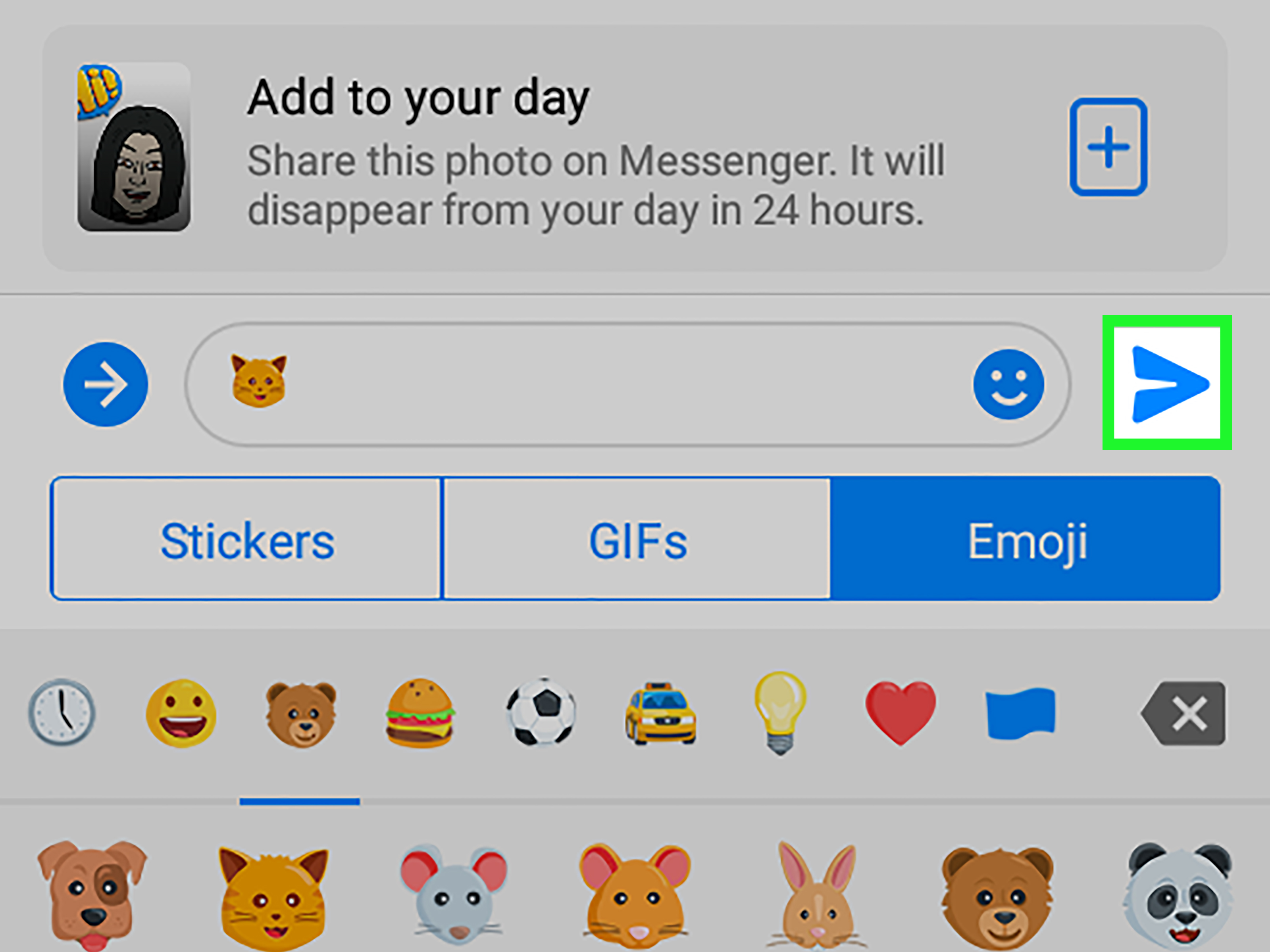
After choosing your emoji and finishing your message, tap the Send button. Your emoji message will appear in the chat thread just like any regular message.
If you want to send only an emoji, that works too. Just add the emoji and tap Send. This is useful for quick replies, reactions, or those moments when you do not have time to type but still want to acknowledge the message.
On many Android keyboards, you can also insert multiple emoji before sending. That means you can build mini visual replies like “☕😴📅” when you want to say, “I need coffee before this meeting.” Is it poetry? Not officially. Is it effective? Absolutely.
Step 7: Use Message Reactions or Set a Quick Reaction for Faster Emoji Replies
Messenger gives you another option besides typing emoji into the text box: message reactions. To react to a message, tap and hold the message you want to respond to. A row of emoji reactions should appear. Tap one to attach your reaction to that specific message.
This is great when you want to acknowledge something without adding another message bubble to the conversation. It keeps the chat cleaner and makes your reaction feel more targeted.
You can also customize the default quick reaction in many versions of Messenger on Android. Open a conversation, tap the conversation info area or the info icon, then look for Quick reaction. From there, choose the emoji you want as your one-tap default. If you constantly use the laughing face, heart, fire, or thumbs-up, this saves time and a surprising amount of thumb travel.
Extra Ways to Use Emoji in Messenger on Android
React to Messages Instead of Sending a New One
If someone says, “I got the job!” you do not always need to type a full sentence. A heart, clapping hands, or party emoji as a message reaction says a lot with less clutter. It is one of the easiest ways to keep a conversation moving.
Use Voice Typing with Emoji
Some Android keyboard setups also support voice input features that let you add emoji while dictating. That means you may be able to say something like, “See you soon heart emoji,” and then adjust the message before sending. It is handy when you are multitasking, walking, or trying to text with one hand while balancing a grocery bag and your dignity.
Try Emoji Kitchen or Sticker-Style Emoji
If you use Gboard, you may have access to creative mashups sometimes called Emoji Kitchen. In supported apps like Messenger, these can behave more like stickers than standard inline emoji. They are useful when normal emoji feel too basic and you want your message to arrive with a little more chaos and flair.
Common Problems and How to Fix Them
The Emoji Icon Is Missing
If you do not see an emoji button, the issue is usually with the keyboard, not Messenger itself. Tap in the message field again, switch keyboards if needed, or check your keyboard settings. On some Android devices, the emoji key is hidden behind a long-press gesture.
Messenger Emoji Features Look Different
That is normal. Android phones are famous for variety. A Samsung device may not look exactly like a Pixel, and Messenger updates can change menu names or button placement. Focus on the basic flow: open the chat, tap the text field, open emoji from the keyboard, choose one, and send.
Your Keyboard Is Acting Weird
If Gboard or your default keyboard freezes, lags, or stops showing emoji correctly, try updating the keyboard app, clearing its cache, or restarting the phone. This sounds boring, but it solves more problems than most dramatic troubleshooting adventures.
Best Practices for Using Emoji Without Overdoing It
Emoji are fun, but balance matters. A few simple rules can help:
Match the tone. A laughing face might be perfect in a casual chat, but less ideal in a serious conversation.
Do not replace every word. “Going to the store for 🍞🥛🍎🧻” is cute once. Every day? That is a scavenger hunt.
Know your audience. Your best friend may appreciate seventeen dramatic emoji in a row. Your boss may prefer one polite smiley or none at all.
Use reactions wisely. Reactions are fast and clean. They are great for acknowledging a message without hijacking the flow of the conversation.
Examples of Emoji Use on Facebook Messenger on Android
Here are a few practical ways people use emoji in Messenger chats:
Friendly check-in: “How are you doing today? 🙂”
Celebration: “You got the apartment! 🎉🏡”
Light apology: “Sorry, I totally forgot 😬”
Fast reaction: Tap and hold a message, then add ❤️ or 😂
Quick confirmation: Send 👍 instead of a full “Sounds good”
These examples work because the emoji support the message instead of overwhelming it. Think of emoji as seasoning, not the whole meal. Unless the whole meal is birthday cake and confetti, in which case go wild.
Final Thoughts
If you have been wondering how to use emoji on Facebook Messenger on Android, the answer is refreshingly simple. Open Messenger, open a chat, tap the message field, open the emoji keyboard, choose your emoji, send it, and use reactions or quick reactions when you want to move even faster.
The beauty of emoji in Messenger is that they make digital conversations feel more human. They soften blunt messages, add humor, speed up replies, and help you say more with less. And on Android, once you get comfortable with your keyboard and Messenger’s reaction tools, using emoji becomes second nature.
So go ahead. Send the smiley. Drop the fire emoji. React with the laughing face. Just remember that one skull emoji can be funny, while ten might make it look like your phone became haunted.
Experience: What Using Emoji on Facebook Messenger on Android Feels Like in Real Life
Using emoji on Facebook Messenger on Android is one of those tiny digital habits that seems small until you notice how often it improves everyday communication. In real life, the biggest benefit is speed. When someone sends a quick update, a joke, a photo, or a bit of good news, it is much faster to react with an emoji than to stop and type a full sentence. A single heart or laughing face can keep the conversation warm without turning it into a wall of text.
Another common experience is tone control. Text can be weirdly flat. A message like “Sure” can sound relaxed, annoyed, tired, or secretly plotting revenge, depending on the reader’s mood. Add a smiley or a wink, and suddenly the message feels much more natural. That is why so many Android users lean on emoji when chatting with family, close friends, or group threads that move fast. Emoji act like little emotional subtitles.
Messenger reactions are especially useful in active group chats. Instead of sending “LOL,” “same,” “nice,” and “wow” ten times in a row, people can react directly to a message. That keeps the chat cleaner and makes it easier to follow. It also reduces notification overload, which is a modern blessing right up there with coffee and strong Wi-Fi.
On Android, the experience can vary depending on the keyboard. Gboard users often like how quickly they can open the emoji panel, search for a specific emoji, or use extra features like voice typing and sticker-style emoji options. Samsung users may notice slightly different icons or menu layouts, but the overall experience is still straightforward. Once you know where your emoji key lives, the rest becomes muscle memory.
There is also a social side to it. Different people develop their own emoji style. Some use almost none. Some use exactly one favorite reaction in every conversation. Some communicate like they are writing a tiny Broadway production with sparkles, hearts, tears, and dramatic skulls. Over time, emoji become part of your texting personality. Friends begin to recognize your habits. The thumbs-up person stays the thumbs-up person. The crying-laughing person remains emotionally committed to chaos.
Of course, there are occasional awkward moments. Maybe you hit the wrong reaction. Maybe your keyboard hides the emoji key at the worst possible time. Maybe you send a heart when you meant to send clapping hands and spend the next five seconds staring at the screen like a lawyer preparing a statement. But even those mistakes are part of the experience. Messenger is casual, and emoji are meant to be expressive, fast, and human rather than perfect.
In the end, using emoji on Facebook Messenger on Android feels less like learning a feature and more like learning a rhythm. Once you get used to it, emoji become part of how you chat, react, joke, encourage, and stay connected. Tiny symbols, big personality, and occasionally just enough drama to keep things interesting.