Note: TikTok updates its menus often, so wording may vary slightly by device, app version, and region. The steps below are based on current TikTok caption controls and common iPhone/Android app behavior.
TikTok captions are helpful until they are not. One minute they are saving you from blasting audio in a quiet room; the next, they are sitting directly on top of the joke, the recipe ingredient, the dog’s dramatic side-eye, or the one tiny detail you were actually trying to see. If TikTok subtitles have started feeling less like an accessibility feature and more like a clingy pop-up roommate, good news: you can turn them off.
In this guide, you will learn how to turn off captions on TikTok using two easy methods: hiding captions on a single video and changing caption preferences in TikTok’s settings. We will also explain why captions sometimes keep coming back, why some text cannot be removed, and what to do when the caption button seems to be missing. Because yes, TikTok menus occasionally play hide-and-seek like they are training for the app Olympics.
What Are TikTok Captions and Subtitles?
TikTok captions are text versions of spoken audio that appear on videos. They may be generated automatically by TikTok’s auto-caption feature, added by the creator during editing, or manually placed as text overlays. Most people casually call them subtitles, closed captions, auto captions, or simply “those words blocking the video.” Technically, they are not always the same thing, but for everyday TikTok viewing, the goal is simple: control whether text appears while you watch.
Auto-generated captions are created by TikTok from the spoken audio in a video. They are designed to make videos more accessible for people who are deaf or hard of hearing, viewers watching with sound off, and anyone who prefers reading along. Creators can also edit their captions before posting, which helps correct names, slang, and words that speech recognition software may mishear. Because let’s be honest, automatic captions can turn “espresso” into “a stress show,” and somehow both may feel accurate.
Creator-added text is different. If the creator typed words directly onto the video, designed a text overlay, or burned subtitles into the video during editing, you usually cannot turn that text off. It is part of the video itself, like a filter, sticker, or the creator’s suspiciously perfect kitchen lighting.
How to Turn off Captions on TikTok: 2 Easy Ways
There are two practical ways to disable TikTok captions. The best method depends on whether you want to hide subtitles for one video or stop auto captions from appearing more generally while you browse.
Method 1: Turn Off Captions on a Single TikTok Video
This is the fastest method when captions are bothering you on one specific video. It is ideal if you normally like captions but want them gone because they are covering an important part of the screen.
- Open the TikTok app and find a video with captions showing.
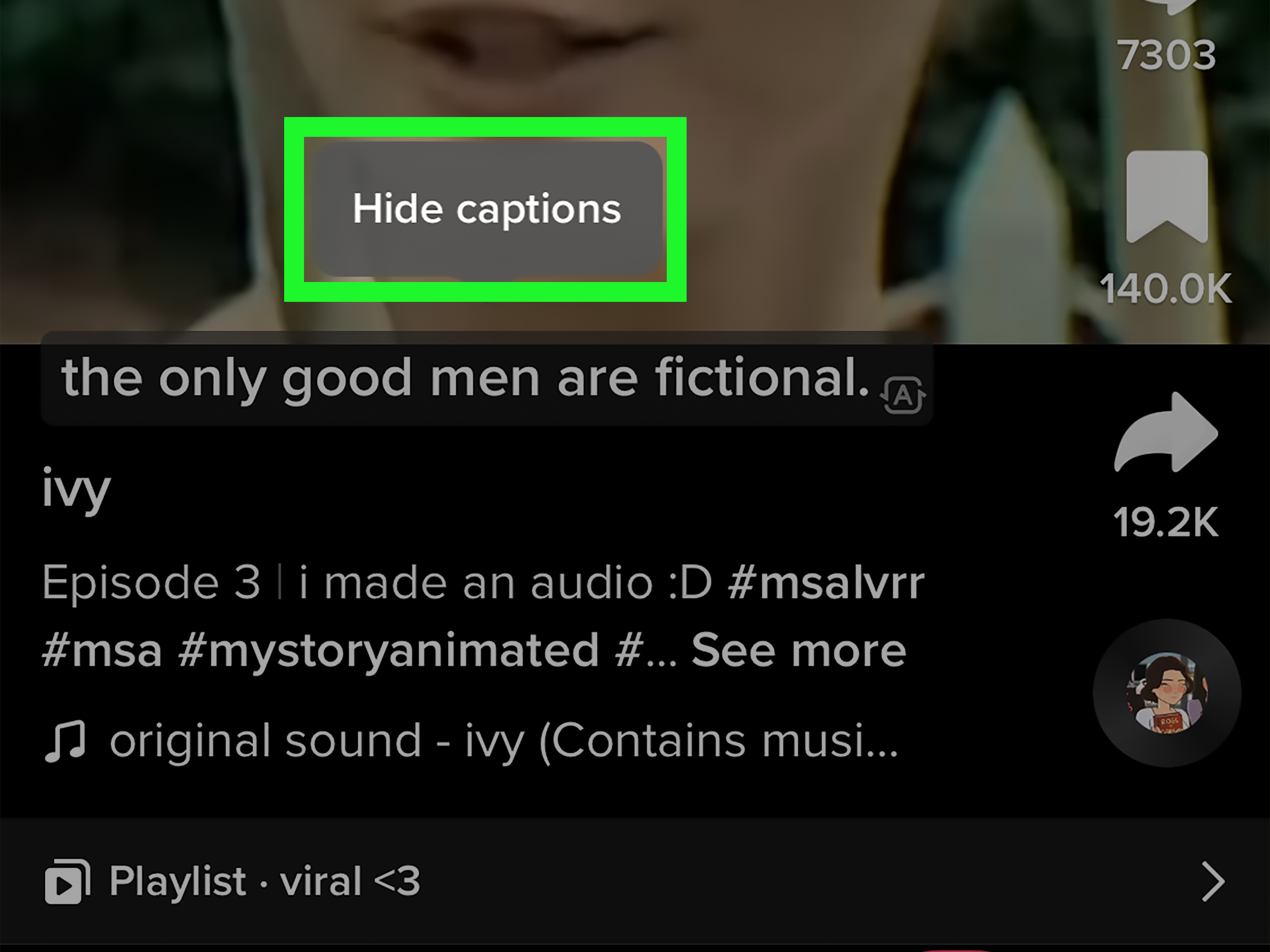
- Long-press on the video, or tap the caption text if TikTok allows it on that video.
- Look for an option such as Captions, Hide captions, or Turn off captions.
- Tap the option to hide or disable the captions.
On some versions of TikTok, hiding captions may leave a small caption icon or box on the screen. That little icon is not there to judge you. It simply means captions are available and can be turned back on if you change your mind. Tap it again and the captions may reappear.
This method is perfect when you are watching a tutorial, comedy clip, recipe, product review, or storytime video and the captions are blocking the visual punchline. It usually works immediately, does not require digging through menus, and lets you keep captions available for other videos.
When Method 1 Works Best
Use the single-video method when captions are only annoying on a particular clip. For example, maybe a makeup tutorial has captions covering the product name, or a dance video has captions right over the choreography. Maybe a creator is showing a before-and-after room makeover and the subtitles are parked directly on the “after” reveal like a tiny white-text bulldozer. In these cases, hiding captions for that video gives you a cleaner view without changing your entire TikTok experience.
Method 2: Turn Off Auto Captions in TikTok Settings
If captions keep showing up on many videos, you may want to adjust your TikTok caption settings. This method is better if you prefer watching without subtitles most of the time.
- Open TikTok and tap Profile in the bottom-right corner.
- Tap the Menu icon, usually the three lines in the top-right corner.
- Select Settings and privacy.
- Look for Accessibility, Display, or a similar section under content or viewing preferences.
- Find the captions option, such as Always show captions or Auto-generated captions.
- Toggle the setting off.
Because TikTok changes layouts over time, your exact menu names may look slightly different. On some devices, caption controls may appear under Accessibility. On others, you may see caption controls when you long-press a video rather than inside a full settings page. The important thing is to look for words like Captions, Subtitles, or Auto-generated captions.
After turning off the setting, close and reopen TikTok if the change does not apply right away. Apps occasionally need a little nudge, like a sleepy cat refusing to move from your keyboard.
Why TikTok Captions May Still Show After You Turn Them Off
If you followed the steps and still see text on TikTok videos, do not panic. You probably did not break anything. There are a few reasons captions or subtitles may continue to appear.
1. The Text Is Part of the Video
If a creator added text directly in the editing process, TikTok treats it as part of the video. You cannot remove it from your side because it is not a viewer caption layer. This includes jokes typed on-screen, recipe steps, labels, subtitles created in an editing app, or captions burned into the video before upload.
A quick way to tell the difference is to tap or long-press the text. If TikTok gives you a caption option, it is likely an auto-caption layer. If nothing happens and the text moves naturally with the video design, it is probably creator-added text.
2. TikTok’s Interface Changed
TikTok is famous for testing features, moving buttons, renaming menus, and giving users slightly different layouts. Two people can use the same app on different phones and see different menu wording. This is normal, although it is mildly rude when you are just trying to watch raccoon videos in peace.
If you do not see a caption toggle in settings, try the long-press method on a video with captions. If that does not work, update the app and check again.
3. Captions Are Controlled Per Video
Sometimes hiding captions on one video does not disable them everywhere. It may only apply to the current video or viewing session. If captions return after you close and reopen TikTok, use the settings method to turn off auto captions more broadly.
4. The App Needs an Update
If your TikTok app is outdated, caption settings may behave strangely or appear in an older location. Visit the App Store or Google Play Store and check for updates. After updating, restart the app and test the caption controls again.
How to Turn Captions Back On Later
Turning captions off does not mean you have banished them forever to the digital basement. You can bring them back whenever you want.
To turn TikTok captions back on for a video, long-press the video and tap Captions if the option appears. If you previously disabled auto captions in settings, go back to Profile > Menu > Settings and privacy, find the caption or accessibility section, and turn captions back on.
This is useful if you are watching in a noisy place, forgot your earbuds, or are trying to understand a creator who speaks faster than your brain can process before coffee.
Captions vs. Subtitles vs. Text Overlays: What Is the Difference?
People often use the words captions and subtitles interchangeably, especially on social media. Still, the difference matters when you want to remove them.
Captions usually refer to text that represents spoken words and sometimes meaningful sounds. They are often created for accessibility. Subtitles typically translate or display dialogue for viewers who can hear the audio but need the words in text form. Text overlays are added by the creator as part of the video design.
On TikTok, the practical question is not “What is the textbook definition?” It is “Can I tap a button and make this disappear?” Auto captions can often be hidden. Creator text usually cannot.
Why You Might Want to Turn Off TikTok Captions
TikTok captions are genuinely useful, but there are plenty of reasons you may want them off. They can block small details in a video, distract from visuals, repeat what you already hear clearly, or make the screen feel crowded. If you watch TikTok mainly for visual content such as dance, art, home improvement, fashion, beauty, cooking, or travel clips, too much on-screen text can make the experience feel cluttered.
Captions can also be inaccurate. Auto-caption tools are impressive, but they still struggle with accents, background music, slang, brand names, and fast speech. A creator might say “mix until smooth,” while the caption confidently declares “missile smoothie.” Funny? Yes. Helpful? Not always.
Turning off subtitles can make TikTok cleaner and easier to watch, especially when the video already includes visual instructions or the audio is clear. The key is flexibility: captions should help your viewing experience, not hijack it.
Why You Might Want to Keep Captions On
Before you switch captions off permanently, it is worth remembering why they exist. Captions make TikTok more accessible for people who are deaf or hard of hearing. They also help viewers understand videos in noisy environments, quiet settings, or situations where turning on sound would be awkward. Nobody wants to be the person whose phone suddenly screams a trending sound in the middle of a waiting room.
Captions are also helpful for learning, multitasking, and catching details you might miss. If you follow educational creators, cooking accounts, language teachers, tech reviewers, or news explainers, captions can make information easier to absorb.
The best approach is not necessarily “captions always on” or “captions always off.” It is knowing how to control them so TikTok works the way you want.
Troubleshooting: What If You Cannot Find the Caption Option?
If the caption option is missing, try these fixes:
- Update TikTok: Open the App Store or Google Play Store and install the latest version.
- Restart the app: Fully close TikTok and reopen it.
- Try another video: Not every video has auto captions available.
- Long-press the video: Some caption controls appear in the video menu instead of settings.
- Check accessibility settings: Look under Settings and privacy for caption-related options.
- Clear app cache: In TikTok settings, clearing cache may help if the interface acts strangely.
If none of these work, the text you are seeing may not be removable captions. It may be part of the video itself. In that case, the only solution is to scroll onward bravely, like a digital explorer with a thumb and a dream.
Tips for a Cleaner TikTok Viewing Experience
Turning off captions is only one way to make TikTok feel less cluttered. You can also use clearer viewing habits and app settings to improve your experience.
Use Captions Only When You Need Them
If you usually watch with sound on, keep captions off and enable them only when audio is unclear. This gives you a cleaner screen while still keeping captions available when needed.
Watch for Creator Text
Some TikToks rely heavily on on-screen text. If captions overlap with creator text, hide the captions for that video. The creator’s own text often contains the most important information.
Keep the App Updated
TikTok frequently changes features, especially accessibility and editing tools. Updating the app helps ensure caption controls work properly and appear in the expected places.
Understand That Not Everything Can Be Removed
If subtitles were added in another editing app before the video was uploaded, they are permanent from the viewer’s perspective. You can turn off TikTok’s caption layer, but you cannot remove text baked into the video.
Creator Tip: Think Before Adding Permanent Subtitles
If you create TikTok videos, remember that viewers may want control over captions. Auto captions are flexible because users can often show or hide them. Permanent subtitles, however, stay on the video no matter what. That can be useful for style, branding, or cross-platform posting, but it can also clutter the screen.
For the best viewer experience, place text where it does not block faces, products, ingredients, tools, or important action. Keep lines short, use readable contrast, and avoid stacking captions on top of TikTok’s built-in buttons. Your audience should not need detective skills and a magnifying glass to understand your video.
Personal Experience: What It Feels Like to Manage TikTok Captions
Turning off TikTok captions sounds like a tiny setting, but in real use, it can completely change how the app feels. I have noticed that captions are wonderful when watching story-based videos, quick tutorials, or educational clips. When someone is explaining how to fix a phone setting, clean a stain, cook a sauce, or avoid a common mistake, captions act like a backup brain. If the audio is fast or noisy, the text helps you keep up. It is like having a polite note-taker who lives inside your screen.
But captions can become annoying when the video is mostly visual. Think of a home makeover reveal, a dance trend, a painting process, a haircut transformation, or a funny pet clip. In those cases, the screen is the main event. If captions cover the reveal, the viewer experience feels cramped. It is like going to a movie and having someone hold a sticky note over the actor’s face. Helpful intention, terrible placement.
The single-video method is usually the most comfortable option. I like it because it does not make a permanent decision. If one video has distracting captions, hide them. If the next video has quiet audio or useful instructions, bring captions back. That level of control feels better than switching everything off forever.
The settings method is better for people who almost never use captions. If you have good audio, watch in private, and prefer a clean screen, disabling auto captions across the app can make TikTok feel smoother. The feed looks less crowded, and videos with beautiful visuals become easier to enjoy. It is especially helpful on smaller phones, where every inch of screen space matters.
One common frustration is that people turn off captions and still see text. Most of the time, that text is not TikTok’s removable caption layer. It is creator-added text. Many creators use permanent subtitles because they repost videos to Instagram Reels, YouTube Shorts, Facebook, or Pinterest. Permanent captions make the video understandable everywhere, but they remove viewer choice. That is not necessarily bad; it just explains why your caption setting may not seem to work.
Another experience worth mentioning is that TikTok’s menu locations can vary. A friend may say, “Just go to Accessibility,” but your app may show caption controls somewhere else or only when you long-press a video. This does not mean you are doing it wrong. Social media apps test features constantly, and TikTok is no exception. When in doubt, update the app, restart it, and try the long-press menu on a video that clearly has auto captions.
In daily use, the best caption strategy is flexible. Keep captions available because they are genuinely useful for accessibility, quiet environments, and confusing audio. Turn them off when they block the screen or distract from the video. TikTok is supposed to be quick, fun, and personal. Your caption settings should support that, not make you feel like you are reading a tiny legal contract over someone’s lunch recipe.
Conclusion
Learning how to turn off captions and subtitles on TikTok gives you more control over your viewing experience. The easiest option is to hide captions on a single video by long-pressing the video or tapping the caption text and choosing the caption option. For a broader fix, go to TikTok’s settings and look for caption controls under accessibility, display, or viewing preferences.
Just remember: auto captions can usually be hidden, but creator-added text may be permanent. If captions keep appearing, update TikTok, restart the app, test another video, and check whether the text is actually part of the video. Once you understand the difference, managing TikTok captions becomes much easierand your screen can finally breathe again.