Note: This guide is based on current WhatsApp features for Android, iPhone, WhatsApp Web, and WhatsApp Desktop. Menu names may look slightly different depending on your device, app version, or whether WhatsApp has decided to move one tiny button just to keep everyone humble.
Introduction: Why Specific Replies Make WhatsApp Less Chaotic
WhatsApp conversations can move fast. One minute you are discussing dinner plans, and the next minute someone has sent three memes, two voice notes, a shopping list, and a mysterious “okay” that could mean anything from “I agree” to “I am emotionally withdrawing from this group chat.” That is exactly why learning how to reply to a specific message in WhatsApp is so useful.
When you reply to a specific WhatsApp message, the original message appears as a quoted preview above your response. This makes your answer easier to understand, especially in group chats where five people may be talking about five different things at the same time. Instead of typing, “I meant the second message from Mark, not the photo from Jessica,” you can simply quote the exact message and reply directly.
The good news is that WhatsApp makes this simple. There are two easy ways to reply to a specific message: using the mobile app on Android or iPhone, and using WhatsApp Web or WhatsApp Desktop on a computer. Both methods work in individual chats and group chats, and both help keep conversations clean, organized, and much less like a digital food fight.
In this guide, you will learn the step-by-step process, common mistakes to avoid, real-life examples, troubleshooting tips, and practical experience-based advice for using WhatsApp specific replies like a pro.
What Does “Reply to a Specific Message” Mean on WhatsApp?
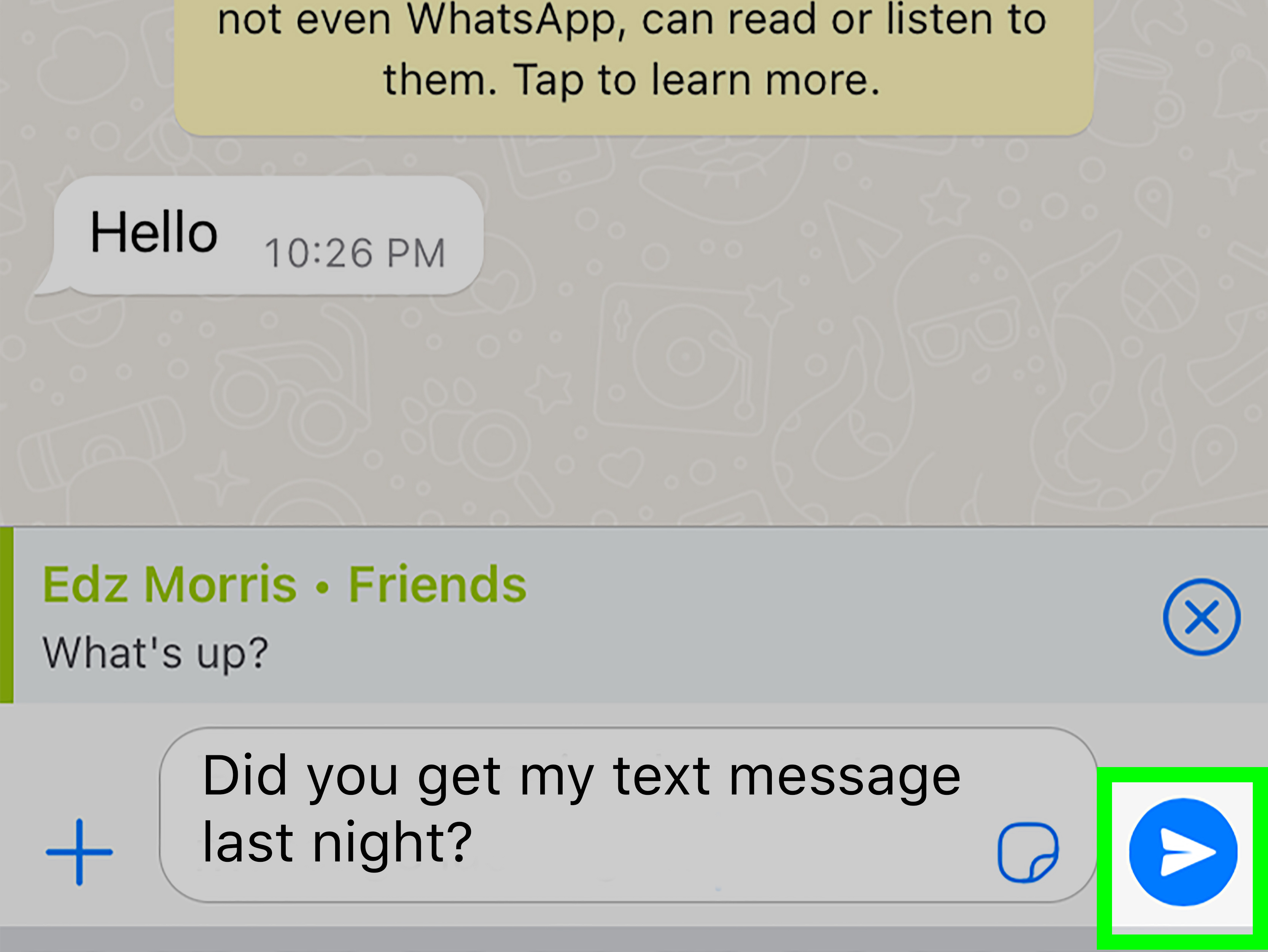
Replying to a specific message on WhatsApp means attaching your response to one exact message in a chat. The original message appears above your new reply as a small quote or preview. Anyone in the conversation can tap or click that preview to jump back to the original message, which is extremely helpful when the chat has become busier than a coffee shop during exam week.
Specific Reply vs. Normal Reply
A normal reply is just a message typed into the chat box. It appears at the bottom of the conversation with no direct connection to any earlier message. A specific reply, on the other hand, includes context. It tells everyone, “This is the exact thing I am responding to.”
For example, imagine a friend asks:
“Should we meet at 6 PM or 7 PM?”
Three messages later, someone sends a dog sticker wearing sunglasses. If you simply type “7 PM,” people may still understand you, but someone might also think you are rating the dog sticker. When you reply directly to the original question, there is no confusion.
Why It Matters in Group Chats
Specific replies are especially useful in WhatsApp group chats. Group conversations often contain overlapping topics, and without quoted replies, the meaning of a message can disappear faster than free snacks in a break room. By replying to a specific message, you keep the conversation readable and reduce follow-up questions.
Way 1: Reply to a Specific Message in the WhatsApp Mobile App
The first and easiest method is using the WhatsApp mobile app on Android or iPhone. This is the method most people use because WhatsApp is usually glued to our phones like a very needy digital pet.
Method 1A: Swipe Right on the Message
The fastest way to reply to a specific message in WhatsApp is to swipe right on the message you want to answer. This works in most current versions of WhatsApp on mobile.
- Open WhatsApp on your Android phone or iPhone.
- Go to the individual chat or group chat that contains the message.
- Find the exact message you want to reply to.
- Swipe right on that message.
- The message will appear as a quoted preview above the typing box.
- Type your response.
- Tap the send button.
That is it. You have now replied to a specific WhatsApp message without needing to explain what you are talking about, which is always a small victory for humanity.
Method 1B: Tap and Hold the Message
If swiping does not feel natural, or if your phone case makes swiping awkward, you can use the tap-and-hold method.
- Open the WhatsApp chat.
- Tap and hold the message you want to reply to.
- Look for the reply icon or the “Reply” option.
- Tap “Reply.”
- Type your message in the text field.
- Tap send.
On Android, the reply icon may appear near the top of the screen. On iPhone, it may appear in a pop-up menu after you press and hold the message. The exact layout can vary slightly, but the idea is the same: select the message, choose Reply, type your answer, and send.
Example: Replying in a Family Group Chat
Let’s say your family group chat has three messages:
- Mom: “Who is coming to dinner Sunday?”
- Brother: “Look at this cat video.”
- Dad: “Does anyone know where the charger went?”
If you type “I am,” nobody knows whether you are coming to dinner, watching the cat video, or confessing to stealing the charger. But if you swipe right on your mom’s dinner message and reply “I am,” everyone understands. Specific replies save time, prevent confusion, and reduce the chance of Dad launching a charger investigation.
Way 2: Reply to a Specific Message on WhatsApp Web or Desktop
The second easy way is using WhatsApp on your computer. This includes WhatsApp Web in your browser and the WhatsApp Desktop app for Windows or Mac. If you spend a lot of time typing from a laptop, this method can feel much faster than pecking at your phone like a determined pigeon.
How to Reply on WhatsApp Web
To reply to a specific message on WhatsApp Web, use the message menu.
- Open WhatsApp Web in your browser.
- Click the chat that contains the message you want to answer.
- Hover your mouse over the message.
- Click the small menu arrow or dropdown icon that appears.
- Select “Reply.”
- Type your response in the message box.
- Click the send icon or press Enter.
The quoted message will appear above your response, just like it does on mobile. This is perfect for work chats, study groups, event planning, or any conversation where you need your reply to land in the right place.
How to Reply on WhatsApp Desktop
WhatsApp Desktop works similarly. Hover over the message, open the message menu, and choose Reply. On some desktop versions, you may also use keyboard shortcuts after selecting a message. For example, WhatsApp’s Windows desktop shortcut list includes a reply shortcut, which can help frequent users move faster.
Desktop replies are especially useful when you are handling longer messages. It is much easier to type a thoughtful answer on a full keyboard than on a phone screen where one wrong tap can turn “Thanks” into “Thanos.”
Example: Replying During a Work Discussion
Imagine a project chat where one teammate asks for a deadline, another shares a file, and a third asks whether the meeting is still happening. Instead of sending “Yes” and letting everyone guess what you mean, you can hover over the meeting question, click Reply, and type, “Yes, still happening at 3 PM.” That small quoted reply can prevent a surprisingly large amount of office confusion.
When Should You Use a Specific Reply?
Specific replies are useful whenever context matters. They are not necessary for every message, but they are extremely helpful in certain situations.
Use It When a Chat Is Moving Fast
If messages are arriving quickly, reply directly to the message you mean. This keeps your response attached to the right question or comment.
Use It When Answering a Question
If someone asks, “Do you want pizza or sushi?” and ten messages appear before you respond, quote the question before answering. This prevents your “sushi” reply from sounding like a random food announcement.
Use It When Clarifying a Detail
Specific replies are great for correcting or clarifying details. For example, if someone says, “The meeting is at 4,” you can reply directly to that message and write, “Small correction: it starts at 4:30.”
Use It When Responding to Old Messages
Sometimes you scroll up and find a message you forgot to answer. A specific reply makes it clear why your response suddenly appears later in the chat.
Specific Reply vs. Reaction: What Is the Difference?
WhatsApp also lets users react to messages with emojis. A reaction is useful when you want to acknowledge something quickly. For example, a thumbs-up can mean “Got it,” and a laughing emoji can mean “That joke was acceptable by group chat standards.”
However, a reaction is not the same as a specific reply. A reaction does not add a full written response. A specific reply is better when you need to answer a question, explain something, share details, or avoid confusion.
Use a Reaction When:
- You only need to acknowledge the message.
- You do not need to add extra information.
- The conversation is casual.
Use a Specific Reply When:
- You are answering a question.
- You need to clarify exactly what you mean.
- The chat has multiple topics happening at once.
- You want your response to stay connected to the original message.
Can You Reply to a Specific Message from the Lock Screen?
You can reply to WhatsApp notifications from the lock screen on supported devices, especially on iPhone and Android phones with notification reply features enabled. However, this is not always the same as choosing a specific older message from inside the chat.
Lock screen replies are best for quick responses to the latest incoming notification. If you need to reply to a specific earlier message, open WhatsApp and use the swipe-right or tap-and-hold method. That gives you better control and prevents you from accidentally replying to the wrong thing while half-awake at 7:02 AM.
Troubleshooting: Why Can’t I Reply to a Specific Message?
If the reply option is not working, do not panic. Your phone is probably not plotting against you. Try these fixes first.
Update WhatsApp
Make sure you are using the latest version of WhatsApp. App updates often improve features, fix bugs, and adjust interface behavior. If your app is outdated, the reply option may not behave as expected.
Restart the App
Close WhatsApp completely and reopen it. This simple step fixes more problems than it deserves credit for.
Check Your Internet Connection
If WhatsApp is lagging or messages are not sending, check Wi-Fi or mobile data. A specific reply may appear ready to send, but a poor connection can keep it stuck.
Try the Tap-and-Hold Method
If swiping right does not work, tap and hold the message instead. Some users find this method more reliable, especially on devices with gesture navigation.
Refresh WhatsApp Web
If you are using WhatsApp Web and the reply menu does not appear, refresh the browser page. You can also log out and reconnect your device if syncing seems broken.
Best Practices for Replying to Specific WhatsApp Messages
Using the feature is easy. Using it well is even better. Here are some simple habits that make your WhatsApp replies clearer and more useful.
Keep Replies Short When Possible
If the quoted message already gives context, your reply does not need to repeat everything. A short, clear answer is usually enough.
Quote the Most Relevant Message
Do not quote a random message near the topic. Choose the exact question, statement, image, or voice note you are responding to. Precision is the whole point.
Avoid Overusing It
You do not need to quote every single message. If the conversation is slow and obvious, a normal reply is fine. Save specific replies for moments where context actually helps.
Use It for Polite Corrections
Specific replies are great for correcting details without sounding harsh. Quoting the exact message lets you gently clarify what you mean.
Experience Section: Real-Life Lessons from Using WhatsApp Specific Replies
After using WhatsApp specific replies in everyday conversations, one thing becomes obvious: this small feature can make people look much more organized than they actually are. You do not need a productivity app, a color-coded calendar, or a motivational mug that says “Crush the Day.” Sometimes you just need to swipe right on the correct message.
In group chats, specific replies are almost essential. A busy WhatsApp group can feel like five conversations wearing the same trench coat. Someone asks about weekend plans, someone else sends a screenshot, another person replies to a joke from ten minutes ago, and suddenly the chat has become a puzzle. By replying directly to the original message, you help everyone follow the thread without scrolling upward like an archaeologist studying ancient texts.
One of the best habits is using specific replies when answering yes-or-no questions. A plain “yes” can be surprisingly useless in a busy chat. Yes to what? Yes to the meeting? Yes to bringing snacks? Yes to the terrifying karaoke idea? When you quote the original question, your answer becomes instantly clear. This is especially useful in family chats, school groups, work teams, and community groups where people often respond at different times.
Specific replies also make disagreements smoother. If someone shares a detail that needs correction, quoting the message helps you respond directly without sounding like you are attacking the whole conversation. For example, replying to “The deadline is Friday” with “Just checkedthe deadline is Thursday at 5 PM” is clear and helpful. Without the quote, the correction may feel abrupt or confusing.
Another practical lesson is that specific replies reduce repeated explanations. In planning chats, people often ask the same question because earlier answers get buried. If you reply directly to the original question, later readers can tap the quoted message and understand the context. This is useful for addresses, times, prices, links, instructions, and decisions. In other words, it helps prevent the classic group chat tragedy: “Wait, what are we doing again?”
On desktop, specific replies are even more valuable for longer conversations. When you are typing on a keyboard, it is easier to give detailed answers, but it is also easier to create giant paragraphs that float awkwardly in the chat. Quoting the message first gives your long reply a clear anchor. It says, “This paragraph belongs to that topic,” which is polite to everyone’s eyeballs.
The feature is also helpful when responding late. Maybe you missed a message from the morning and only saw it at night. If you reply normally, your answer may seem random. If you reply specifically, the chat understands immediately. This is great for people who do not live inside WhatsApp all day, which, believe it or not, is still legal.
One small caution: do not use specific replies as a weapon in arguments. Quoting every sentence someone wrote and responding line by line can make a chat feel like a courtroom drama nobody asked to attend. Use the feature to clarify, organize, and helpnot to turn a casual conversation into a legal deposition with emojis.
Overall, the best experience-based advice is simple: use specific replies whenever your message might be misunderstood without context. That one-second swipe can save several minutes of explanation, reduce confusion, and make your WhatsApp conversations feel cleaner, calmer, and more human.
Conclusion
Learning how to reply to a specific message in WhatsApp is one of those tiny skills that quickly becomes second nature. On mobile, swipe right on a message or tap and hold it, then choose Reply. On WhatsApp Web or Desktop, hover over the message, open the menu, and select Reply. In both cases, your response appears with the original message quoted above it.
This feature is simple, but it solves a real problem: unclear conversations. Whether you are answering a question in a group chat, clarifying a detail, responding to an older message, or keeping work discussions organized, specific replies make WhatsApp easier to follow. Think of them as little context seatbelts for your messages. Not flashy, but extremely useful when the conversation starts speeding downhill.