If there is one thing the internet does well, it is posting faster than your eyeballs can refresh. That is exactly why push notifications on X, formerly Twitter, can be so handy on Android. When you turn them on for a specific account, your phone can alert you when that person posts, so you do not have to camp out on their profile like a digital raccoon guarding shiny objects.
Whether you want alerts from a favorite journalist, sports reporter, local weather source, customer support account, creator, or your favorite chaos goblin with impeccable meme timing, the setup is pretty simple. The trick is that there are usually two switches involved: the setting inside the X app and the notification permissions on your Android phone. Miss either one, and your phone may sit there in total silence like it is taking a personal day.
In this guide, you will learn exactly how to get push notifications for a user’s Tweets on the Twitter Android app, how to customize the alerts, what to do if they stop working, and how to keep the feature useful instead of turning your phone into a tiny panic siren.
What These Notifications Actually Do
On X for Android, you can choose to receive alerts from accounts you follow when they post. In many versions of the app, the option appears from the bell icon on that user’s profile. Depending on what X is showing on your device, you may be able to choose between alerts for all posts or a narrower option such as only live video. That means you can follow an account normally without getting alerts, or follow it and tell the app, “No, no, this one is important. Ring the bell.”
It is also worth knowing that X now calls Tweets “posts” in many parts of the app and help documentation. So if you are hunting through settings and see “post notifications” instead of “Tweet notifications,” do not worry. Same idea, new label, same internet.
Before You Turn Notifications On
Before you start tapping every bell icon in sight, make sure a few basics are in place:
- You are logged into the X app on your Android phone.
- You are following the account you want alerts from.
- Your Android phone allows the X app to send notifications.
- If you use Android 13 or newer, you have granted notification permission when prompted.
- Do Not Disturb, Battery Saver, or aggressive app sleeping settings are not blocking alerts.
That last point matters more than people expect. Sometimes the X app is set up correctly, but Android is quietly saying, “Cute idea, but no.”
How to Get Push Notifications for a User’s Tweets on Twitter for Android
Step 1: Open the X App and Go to the User’s Profile
Launch the X app on your Android phone and search for the account you want to follow more closely. Tap their profile so you are on the main profile page, not just looking at one random post in your timeline.
If you are not following the account yet, tap Follow first. In many versions of the app, the notification bell will only appear after you follow that person.
Step 2: Tap the Bell Icon
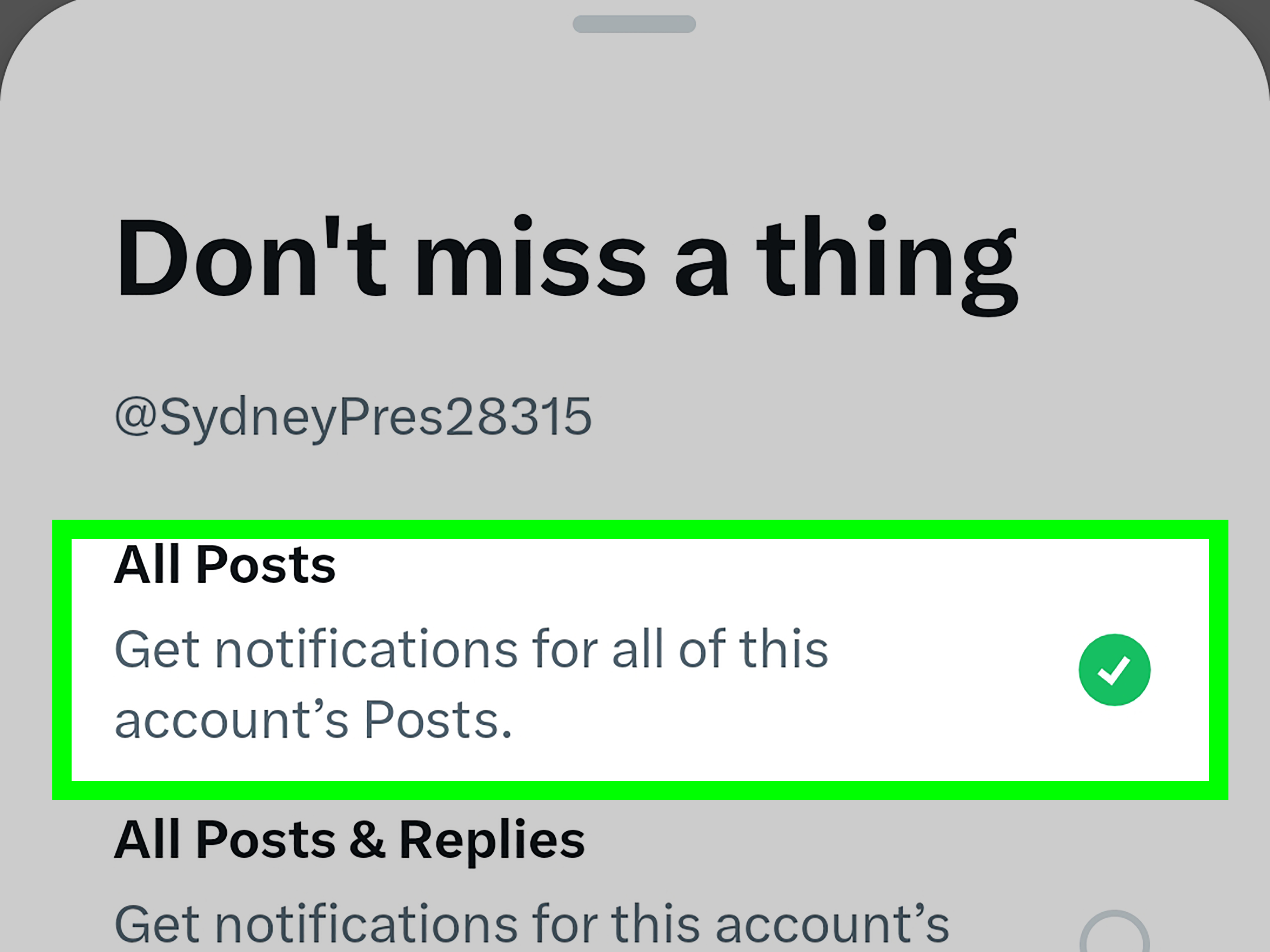
Once you are on the profile, look for the bell icon. This is the magic button for account-specific alerts. Tap it, and X should offer notification options for that account.
On many Android builds, you will see choices such as:
- All posts
- Only live video
- None if you want to turn it back off later
If your goal is to get notified whenever that person tweets, choose All posts. If the account posts fifty times before breakfast and you value your sanity, you may want to think carefully before doing that. Courage is admirable. So is sleep.
Step 3: Check Global Push Notification Settings in X
Even after enabling alerts on a profile, it is smart to confirm that push notifications are enabled inside the app overall.
Here is the usual path in X for Android:
- Tap your profile icon or navigation menu.
- Open Settings and privacy.
- Tap Notifications.
- Tap Preferences or go directly to Push notifications, depending on your version.
- Make sure push notifications are turned on.
- Check that post-related notifications are enabled.
If you want to review which accounts you are getting post alerts from, this is also where X may show post notification preferences more broadly.
Step 4: Allow Notifications in Android Settings
Now switch from X to Android itself. Because yes, the app and the phone both want a vote here.
On most Android phones, go to:
- Settings
- Apps or Apps & notifications
- Find and tap X or Twitter
- Tap Notifications
- Turn on Allow notifications
On some phones, you can also choose whether the notification is Alerting or Silent. Pick alerting if you want banners, sounds, vibration, or pop-up style visibility. If it is set to silent, the notification may technically arrive without doing much to get your attention, which is not ideal if the whole point is actually noticing it.
Step 5: Grant Notification Permission on Android 13 and Newer
If your phone runs Android 13 or later, apps can require explicit permission to send notifications. So if X asks whether it may send you notifications, tap Allow. If you denied it earlier, go back into the phone’s app settings and turn notifications back on manually.
This is one of the most common reasons people swear they enabled Tweet alerts even though nothing ever appears. The bell is on, the account is followed, but Android has already sent the app to the notification penalty box.
How to Customize Twitter Notifications on Android
Once the notifications work, you can fine-tune how they appear so they are useful instead of obnoxious.
Show Alerts on the Lock Screen
If you want to see incoming Tweet alerts without unlocking your phone, enable lock screen notifications in Android settings. Some phones let you show all notification content, while others let you show alerts without displaying full details. If privacy matters, choose the more limited version.
Turn On Pop-Up Banners
Some Android devices offer a setting like Pop on screen for alerting notifications. If you want X notifications to briefly appear while you are using your phone, turn that on for the X app or for the relevant notification category.
Use Sounds, Vibration, or Badges
App icon badges can help if you miss the initial alert. Some devices also let you set notification categories, sounds, and vibration patterns. Samsung phones, for example, often provide more detailed category controls. Motorola phones may show similar options in app notification management, though the exact labels can vary.
Translation: Android is wonderfully flexible, but also enjoys giving the same menu seven different names depending on who made your phone.
Why X Notifications May Not Work on Android
If you turned everything on and still are not getting alerts, one of these usual suspects is probably to blame.
1. The App’s Notifications Are Off at the Phone Level
This is the big one. You may have enabled the profile bell in X, but Android may still be blocking the app entirely or muting specific notification categories.
2. Do Not Disturb Is Enabled
Do Not Disturb can hide or silence alerts, especially overnight. Check your quick settings panel and any scheduled focus modes. Many people think X is broken when their phone is simply being wonderfully, aggressively peaceful.
3. Battery Saver or Sleeping Apps Are Blocking Background Activity
On some Android devices, especially Samsung models, Power Saving and sleeping app settings can delay or suppress app alerts. If X has been placed in a sleeping or deep sleeping list, the app may not wake up in time to deliver notifications properly. On Pixel and other Android phones, battery optimization can also delay real-time notifications.
4. Notification Filters Inside X Are Hiding Things
X includes a quality filter, muted words, and advanced filters. These can affect what appears in your notification experience. That said, opted-in post notifications from accounts you follow may still come through even if their posts contain muted words or hashtags. So if you deliberately turned on alerts for a person, X may treat those as a special case rather than filtering them out.
5. The App Data Was Cleared
If you cleared the X app’s data while troubleshooting, remember that doing so can reset notification and sync settings to default. In other words, the app may work again, but your carefully chosen alert setup may quietly disappear and need to be configured again.
6. Network, VPN, or App Glitches
Poor connectivity, an unstable Wi-Fi network, or certain VPN issues can interfere with real-time updates. If notifications suddenly stop, try a quick restart, sign out and back in, clear the cache, or reinstall the app. These are boring fixes, but boring fixes often win.
7. Too Many Devices Are Attached to Push Notifications
X also has a device limit for push destinations. If your account has accumulated a ridiculous number of old phones, tablets, or ghost devices from the digital past, you may run into a limit and need to clear unused devices from your account settings on desktop.
Best Practices for Using Tweet Notifications Without Losing Your Mind
Yes, you can turn on alerts for a bunch of accounts. That does not mean you should. A smarter approach is to use the feature selectively.
- Turn on notifications for breaking news accounts, not every commentary account under the sun.
- Use alerts for official customer support or travel updates if you need quick responses.
- Keep creator alerts limited to your absolute favorites.
- Review your list every month and prune the noisy accounts.
- If an account posts every ninety seconds, consider switching from all posts to a lighter notification approach.
The best notification setup is the one that helps you catch what matters without training you to ignore your phone completely. Once every app screams, nothing sounds urgent anymore.
Frequently Asked Questions
Do I have to follow the account first?
Usually, yes. In common app flows, the bell icon for post alerts appears after you follow the account.
Can I get notifications for every Tweet from one person?
Yes, if the account-specific alert menu offers All posts and you choose it.
Can I turn notifications off later?
Absolutely. Go back to that person’s profile, tap the highlighted bell icon, and choose None.
Why do I get the notification late?
Delayed notifications are often caused by battery optimization, app sleeping features, poor connectivity, or notification permissions being only partially enabled.
Does muting words stop post alerts from followed accounts?
Not always. X indicates that opted-in mobile notifications for accounts you follow can still come through even if the post contains muted words or hashtags.
Real-World Experiences With Tweet Notifications on Android
In real life, Tweet notifications on Android can be incredibly useful when they are set up thoughtfully. A lot of users start using them for one simple reason: they are tired of missing updates that matter. Maybe it is a local meteorologist posting storm warnings faster than the TV station updates its app. Maybe it is an airline posting operational updates while you are stuck in an airport eating a sandwich that costs more than your dignity. In those cases, getting a push notification the second a trusted account posts feels less like a luxury and more like a survival skill.
Fans use the feature for sports reporters and team insiders because big news often hits X before it reaches polished articles. If a beat writer posts that a star player is out, or a trade just happened, that phone buzz can save you from hearing the news two hours later from a friend who absolutely will act smug about it. For stock watchers, gamers, tech enthusiasts, and people following live events, the value is similar: speed matters. You do not want to refresh the app a hundred times a day like a caffeinated squirrel when one well-timed notification can do the job.
There is also a practical side for business and customer service. Small business owners sometimes enable alerts from shipping carriers, major vendors, or support accounts so they can react quickly to outages, policy changes, or customer-facing issues. Freelancers and job seekers may follow recruiters, editors, or industry experts who post openings and deadlines without much warning. In those situations, a push notification can be the difference between being early and being late. The internet is not always kind to the late.
That said, the experience gets messy when people overdo it. The first few alerts feel helpful. The fiftieth alert from an account that live-posts every fleeting thought about coffee, traffic, and the moon phase feels less helpful. At that point, what started as a useful feature becomes background noise. Many Android users end up learning the same lesson: the bell icon should be reserved for accounts that genuinely deliver timely, important, or high-value information. Not every funny account deserves round-the-clock access to your attention, no matter how good the jokes are.
The best experiences usually come from a short, deliberate list. One weather source. One news source. One work-related account. Maybe one creator you really like. That is enough to keep the feature useful while protecting your focus. When set up this way, Tweet notifications on Android feel fast, purposeful, and convenient. When set up badly, they feel like your phone joined a marching band. The technology is solid. The real art is choosing who gets to ring the bell.
Final Thoughts
If you want to get push notifications for a user’s Tweets on Twitter for Android, the process is simple once you know where the switches are. Follow the account, tap the bell on the profile, choose the alert type you want, then confirm that both X and Android are allowed to send notifications. If something goes wrong, check Android permissions, Do Not Disturb, battery optimization, app sleeping settings, and X’s built-in filters before assuming the app is haunted.
Done right, this feature is one of the easiest ways to stay on top of posts that matter without constantly refreshing your feed. Done badly, it becomes a nonstop pocket drum solo. Choose wisely, and let the bell serve you instead of ruling your life.