WhatsApp blue ticks are tiny, but they can cause giant confusion. One minute you send a message, the next you are staring at two gray check marks like they owe you money. Did the person read it? Are read receipts turned off? Is your phone being dramatic? The good news is that blue ticks on WhatsApp are not magic. They are read receipts, and once you understand how they work, you can usually figure out why they appear, why they do not appear, and how to turn them on across iPhone, iPad, and Android.
This guide explains how to get blue ticks on WhatsApp, how to enable read receipts, what the different check marks mean, and why blue ticks may still not show even when everything looks correct. We will also cover iPad behavior, group chats, voice messages, privacy settings, troubleshooting tips, and real-world examples so you can stop guessing and start understanding what WhatsApp is actually telling you.
What Are Blue Ticks on WhatsApp?
Blue ticks on WhatsApp mean your message has been read. More specifically, the recipient has opened the chat where your message appears, and WhatsApp has sent back a read receipt. In a one-on-one chat, two blue check marks usually mean the other person opened the conversation and viewed your message. In a group chat, blue ticks appear only after every participant has read the message.
Here is the simple version:
- Clock icon: Your message has not been sent yet, usually because of an internet issue.
- One gray tick: Your message was sent from your phone but has not reached the recipient’s device.
- Two gray ticks: Your message was delivered to the recipient’s device or linked devices.
- Two blue ticks: Your message was read.
Think of WhatsApp ticks like a tiny delivery tracking system. One tick says, “Package left the warehouse.” Two gray ticks say, “Package arrived.” Two blue ticks say, “Someone opened the box.” Unfortunately, WhatsApp cannot tell you whether they smiled, sighed, rolled their eyes, or started typing a reply and deleted it six times.
How to Get Blue Ticks on WhatsApp
To get blue ticks on WhatsApp, you need read receipts turned on. The person you are messaging also needs read receipts enabled for one-on-one chats. If either person disables read receipts, blue ticks usually will not appear in private conversations. That is the part many users miss: WhatsApp read receipts work both ways.
When you turn read receipts off, you gain privacy because other people cannot see when you read their messages. But you also lose visibility because you cannot see when they read yours. It is a fair trade, even if it occasionally feels like WhatsApp has joined a secret society.
How to Turn On Blue Ticks on iPhone
On iPhone, blue ticks are controlled by the Read Receipts setting inside WhatsApp privacy settings. Follow these steps:
- Open WhatsApp on your iPhone.
- Tap Settings in the bottom-right corner.
- Tap Privacy.
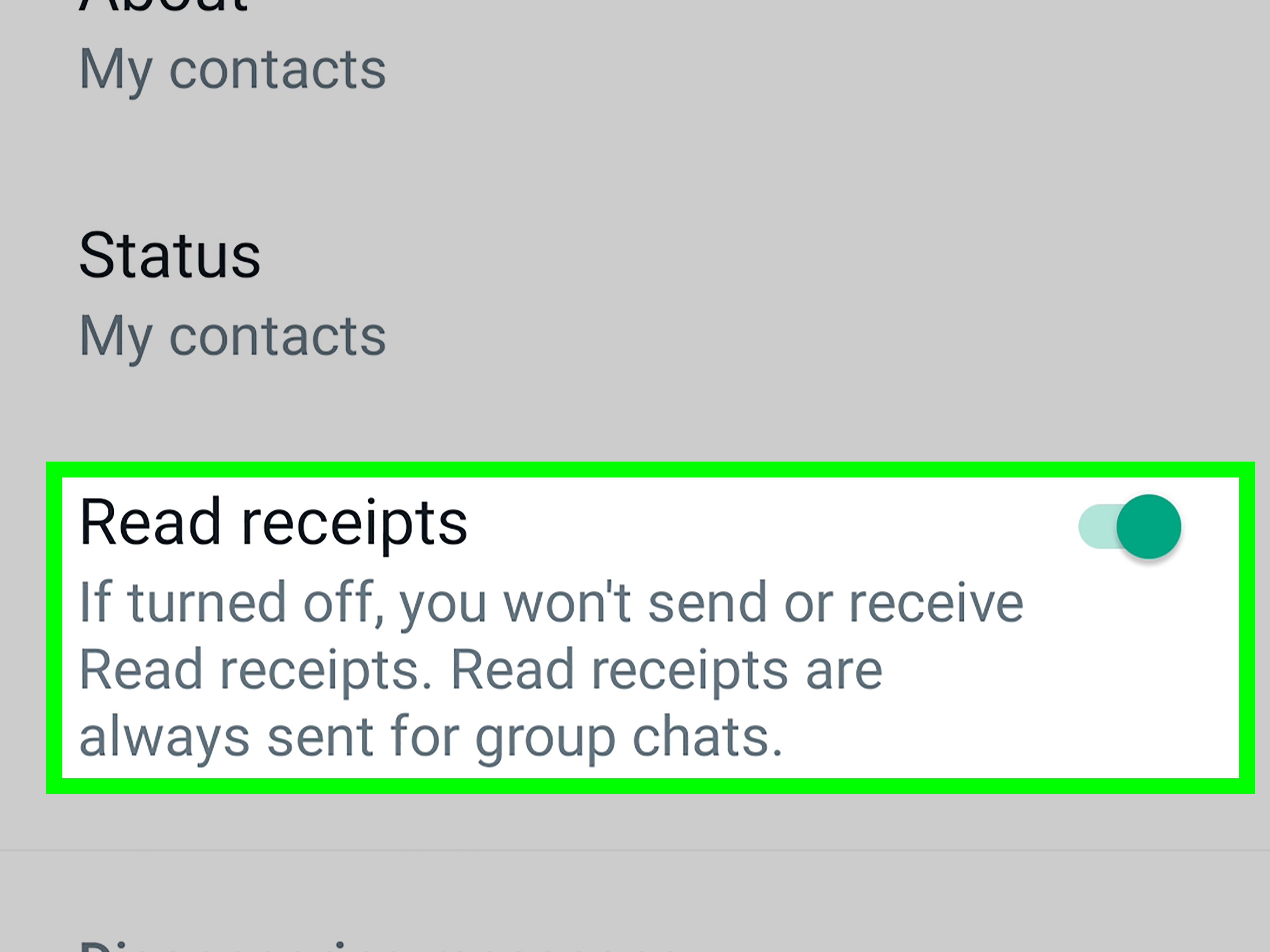
- Scroll until you see Read Receipts.
- Turn Read Receipts on.
After this setting is enabled, your sent messages can show two blue ticks when the recipient reads them, as long as the recipient has not disabled read receipts on their side. If you still see gray ticks, do not panic. The other person may not have opened the chat yet, may be offline, may have read receipts turned off, or may be using WhatsApp in a way that has not triggered the read status.
How to Check Message Info on iPhone
If you want more detail, WhatsApp lets you check message information. Open the chat, press and hold your sent message, and choose Info. This can show when the message was delivered and, if read receipts are available, when it was read. This feature is especially useful when the ticks are not telling the whole story.
How to Turn On Blue Ticks on Android
On Android, the process is almost the same, but the menu layout is slightly different. Here is how to enable blue ticks on WhatsApp for Android:
- Open WhatsApp on your Android phone.
- Tap the three-dot menu in the top-right corner.
- Tap Settings.
- Tap Privacy.
- Find Read Receipts.
- Turn the toggle on.
Once read receipts are enabled, WhatsApp can show blue ticks for messages that are read in individual chats. Again, this depends on the other person’s privacy settings too. If they turned off read receipts, you will not see blue ticks from them in private chats, even if your own setting is on.
How to Check Message Info on Android
To check delivery and read details on Android, open the conversation, tap and hold the message you sent, then tap the information icon or menu option for Info. You may see timestamps for delivery and read status when available.
How to Get Blue Ticks on WhatsApp for iPad
WhatsApp on iPad works differently from the classic phone app because the iPad is commonly used as a linked device. That means your WhatsApp account is still connected to your main phone number, but you can use WhatsApp on your iPad after linking it.
To use WhatsApp on iPad, you generally need to link the iPad to your primary WhatsApp account:
- Install and open WhatsApp on your iPad.
- Follow the on-screen instructions until a QR code appears.
- Open WhatsApp on your main phone.
- Go to Linked Devices.
- Tap Link a Device.
- Scan the QR code shown on your iPad.
Once your iPad is linked, your blue tick behavior should follow your WhatsApp account’s privacy settings. If read receipts are turned on for your account, messages you read on iPad can send read receipts, and messages you send can show blue ticks when recipients read them, assuming their settings allow it.
Where to Check Read Receipts for iPad
If your iPad version includes WhatsApp settings, look for Settings, then Privacy, then Read Receipts. If the setting is easier to manage from your primary phone, change it there. Since linked devices sync with your account, the privacy setting should apply across your WhatsApp experience.
Why Blue Ticks Are Not Showing on WhatsApp
If you turned on read receipts but still do not see blue ticks, there are several possible reasons. Most are normal and do not mean anything suspicious. WhatsApp blue ticks depend on privacy settings, internet connection, device status, and whether the recipient actually opened your chat.
1. The Other Person Turned Off Read Receipts
This is the most common reason. If the recipient has disabled read receipts, you will not see blue ticks in a one-on-one chat. WhatsApp does not send you a notification saying, “This person has chosen peace and privacy.” The ticks simply stay gray.
2. They Have Not Opened Your Chat
A person may see your message preview from the notification screen without opening WhatsApp. In that case, the message may remain at two gray ticks. Reading from a notification preview does not always trigger blue ticks because the chat itself was not opened.
3. Their Phone Is Offline
If the recipient has no internet connection, your message may stay at one gray tick. If it has reached their device but they have not opened WhatsApp, it may stay at two gray ticks. Bad Wi-Fi, airplane mode, dead batteries, and mobile data issues can all delay tick updates.
4. You May Be Blocked
If your messages stay on one gray tick for a long time, it could mean the person is offline, changed phones, deleted WhatsApp, or blocked you. WhatsApp intentionally avoids giving a clear blocked status to protect privacy, so one gray tick alone is not proof.
5. The Message Was Edited
When a message is edited, read receipt behavior can reset or change because WhatsApp may track who has seen the updated version. If you edited a message and the ticks behave differently, that may be why.
6. Linked Devices Are Syncing Slowly
WhatsApp linked devices are convenient, but they can sometimes sync message status with a delay. If someone reads a message on a linked device, the blue tick update may not appear instantly on your screen.
7. The App Needs an Update
Outdated apps can behave strangely. If blue ticks are missing, delayed, or inconsistent, update WhatsApp from the App Store or Google Play Store. Also make sure your phone’s operating system is reasonably up to date.
Do Blue Ticks Work in WhatsApp Group Chats?
Yes, but group chats have their own rules. In a WhatsApp group, two blue ticks appear only when everyone in the group has read your message. If even one person has not opened the message, the ticks may remain gray. That one friend who checks WhatsApp every three business days can hold the whole group hostage.
To see who has read your group message, open the group chat, press and hold your message, and tap Info. WhatsApp may show who has read the message and who has received it. This is often more helpful than waiting for the main ticks to turn blue.
Another important detail: read receipts generally remain active in group chats even when users turn off read receipts for private chats. So if you are testing blue ticks, a group chat may behave differently from a one-on-one conversation.
Do Blue Ticks Work for Voice Messages?
Voice messages have their own read or played indicators. Depending on the current WhatsApp version and privacy settings, voice message read receipts can follow the user’s read receipt preferences. If read receipts are enabled, WhatsApp may show when a voice message has been played or opened. If they are disabled, that visibility may be limited.
The key point is this: do not assume text messages and voice messages always behave exactly the same. If blue ticks are important to you, test with a simple text message first. Text messages are the clearest way to confirm whether WhatsApp read receipts are working.
Can You Force Blue Ticks on WhatsApp?
No. You cannot force blue ticks on WhatsApp if the other person has disabled read receipts or has not opened your chat. You also cannot override another person’s privacy settings. Any app, website, or “secret trick” claiming to force blue ticks should be treated with suspicion. At best, it is probably outdated. At worst, it may risk your privacy, account security, or personal data.
The safest and most reliable way to get blue ticks is simple: keep read receipts enabled, keep WhatsApp updated, maintain a good internet connection, and understand that the recipient’s settings matter too.
How to Fix WhatsApp Blue Ticks Not Working
If blue ticks are not showing and you think they should, try this quick troubleshooting checklist:
- Open WhatsApp and confirm Read Receipts are turned on.
- Ask yourself whether the chat is private or a group chat.
- Check whether your message has one gray tick or two gray ticks.
- Make sure your phone has a stable internet connection.
- Update WhatsApp from the official app store.
- Restart your phone if message status seems frozen.
- Check message info for delivery and read timestamps.
- Try sending a normal text message instead of media or voice notes.
- Wait a little, especially if the recipient uses linked devices.
Do not reinstall WhatsApp as your first move. Reinstalling can be useful in some cases, but it is also a bigger step that requires proper backup. Start with settings, updates, and connection checks before doing anything dramatic.
Blue Ticks vs WhatsApp Verification Badge
One common misunderstanding is the difference between WhatsApp blue ticks and account verification. Blue ticks are read receipts for messages. They show whether a message was read. They do not mean your WhatsApp account is verified, famous, official, or suddenly qualified to give TED Talks.
Business verification on WhatsApp is a separate topic. Verified business accounts may show a badge, but that is not the same as message blue ticks. If your goal is to know whether someone read your message, you are looking for read receipts. If your goal is to verify a business identity, that involves WhatsApp Business and Meta’s business verification process.
Privacy Tips for Using WhatsApp Blue Ticks
Blue ticks are useful, but they can also create pressure. Many people turn off read receipts because they do not want every message to feel like a countdown timer. If you use WhatsApp for work, family, school, or customer communication, it helps to treat blue ticks as helpful context, not a legal contract.
Here are a few healthy ways to use them:
- Use blue ticks to confirm important information was seen.
- Avoid assuming someone is ignoring you just because they read a message.
- Remember that people may read messages when they are busy and reply later.
- Use message info in group chats instead of guessing.
- Respect people who choose to turn read receipts off.
In personal chats, blue ticks should help communication, not turn every conversation into a detective show. In business chats, they can support follow-ups, but they should not replace polite confirmation. A simple “Please confirm when you get a chance” often works better than silently staring at two blue marks.
Practical Examples of WhatsApp Blue Ticks
Example 1: Two Gray Ticks but No Blue Ticks
You send, “Can we meet at 6?” The message shows two gray ticks for hours. This means the message likely reached the recipient’s device, but WhatsApp has not recorded it as read. They may not have opened the chat, or they may have read receipts off.
Example 2: One Gray Tick for a Long Time
You send a message and see only one gray tick. The message has left your phone but has not been delivered to the recipient’s device. Their phone may be offline, they may have no data, or there may be another delivery issue.
Example 3: Group Message Still Not Blue
You send an announcement to a group of 25 people. It stays gray even though several people replied. That can happen because blue ticks in groups require everyone to read the message. Open message info to see individual read status.
Example 4: iPad Shows Messages but Ticks Lag
You use WhatsApp on iPad as a linked device. Messages sync, but read status updates seem slightly delayed. This can happen with linked devices, especially if your main phone has connection issues or has not synced recently.
Experience-Based Tips: What Real Users Learn About Blue Ticks
After using WhatsApp across iPhone, iPad, and Android, one thing becomes clear: blue ticks are helpful, but they are not perfect. The biggest mistake people make is treating them as emotional evidence. Two blue ticks do not always mean someone is ignoring you. It may simply mean they opened the chat during a meeting, while walking into class, while holding groceries, or while their brain was running on 3% battery.
On iPhone, the read receipt setting is easy to find, but many users forget it exists because WhatsApp usually turns it on by default. The first useful habit is checking Settings > Privacy > Read Receipts whenever blue ticks disappear. It takes ten seconds and can save you from inventing a whole mystery novel in your head.
On Android, the three-dot menu is the gateway to almost everything. If someone switches from iPhone to Android, they may initially look for a bottom Settings tab and feel lost. The Android route is simple once you remember it: three dots, Settings, Privacy, Read Receipts. After that, the behavior is similar to iPhone.
On iPad, the main lesson is patience. Because WhatsApp on iPad often works as a linked device, syncing can feel slightly different from using the phone app. Most of the time, it works smoothly. But if message status looks delayed, check your primary phone, internet connection, and linked device status before assuming something is broken.
Another real-world tip: group chats are where blue ticks become both powerful and annoying. If you manage a family group, class project, team update, or small business chat, message info is your best friend. Instead of waiting for the group message to turn blue, press and hold the message and check who has read it. This is much clearer, especially in groups where one person always reads messages three days later and replies with “OK” after the entire plan has changed.
For business use, blue ticks can help with customer service and appointment reminders. For example, if a client reads a location update before a meeting, blue ticks can reassure you that the message reached them. But blue ticks should not be your only confirmation system. For anything important, ask for a short reply. “Please reply YES to confirm” is still more reliable than hoping two tiny blue symbols carry the weight of your entire schedule.
For privacy, turning off read receipts can be a healthy choice. Some people do not want pressure to respond instantly. If you turn them off, just remember the trade-off: you also lose blue ticks from others in private chats. It is not a bug. It is WhatsApp saying, “Fair is fair.”
The best experience-based advice is to use blue ticks as a communication tool, not a stress machine. They are great for basic visibility, but they do not explain intention, mood, availability, or context. A person can read a message and still need time to answer. A person can leave a message gray and still care. WhatsApp gives you check marks, not mind-reading powers. Honestly, that is probably for the best.
Conclusion
Getting blue ticks on WhatsApp is mostly about enabling read receipts and understanding how WhatsApp message status works. On iPhone, Android, and iPad, the core idea is the same: turn on Read Receipts in privacy settings, keep WhatsApp updated, and remember that the other person’s settings matter too. Two blue ticks mean your message was read, while two gray ticks mean delivered and one gray tick means sent but not delivered.
If blue ticks are not showing, check your privacy settings, internet connection, app version, linked devices, and whether the chat is private or a group conversation. Most of the time, missing blue ticks are not a crisis. They are just WhatsApp doing exactly what the other person’s privacy settings allow it to do.