Waze is great when it helps you dodge traffic, avoid a sneaky pothole, and arrive before your coffee turns into iced coffee by accident. But when the app’s voice guidance is too loud, too quiet, or mysteriously silent, it can turn a helpful navigation tool into a tiny dashboard drama. The good news? Changing the volume in Waze is usually simple once you know where to look.
This guide explains how to change the volume in Waze in 9 easy steps, plus how to fix common sound problems on iPhone, Android, Bluetooth, Android Auto, and Apple CarPlay. Whether Waze is whispering like it’s sharing a secret or shouting over your favorite playlist like an excited backseat driver, the steps below will help you get the sound level just right.
Why Waze Volume Settings Matter
Waze is not just a map app. It gives turn-by-turn directions, traffic alerts, hazard warnings, police reports, road closure updates, and ETA changes. Those alerts are useful only if you can actually hear them clearly. If the volume is too low, you may miss a turn. If it is too loud, every instruction feels like a surprise announcement at a sports stadium.
The tricky part is that Waze volume can be affected by several things at once: the in-app guidance volume slider, your phone’s media volume, Bluetooth settings, car speaker routing, voice guidance preferences, and whether you are using Android Auto or CarPlay. That sounds like a lot, but do not worry. We are going to untangle the audio spaghetti one noodle at a time.
How to Change the Volume in Waze: 9 Steps
Follow these steps to adjust Waze guidance volume directly inside the app. The wording may vary slightly depending on your phone, app version, and whether you use iPhone or Android, but the general path is the same.
Step 1: Open the Waze App
Start by opening Waze on your iPhone or Android device. Make sure the app is updated to the latest version available in the App Store or Google Play. App updates often improve stability, fix audio bugs, and adjust menu layouts. If your screen looks different from a tutorial you saw online, an update difference is often the reason.
Step 2: Go to the Main Menu
Tap the menu icon in Waze. On many versions of the app, this appears as a three-line menu, profile icon, or navigation drawer button. The goal is to reach the main Waze menu where you can access settings. If you are already navigating, you may also see a sound icon near your ETA area that lets you quickly switch between sound modes.
Step 3: Tap Settings
Once the menu opens, tap Settings. This is where Waze stores most of its customization options, including map display, driving preferences, notifications, account details, and sound controls. Think of Settings as the control room where Waze keeps all the knobs and switches.
Step 4: Select Voice and Sound
Inside Settings, tap Voice and sound. This section controls how Waze talks to you, which voice it uses, whether it gives full navigation guidance, and how loud those directions should be. If your problem is “Waze is too quiet,” “Waze is too loud,” or “Waze is not talking at all,” this is the first place to check.
Step 5: Find the Guidance Volume Slider
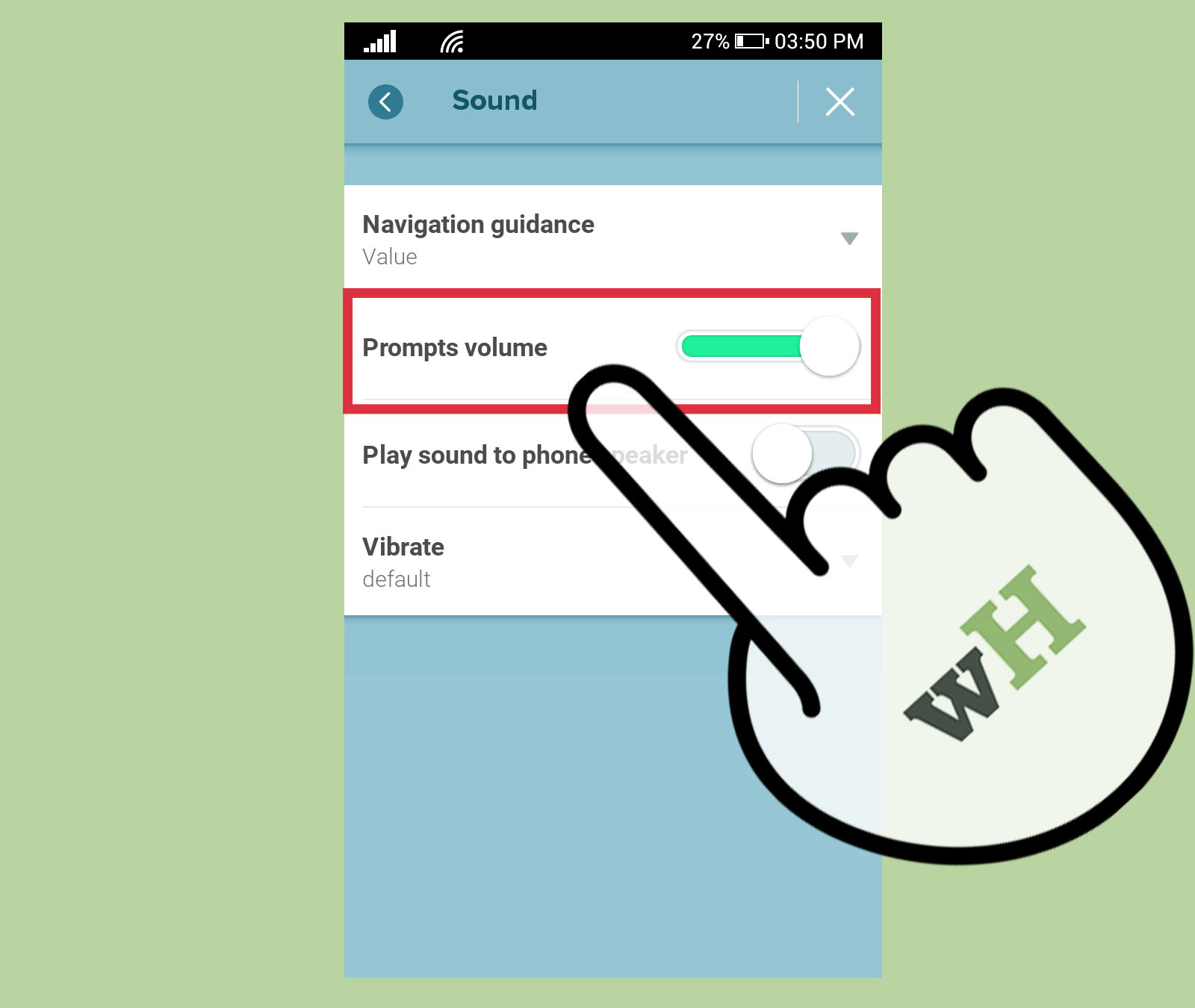
Look for the Guidance volume slider. This slider controls how loud Waze voice directions and alerts are inside the app. Move it to the right to make Waze louder. Move it to the left to make Waze quieter. A setting around the middle is comfortable for many drivers, but your perfect level depends on your phone, car speakers, road noise, and whether you listen to music while driving.
Step 6: Choose the Correct Sound Mode
Make sure Waze is set to the sound mode you actually want. Waze usually offers options like Sound on, Alerts only, and Sound off. Choose Sound on if you want full voice navigation and alerts. Choose Alerts only if you want warnings but not every turn instruction. Choose Sound off only if you enjoy navigation in mysterious silence, which is brave but not always practical.
Step 7: Test Waze During a Route
Start a route and listen for Waze instructions. A quick test is important because some phone and car systems adjust volume only while navigation audio is playing. If Waze sounds too quiet during the test, raise your phone or car volume while Waze is speaking. Timing matters here. If music is playing and Waze is not currently talking, your volume buttons may adjust the music instead of the navigation voice.
Step 8: Check Bluetooth or Speaker Output
If you use Bluetooth, check where Waze audio is being sent. In Waze settings, look for options related to playing sound through the phone speaker, device default, or Bluetooth. If Waze directions are coming from your phone when you expected them through the car speakers, or the reverse, the audio output setting may be the culprit. A tiny routing setting can make a big difference.
Step 9: Adjust Android Auto or CarPlay Volume Separately
If you use Android Auto or Apple CarPlay, volume can behave differently. In many cars, you need to adjust the car’s volume while Waze is actively speaking. If you turn the knob while music is playing, you may be changing music volume instead of guidance volume. If Waze still seems stuck, disconnect your phone from the car system, adjust Waze sound settings on the phone, then reconnect.
Quick Version: The Easiest Way to Change Waze Volume
If you want the fast path, here it is: open Waze, go to Settings, tap Voice and sound, then move the Guidance volume slider. After that, confirm that sound is set to Sound on. Start a route and adjust your phone or car volume while Waze is speaking.
That last part is worth repeating because it solves many “why is Waze still quiet?” moments. On phones, Bluetooth systems, Android Auto, and CarPlay, different audio channels may have different volume levels. Music, calls, alerts, and navigation guidance can behave like separate roommates who refuse to share the same volume setting.
How to Change Waze Volume on iPhone
On iPhone, open Waze, tap the menu icon, go to Settings, then choose Voice and sound. Move the Guidance volume slider up or down. Make sure the sound preference is set to On if you want full voice directions.
If you are using CarPlay, Waze volume may be controlled through your car’s audio system. Start a route, wait until Waze begins speaking, and then adjust the car volume. If you adjust the volume while Spotify, Apple Music, or radio audio is playing, you might only change the entertainment volume. Waze will remain quiet, and you will remain annoyed. Nobody wins.
How to Change Waze Volume on Android
On Android, open Waze and tap the sound icon or go through the main menu to reach sound settings. In the sound menu, select More sound options if shown, then adjust the Guidance volume slider. Also confirm that Waze is set to Sound on, not Alerts only or Sound off.
Android phones can also have separate media, call, notification, and system volume controls. If Waze is quiet, press the volume button and expand the volume panel. Look for media volume, because navigation audio often uses that channel. If your phone is connected to Android Auto, test the sound while Waze is giving a direction and adjust the car volume at that moment.
What to Do If Waze Volume Is Too Low
If Waze sounds too quiet even after moving the guidance volume slider up, try these fixes. First, check your phone’s media volume. Second, start a route and raise the volume while Waze is speaking. Third, make sure Waze is not set to Alerts only. Fourth, try changing the Waze voice. Sometimes a different voice is clearer through certain speakers.
You should also check whether your car, Bluetooth headset, or phone speaker is the active audio output. If Waze is playing through a small phone speaker tucked in a cup holder while your music comes through the car speakers, the directions may sound faint. In that case, adjust Waze sound routing so the app uses the output you actually want.
What to Do If Waze Is Too Loud
If Waze is too loud, lower the Guidance volume slider in Voice and sound. Then test it during a route. If you are connected to a car system, lower the volume while Waze is speaking. This helps you adjust the navigation voice rather than the music or radio.
For many drivers, the best setup is not maximum volume. A loud Waze voice may be useful on highways with road noise, but in a quiet neighborhood it can feel like the app is personally announcing your left turn to everyone on the block. Aim for clear, not dramatic.
Sound On, Alerts Only, or Sound Off: Which Should You Choose?
Waze sound preferences are not just about volume. They also control what kind of audio Waze gives you. Sound on gives both navigation guidance and alerts. This is best when driving somewhere unfamiliar. Alerts only gives warnings without full turn-by-turn voice directions. This works well when you already know the route but still want traffic and hazard updates. Sound off turns off Waze sounds entirely.
For daily commuting, many people prefer Alerts only. For road trips, airport runs, new neighborhoods, or complicated city driving, Sound on is usually safer and more useful. Choose the mode based on how much help you need, not just how much talking you can tolerate before coffee.
How Waze Volume Works with Music and Podcasts
Waze can work alongside music and podcast apps. Depending on your settings, directions may play over music, lower the music temporarily, pause spoken audio, or use your device’s default audio path. If you listen to podcasts or audiobooks, this matters a lot. Missing three seconds of a song is fine. Missing three seconds of a mystery podcast can make you suspect the wrong fictional character for six episodes.
If Waze interrupts your audio too aggressively, explore the audio player and voice settings. If you want directions to be easier to hear over music, make sure Waze is using the proper output and that guidance volume is high enough. If you prefer fewer interruptions, use Alerts only or adjust settings related to spoken audio.
Waze Volume with Bluetooth: Common Problems
Bluetooth can make Waze audio feel confusing because sound may route through your car, earbuds, phone speaker, or device default output. If you cannot hear Waze through your car speakers, check whether Waze is set to play through the phone speaker. If that option is enabled, directions may not come through your connected Bluetooth device.
Another common issue happens when the car treats Waze guidance as a separate audio source. In that case, adjust the volume while Waze is actually speaking. You may need to trigger a navigation prompt by starting a route, approaching a turn, or tapping a test voice option if available.
Waze Volume with Android Auto and Apple CarPlay
Android Auto and Apple CarPlay often separate media volume from navigation volume. That means your music can be loud while Waze directions remain quiet. The solution is usually to change the volume during a Waze announcement. Start a route, wait for Waze to speak, then use the car’s volume knob or steering wheel volume controls.
If nothing changes, disconnect your phone from the car system, open Waze on the phone, adjust Voice and sound settings, then reconnect. This helps because some Waze settings must be changed on the phone before they apply in the car display environment.
Why Waze Sometimes Goes Silent
If Waze is completely silent, the problem may not be volume. Check whether Waze is set to Sound off or Alerts only. Also confirm that your selected Waze voice supports the type of directions you expect. Some voices may provide different levels of detail, while full navigation voices typically give more complete spoken guidance.
Also check your phone’s permissions, focus modes, silent mode, Bluetooth connection, and media volume. On Android, app permissions and audio routing can affect whether voice directions work properly. On iPhone, CarPlay routing and spoken audio settings can make Waze behave differently than expected.
Best Waze Volume Settings for Different Driving Situations
For City Driving
Use Sound on with medium to high guidance volume. City driving often involves quick turns, lane changes, and sudden traffic alerts. Clear instructions help you avoid last-second decisions.
For Highway Driving
Use a higher guidance volume, especially if your car has road noise. Highway alerts about hazards, crashes, and police reports are easier to miss when music and wind noise are competing for attention.
For Daily Commutes
Use Alerts only if you already know the route. This keeps Waze helpful without making it narrate every familiar turn like it is your first day in the neighborhood.
For Road Trips
Use Sound on and test your volume before leaving. Road trips often include unfamiliar exits, rural roads, construction zones, and long stretches where missing one instruction can add twenty minutes and one very dramatic U-turn.
Extra Troubleshooting Tips
If Waze volume still does not behave, restart the app. Close Waze completely, reopen it, and test again. If that does not work, restart your phone. It sounds boring, but restarting fixes more app weirdness than most of us want to admit.
Next, update Waze. Outdated app versions can have bugs that affect audio. Also update your phone operating system if an update is available. If you use a car display, check whether your vehicle’s infotainment system has an update too. Car software updates are not exciting, but neither is missing your exit because the dashboard decided to become a silent film.
Finally, try changing the Waze voice. If one voice sounds too soft or unclear through your speakers, another may work better. This is especially useful if your car speakers emphasize bass or if road noise makes certain voices harder to understand.
Real-World Experience: What Changing Waze Volume Actually Feels Like
The first time many drivers try to fix Waze volume, they assume there is one master volume button. That would be lovely. Unfortunately, modern phones and car systems treat audio like a tiny orchestra: music has one volume, calls have another, alerts may have another, and navigation guidance sometimes shows up with its own little conductor.
One common experience is turning up the car volume while music is playing, only to find that Waze directions are still quiet. Then, suddenly, when Waze finally speaks, it is either still too soft or unexpectedly loud. The trick is to adjust the volume during the Waze announcement itself. It feels oddly specific, but it works in many car systems because the car recognizes Waze as the active audio source only while it is speaking.
Another real-world lesson is that Bluetooth settings can fool you. You may think Waze is connected to the car because your music is playing through the car speakers. But Waze might be routed to the phone speaker because of an app setting. The result is a tiny voice from somewhere near the cup holder saying, “Turn right,” while your playlist confidently blasts through the car. Checking the Voice and sound settings can save you from blaming your phone, your car, and possibly the universe.
Drivers who listen to podcasts often notice Waze volume problems more than music listeners. With music, a quick interruption is not a big deal. With podcasts, audiobooks, or language lessons, a badly balanced Waze voice can be annoying. If Waze is too quiet, you miss directions. If it is too loud, it stomps all over the story. The best setup is usually a medium guidance volume, clear voice selection, and audio settings that do not pause spoken content too aggressively unless you prefer that.
For commuting, the best experience is often Alerts only. You already know where the office, school, gym, grocery store, or favorite taco place is. You do not need Waze to tell you every turn like a formal ceremony. But alerts are still useful because traffic changes, crashes happen, and construction cones appear overnight as if they grow from asphalt.
For unfamiliar trips, full voice guidance is worth it. Before leaving, set the destination, start navigation, and listen for the first instruction. If it sounds wrong, fix it while parked. This small habit can prevent mid-drive frustration. It is much easier to adjust a slider in your driveway than to troubleshoot sound settings while your exit is approaching and your passenger is saying, “I think that was it.”
The most practical advice is simple: set Waze volume before you actually need it. Test the sound. Confirm the output. Choose the right sound mode. Make sure the voice is clear. Once it is tuned properly, Waze becomes much more comfortable to use. It stops being the loud friend, the quiet friend, or the friend who refuses to speak, and becomes what it should be: a helpful navigation companion that gets you where you are going with fewer surprises.
Conclusion
Changing the volume in Waze is easy once you know that the app has its own guidance volume settings and that your phone or car may control navigation audio separately. Start with Settings > Voice and sound, adjust the Guidance volume slider, confirm that sound is turned on, and test the result during an active route. If you use Bluetooth, Android Auto, or CarPlay, remember to adjust volume while Waze is speaking.
The perfect Waze volume is loud enough to hear clearly but not so loud that every turn feels like breaking news. With the right settings, Waze can guide you smoothly through traffic, alerts, detours, and road trips without fighting your music, your car speakers, or your patience.