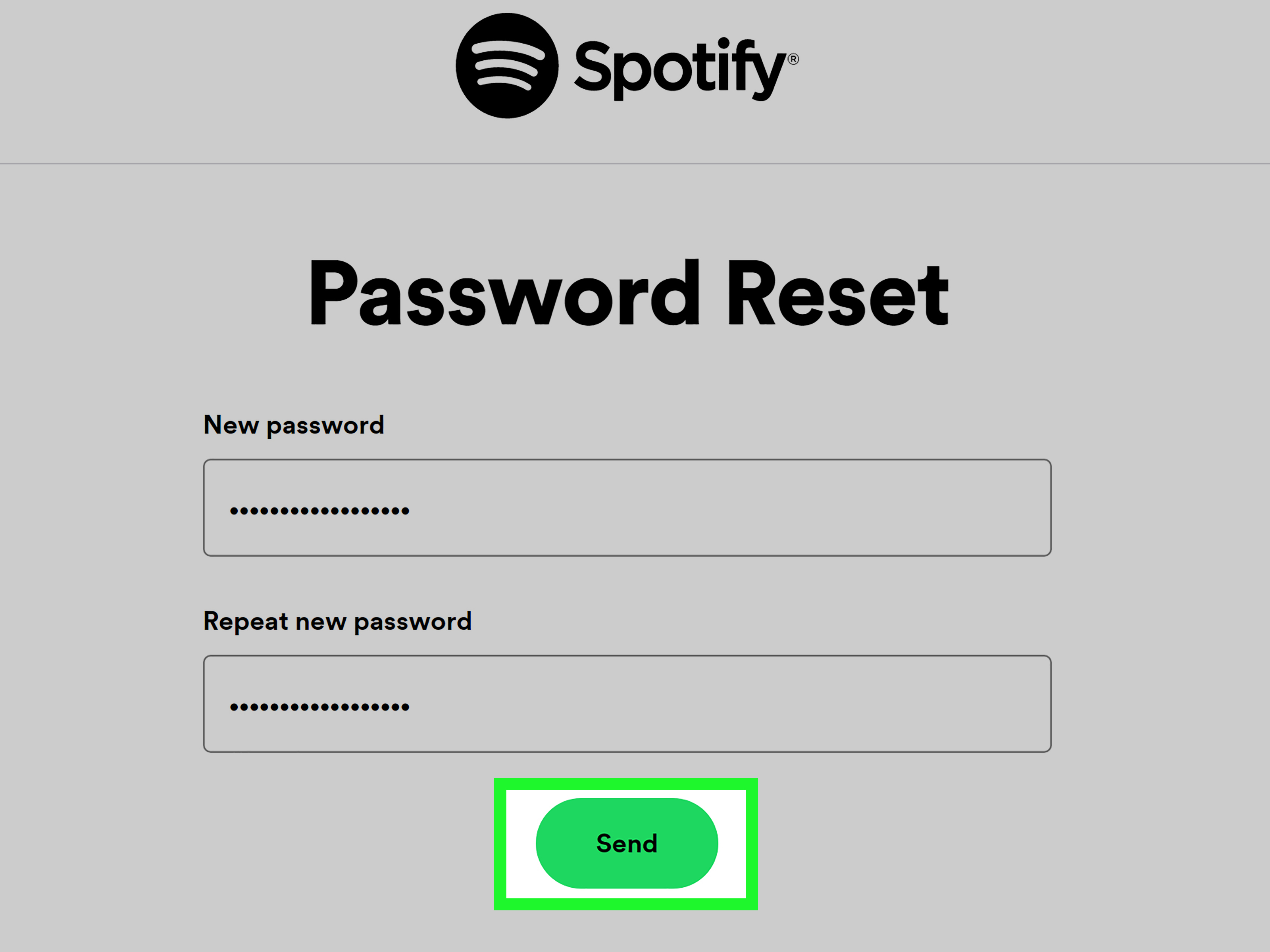
Your Spotify password may not be as exciting as a perfectly timed chorus drop, but it protects a surprisingly personal part of your digital life: your playlists, listening history, Premium plan, connected devices, and carefully curated collection of songs you swear you only play ironically.
Whether you want to update an old password, cannot remember what you used, or suspect someone else has been enjoying your Discover Weekly without permission, changing or resetting your Spotify password is usually quick. The key is knowing which route to take.
This guide explains the two simple ways to change or reset your Spotify password, what to do when the reset email does not arrive, how social sign-in can affect the process, and how to make your new password stronger without turning it into an impossible string of keyboard gymnastics.
Quick Answer: Should You Change or Reset Your Spotify Password?
Use the change password option when you can still sign in and remember your current password. Use the password reset option when you forgot your password, cannot log in, or believe someone may have accessed your Spotify account.
- Change password: Best when you know your current password and want a safer replacement.
- Reset password: Best when you forgot the password or cannot access your account normally.
Think of it like changing the lock on your front door. If you still have the key, the process is simple. If the key vanished into the same dimension as missing socks and charging cables, you will need a new one.
Way 1: Change Your Spotify Password When You Can Still Log In
If you know your current Spotify password, changing it is the easiest option. This is a smart move if your password is old, reused on other websites, shared with someone in the past, or simply looks like it was created during the “password123” era of the internet.
How to Change Your Spotify Password
- Open Spotify’s Account page in a web browser.
- Sign in to your Spotify account if prompted.
- Find the Security and Privacy section.
- Select Change Password.
- Enter your current password.
- Enter your new password twice.
- Select Set New Password to save the change.
After you confirm the update, use the new password the next time Spotify asks you to sign in. Depending on your devices and account activity, you may need to log in again on your phone, laptop, tablet, TV, smart speaker, game console, or that old tablet living in a drawer with three percent battery left.
Why Change Your Spotify Password Even If Nothing Seems Wrong?
Many people only think about password security after something strange happens. Maybe unfamiliar playlists appear in their library. Maybe Spotify starts recommending music that feels suspiciously unlike them. Maybe your “Chill Sunday Morning” playlist suddenly contains fourteen hours of aggressive techno.
You do not need to wait for a digital mystery to change your password. Updating it is a sensible precaution when:
- You used the same password for Spotify and another account.
- You received a notice that another website had a security breach.
- You signed in on a shared, public, school, hotel, or work computer.
- You gave someone access to your account in the past.
- Your current password is short, predictable, or easy to guess.
A unique Spotify password helps prevent one compromised account elsewhere from becoming a backstage pass to your music account.
Way 2: Reset Your Spotify Password If You Forgot It
Forgot your Spotify password? You are in excellent company. Most people have more online logins than houseplants, and unlike houseplants, passwords do not usually survive on occasional sunlight and good intentions.
Spotify’s password reset process lets you create a new password through the email address or username connected to your account.
How to Reset Your Spotify Password
- Open Spotify’s Password Reset page in your browser.
- Enter the email address or username connected to your Spotify account.
- Submit the request for a password reset email.
- Check your email inbox for Spotify’s reset message.
- Open the reset email and follow the instructions.
- Create and confirm a new Spotify password.
- Return to Spotify and sign in with your new password.
The reset message is sent to the email address registered with your Spotify account. For that reason, your email account is part of the recovery process. If someone can access your inbox, they may be able to request password reset links for other accounts too. Protecting your email with a strong password and multi-factor authentication is one of the most useful security upgrades you can make.
Use the Correct Email Address or Username
If Spotify says it cannot find an account linked to the email address you entered, do not panic. Many people have more than one email address, especially if they created their Spotify account years ago.
Try the email addresses you may have used when signing up, including personal, school, work, or older accounts. Spotify may also allow different sign-in methods, such as Google, Apple, phone number, or another connected login option. If you originally used one of those methods, try signing in through that option before assuming the account disappeared into the wilderness.
Spotify Password Reset Troubleshooting
Password resets are usually smooth. Still, technology occasionally decides to become dramatic. Here are the most common Spotify password reset problems and the practical fixes that can save you from repeatedly clicking the same button with increasing emotional intensity.
You Did Not Receive the Spotify Reset Email
First, check your spam, junk, promotions, social, and filtered email folders. Reset emails can sometimes get sorted into places where important messages go to hang out with suspicious coupons and newsletters you never remember subscribing to.
Also confirm that you entered the correct email address or Spotify username. A single typo can send your reset request into the digital void. If you have multiple email accounts, search each inbox for messages from Spotify before submitting more reset requests.
If you still cannot find the email, request another reset message and wait a few minutes. Avoid sending a long string of requests in rapid succession. Too many attempts in a short period can trigger temporary limits, which is Spotify’s polite way of asking everyone to take a breath.
The Password Reset Link Does Not Work
Reset links can expire or become invalid after a newer reset request is made. If the link fails, request a fresh password reset email and use the newest message instead of an older one.
Spotify also recommends opening the reset link in a private or incognito browser window if the regular browser session is causing trouble. This can help avoid conflicts from stored cookies, outdated sign-in sessions, or browser extensions that occasionally behave like tiny digital gremlins.
You No Longer Have Access to the Email Address
If you cannot access the email address connected to Spotify, try recovering the email account first. The email inbox is usually required to open Spotify’s password reset link, so getting back into that inbox is often the fastest path to restoring Spotify access.
If recovering the old email is not possible, review Spotify’s support options for account recovery assistance. You may need to provide information that helps confirm ownership of the account. Avoid sharing passwords, full payment details, or sensitive account information through unofficial messages or social media comments.
You Signed Up With Google, Apple, Facebook, or Another Login Method
Some Spotify users do not regularly type a separate Spotify password because they sign in through Google, Apple, Facebook, or another linked service. In that situation, choose the same sign-in method you used when creating the account.
For example, if you normally tap Continue with Google, changing your Google account password is separate from changing a Spotify password. The same idea applies to Apple and Facebook sign-in methods. Before resetting anything, try the original login button you usually use.
You Think Someone Else Is Using Your Spotify Account
Unexpected playlists, unfamiliar recently played music, strange devices, or a changed email address can be signs that someone else accessed your account. Start by resetting your Spotify password immediately.
Next, use Spotify’s account tools to sign out everywhere. This logs out Spotify on common devices such as mobile apps, desktop apps, and the web player. For connected devices and third-party services, such as speakers, TVs, consoles, or music integrations, review your connected apps and remove access from anything you do not recognize.
Then check the email account linked to Spotify. Because password reset links arrive by email, your inbox deserves just as much protection as your Spotify account. Change your email password too if you suspect unauthorized access, and enable multi-factor authentication wherever it is available.
How to Create a Strong Spotify Password
A strong password does not need to look like a robot fell asleep on the keyboard. Length and uniqueness matter more than trying to cram every punctuation mark known to humanity into one short word.
Good Spotify Password Habits
- Use a password that is at least 12 characters long when possible.
- Choose a unique password that you do not use for email, banking, shopping, or social media.
- Avoid obvious choices such as your name, birthday, pet’s name, phone number, or favorite artist.
- Do not use simple patterns like 123456, qwerty, or spotify123.
- Consider using a password manager to generate and store a long, unique password.
A memorable passphrase can work well. Instead of using a short word, build a phrase from several unrelated words and add punctuation or numbers if you want. For example, a password based on a private phrase such as “BluePancakeRiver!47” is generally harder to guess than “Taylor1989.” Do not copy that exact example, though. Once it appears in an article, it has officially retired from active password duty.
Why You Should Not Reuse Passwords
Password reuse is risky because one data breach can create problems across multiple accounts. If a password from another website becomes exposed and you used the same one for Spotify, someone may try it on your music account too.
A password manager can reduce the temptation to reuse passwords. Modern password tools can create long, unique passwords and fill them automatically on your devices. Apple’s Passwords app, Google Password Manager, browser password managers, and trusted third-party tools can all help you avoid memorizing a small encyclopedia of random characters.
Frequently Asked Questions About Spotify Password Changes
Can I Change My Spotify Password in the Mobile App?
Spotify password changes are generally handled through the Spotify account page in a web browser rather than directly inside the mobile app. You may be redirected from the app to your browser when managing account security settings.
Will Changing My Spotify Password Delete My Playlists?
No. Changing or resetting your Spotify password should not delete your playlists, liked songs, listening history, followers, Premium plan, or saved albums. It changes how you sign in, not the music stored in your account.
Will Spotify Log Me Out After I Change My Password?
You may need to sign in again on some devices after changing your password. If you believe the account was compromised, use Spotify’s sign-out-everywhere option after resetting the password so unfamiliar sessions are removed.
Can I Reset My Spotify Password Without Email Access?
The normal reset process requires access to the email address connected to the account. If you no longer have that email, try recovering the email inbox first or contact Spotify through its official support channels for account recovery help.
What Should I Do If I Get a Spotify Password Reset Email I Did Not Request?
Do not panic, but do not ignore it either. Someone may have entered your email address by mistake, or someone may be attempting to access your account. Do not click suspicious links in unexpected messages. Instead, open Spotify directly through the official app or website, review your account, and change your password if you are concerned. Spotify also provides a way to report suspicious emails.
Experience-Based Tips: What Usually Makes Spotify Password Recovery Easier
The most common Spotify password problem is not a complicated security failure. It is usually a small moment of confusion: a person has several email addresses, signed up years ago, changed phones twice, and cannot remember whether they used Google, Apple, Facebook, or a regular email login. In other words, the account is not gone; the memory of how it was created simply took a vacation.
A useful first step is to slow down and retrace the account’s history. Think about where you first used Spotify. Was it on an Android phone with a Google account? An iPhone using Apple sign-in? A college laptop? A family computer? The answer often points you toward the correct login method faster than repeatedly requesting password reset emails.
Another common experience is receiving a reset email and assuming it is automatically safe because it has Spotify’s name in the subject line. That is understandable, but caution matters. Fake password reset messages are designed to create urgency. A good habit is to avoid clicking a reset link from an unexpected email. Instead, open Spotify yourself in a browser or app and begin the reset process directly. This reduces the chance of landing on a fake login page created to collect your credentials.
People also tend to discover password problems when they buy a new device. A new phone, smart TV, gaming console, or laptop suddenly asks for a Spotify login, and the old password refuses to return from memory. This is where a password manager earns its keep. Saving the password securely means that setting up Spotify on a new device takes seconds instead of turning into a late-night investigation involving old notebooks, screenshots, and vague memories of “maybe it had an exclamation point?”
Shared households can create another awkward scenario. Someone logs into Spotify on a smart speaker, TV, or car system, then months later no one remembers which account is connected. The music starts unexpectedly playing from another room, and everyone looks around like the house has developed its own questionable taste in podcasts. Reviewing connected apps and devices periodically helps prevent this. It also makes it easier to remove old hardware before giving it away, selling it, or leaving it behind after a move.
One of the most valuable lessons from account recovery is that your email account is the real control center. Spotify password resets arrive through email, so your inbox is the gateway to reclaiming access. A strong email password, recovery information you can still use, and multi-factor authentication can make the difference between a quick reset and a much longer recovery process.
Finally, the best password strategy is the least dramatic one: use a long, unique password, store it in a trusted password manager, and update it when you have a reason to believe it may be exposed. Password security is not glamorous, but neither is explaining why your Spotify account suddenly follows forty playlists called “Crypto Alpha Motivation Mix.” A few minutes of prevention can save plenty of frustration later.
Conclusion
Changing or resetting your Spotify password is simple once you choose the right method. If you can still sign in, update it from your Spotify account settings. If you forgot it, use Spotify’s password reset page and follow the link sent to your registered email address.
For the best account security, use a long and unique password, protect your email account, review connected devices, and sign out everywhere if something feels suspicious. Your playlists deserve better than being hijacked by a stranger with a deep commitment to novelty Christmas songs in July.
Note: Spotify may update menu labels or account page layouts over time. The usual paths remain changing your password through the account page or resetting it through Spotify’s password reset email process.