Editorial note: This guide is written for Hotmail users who now access their inbox through Outlook.com. The steps below reflect the current Outlook.com interface and are designed for everyday users who want important emails to land in the inbox instead of disappearing into the junk folder like socks in a dryer.
Introduction: Why Your “Hotmail” Safe Senders List Still Matters
If you still call your email “Hotmail,” you are not alone. Millions of people still use addresses ending in @hotmail.com, even though Microsoft now manages those accounts through Outlook.com. The name changed, the interface changed, and the inbox got a fresh coat of digital paint, but the mission remains the same: get the emails you actually want and keep the junk away.
That is where the Safe Senders list in Hotmail comes in. Think of it as your inbox’s VIP guest list. When you add an email address or domain to this list, you are telling Outlook.com, “This sender is trusted. Please do not toss their messages into Junk Email unless something truly strange is happening.”
This is especially useful for school notices, bank alerts, work messages, newsletters, order confirmations, appointment reminders, family updates, and those password reset emails that always seem to hide exactly when you need them most. Adding trusted contacts to your safe senders list can help prevent important messages from being mistakenly filtered as spam.
In this guide, you will learn how to add to the Safe Senders list in Hotmail in 6 easy steps, how to add a full domain, when to use safe mailing lists, and what to do if messages still go to Junk. The steps are beginner-friendly, practical, and written in plain Englishbecause nobody should need a computer science degree just to receive Aunt Linda’s birthday invitation.
What Is the Safe Senders List in Hotmail?
The Safe Senders list is a feature in Outlook.com that lets you mark specific email addresses or domains as trusted. When a sender is on this list, Outlook.com is less likely to treat their messages as junk. This helps improve email delivery for contacts, newsletters, businesses, and organizations you actually want to hear from.
For example, you might add:
- A teacher’s email address, such as [email protected]
- A business domain, such as examplecompany.com
- A newsletter sender, such as [email protected]
- A mailing list address used by a club, school, or workplace
Adding a sender does not mean you should trust every email on the planet. It simply tells Outlook.com that this specific sender is welcome in your inbox. A good rule: only add senders you recognize, expect, and trust.
Before You Start: Hotmail Is Now Outlook.com
Here is the tiny identity crisis that confuses many users: Hotmail still exists as an email address domain, but the service is now part of Outlook.com. That means if your address is [email protected], you still sign in through Outlook.com and use Outlook.com settings.
So when this guide says “Hotmail,” it refers to your Hotmail email account inside the modern Outlook.com interface. You do not need to create a new Outlook email address. You do not need to abandon your old account. You only need to open the current settings area and adjust your Junk Email options.
How to Add to the Safe Senders List in Hotmail: 6 Easy Steps
Step 1: Sign In to Your Hotmail Account Through Outlook.com
Open your browser and sign in to your Microsoft email account. Use your regular Hotmail address and password. Once you are signed in, you should land in the Outlook.com mailbox interface.
If you have more than one Microsoft account, double-check that you are in the correct inbox. This matters because safe sender settings apply to the account you are currently using. Adding a sender to the wrong account is like putting a house key under your neighbor’s doormat: technically an action was taken, but it will not help you much.
Step 2: Open the Settings Menu
Look for the gear icon in the upper-right corner of the Outlook.com screen. This opens the Settings panel. In some layouts, you may see quick settings first. If so, look for an option such as View all Outlook settings.
The exact wording can shift slightly as Microsoft updates Outlook.com, but the general route remains the same. You are looking for the full mail settings area, not just appearance options like dark mode or inbox layout.
Step 3: Go to Mail and Choose Junk Email
Inside the full settings window, select Mail, then choose Junk email. This is where Outlook.com keeps options for blocked senders, safe senders, safe domains, and related filtering controls.
Do not panic if the page looks busy. You are not editing advanced server code. You are simply finding the section that controls who gets treated as trusted and who gets treated like a suspicious stranger wearing a trench coat in your inbox.
Step 4: Find “Safe Senders and Domains”
Scroll until you see Safe senders and domains. This is the section you want. It may appear near other junk email controls, including blocked senders and safe mailing lists.
Safe senders and blocked senders are opposites. A safe sender is someone you welcome. A blocked sender is someone you do not want to hear from. Make sure you are adding your trusted contact to the safe list, not accidentally giving them a one-way ticket to the blocked list.
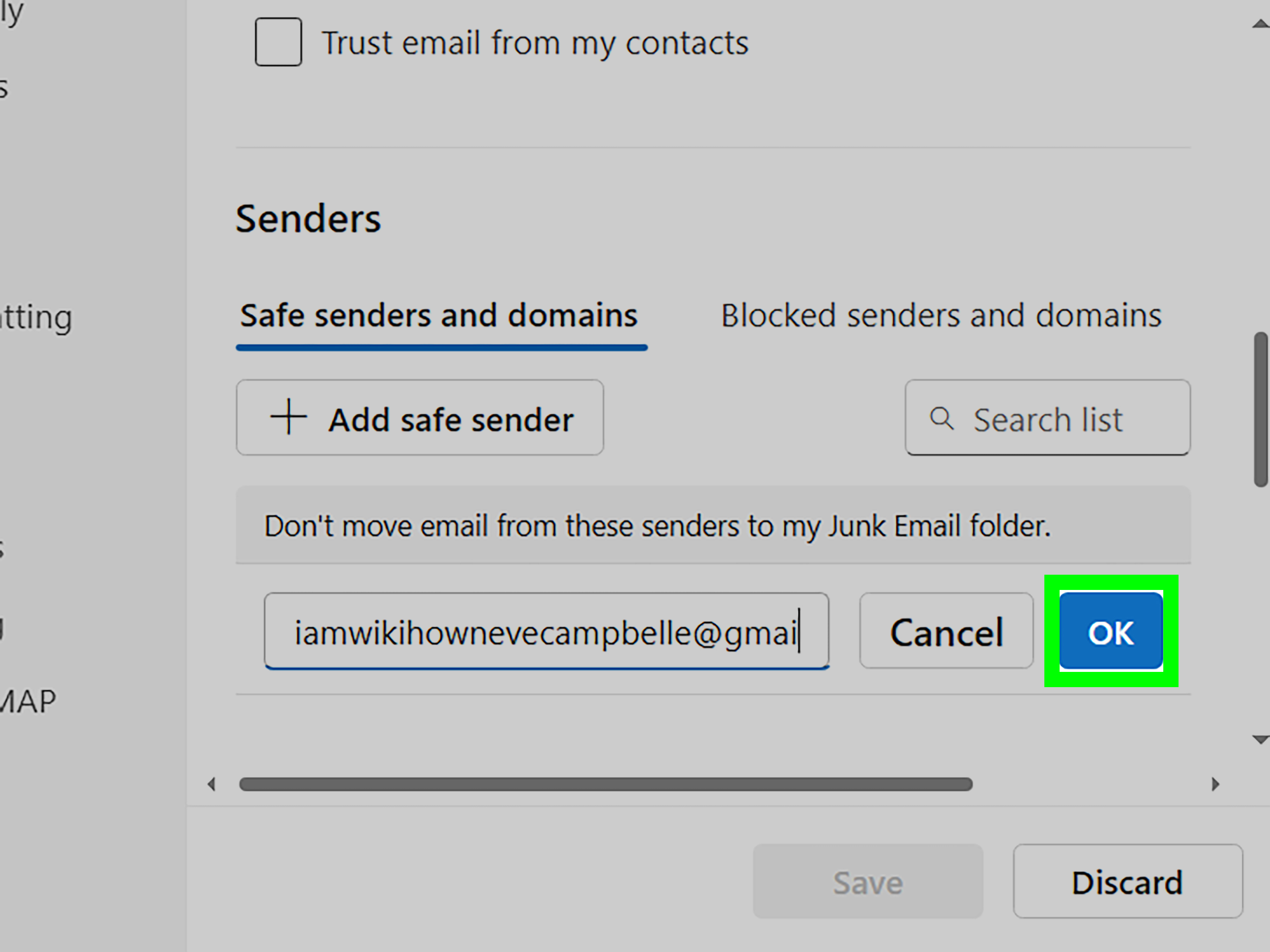
Step 5: Click Add and Enter the Email Address or Domain
Click Add safe sender or the Add button in the Safe senders and domains section. Then type the email address or domain you want to trust.
Use a full email address when you trust one specific sender:
Use a domain when you trust messages from an entire organization:
- example.com
- schoolname.edu
- companyname.com
Be careful with domains. Adding one email address is precise. Adding an entire domain is broader. For example, adding newsletter.example.com or example.com may allow messages from multiple senders at that organization. That is helpful for trusted schools, employers, or services, but not something you should do casually with unknown websites.
Step 6: Select OK, Then Save Your Changes
After entering the address or domain, select OK if prompted, then click Save. This final save step is important. If you close the settings window too quickly, your change may not stick.
Once saved, future messages from that sender should have a much better chance of arriving in your inbox. You may still want to check your Junk Email folder occasionally, especially if the sender uses different addresses for marketing, receipts, password resets, and support.
How to Add a Mailing List to Safe Senders
Some messages come from mailing lists rather than a single personal address. Examples include community groups, school announcements, club updates, customer newsletters, and event alerts.
In Outlook.com settings, look for a section called Safe mailing lists. Select Add safe mailing list, enter the mailing list address, confirm it, and save. This can help group emails arrive properly instead of being treated as suspicious bulk mail.
That said, be selective. Only add mailing lists you signed up for or genuinely need. If a newsletter is annoying, do not make it “safe” just because it keeps showing up. Use the unsubscribe link or block it instead. Your inbox deserves boundaries too.
Should You Add an Email Address or a Domain?
One common question is whether to add a full email address or the sender’s domain. The answer depends on how much you trust the source.
Add a Full Email Address When You Want Precision
If you only want emails from one person or department, add the full email address. This is best for individual contacts, small businesses, teachers, coworkers, doctors’ offices, customer support teams, or subscription confirmations.
Example: If you only trust [email protected], add that exact address. Do not add the entire domain unless you are comfortable receiving trusted messages from other addresses at the same organization.
Add a Domain When You Trust the Whole Organization
Adding a domain is useful when a company or school sends email from many addresses. For example, a university may send alerts from admissions, billing, student services, and newsletters. Instead of adding each address one by one, adding the domain may be easier.
However, never add broad public domains like gmail.com, yahoo.com, or outlook.com to your safe senders list. That would be like telling your inbox, “Everyone with this popular free email service is definitely trustworthy.” Spoiler: they are not.
What to Do If Important Emails Still Go to Junk
Adding a sender to the safe list usually helps, but email filtering is not magic. If messages still land in Junk, try these fixes.
Check the Blocked Senders List
Go back to Settings > Mail > Junk email and review your blocked senders and domains. If the sender or domain appears there, remove it. A sender cannot be both welcomed and rejected at the same time. Your inbox is not a dramatic reality show.
Mark the Message as Not Junk
Open the Junk Email folder, select the message, and choose Not junk or It’s not junk. This helps Outlook.com understand that the message is wanted.
Add the Sender to Contacts
Adding a trusted sender to your contacts can also help. Outlook often treats known contacts more favorably, especially if your settings allow contacts to be trusted.
Ask the Sender to Check Their Email Setup
Sometimes the problem is not on your side. If a business or newsletter uses poor email authentication, sends from changing addresses, or has a weak sender reputation, their messages may still be filtered. In that case, the sender may need to improve their email practices.
Safe Senders List vs. Contacts: What Is the Difference?
Your contacts list is your address book. Your safe senders list is your trust list. They overlap, but they are not exactly the same.
Adding someone to contacts helps you find their address, start messages faster, and identify them more easily. Adding someone to safe senders specifically tells Outlook.com that their messages should not be treated as junk. For very important senders, doing both is smart.
For example, if your school sends schedule updates from [email protected], you might add that address to both contacts and safe senders. That way, you recognize the sender and reduce the chance of missing an important message.
Security Tips Before You Add Someone as Safe
The safe senders list is helpful, but it should not become a junk drawer of random addresses. Before adding someone, ask a few quick questions:
- Do I recognize this sender?
- Did I expect this email?
- Is the domain spelled correctly?
- Does the message ask for sensitive information?
- Does the email look professional and consistent with the sender?
Watch out for look-alike domains. For example, paypa1.com is not the same as paypal.com. Scammers love tiny spelling tricks because they know people read quickly. Your inbox may be fast, but your trust should be slow.
Also, adding someone to safe senders does not mean every attachment or link is automatically safe. Continue to be careful with unexpected files, urgent payment requests, password warnings, and “click immediately or disaster will happen” messages. Real companies usually do not communicate like villains in a countdown movie.
Common Mistakes When Adding Safe Senders in Hotmail
Mistake 1: Forgetting to Click Save
This is the classic. You add the address, feel productive, close the window, and later wonder why nothing changed. Always click Save.
Mistake 2: Adding the Wrong Address
Many companies send different messages from different addresses. Receipts may come from one sender, support replies from another, and password resets from a third. Check the actual “From” address before adding it.
Mistake 3: Trusting an Entire Domain Too Quickly
Adding a domain is convenient, but it is broader than adding one address. Use it only when you trust the organization as a whole.
Mistake 4: Ignoring the Junk Folder Forever
Even with safe senders set up, check Junk occasionally. Email filters improve, but they are not perfect. A quick weekly scan can save you from missing invoices, appointment reminders, or event updates.
Practical Examples of When to Use the Safe Senders List
You should consider using the Hotmail safe senders list when:
- You are waiting for a password reset code.
- Your school or workplace emails keep landing in Junk.
- A newsletter you enjoy keeps disappearing.
- Online shopping receipts are being filtered.
- Appointment reminders from a clinic or service provider are missed.
- Family emails are treated as junk because they include many photos or links.
For example, imagine you booked a flight and the confirmation email went straight to Junk. Adding the airline’s sender address can help future boarding passes, schedule updates, and receipt emails reach your inbox. Or maybe your teacher sends weekly assignments, but Outlook.com keeps hiding them. Adding the teacher’s address can prevent a lot of “I didn’t see the email” drama.
Extra Experience: What I’ve Learned From Managing Safe Senders Lists
After helping many users clean up email problems, one pattern becomes obvious: most people only think about safe senders after something important goes missing. Nobody wakes up on a sunny Tuesday thinking, “What a beautiful day to optimize my junk mail filtering.” Usually, the panic begins when a password reset code does not arrive, a receipt vanishes, or an important reply from a real human being gets swallowed by the Junk Email folder.
The best experience-based advice is simple: add trusted senders before you desperately need them. If you recently signed up for a school portal, banking alert, work platform, medical office portal, travel account, or subscription service, add the official sender address as soon as the first legitimate email arrives. Do not wait until the night before a deadline to discover that your inbox has been quietly hiding messages like a squirrel storing acorns.
Another useful habit is to check the exact sender address before adding anything. Display names can be misleading. An email may appear to be from “Customer Support,” but the real address tells the truth. Open the message details and inspect the full email address. If it looks strange, misspelled, or unrelated to the company, do not add it to your safe list. Safe senders should be earned, not handed out like free samples at a grocery store.
It is also smart to keep the list tidy. Over time, people change jobs, businesses change systems, newsletters shut down, and old senders become irrelevant. Every few months, review your safe senders list and remove addresses you no longer need. A shorter, cleaner list is easier to trust. Think of it as inbox housekeeping: less glamorous than a home makeover show, but much better for your digital sanity.
One practical trick is to create a small routine whenever an important email lands in Junk. First, mark it as not junk. Second, add the sender to Safe senders and domains. Third, if it is a person or business you contact often, add them to Contacts too. That three-part habit gives Outlook.com multiple signals that the sender is legitimate.
Finally, remember that the safe senders list is not a security force field. It improves delivery, but it does not replace common sense. Even trusted senders can have accounts compromised. If a familiar contact suddenly sends an odd link, a strange attachment, or a dramatic request for money, pause before clicking. A safe sender list helps good email arrive. Your judgment helps keep bad decisions from leaving.
Conclusion: Keep the Right Emails Out of Junk
Learning how to add to the Safe Senders list in Hotmail is one of those small digital skills that can save a surprising amount of frustration. Since Hotmail accounts now run through Outlook.com, the process is handled in Outlook settings: open Settings, go to Mail, choose Junk email, find Safe senders and domains, add the trusted address or domain, and save.
The key is to use the feature thoughtfully. Add specific email addresses when you want precision. Add domains only when you trust the whole organization. Check your blocked list if messages still go missing. Mark legitimate emails as not junk. And, yes, click Savebecause Outlook.com cannot read your mind, no matter how many tabs you have open.
With a well-managed safe senders list, your inbox becomes more reliable, your important emails are easier to find, and your Junk folder can go back to doing what it does best: collecting messages about suspicious prizes, mystery invoices, and newsletters you definitely do not remember joining.