Your computer has been working on a giant download, a video export, a remote backup, or some mysterious spreadsheet calculation that appears to involve every number ever invented. You step away for coffee, return ten minutes later, and discover that the machine has gone to sleep like a cat in a sunbeam.
Fortunately, you do not need to sit beside it performing ceremonial mouse wiggles. You can keep your computer awake without touching the mouse by changing its sleep settings, using a temporary wake utility, or running a built-in command. The best method depends on whether you use Windows, macOS, ChromeOS, or Linux and whether you want a temporary or permanent solution.
The important distinction is between keeping the computer awake and keeping the screen on. A computer can continue downloading, rendering, backing up, or hosting a remote session while its display is off. In many situations, that is the smarter choice because it saves electricity, reduces screen wear, and prevents your monitor from illuminating the room like a small artificial moon.
Quick Answer: The Easiest Ways to Keep a Computer Awake
For most people, one of these methods will solve the problem:
- Windows: Change the sleep timeout in Settings or use Microsoft PowerToys Awake for temporary control.
- macOS: Enable the option that prevents automatic sleep while plugged in or run the built-in
caffeinatecommand. - Chromebook: Open the Power settings and select Keep display on while inactive.
- Ubuntu or GNOME Linux: Disable Automatic Suspend in the Power panel.
When you only need the computer awake for one task, a timed utility is usually better than changing the system to “Never.” Permanent no-sleep settings are easy to forget, and laptops have an unfortunate habit of remembering those settings while sitting unplugged in a bag.
How to Keep a Windows 11 Computer Awake
Method 1: Change the Windows Sleep Settings
The simplest Windows solution is built directly into the operating system:
- Open Start.
- Select Settings.
- Go to System > Power & battery.
- Open Screen, sleep, & hibernate timeouts.
- Find the options labeled Make my device sleep after.
- Choose a longer interval or select Never.
Laptops normally display separate controls for battery power and plugged-in operation. A sensible setup is to prevent sleep while the laptop is plugged in but retain a normal timeout on battery. That allows a long download or render to finish at your desk without turning the laptop into an expensive hand warmer when you forget the charger.
You can also set the screen to turn off while preventing the computer itself from sleeping. For example, set Turn my screen off after to 10 minutes and Make my device sleep after to Never. The display goes dark, but background work continues.
Method 2: Use Microsoft PowerToys Awake
PowerToys Awake is one of the most convenient answers to the question, “How do I keep my computer awake without touching my mouse?” It temporarily overrides sleep behavior without permanently rewriting your regular power plan.
After installing Microsoft PowerToys, open its settings and enable Awake. Depending on the current version, you can choose among several operating modes:
- Timed: Keep the computer awake for a chosen interval.
- Expirable: Keep it awake until a specific date and time.
- Indefinite: Keep it awake until you turn Awake off.
- Passive or disabled: Return control to the normal Windows power plan.
There is also an option to keep the display on. Leave that option disabled when you only need a background process to continue. Your computer remains awake, while your monitor gets to enjoy a well-earned nap.
A timed mode is excellent for presentations, cloud uploads, game downloads, data transfers, and video exports. When the interval expires, Windows automatically returns to its regular sleep behavior, which removes the classic “I set it to Never three months ago and forgot” problem.
Method 3: Use a Windows Command
Advanced users can change the active Windows power plan with the built-in powercfg utility. Open Command Prompt or Windows Terminal as an administrator and enter a command such as:
This example changes the plugged-in sleep timeout to 180 minutes. To set a separate battery timeout, use:
Here, ac refers to external power and dc refers to battery power. Replace the number with your preferred timeout in minutes. This approach is useful in scripts or on computers where opening several Settings pages feels like an unnecessary side quest.
Remember that this modifies the active power plan. Record the original values or restore your preferred settings when the job is finished.
What If Windows Still Goes to Sleep?
If Windows ignores your changes, check for these common causes:
- Your employer or school may enforce power settings through an administrative policy.
- The laptop may be sleeping because its lid was closed.
- A manufacturer utility may be applying its own battery or thermal profile.
- The computer may be hibernating after a separate hibernation timeout.
- Low-battery protection may override your normal preferences.
Also check Control Panel > Power Options > Change plan settings > Change advanced power settings. Older or manufacturer-customized computers sometimes expose additional sleep and hibernation controls there.
How to Keep a Mac Awake Without Moving the Mouse
Method 1: Change macOS Battery or Energy Settings
On a Mac laptop, open the Apple menu and go to System Settings > Battery > Options. Enable the option labeled approximately Prevent automatic sleeping on power adapter when the display is off.
On a Mac desktop, open System Settings > Energy and enable Prevent automatic sleeping when the display is off.
The exact wording may differ slightly by macOS version and Mac model. Some options are only available while the Mac is connected to power. Apple also separates display-off timing from system sleep, so you can let the screen switch off while the Mac continues its background task.
Method 2: Use the Built-In Caffeinate Command
macOS includes a wonderfully named Terminal command called caffeinate. No coffee beans are harmed, and the keyboard does not become jittery.
Open Terminal and enter:
This prevents idle system sleep while the command is running. Press Control+C in Terminal when you want normal sleep behavior to return.
To keep both the Mac and its display awake, use:
For a timed session, add -t followed by the duration in seconds. This example keeps the Mac and display awake for one hour:
You can also attach caffeinate to another command. The Mac will remain awake only while that task runs:
This is particularly useful for developers, video editors, and anyone running a long Terminal process. It is temporary, precise, and considerably more elegant than balancing an object on the trackpad.
How to Keep a Chromebook Awake
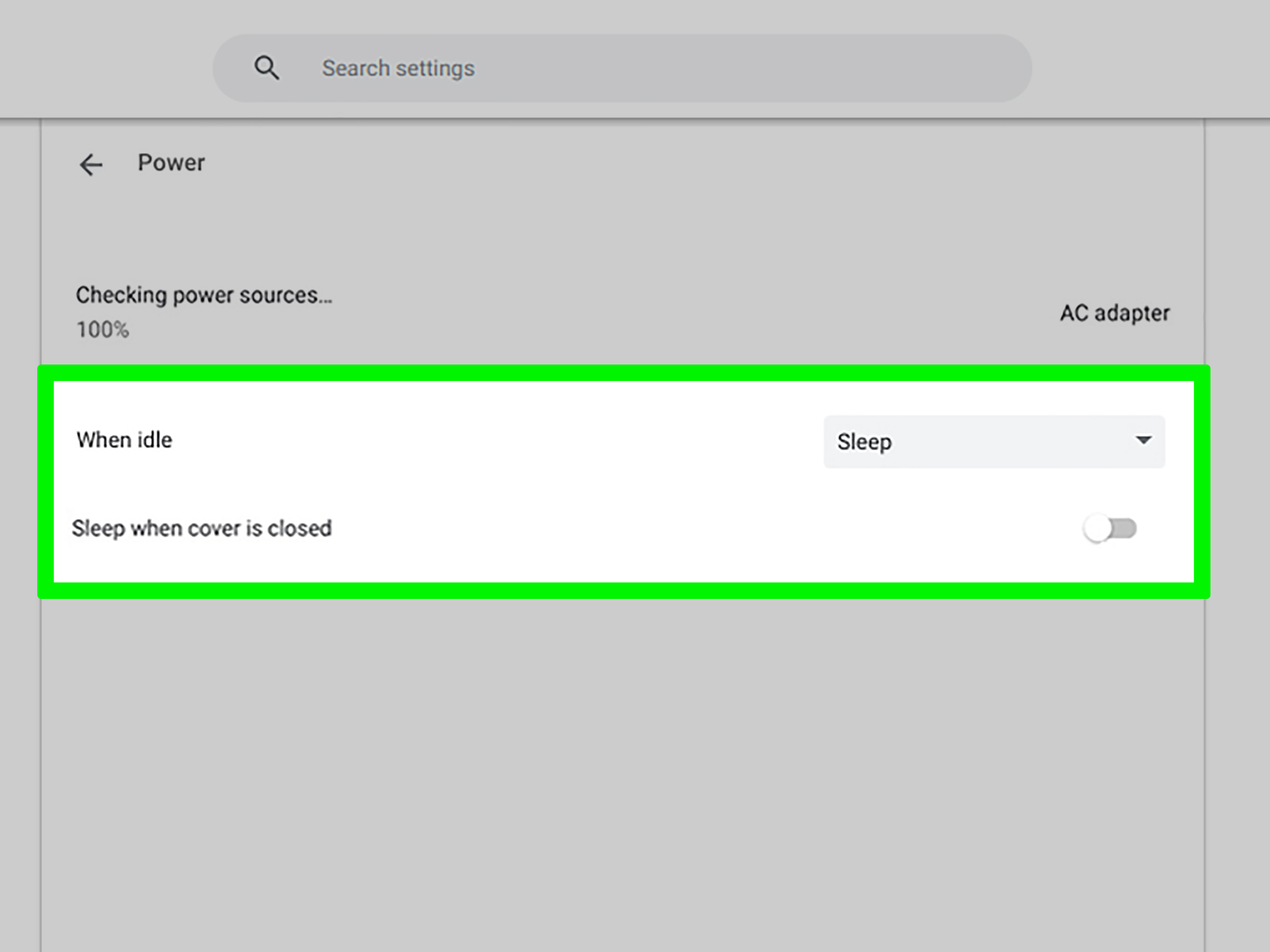
ChromeOS includes dedicated idle controls:
- Select the time in the lower-right corner.
- Open Settings.
- Select System preferences.
- Open Power.
- For the plugged-in or battery inactivity options, select Keep display on.
ChromeOS may also provide a Sleep when lid is closed switch. Turning it off allows a Chromebook to continue operating with the lid closed, but only do this on a stable, ventilated surface. Do not close an actively running Chromebook and slide it into a sleeve or backpack. That creates a tiny insulated oven, and computers are notoriously poor casseroles.
Settings may be restricted on managed school or workplace Chromebooks. In that situation, contact the administrator rather than trying to bypass the policy.
How to Prevent Sleep on Ubuntu and Other GNOME Linux Systems
On Ubuntu with the GNOME desktop:
- Open the Activities overview.
- Search for and open Power.
- Find Automatic Suspend under Power Saving Options.
- Disable it for plugged-in power, battery power, or both.
Desktop Linux environments vary, but most include comparable controls under Power, Energy Saving, or Session settings. Ubuntu can maintain separate behavior for battery and external power, so disabling suspend only while plugged in is usually the safest configuration.
GNOME Tweaks may also provide an option to stop a laptop from suspending when its lid is closed. Use this carefully. A closed laptop needs adequate airflow, particularly during video rendering, software compilation, gaming downloads, or other processor-intensive jobs.
Should You Use a Mouse Jiggler?
A mouse jiggler is software or hardware that produces artificial pointer activity. It can stop some computers from appearing idle, but it is rarely the best technical solution for preventing sleep.
Changing the power settings or using an operating-system wake utility is more transparent and reliable. A jiggler may keep the display active unnecessarily, interfere with precision work, move the pointer during a presentation, or conflict with workplace security rules.
Most importantly, do not use artificial activity to misrepresent attendance, evade workplace monitoring, or bypass an organization’s policies. On a managed device, ask IT to approve an appropriate power configuration for the legitimate task, such as a long software deployment, remote support session, or presentation.
When Should the Screen Stay On?
Keeping the computer awake does not always mean keeping the monitor awake. Leave the display on when:
- You are giving a presentation or running a public display.
- You need to watch live progress from across the room.
- A kiosk, dashboard, security display, or monitoring station must remain visible.
- An application behaves incorrectly when the display powers down.
For downloads, backups, synchronization, rendering, compiling, or file transfers, the screen can normally turn off. Separating the two settings lowers power consumption and reduces unnecessary heat.
Safety, Battery, and Security Considerations
Keep the Computer Ventilated
An awake computer may continue producing heat even when nobody is nearby. Place laptops on a hard surface rather than a bed, couch, carpet, or stack of important tax documents. Never leave an awake laptop running inside a closed bag.
Prefer External Power for Long Tasks
Preventing sleep can drain a laptop battery quickly, especially when the display stays on. Connect the charger for lengthy exports, backups, installations, and downloads. If battery operation is unavoidable, use a timed wake setting and allow the display to turn off.
Lock the Session When You Walk Away
Keeping a computer awake does not mean leaving it unlocked. On Windows, press Windows+L. On macOS, press Control+Command+Q. Confirm that your required task continues after locking because some utilities or corporate policies may behave differently at the lock screen.
Restore Normal Sleep Behavior
Sleep mode exists for good reasons: lower energy use, reduced battery wear, less heat, and better physical security. When the long-running task ends, disable the temporary utility or restore your normal timeout. Think of “Never sleep” as a special tool, not a permanent lifestyle recommendation for either computers or humans.
Practical Experiences: What Usually Works in Real Life
The most effective method often becomes obvious only after seeing how it behaves during an actual task. The following practical scenarios illustrate the small details that make the difference between a smooth overnight job and discovering an unfinished progress bar the next morning.
Experience 1: The Overnight Download
A common mistake is changing only the screen timeout. The display turns black, which looks promising, but the computer enters sleep several minutes later and pauses the download. The better arrangement is to let the screen turn off after five or ten minutes while setting system sleep to Never temporarily.
On Windows, PowerToys Awake is especially convenient here because a timed session can match the estimated download duration. Add an hour or two of breathing room, leave the display-off option enabled, and allow the utility to restore the normal power plan afterward. This prevents the next day’s battery surprise.
Experience 2: A Presentation in a Quiet Meeting Room
Presentations expose a different problem: the computer may stay awake while the screen still dims or shuts off. That is fine for a download but mildly disastrous when a room full of people is staring at slide 14 and the projector suddenly displays nothing.
For presentations, both the system and display must remain awake. Use PowerToys Awake with the display option enabled, caffeinate -di on a Mac, or the appropriate presentation mode supplied by the operating system or laptop manufacturer. Test the setup before the audience arrives. Technology can smell confidence and occasionally chooses that exact moment to challenge it.
Experience 3: A Video Export That Outlives Your Patience
Video rendering may run for several hours and generate substantial heat. Preventing sleep is necessary, but airflow matters just as much. A laptop should remain open or properly docked on a ventilated stand. Closing the lid without checking its thermal design can increase fan noise, reduce performance, or cause thermal throttling.
In this scenario, allow the screen to turn off, connect the charger, and use a temporary keep-awake method. Some professional editing applications request wakefulness themselves, but relying on that behavior without testing is risky. Run a short sample export, wait beyond the normal sleep timeout, and confirm that the process continues.
Experience 4: Remote Access From Another Location
A remote desktop connection is useless when the host computer falls asleep before the connection begins. Set the host to remain awake while plugged in and test whether locking the screen affects remote availability. Corporate VPN software, security policies, and Modern Standby behavior can all influence the result.
For a permanently available office computer, consult IT and use an approved configuration rather than leaving every power-saving option disabled. Wake-on-LAN may be a better long-term solution because it allows the computer to sleep until a legitimate remote connection is needed.
Experience 5: The Forgotten “Never” Setting
The least exciting but most common experience occurs days later. A user changes the sleep timeout to Never, completes the task, and forgets the setting. The laptop then remains awake overnight, inside a sleeve, or throughout a commute. Nothing says “good morning” quite like opening a bag and discovering a laptop with 4% battery and the temperature of fresh toast.
This is why temporary methods usually win. A timed PowerToys session, a macOS caffeinate timeout, or a clearly defined three-hour power-plan interval provides the required wakefulness without creating a permanent maintenance problem.
Conclusion
You can keep your computer awake without touching the mouse by controlling the actual sleep timer instead of generating fake input. Windows users can change Power & battery settings or use PowerToys Awake. Mac users can adjust Battery or Energy options or run caffeinate. Chromebook and Ubuntu users can disable automatic sleep through their Power settings.
For most situations, the best setup is temporary: keep the system awake, allow the screen to turn off, connect the computer to power, and restore normal sleep behavior when the task ends. Your download finishes, your presentation stays visible, and nobody has to employ a drinking bird toy as an unpaid mouse assistant.
Note: Menu names and available controls can vary by operating-system version, computer model, and administrator policy. Use approved settings on managed work or school devices, and never leave an operating laptop inside an enclosed bag or poorly ventilated space.