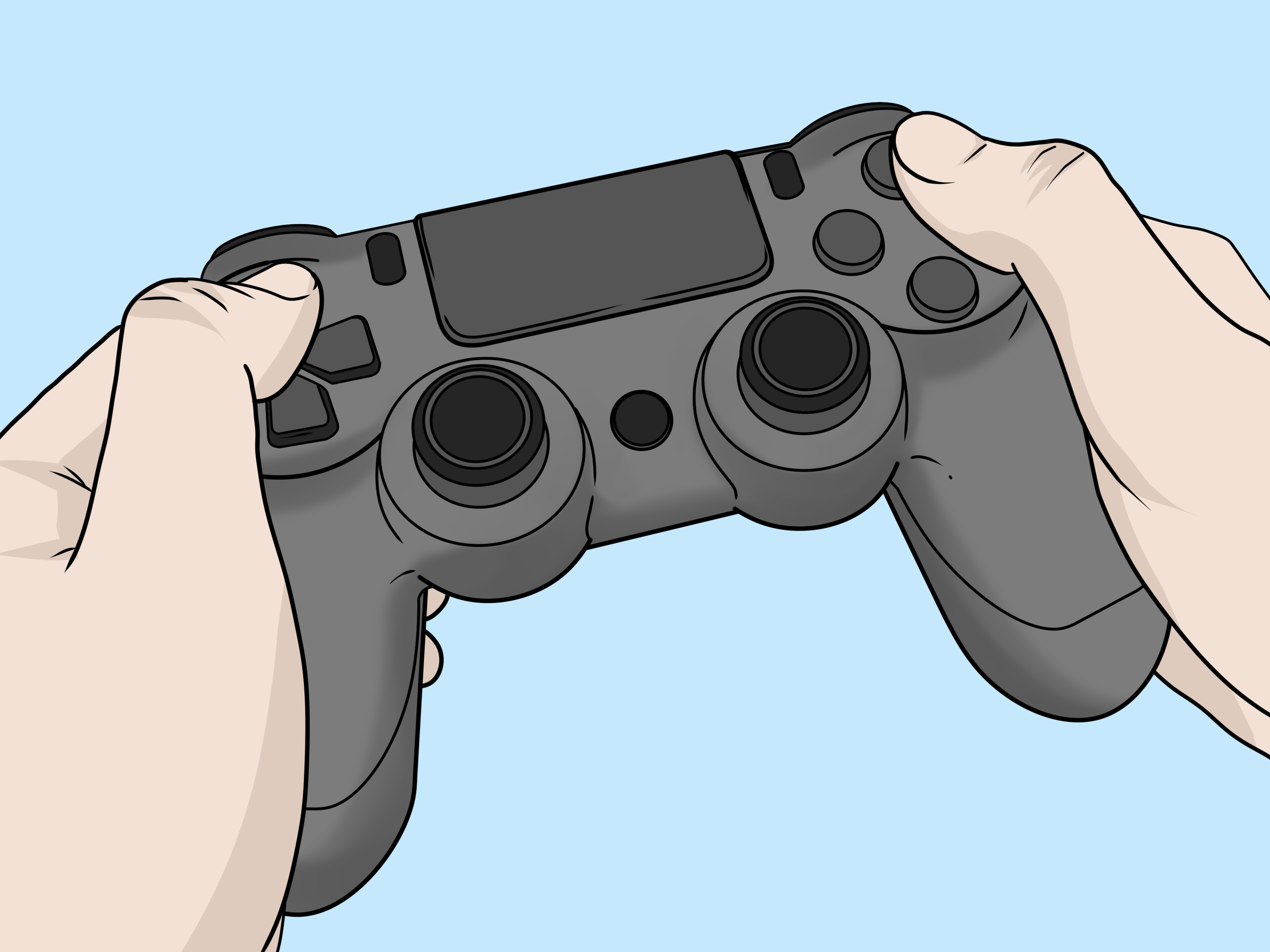
If your PS4 controller has started acting like it drank three espressos and developed a personality, you are not alone. A DualShock 4 can seem perfectly normal one minute, then suddenly start drifting left, dropping button inputs, refusing to pair, or acting as if the X button has sworn a personal oath never to work again. The good news is that testing a PS4 controller is usually easy, fast, and much less dramatic than replacing it on pure vibes.
Whether you are troubleshooting stick drift, checking Bluetooth, testing trigger response, or just making sure your controller is ready for another late-night gaming session, a smart test routine can save time and money. You do not need a lab coat, a degree in controller science, or a suspicious pile of tiny screwdrivers. You just need a few practical steps, a little patience, and the willingness to admit that sometimes the cable was the problem all along.
This guide walks through nine easy ways to test your PS4 controller on a PS4, PC, Mac, browser-based tool, and real games. Along the way, you will also learn how to spot analog stick drift, when to reset the controller, and how to tell the difference between a controller problem and a connection problem. Let’s put that DualShock 4 on trial.
Why Testing Your PS4 Controller Matters
A quick PS4 controller test can reveal much more than “yep, it turns on.” A proper check helps you figure out whether the issue is a bad cable, weak battery, faulty Bluetooth pairing, dirty analog sticks, a USB port problem, or actual controller damage. That matters because many controller complaints are fixable without buying a new one.
Testing is also useful before you sell a controller, after you clean it, when you reconnect it to a new device, or when your gameplay starts to feel a little haunted. If the camera keeps drifting, the trigger responds late, or the touchpad seems asleep on the job, a systematic test can show exactly where things are going wrong.
Step 1: Start with a Basic Physical Check
Look for the obvious stuff first
Before opening apps, menus, or browser tools, inspect the controller itself. Check whether the analog sticks feel loose, rough, or sticky. Press every face button, the D-pad, L1, R1, L2, R2, Options, Share, and the thumbsticks by clicking L3 and R3. A healthy controller should feel consistent, not mushy, squeaky, or crunchy like it has been storing potato chip dust for winter.
Also inspect the micro-USB port. If the port feels loose or the cable falls out with a light wiggle, you may be dealing with a charging or wired-connection issue rather than a button problem. Look for grime around the analog stick bases as well. Dirt buildup is one of the classic causes of weird stick behavior.
What you are testing here
This step helps identify physical wear, sticky buttons, trigger inconsistency, damaged thumbsticks, and connection issues. It is not glamorous, but it is extremely effective. Sometimes the smartest diagnostic tool is your own eyeballs.
Step 2: Charge It Fully and Test It on the PS4 Home Screen
Use the console itself as your first test bench
Connect the controller to your PS4 with a reliable micro-USB cable and let it charge. A low battery can make a controller seem flaky, especially if it disconnects at random or refuses to stay paired. Once it has some power, unplug it and test it wirelessly on the PS4 home screen.
Move across the dashboard tiles. Open menus. Scroll up and down. Press X, Circle, the D-pad, and the shoulder buttons. This is a great way to catch obvious lag, double inputs, or buttons that require too much force. It also gives you a clean environment without in-game control schemes muddying the waters.
What to watch for
If navigation skips over icons, moves on its own, or stops responding when you know you pressed a button, you may have stick drift, worn contacts, or a wireless pairing issue. If everything works fine on the console but fails on PC, the problem may be software, drivers, or compatibility rather than the controller hardware itself.
Step 3: Test the PS4 Controller with a Wired Connection on a PC
Plug it in and let the computer react
A wired PC test is one of the easiest ways to narrow down the problem. Connect the DualShock 4 to a Windows PC using a good micro-USB data cable. Give the system a minute to detect the controller. If your computer sees it and the controller powers up, that is a good sign that the USB port and cable are doing their jobs.
On many Windows systems, you can search for game controller settings or open the game controller panel to see whether input is being recognized. If your controller does not appear at all, try another USB port. Then try another cable. If it still refuses to show up, the problem may be with the port, the cable, the USB controller, or the DualShock 4’s internal USB connection.
Why wired testing matters
A wired test removes Bluetooth from the equation. That is helpful because wireless problems often masquerade as controller problems. When the controller behaves well through USB but not over Bluetooth, you know where to aim your next round of troubleshooting.
Step 4: Pair It Over Bluetooth and Compare the Results
Check the wireless side of the story
To pair a PS4 controller with a PC, Mac, or other supported device, turn the controller off first. Then press and hold the Share button and the PS button together until the light bar starts flashing. That puts the controller into pairing mode. Open Bluetooth settings on your device and select the controller from the list.
Now repeat the same movements and button checks you did with the wired connection. If the controller works perfectly through USB but starts missing inputs, disconnecting, or feeling laggy over Bluetooth, the controller itself may be fine. Instead, the issue could be wireless interference, an unstable Bluetooth adapter, outdated system drivers, or a pairing conflict from switching devices too often.
A useful thing to remember
A DualShock 4 is happiest when it knows exactly which device it belongs to. If you swap between console and PC, re-pairing can become part of life. Annoying? Yes. Mysterious? Not really.
Step 5: Use a Browser-Based Gamepad Tester
The easiest visual test of all
If you want instant feedback, a browser-based controller tester is your best friend. Modern browser tools can read controller input through the Gamepad API and display button presses, stick movement, trigger response, vibration support, and even analog stick circularity. In plain English, that means you can see exactly what your controller is reporting in real time.
This is where a drifting stick gets exposed like a bad poker face. If the left stick moves on screen while you are not touching it, you likely have analog drift. If a trigger never reaches full input, or a face button does not light up consistently, you have narrowed the issue quickly.
Why this works so well
Games can hide controller problems because they apply dead zones, sensitivity adjustments, or control smoothing. A gamepad tester strips away that drama. What you see is what the controller is actually sending.
Step 6: Check for Stick Drift, Dead Zones, and Trigger Accuracy
Focus on the troublemakers
Analog sticks are the usual suspects when a PS4 controller starts misbehaving. To test for drift, leave the sticks untouched and watch the tester or in-game input screen. If the cursor, camera, or character moves without input, drift is likely present. Move each stick slowly in circles and then return it to center. A good stick recenters cleanly and does not jitter around like it is trying to make a life decision.
Next, squeeze L2 and R2 gradually. They should respond smoothly from a light pull to a full press. If the trigger jumps, stutters, or never seems to reach 100%, that can affect racing, shooters, and any game that expects precise trigger travel.
What to do if drift is mild
Mild drift does not always mean the controller is finished. Some games let you increase the dead zone so tiny stick movement gets ignored. That is not a magical cure, but it can make a barely-annoying controller usable again. If drift is obvious everywhere, deeper cleaning, resetting, or repair may be needed.
Step 7: Test It Inside Steam or a Controller-Friendly Game
See how the controller behaves in the real world
After browser testing, move to an actual game or Steam’s controller environment. Steam has long supported PlayStation controllers and can help detect whether the controller is being recognized properly. This is especially useful if your PS4 controller works in the operating system but acts strange once a game launches.
Launch a game that supports controller input well and test movement, camera control, menu navigation, triggers, and touchpad behavior if relevant. Pay attention to whether your controller is shown as a PlayStation controller or whether it appears as an emulated Xbox controller. If you use third-party remapping software, Steam may identify the device differently, which can change how inputs behave.
Why this step matters
A controller can pass a browser test and still feel off in games because of mappings, profiles, Steam Input settings, or game-specific support. This step tells you whether the issue is hardware or how software is translating your input.
Step 8: Reset the Controller If It Acts Weird
The tiny reset button is small, but mighty
If your PS4 controller will not pair correctly, keeps glitching, or seems confused about what device it belongs to, do a hard reset. Turn off and unplug the PS4 first. Disconnect the controller from the USB cable. On the back of the controller, near the shoulder button area, there is a small reset hole. Use a paper clip or similar tool to press and hold the reset button for at least five seconds.
Then reconnect the controller to the PS4 with a USB cable and pair it again. This can solve a surprising number of sudden issues, especially connection problems that show up after using the controller with multiple devices.
When to try a reset
Use this step if the controller stopped pairing, behaves differently on different devices, or started acting broken out of nowhere. It is the controller version of telling it to take a deep breath and try again.
Step 9: Troubleshoot the Cable, Port, Drivers, and Decide Whether It Is Time for Repair
Rule out the supporting cast
If the controller still fails tests, do not blame it immediately. Try a different cable, another USB port, and another device. Restart the computer or console. On Windows, check Device Manager and update or reinstall drivers if the controller is not being recognized correctly. If a USB port seems unreliable, try another one directly on the machine rather than using a hub.
If the controller only fails over wireless, look at Bluetooth settings and interference. If it only fails through USB, the port, cable, or USB controller may be the real villain. If every test points to the same bad button, drifting stick, or flaky trigger on multiple devices, then the controller hardware likely needs cleaning, repair, or replacement.
Signs it may be time to retire the controller
If the sticks drift badly after resetting and cleaning, if the triggers never report properly, or if the USB port is physically damaged, repair may cost more time and frustration than the controller is worth. At that point, replacing it becomes the heroic choice rather than the dramatic one.
Common PS4 Controller Problems You Can Catch with These Tests
- Analog stick drift that moves the character or camera on its own
- Buttons that stick, double-register, or fail to respond
- Bluetooth pairing issues with PC, Mac, or the PS4 console
- Loose or damaged micro-USB connection
- Trigger inconsistency in racing or shooter games
- Wrong controller mappings in Steam or PC games
- Power-related issues caused by low battery or weak charging
Final Thoughts
Testing a PS4 controller does not have to be complicated. In most cases, a smart sequence tells you what is wrong surprisingly fast: physical inspection, PS4 home screen test, wired PC check, Bluetooth pairing, browser-based input test, drift inspection, in-game testing, reset, and system-level troubleshooting. That is the full detective kit.
The best part is that this process works whether your controller feels a little weird or completely cursed. If the problem is minor, you may fix it with a reset, cleaning, or a cable swap. If the controller is truly worn out, at least you will know for sure and can stop wasting time blaming your aim, your console, or the moon.
Real-World Experiences: What Testing a PS4 Controller Actually Feels Like
Anyone who has ever tested a PS4 controller knows there is a very specific emotional journey involved. It usually starts with denial. You miss a jump in a platformer or overshoot a turn in a racing game, and your first thought is not, “My controller might be drifting.” No, the first thought is usually, “That game is cheating.” Then it happens again. And again. Suddenly, the controller is no longer your trusted sidekick. It is a suspect.
One of the most common experiences is discovering that the problem only shows up in certain situations. The controller might feel normal on the PS4 home screen, but once you enter a shooter, the camera slowly drifts upward like it is trying to admire the sky. That kind of issue makes people question their sanity for a while. Was that input from me? Did I bump the stick? Is my thumb haunted? A proper controller test usually brings huge relief because it turns vague frustration into a visible answer.
Another common moment happens during a browser-based test. You connect the DualShock 4, open a gamepad tester, let go of the sticks, and watch one tiny axis flicker like a guilty conscience. That is the moment everything clicks. What felt random inside games suddenly becomes measurable. The controller is not “sort of weird.” It is reporting movement when it should be resting. Mystery solved, ego protected.
People also learn very quickly that cables can be little chaos noodles. A lot of controller testing stories end with a laugh and a replacement cable. Someone spends half an hour preparing for a deep technical diagnosis, only to realize they were using a charging cable that barely transfers data or a port that disconnects when touched. It is humbling, but in a useful way. Controller testing has a talent for reminding us that the simplest explanation often wins.
Then there is the classic cross-device confusion. A controller works on the PS4, gets paired to a laptop, behaves strangely in Steam, then refuses to reconnect to the console without drama. That experience teaches gamers something important: a controller can be healthy and still appear broken when pairing, software settings, or input translation get tangled. Once you understand that, testing becomes less stressful because you stop assuming every weird symptom means hardware failure.
There is also something satisfying about testing a controller after cleaning or resetting it. You wipe around the analog sticks, press the hidden reset button, reconnect the controller, and suddenly it behaves normally again. It feels less like maintenance and more like winning a tiny technical boss fight. Not a glamorous boss fight, sure, but still a victory.
In the end, testing a PS4 controller is really about confidence. You want to know whether the controller is reliable before a competitive match, a long co-op session, or a weekend gaming binge. Once you test it properly, you stop guessing. You know whether the issue is drift, Bluetooth, a bad USB cable, software conflict, or plain old wear. And that knowledge is powerful, especially when it saves you from rage-buying a new controller at midnight.