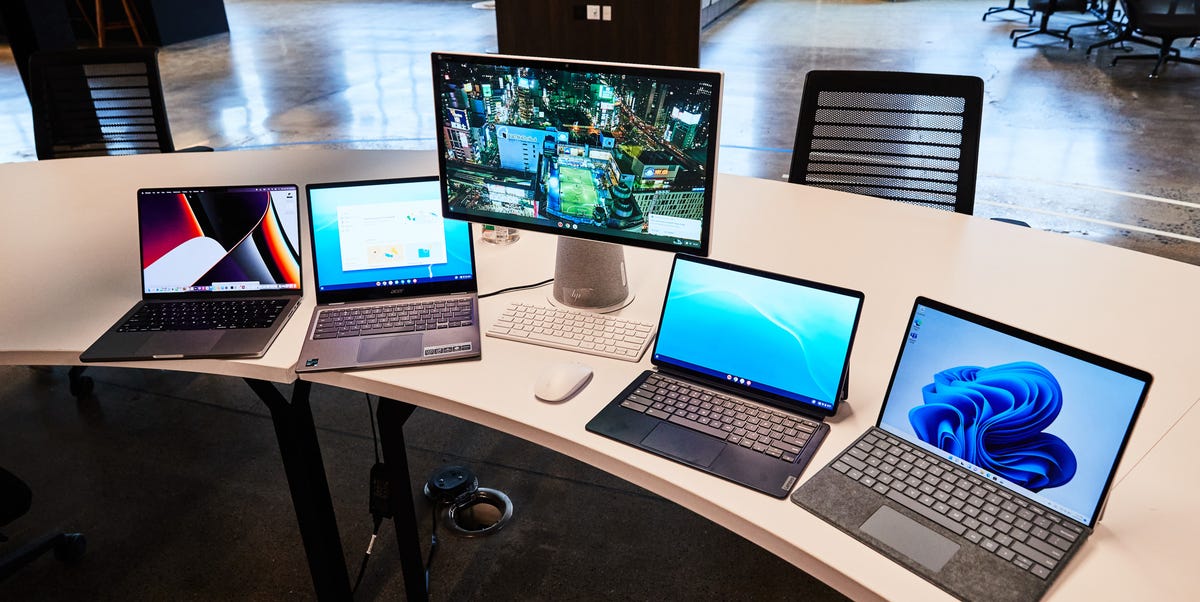
Shopping for a computer used to be simple: buy the “best laptop” you could afford, hope it did not sound like a tiny leaf blower, and move on with your life. Today, the choice is more interesting. You can buy a traditional laptop running Windows, macOS, or Linux, or you can choose a Chromebook, a lighter, cloud-first machine built around ChromeOS. Both can write documents, stream shows, join video calls, manage email, and help you pretend you are definitely not checking snacks during work hours.
But Chromebooks and laptops are not the same experience. The difference is not just the logo on the lid. It affects software, storage, gaming, price, security, performance, offline use, and long-term value. A Chromebook can be a brilliant everyday computer for students, families, remote workers, and Google Workspace users. A traditional laptop can be the better choice for heavy software, professional creative work, PC gaming, engineering tools, and people who want maximum flexibility.
This guide compares Chromebooks vs. laptops in plain American English, with practical examples and buying advice. By the end, you should know which device fits your life instead of accidentally buying a sleek disappointment with a keyboard.
What Is a Chromebook?
A Chromebook is a laptop that runs ChromeOS, Google’s operating system. Instead of being built mainly around traditional desktop programs, ChromeOS is designed for web apps, Google services, cloud storage, Android apps, progressive web apps, and, on many models, Linux development tools. In simple terms, a Chromebook is a laptop that says, “What if the browser was basically the whole house?”
Modern Chromebooks are much more capable than the early budget models people remember from school carts. Today, you can find basic Chromebooks for browsing and homework, convertible 2-in-1 Chromebooks with touchscreens, detachable tablet-style models, and more powerful Chromebook Plus devices. Chromebook Plus models generally offer stronger specs, such as at least 8GB of RAM, 128GB of storage, a Full HD display, and better video-call hardware.
The main appeal of a Chromebook is simplicity. It boots quickly, updates automatically, syncs easily with a Google account, and keeps most things safely in the cloud. For many users, especially people who live in Gmail, Google Docs, YouTube, Google Drive, Canva, Zoom, Slack, and browser-based tools, a Chromebook can feel refreshingly low-maintenance.
What Is a Traditional Laptop?
A traditional laptop usually means a portable computer running Windows, macOS, or sometimes Linux. Unlike Chromebooks, these laptops are designed to run full desktop software. That includes Microsoft Office desktop apps, Adobe Creative Cloud, AutoCAD, QuickBooks Desktop, Steam games, video editors, music production software, coding tools, and specialized business or school programs.
Traditional laptops come in a huge range of shapes and prices. You can buy a low-cost Windows notebook for basic tasks, a MacBook for premium build quality and Apple ecosystem features, a gaming laptop with a dedicated graphics card, or a workstation laptop powerful enough to handle 3D rendering and large data projects. The laptop world is basically a buffet: wonderful, confusing, and somehow full of things you did not know existed.
The biggest advantage of a traditional laptop is flexibility. If you need a specific desktop application, want deep file control, use multiple monitors, install niche software, play high-end games, or work with large local files, a regular laptop is often the safer bet.
Chromebooks Vs. Laptops: The Biggest Difference
The simplest way to compare Chromebooks vs. laptops is this: Chromebooks are best when most of your life happens online. Traditional laptops are best when you need full software freedom.
A Chromebook handles browser-based tasks beautifully. It is excellent for writing papers, answering email, managing calendars, watching videos, attending online classes, using web dashboards, editing simple images, and working in Google Workspace. Many Chromebooks also support Android apps from Google Play, which expands what they can do. Some support Linux tools, making them surprisingly useful for coding students and developers who do not need a full workstation.
A Windows laptop or MacBook handles web tasks too, but it also runs heavier desktop programs. Need the full version of Photoshop, Premiere Pro, Excel with advanced add-ins, SolidWorks, music plugins, or AAA PC games? A traditional laptop is usually the better machine. Chromebooks are flexible enough for everyday work, but they are not designed to replace every professional desktop environment.
Performance: Fast Enough or Power-Hungry?
Performance depends heavily on the model, not just the category. A cheap Chromebook with 4GB of RAM will not feel like a premium Chromebook Plus. A bargain Windows laptop with a weak processor and slow storage may feel slower than a well-built Chromebook. Meanwhile, a high-end MacBook or Windows ultrabook can run circles around both.
Chromebook Performance
Chromebooks often feel fast because ChromeOS is lightweight. The operating system does not need as much local hardware power as Windows or macOS for basic tasks. That means a modest Chromebook can browse, stream, write documents, and handle schoolwork smoothly. For daily multitasking, however, 8GB of RAM is a much better target than 4GB. Tabs are like potato chips: nobody opens just one.
Chromebook Plus models are especially worth considering if you want smoother video calls, better displays, more storage, and stronger processors. They are designed for users who want more than the absolute basics without jumping into expensive laptop territory.
Laptop Performance
Traditional laptops cover a much wider performance range. A $300 Windows laptop may struggle with multitasking, but a $1,200 Windows ultrabook or MacBook can handle demanding workloads with ease. If you edit 4K video, run virtual machines, compile code, play modern games, or manage large spreadsheets, you will want a stronger processor, 16GB or more RAM, fast SSD storage, and possibly a dedicated graphics card.
For raw power, traditional laptops win. For lightweight everyday speed at a lower price, Chromebooks often punch above their weight.
Software and Apps: The Real Deal-Breaker
Software is the most important difference between a Chromebook and a laptop. Before buying either one, ask: “What apps do I absolutely need?” Not “What apps sound nice?” Not “What app did my cousin mention once?” The apps you truly rely on should decide the device.
Chromebooks work best with web apps and Google services. Google Docs, Sheets, Slides, Gmail, Drive, Calendar, Meet, YouTube, Spotify, Netflix, Canva, Trello, Notion, Slack, and many online learning platforms work well. Microsoft 365 web apps also run in the browser, though some advanced desktop features may be missing compared with the full Windows or Mac versions.
Android app support gives Chromebooks more options, but Android apps do not always behave perfectly on laptop screens. Some are excellent; others look like they were stretched by a very enthusiastic rubber band. Linux support can help developers install command-line tools, code editors, and programming environments, but it is not something every casual user needs.
Traditional laptops win for software compatibility. Windows has the broadest support for business, school, gaming, accounting, engineering, and specialty programs. macOS is popular for creative work, development, design, music production, and Apple ecosystem users. If your workplace or school requires a specific installed program, check compatibility before choosing a Chromebook.
Offline Use: Better Than Before, Still Different
Old Chromebook jokes often claimed they were useless without the internet. That is outdated, but there is still a grain of truth hiding in the punchline.
Chromebooks can work offline with prepared files, offline Google Docs, downloaded media, Android apps, and local storage. You can write, edit, read, and watch content without Wi-Fi if things are set up in advance. However, Chromebooks are still at their best when connected. Cloud syncing, browser tools, web apps, and online storage are central to the experience.
Traditional laptops are more comfortable offline. Desktop software, large local storage, downloaded projects, installed games, and local media libraries make Windows and Mac laptops better for people who travel often, work in low-connectivity areas, or simply do not trust airport Wi-Fi, which is wise because airport Wi-Fi has the emotional stability of a raccoon in a vending machine.
Security and Updates
Security is one of the biggest Chromebook advantages. ChromeOS uses features such as sandboxing, verified boot, automatic updates, and a design that limits traditional malware risk. This does not make users invinciblephishing emails still exist, suspicious extensions still exist, and “free gift card” pop-ups are still allergic to honestybut Chromebooks are generally easier to maintain safely.
Google also provides long software support windows for ChromeOS devices, with many models receiving up to 10 years of automatic updates based on the device platform. That is a major benefit for schools, families, and organizations that do not want to babysit operating system maintenance.
Traditional laptops can also be secure, but they demand more attention. Windows users should keep Windows Update, antivirus protections, browser updates, and app updates current. macOS is generally strong on security too, but it still requires updates and safe browsing habits. The more freedom a device gives you to install anything, the more responsibility you have not to install digital chaos wearing a fake “Download Now” button.
Battery Life and Portability
Chromebooks are often excellent for battery life because ChromeOS is efficient and many models use power-friendly hardware. For students and travelers, that can mean a full day of class notes, browsing, and streaming without hunting for an outlet like it is buried treasure.
Traditional laptops vary widely. MacBooks and premium Windows ultrabooks can deliver excellent battery life. Gaming laptops, workstation laptops, and models with powerful graphics cards may drain much faster, especially under heavy load. They are portable, yes, but some gaming laptops are “portable” in the same way a small microwave is portable: technically possible, spiritually questionable.
If you want a light device for a backpack, couch, classroom, or coffee shop, both Chromebooks and ultrabooks can work well. If you want maximum performance, expect more weight, more heat, and more charger dependency.
Storage: Cloud First Vs. Local Control
Chromebooks usually come with less local storage than traditional laptops because they are built around cloud storage. A basic Chromebook may include 32GB or 64GB, while better models offer 128GB or more. For Google Drive users, that may be enough. For people storing large video files, games, photo libraries, or offline projects, it may feel cramped quickly.
Traditional laptops commonly include larger SSDs, such as 256GB, 512GB, 1TB, or more. That makes them better for local media, large apps, game libraries, and professional files. External drives and cloud storage can help on either device, but if you want everything stored locally, a regular laptop is more convenient.
Gaming: Laptops Win, But Chromebooks Are Not Empty-Handed
If gaming matters, traditional laptops win clearly. Windows laptops support Steam, Epic Games, Xbox PC games, emulators, gaming peripherals, dedicated GPUs, and high-refresh displays. Gaming laptops can be expensive and loud, but they are built for the job.
Chromebooks can still play games, especially Android games, browser games, and cloud gaming services when available. Some Chromebook Plus and gaming-focused Chromebook models offer better screens and keyboards for streaming games. But if you want to install large PC games locally and play at high settings, choose a Windows gaming laptop. A Chromebook can entertain you; a gaming laptop can heat your room in winter. Both are useful, technically.
Price and Value
Chromebooks often deliver better value at the low end. Under $500, a Chromebook may feel smoother, safer, and more pleasant than a budget Windows laptop with weak hardware. This is why Chromebooks are popular in schools and among users who need a dependable basic computer.
Traditional laptops become more compelling as budgets rise. Between $700 and $1,500, you can find excellent Windows ultrabooks, MacBooks, 2-in-1 laptops, and gaming machines. These devices cost more, but they also offer stronger performance, better displays, more storage, and broader app support.
The value question is not “Which is cheaper?” It is “Which one wastes less money for your actual needs?” A $300 Chromebook is a bargain if you only need web work. It is a mistake if your class requires Windows-only software. A $1,400 laptop is overkill for basic email, but a lifesaver for video editing, coding, design, or professional workloads.
Who Should Buy a Chromebook?
A Chromebook is a smart choice if your work is mostly online, your budget is limited, and you want something simple. It is especially good for students, younger users, seniors, families, writers, casual users, and anyone already deep in the Google ecosystem.
Choose a Chromebook if you mainly use Google Docs, Gmail, Drive, YouTube, streaming services, school portals, web apps, and light productivity tools. Choose Chromebook Plus if you want a better display, more memory, stronger performance, and a longer-lasting everyday machine.
A Chromebook also makes sense as a second computer. Many people keep a powerful desktop or work laptop for heavy tasks and use a Chromebook for travel, writing, browsing, and couch computing. It is the digital equivalent of comfortable sneakers: not ideal for a black-tie event, but perfect for daily life.
Who Should Buy a Traditional Laptop?
Buy a traditional laptop if you need full desktop software, advanced multitasking, gaming, large local storage, professional creative tools, or business-specific programs. Windows laptops are best for maximum software compatibility, PC gaming, engineering tools, and office environments. MacBooks are excellent for users who value premium hardware, strong battery life, creative workflows, and smooth integration with iPhone, iPad, AirPods, and other Apple devices.
A traditional laptop is also safer if you are unsure about your future needs. College students entering engineering, design, film, architecture, data science, or business programs may need software that does not run well on ChromeOS. In those cases, buying a regular laptop can prevent future headaches.
Quick Buying Checklist
Choose a Chromebook if:
- You mostly use browser-based apps.
- You want a simple, secure, low-maintenance computer.
- You use Google Workspace heavily.
- You are buying for school, writing, streaming, email, or light work.
- You want strong value under $500.
- You are comfortable using cloud storage.
Choose a traditional laptop if:
- You need Windows, macOS, or Linux desktop software.
- You play PC games locally.
- You edit video, audio, photos, or 3D projects professionally.
- You need advanced Excel, Adobe apps, AutoCAD, or specialty tools.
- You want more local storage and hardware flexibility.
- You are buying one computer to handle almost everything.
Chromebooks Vs. Laptops: Real-World Experiences
In real life, the Chromebook vs. laptop decision often becomes clear after one week of use. A Chromebook feels wonderful when the user’s routine is simple and web-based. Open the lid, sign in, answer emails, write in Google Docs, check the calendar, stream music, join a meeting, close the lid. No drama. No mysterious driver updates appearing at the exact moment you need to present. No fans roaring like the computer is training for takeoff. For a student writing essays, a parent managing bills, or a remote worker using browser tools, that simplicity can feel luxurious.
One common experience is the “family computer” scenario. A Chromebook is easy to share because every person can sign in with a Google account and keep their files separate. Kids can do homework, parents can check email, and nobody needs to understand complicated maintenance. If something goes wrong, many Chromebook problems can be fixed with a restart, update, or account sync. That is a big reason schools like them: fewer moving parts, fewer support headaches, and fewer opportunities for someone to install twelve suspicious toolbars named something like “SuperSearchBuddy Deluxe.”
Another real-world advantage is portability. Many Chromebooks are light, quiet, and battery-friendly. Taking one to a coffee shop or class feels effortless. Because many files live in the cloud, losing or damaging the device is less catastrophic than losing a traditional laptop packed with unsynced local files. Of course, cloud storage is only comforting if you actually sync your files. If you save everything in a random downloads folder and never back it up, the cloud cannot rescue you from your own plot twist.
However, the limits show up quickly for power users. A graphic designer may enjoy the Chromebook for email and client notes but miss full desktop Adobe tools. A gamer may appreciate cloud gaming but still want a Windows laptop for Steam, mods, and local performance. A business user may discover that one required company program only runs on Windows. A college student may start with web-based classes and later need software for statistics, engineering, or media production. That is when a traditional laptop becomes less of a luxury and more of a survival tool.
Traditional laptops feel better when your workflow is unpredictable. You can install more, store more, connect more devices, and handle heavier tasks. A good Windows laptop or MacBook can grow with your needs over several years. The trade-off is that you must manage more complexity: updates, storage, security, app installs, battery settings, and sometimes troubleshooting. In exchange, you get freedom. Freedom is great, but like owning a blender without a lid, it comes with responsibility.
For many buyers, the best answer is not emotional loyalty to one side. It is honest self-awareness. If your computer life is browser tabs, documents, streaming, video calls, and cloud files, a Chromebook may be the smarter, cheaper, calmer choice. If your computer life includes heavy apps, gaming, creative production, or specialized tools, a traditional laptop is worth the extra money. The right device is the one that disappears into your routine and lets you get things done without becoming your newest unpaid hobby.
Conclusion: Which One Should You Buy?
Chromebooks and laptops are not enemies. They are different tools. A Chromebook is best for simple, secure, cloud-first computing. It is affordable, easy to manage, fast for everyday tasks, and ideal for users who live in the browser. A traditional laptop is best for flexibility, desktop apps, gaming, creative work, professional software, and local storage.
If you are buying for schoolwork, browsing, email, streaming, light office tasks, or a family device, start with a Chromebook or Chromebook Plus. If you need specialized programs, advanced performance, serious gaming, or one machine that can handle almost anything, choose a Windows laptop or MacBook.
The smartest purchase is not the device with the longest spec sheet. It is the one that matches your actual day. Buy for the life you have, not the imaginary version of yourself who edits 8K documentaries, designs skyscrapers, and becomes a competitive esports champion before lunch.
Note: This article was written in original American English for web publishing and synthesized from current, reputable technology and manufacturer information without adding source links or citation placeholders.