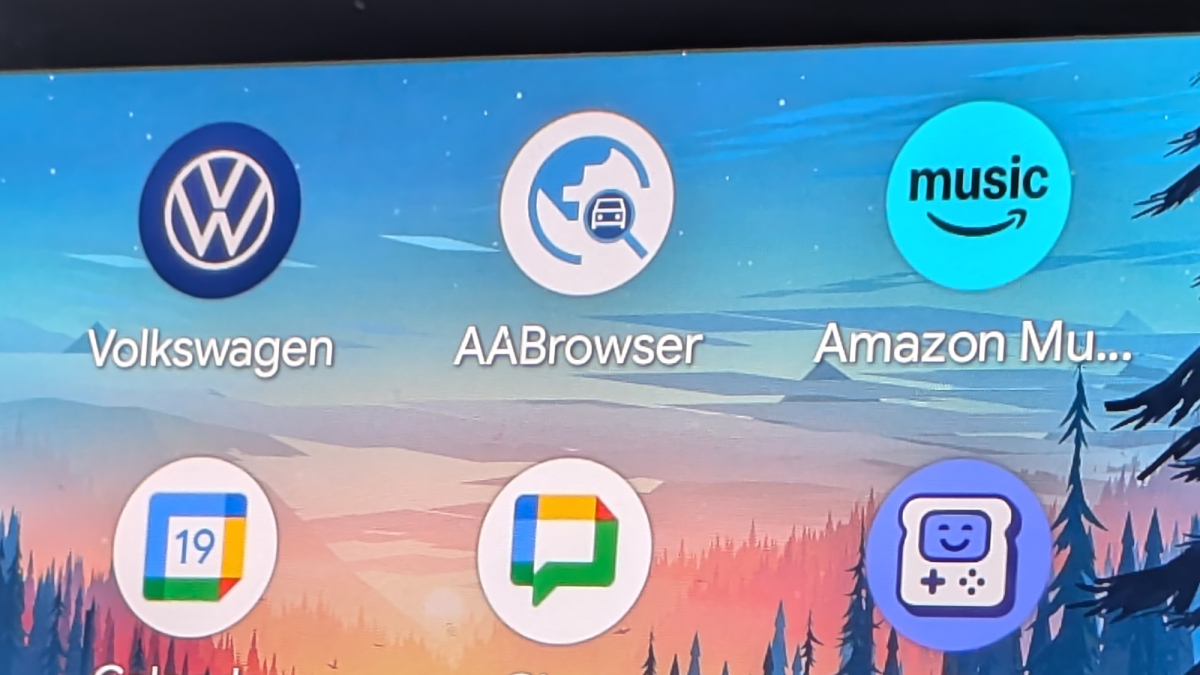
Putting a web browser on a car’s dashboard sounds like the opening scene of a driver-safety horror movie. One minute you are checking a restaurant menu; the next, someone is comparing hotel prices at 70 mph. Fortunately, that is not how AA Browser is designed to work.
The open-source browser brings web access to compatible Android Auto displays primarily for times when the vehicle is parked. Think EV charging stops, airport pickups, lunch breaks, or one of those “I’ll be there in five minutes” waits that somehow lasts half an hour. Used within those boundaries, it is less like Chrome for driving and more like temporarily turning an idle dashboard display into a convenient tablet.
What Changed With Web Browsing on Android Auto?
Android Auto traditionally concentrated on navigation, calls, messages, music, podcasts, and other activities that could be simplified for use on the road. Google has gradually expanded the platform with parked games and plans for additional video and browser experiences. However, official availability still depends on the app category, phone software, vehicle, and rollout status. Google’s developer documentation has continued to apply tighter restrictions to Android Auto than to apps running directly on a vehicle’s operating system.
Android Auto and Android Automotive OS Are Different
Android Auto runs on a phone and projects a driving-friendly interface onto a compatible car screen. Android Automotive OS runs directly inside the vehicle. That distinction explains why certain Polestar and Volvo models have offered native browsers such as Chrome or Vivaldi while many ordinary Android Auto users have not. Those built-in browsers are Android Automotive experiences, not evidence that every Android Auto system now includes Chrome.
AA Browser fills part of that gap for phone-projected Android Auto. It is a third-party WebView browser with an interface adapted to wide automotive displays. The current project supports features such as large shortcuts, multiple tabs, session restoration, page scaling, full-screen media, and light or dark themes.
What AA Browser Actually Does
AA Browser loads websites through Android’s WebView technology rather than trying to squeeze an entire desktop browser into a dashboard. Users can create quick links, open and manage tabs, restore previously visited pages, and keep a compact address bar visible. It is more capable than a basic link viewer but lighter than a full desktop browser.
The browser can also play media from compatible websites. Streaming support varies because some services use digital rights management that Android WebView cannot fully satisfy. The project identifies Widevine L3 limitations, meaning certain services may reduce video quality or refuse playback. Apparently, streaming companies remain very serious about protecting a 12-year-old sitcom from your parked Honda.
Useful Parked-Car Scenarios
The strongest use cases are surprisingly ordinary. You might check a restaurant menu before walking inside, view an airline arrival page while waiting at the terminal, review an EV charging dashboard, read local news, watch a short video, or look up event parking instructions.
A browser is especially helpful when a service does not have a dedicated Android Auto app. Weather radar, sports scores, campground information, local business websites, charging networks, and web-based control panels can become accessible without requiring developers to create specialized automotive software.
Why It Is Not Actually DangerousWhen Used as Designed
Browsing Is Intended for Parked Vehicles
The central safety feature is straightforward: AA Browser is designed to prevent browsing and visual media when Android Auto reports that the vehicle is moving. This follows the same principle used for parked games and Google’s planned video experiences. Google describes browsing, gaming, and streaming as appropriate for waiting or passenger scenarios rather than active driving.
The distinction matters. A browser does not become safe because its buttons are large or because the driver promises to “look only for a second.” It becomes reasonable because the vehicle is stationary and the visual activity is unavailable when driving begins.
The Safety Model Matches U.S. Guidance
The National Highway Traffic Safety Administration treats visual-manual internet browsing as unsuitable while driving. Its guidance encourages vehicle systems to limit distracting activities when a car is in motion. Blocking access based on vehicle state is therefore not an unusual workaround; it reflects a long-established safety approach for in-vehicle electronics.
Parked Entertainment Solves a Real Problem
Drivers spend substantial amounts of time sitting in stationary vehicles. Electric vehicles may require lengthy charging sessions. Parents wait outside schools, travelers arrive early for pickups, and rideshare or delivery workers take breaks between jobs. Automakers already support parked games, casting, video apps, and native browsers because these waiting periods are genuine use cases.
The danger is not the existence of entertainment on a car screen. The danger is allowing entertainment to compete with the task of driving.
“Not Dangerous” Does Not Mean Impossible to Misuse
No software restriction should replace common sense. Vehicle-state detection can fail, unofficial software can contain bugs, and someone may attempt to bypass safeguards. Use the browser only when legally parked in a secure location. A traffic light, a slow-moving parking lot, or bumper-to-bumper traffic does not count. “The wheels were barely turning” is unlikely to impress a police officer, an insurance adjuster, or the mailbox you just met personally.
How AA Browser Installation Works
Older installation guides often used AAAD, a third-party Android Auto app downloader, together with Android Auto’s hidden developer settings. Newer AA Browser releases are designed for more direct installation on supported Android versions. The general process involves downloading the authentic APK, installing it on the phone, allowing the necessary Android Auto settings, and ensuring that the browser appears in the customized app launcher.
Exact steps can vary by phone manufacturer, Android release, Android Auto version, and browser build. Some vehicles recognize the app immediately after reconnection. Others may require a phone restart, a fresh wired or wireless connection, or a launcher refresh.
Basic Compatibility Checklist
- A phone running a supported Android release, currently Android 15 or later for the newest AA Browser builds.
- A compatible car or aftermarket head unit with Android Auto.
- Current versions of Android Auto and Android System WebView.
- Permission to install an APK from outside Google Play.
- A little patience, because sideloaded automotive apps are not famous for behaving like polite houseguests.
The project now warns users to obtain the app only from its official repository because fake download sites have appeared.
The Biggest Security and Privacy Concerns
The parked-only restriction addresses driver distraction, but it does not automatically solve cybersecurity. AA Browser is not installed through the standard Android Auto section of Google Play, so users assume more responsibility for verifying the file, reviewing permissions, and applying updates.
Download Only From the Official Project
Do not search for “AA Browser premium cracked completely safe” and expect a happy ending. Counterfeit APKs can contain malware, steal credentials, display aggressive advertising, or request intrusive permissions. Use the developer’s official repository and verify that the package name and release details match the real project.
Review permissions before installation. A browser needs network access, but demands for call logs, contacts, text messages, or unrestricted accessibility control should raise questions.
Avoid Sensitive Accounts on the Dashboard
Cars may be shared with relatives, valets, mechanics, rental customers, or coworkers. Google’s official browser requirements for Android Automotive OS specifically address the protection of saved passwords and payment information on shared vehicles. Browsers must provide authentication before allowing access to sensitive synchronized data.
Even when Android Auto is powered by your personal phone, avoid banking, password managers, health portals, tax accounts, or expensive purchases on the dashboard. Use the browser for low-risk activities and return to the phone for anything involving private credentials or money.
Keep Android System WebView Updated
AA Browser depends on Android WebView to render pages. Browser security therefore relies partly on system components maintained through Android updates. Install security patches, keep WebView current, and remove the browser if its development stops or its behavior becomes suspicious.
Open-source software can be inspected by the community, but “open source” is not a magical force field. Security still depends on obtaining an authentic build and maintaining the underlying phone software.
Where the Browser Experience Still Feels Rough
Automotive screens vary dramatically in resolution, shape, processing power, and touch sensitivity. A website created for a laptop may produce tiny links, enormous cookie banners, awkward scrolling, or a login button positioned somewhere near the passenger-side floor mat.
Text entry can also be inconvenient because in-car keyboards may be restricted depending on the vehicle state. Wireless Android Auto can introduce latency, while older head units may struggle with animation-heavy pages. Streaming, wireless projection, navigation, and summer temperatures can also make a connected phone noticeably warm.
Should You Install an Android Auto Web Browser?
AA Browser makes the most sense for technically comfortable users who regularly spend time parked in their vehicles. EV owners are an obvious audience, as are parents, travelers, delivery workers taking breaks, and anyone who frequently waits for passengers.
It is less appealing for people who rarely sit in a parked car or want a completely maintenance-free experience. Pulling out a phone may be faster than troubleshooting an APK. Anyone uncomfortable with sideloading should wait for Google’s official expansion of parked browser and video categories.
Real-World Experience: What Using a Browser in Android Auto Feels Like
The Setup Is the Least Glamorous Part
The first impression is not necessarily “the future has arrived.” It is often closer to “the future needs one more permission.” Installation accounts commonly describe downloading the app, approving sideloading, checking Android Auto settings, reconnecting the phone, and waiting for the icon to appear.
When everything works on the first attempt, the process feels surprisingly simple. When it does not, the familiar troubleshooting ritual begins: disconnect, reconnect, restart, reopen the launcher settings, and stare at the dashboard as though disappointment alone can force the browser icon to materialize. User reports also suggest that compatibility can vary between Android versions, phone models, and head units.
The Interface Makes More Sense Than Mirroring a Phone
Once the browser opens, its automotive design becomes the strongest feature. Large shortcuts and a dashboard-style start page are easier to use than a normal mobile browser stretched across a landscape display. The quick-link slots reduce the need for typing, which is important because entering a long address on an infotainment keyboard is about as enjoyable as programming a microwave with oven mitts.
A user who regularly waits at charging stations might pin a video site, a charging-status dashboard, local news, weather radar, a favorite forum, and a restaurant guide. The result feels less like unrestricted desktop browsing and more like a customizable waiting-room screenexcept this waiting room may have heated seats and better speakers.
Video Is Fun, but Expectations Need Seat Belts
Streaming during a parked charging break is the feature most likely to produce an immediate grin. A dashboard screen is often larger and better positioned than a phone, while the vehicle’s sound system provides more satisfying audio. Short videos, public streams, and many ordinary websites can work well.
Protected streaming platforms may limit resolution or refuse playback because of DRM restrictions. Advertisements, consent dialogs, mobile-app prompts, and websites with poorly designed responsive layouts can interrupt the experience. AA Browser can make a charging stop more entertaining, but it does not transform every head unit into a miniature luxury theater.
The Parked Lockout Changes the Safety Conversation
The most reassuring aspect is that browsing is supposed to stop when the vehicle begins moving. That behavior creates a clear mental boundary: Park is for browsing, while Drive is for navigation, communication, and audio.
Users should still confirm the restriction cautiously in a safe private location and never assume that every phone-and-vehicle combination will behave perfectly. If the browser remains usable while the vehicle is moving, the correct response is to close and remove itnot to congratulate yourself on discovering a bonus feature.
Practical Uses Outlast the Novelty
The first session may involve opening videos simply because a browser on a dashboard feels delightfully absurd. Over time, practical tasks become more valuable. Checking a delayed flight, reading pickup instructions, comparing nearby restaurants, viewing a campground map, or confirming a business’s hours can save time.
The browser is particularly useful when a website has no Android Auto app but works adequately through WebView. It does not replace the phone, nor should it. Instead, it offers a middle ground between the phone’s small display and the car’s otherwise underused screen.
The Everyday Verdict
AA Browser feels like an enthusiast tool that happens to solve a legitimate problem. It is clever, useful, occasionally fiddly, and safest when used with strict limits. The best experience comes from creating a few trusted shortcuts, avoiding sensitive logins, updating the app, and opening it only during genuine parked time.
People expecting flawless desktop-Chrome compatibility may be disappointed. People who simply want to make a 35-minute charging stop less boring may wonder why parked web browsing was not a standard feature years ago.
Conclusion
Installing a web browser on Android Auto sounds reckless only when the browser is imagined as a driving feature. AA Browser is better understood as a parked-car utility. Its automotive interface and movement restrictions address a legitimate use case without pretending that internet browsing belongs behind the wheel.
Sideloading does introduce additional security, maintenance, and compatibility responsibilities. Download only from the official project, avoid sensitive transactions, keep Android and WebView updated, and stop using the app if its parked-only restriction does not work reliably. Used responsibly, it can make charging sessions and pickup delays productive or entertaining. Used while driving, any browser is dangerousno clever interface can repeal physics.