Microsoft Word handles ordinary letters beautifully, but sooner or later your document demands something more adventurous: a degree sign, a copyright symbol, a Greek letter, an em dash, a mathematical operator, or perhaps a check mark that refuses to hide inside your keyboard.
Fortunately, you do not have to copy symbols from a mysterious website and hope they survive the journey into your document. Word includes several reliable ways to insert symbols on Windows and Mac, including the Symbol menu, Unicode character codes, operating-system character viewers, keyboard shortcuts, equation tools, and custom AutoCorrect entries.
This guide explains each method step by step, with examples such as ©, ®, ™, €, °, ✓, π, ±, and ∞. Menu labels can vary slightly among Microsoft 365, Word 2024, and older desktop editions, but the basic process remains similar.
The Quickest Way to Insert a Symbol in Word
For occasional use, the built-in Symbol menu is the simplest method on both platforms.
On Windows
- Place the cursor where the symbol should appear.
- Select the Insert tab.
- Choose Symbol in the Symbols group.
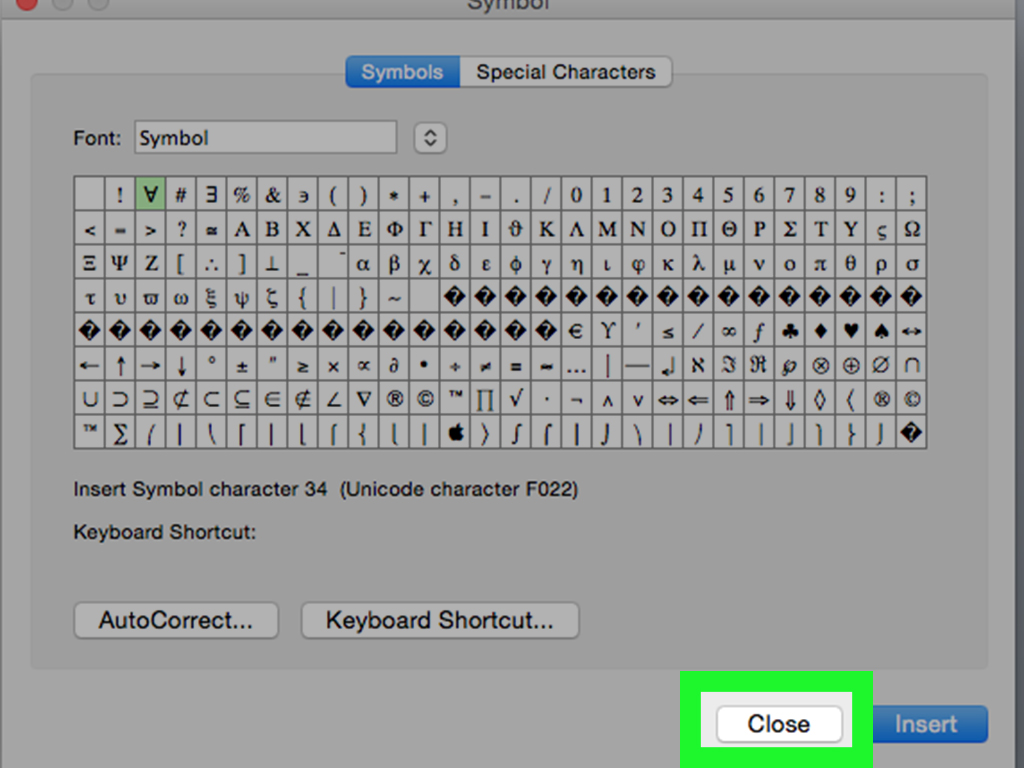
- Select a symbol from the small gallery, or click More Symbols.
- Choose the desired symbol and click Insert.
- Click Close when finished.
On Mac
- Click where you want the symbol.
- Open the Insert menu.
- Select Advanced Symbol.
- Choose the Symbols tab.
- Select the character and click Insert.
Word usually remembers recently used symbols, so the copyright sign you inserted yesterday may appear directly in the Symbol gallery today. It is a small convenience, but so is finding five dollars in an old jacket.
How to Use the More Symbols Dialog in Word for Windows
The More Symbols dialog is the main control center for special characters in Word. It lets you browse thousands of characters, inspect their codes, change fonts, and filter them by category.
Go to Insert > Symbol > More Symbols. Two tabs should appear: Symbols and Special Characters.
Choose the Right Font
The Font menu determines which characters are available. Start with (normal text) when you want the symbol to match the surrounding text. This option is useful for punctuation, currency signs, accented letters, and other standard Unicode characters.
For a wider selection, try fonts such as Segoe UI Symbol. Symbol-oriented fonts may include arrows, geometric shapes, technical signs, and pictographs that are not present in every typeface.
Be cautious with Wingdings and similar decorative fonts. Their characters may look correct on your computer but behave differently if another person opens the document without the same font. A Unicode check mark is generally safer than a letter that merely looks like a check mark because Wingdings is wearing a clever disguise.
Use the Subset Menu
The Subset menu helps narrow the character list. Depending on the selected font, useful subsets may include:
- Basic Latin
- Latin-1 Supplement
- Latin Extended-A
- Greek and Coptic
- Currency Symbols
- Mathematical Operators
- Arrows
- Miscellaneous Symbols
For example, the degree sign is commonly found in Latin-1 Supplement, while characters such as ± and ∞ appear among mathematical symbols. Unicode organizes characters into defined ranges, although the exact symbols displayed in Word still depend on the selected font.
Open the Special Characters Tab
The Special Characters tab contains useful publishing and formatting marks, including em dashes, en dashes, nonbreaking spaces, nonbreaking hyphens, section marks, paragraph marks, and quotation marks.
A nonbreaking space keeps two items together on the same line. For example, placing one between “10” and “AM” prevents Word from separating the time at the end of a line. A nonbreaking hyphen performs the same job for hyphenated terms.
Insert Symbols with Unicode and Alt+X on Windows
Unicode assigns a unique code point to each standard character. Word for Windows can convert many hexadecimal Unicode codes directly into symbols.
To use this method:
- Type the hexadecimal code.
- Place the cursor immediately after it.
- Press Alt+X.
Examples include:
| Type | Press | Result |
|---|---|---|
| 00A9 | Alt+X | © |
| 00AE | Alt+X | ® |
| 2122 | Alt+X | ™ |
| 00B0 | Alt+X | ° |
| 03C0 | Alt+X | π |
| 221E | Alt+X | ∞ |
| 2260 | Alt+X | ≠ |
| 2713 | Alt+X | ✓ |
Pressing Alt+X again usually changes the symbol back into its code. If the code sits next to another hexadecimal character, select only the code before pressing the shortcut. Otherwise, Word may interpret more characters than you intended and produce something that looks as though an alien filed your quarterly report.
Use Alt Codes on a Windows Numeric Keypad
Traditional Alt codes are useful when your keyboard includes a dedicated numeric keypad. Hold Alt, type the decimal code on the numeric keypad, and release Alt.
Common examples include:
- Alt+0176 for °
- Alt+0169 for ©
- Alt+0174 for ®
- Alt+0153 for ™
- Alt+0128 for €
Turn on Num Lock before entering the code. The number row above the letters normally will not work for this method. Laptop users without a numeric keypad should use Unicode plus Alt+X, the Symbol menu, or the Windows symbol panel instead. Alt codes may also vary with the active Windows code page, making Unicode the more predictable choice for less common characters.
Insert Symbols with the Windows Emoji and Symbol Panel
Windows includes a system-wide panel that works inside Word and many other applications.
- Click in the Word document.
- Press Windows key+. (period).
- Open the symbols section, often represented by an omega icon.
- Select a category such as punctuation, currency, math, or geometric symbols.
- Click a character to insert it.
This method is excellent on compact keyboards because it does not require a numeric keypad. The same panel also contains emoji, kaomoji, and GIF options, although a dancing banana may not improve your legal contract as much as you hope.
Use Windows Character Map
Character Map is helpful when you want to browse all characters available in a particular installed font.
- Open the Windows Start menu.
- Search for Character Map.
- Select a font.
- Click the desired character.
- Choose Select, followed by Copy.
- Return to Word and press Ctrl+V.
Advanced View can help you search by character name or Unicode grouping. Character Map is slower than a remembered shortcut, but it is dependable when you know what a symbol looks like and have absolutely no idea what it is called.
How to Insert Symbols in Word on a Mac
Word for Mac offers two major symbol sources: Word’s own Advanced Symbol dialog and macOS Character Viewer.
Use Advanced Symbol in Word
Choose Insert > Advanced Symbol, select the Symbols tab, and click the character you need. The Special Characters tab includes items such as dashes, quotation marks, and other publishing marks.
The Mac dialog may not show exactly the same controls or subsets as the Windows version. When Word’s collection feels limited, Character Viewer is usually the better option.
Use macOS Character Viewer
Place the cursor in Word, then use one of these methods:
- Press Fn/Globe+E on supported keyboards and macOS configurations.
- Choose Edit > Emoji & Symbols.
- On many systems, press Control+Command+Space.
Search for terms such as “degree,” “copyright,” “arrow,” “check,” “pi,” or “currency.” Click or double-click a result to insert it. Expand the viewer to browse categories, inspect related characters, and save frequently used symbols as favorites.
Useful Mac Symbol Shortcuts
On a standard U.S. Mac keyboard, these shortcuts commonly work in Word:
- Option+G: ©
- Option+R: ®
- Option+2: ™
- Option+8: •
- Option+Shift+8: °
- Option+=: ≠
- Option+5: ∞
- Option+V: √
- Option+P: π
These combinations can change with non-U.S. keyboard layouts. Character Viewer is the safest fallback when a shortcut produces something unexpectedor nothing at all, which is the keyboard’s passive-aggressive way of requesting further research.
Type Accented Letters in Microsoft Word
Accented letters are technically characters rather than decorative symbols, but Word handles them through many of the same tools.
Windows Accent Shortcuts
Word uses shortcut patterns that are easy to reuse:
- Ctrl+’, followed by a letter: á, é, í, ó, ú
- Ctrl+`, followed by a letter: à, è, ì, ò, ù
- Ctrl+Shift+^, followed by a letter: â, ê, î, ô, û
- Ctrl+Shift+~, followed by a letter: ã, ñ, õ
- Ctrl+Shift+:, followed by a letter: ä, ë, ï, ö, ü
- Ctrl+,, followed by C: ç
The first shortcut prepares the accent; the next keystroke supplies the letter. Word then combines them into one character.
Mac Accent Menu
On a Mac, press and hold a letter such as e. A small menu displays available variants, such as é, è, ê, and ë. Select the character with the mouse or press its corresponding number.
Writers who regularly type in another language may work faster by adding that language’s keyboard layout instead of entering every accent individually.
Insert Mathematical Symbols and Equations
For a single character such as ±, ×, ÷, or ∞, the normal Symbol menu works well. For fractions, matrices, exponents, integrals, and structured formulas, use Word’s Equation tools.
- Select Insert > Equation.
- Choose a built-in equation or create a new one.
- Use the Equation ribbon to add fractions, scripts, radicals, integrals, brackets, and operators.
On Word for Windows, pressing Alt+= opens a new equation area. Word also supports linear mathematical input, allowing many commands to be converted into professionally formatted notation. For example, entering a fraction or Greek-letter command inside an equation can be faster than searching through galleries.
Create an AutoCorrect Shortcut for Frequently Used Symbols
If you repeatedly insert the same symbol, create a memorable text trigger. For example, Word could replace ;deg with ° or ;check with ✓.
Windows
- Copy the symbol you want to reuse.
- Open File > Options > Proofing.
- Select AutoCorrect Options.
- Enter a unique trigger in the Replace box.
- Paste the symbol into the With box.
- Click Add, then OK.
Mac
- Open Word > Preferences or Word > Settings.
- Select AutoCorrect.
- Add the replacement text and symbol.
- Save the entry.
Choose a trigger you would not type naturally. A prefix such as a semicolon helps prevent accidental replacements. Using “tm” as a trigger for ™ may sound efficient until every appearance of “time” begins a tiny trademark negotiation.
Why a Symbol May Appear as a Square or Empty Box
An empty rectangle, question-mark box, or missing-glyph symbol usually means the current font does not contain that character. The document may store the correct Unicode character, but Word has no visible design for it in the selected typeface.
Try these fixes:
- Select the character and change it to a broader Unicode font.
- Use Segoe UI Symbol on Windows where appropriate.
- Choose (normal text) in the Symbol dialog before inserting.
- Avoid rare decorative-font characters when sharing documents.
- Export a test PDF and confirm the symbol is embedded correctly.
- Open the document on another computer before final distribution.
Remember that a symbol and an icon are not the same thing. A symbol is normally a text character that follows the font, line spacing, and text color. An icon is a graphic object that can be resized, rotated, and recolored independently. Microsoft 365 offers Insert > Icons when you need a visual element rather than an inline character.
Practical Experience: The Methods That Save the Most Time
In everyday Word work, the best symbol method depends less on technical sophistication and more on frequency. The Symbol dialog is ideal when you need one unfamiliar character. Unicode is faster when you already know the code. AutoCorrect wins when the same symbol appears dozens of times in a document.
For example, while editing temperature reports, inserting ° from the menu once is harmless. Doing it 80 times is an excellent way to begin questioning your career choices. A replacement such as ;deg is dramatically faster and easier to remember than Alt+0176, especially on a laptop without a numeric keypad.
For academic writing, Unicode plus Alt+X is one of the most useful Windows techniques. Codes for Greek letters, arrows, mathematical operators, and technical signs can be stored in a small reference note. After a few projects, common entries such as 03C0 for π and 2260 for ≠ become muscle memory. Equation tools should still be used for complex formulas because they preserve mathematical structure, spacing, and alignment better than a row of individually inserted symbols.
On Mac, Character Viewer is usually more practical than memorizing a large catalog of Option-key combinations. Its search field makes it possible to type a plain-English description and locate the correct character. Adding frequently used characters to Favorites turns the viewer into a personalized symbol tray. Writers switching between Word, email, browsers, and design tools also benefit because Character Viewer works across macOS rather than only inside Word.
Font compatibility is the issue most likely to cause trouble after a document leaves your computer. A symbol can appear perfect during editing and turn into an empty box when opened by a colleague. This often occurs with unusual fonts, legacy Wingdings characters, or symbols that are newer than the fonts installed on the receiving system.
A good production habit is to use ordinary Unicode characters in widely available fonts whenever possible. Before sending an important proposal, manuscript, contract, or training manual, save a PDF and inspect every uncommon symbol. Check marks, arrows, currency signs, and mathematical operators deserve particular attention. PDF export is not magic, but it often preserves the intended appearance more reliably than sending an editable file that depends on local fonts.
Copying and pasting from another document can be efficient, but it sometimes carries unwanted formatting. The inserted symbol may arrive in a different font, size, color, or language setting. After pasting, select the character and apply the surrounding text style. For repeated work, keep a clean “symbol bank” document containing commonly approved characters in the correct font. This is especially useful for editorial teams that must follow a consistent house style.
Another lesson is to distinguish visually similar characters. A hyphen (-), en dash (–), em dash (), and minus sign (−) perform different jobs. Straight quotation marks are not identical to typographic quotation marks. The letter “x” should not automatically replace the multiplication sign × in polished mathematical content. Choosing the correct character improves typography, searchability, accessibility, and professional credibility.
Finally, avoid turning symbol insertion into a memory contest. Learn three dependable routes: the Symbol menu, one operating-system character viewer, and one fast method such as Unicode or AutoCorrect. Together, they cover nearly every situation without requiring you to memorize a numerical encyclopedia.
Conclusion
Microsoft Word gives Windows and Mac users several effective ways to insert symbols. The built-in Symbol dialog is best for browsing, Windows users can accelerate repetitive work with Alt codes or Unicode plus Alt+X, and Mac users can search almost any character through Character Viewer. Equation tools handle structured mathematics, while AutoCorrect makes recurring symbols nearly effortless.
Start with the method that feels natural, then create shortcuts for the symbols you use most. With a small amount of setup, inserting ©, €, ✓, π, °, and other special characters becomes part of normal typing rather than a tiny scavenger hunt.