Instagram is great at remembering things: your favorite creators, your search history, the reel you watched three weeks ago at 1:17 a.m., andsometimesthe account you no longer want sitting on the login screen like an awkward guest who will not leave. If you share a phone, manage multiple Instagram accounts, recently logged into a friend’s device, or simply want a cleaner login screen, knowing how to remove a remembered account on Instagram is a small privacy move that can save a big headache.
The good news? Removing a remembered Instagram account is usually easy. The slightly annoying news? Instagram’s menus can look different depending on whether you use iPhone, Android, Instagram Lite, a browser, Accounts Center, saved passwords, or all of the above. In other words, your account may be “remembered” in more than one place. Think of it like glitter: you remove it from the table, then somehow find it in your shoe.
This guide explains how to remove saved Instagram login information, delete a remembered profile from the login screen, stop Instagram from saving login details again, remove an account from Meta Accounts Center, and clean up saved passwords from your phone or browser. No panic, no tech wizard robe required.
What Does a “Remembered Account” on Instagram Mean?
A remembered account on Instagram is usually an account that appears on the app’s login screen after you log out. Instead of asking you to type the username and password again, Instagram may show the profile picture and username so you can log back in quickly.
This feature is convenient when it is your own phone. It is less charming when your account remains visible on a shared device, school tablet, work phone, family iPad, or a friend’s phone. Removing the remembered account helps protect privacy and reduces the chance that someone else taps into the wrong profile.
Important: Removing a Remembered Account Does Not Delete Your Instagram Account
Let’s clear this up before anyone’s heart rate tries to do cardio. Removing a remembered account from a device does not delete your Instagram profile, posts, followers, messages, reels, highlights, or account data. It only removes the saved login shortcut from that device.
Deleting an Instagram account is a separate process. Removing saved login information is more like taking your house key off someone’s keychain. The house still exists; the shortcut is just gone.
How to Remove a Remembered Account on Instagram App
The easiest way to remove a remembered Instagram account is from the login screen. This is the screen you see after logging out, where Instagram displays one or more accounts that can be selected quickly.
Step-by-Step: Remove an Instagram Account From the Login Screen
- Open the Instagram app on your iPhone or Android device.
- Log out of the account if you are currently logged in.
- Go to the Instagram login screen.
- Tap Options in the top-right corner.
- Select Remove profiles from this device.
- Tap Remove next to the account you want to delete from the remembered list.
- Confirm your choice if Instagram asks.
After this, the account should no longer appear as a quick-login profile on that device. You can still log back in manually using the username, email, phone number, and password.
How to Log Out Without Saving Instagram Login Information
Sometimes the account keeps returning because Instagram asks whether you want to save your login information when you log out. If you tap the wrong option, Instagram politely remembers the account again. Very helpful. Also very annoying.
Use “Not Now” When Instagram Asks to Save Login Info
- Open Instagram and go to your profile.
- Tap the menu icon, usually the three horizontal lines.
- Go to Settings and privacy.
- Scroll down and tap Log out.
- If Instagram asks whether you want to save login information, choose Not now.
- Confirm Log out.
Choosing Not now tells Instagram not to keep the quick-login shortcut. If you choose Save, the account may continue showing on the login screen.
How to Remove a Remembered Instagram Account on iPhone
On iPhone, Instagram can remember login information inside the app, but your iPhone may also store passwords through Apple Passwords or iCloud Keychain. That means removing the profile from Instagram may not remove the saved password suggestion from the keyboard.
Method 1: Remove the Account Inside Instagram
Start with the Instagram login screen. Tap Options, select Remove profiles from this device, and remove the account you do not want remembered.
Method 2: Delete the Instagram Password From iPhone Passwords
- Open the Passwords app or go to Settings and then Passwords.
- Authenticate with Face ID, Touch ID, or your passcode.
- Search for Instagram.
- Select the saved Instagram login.
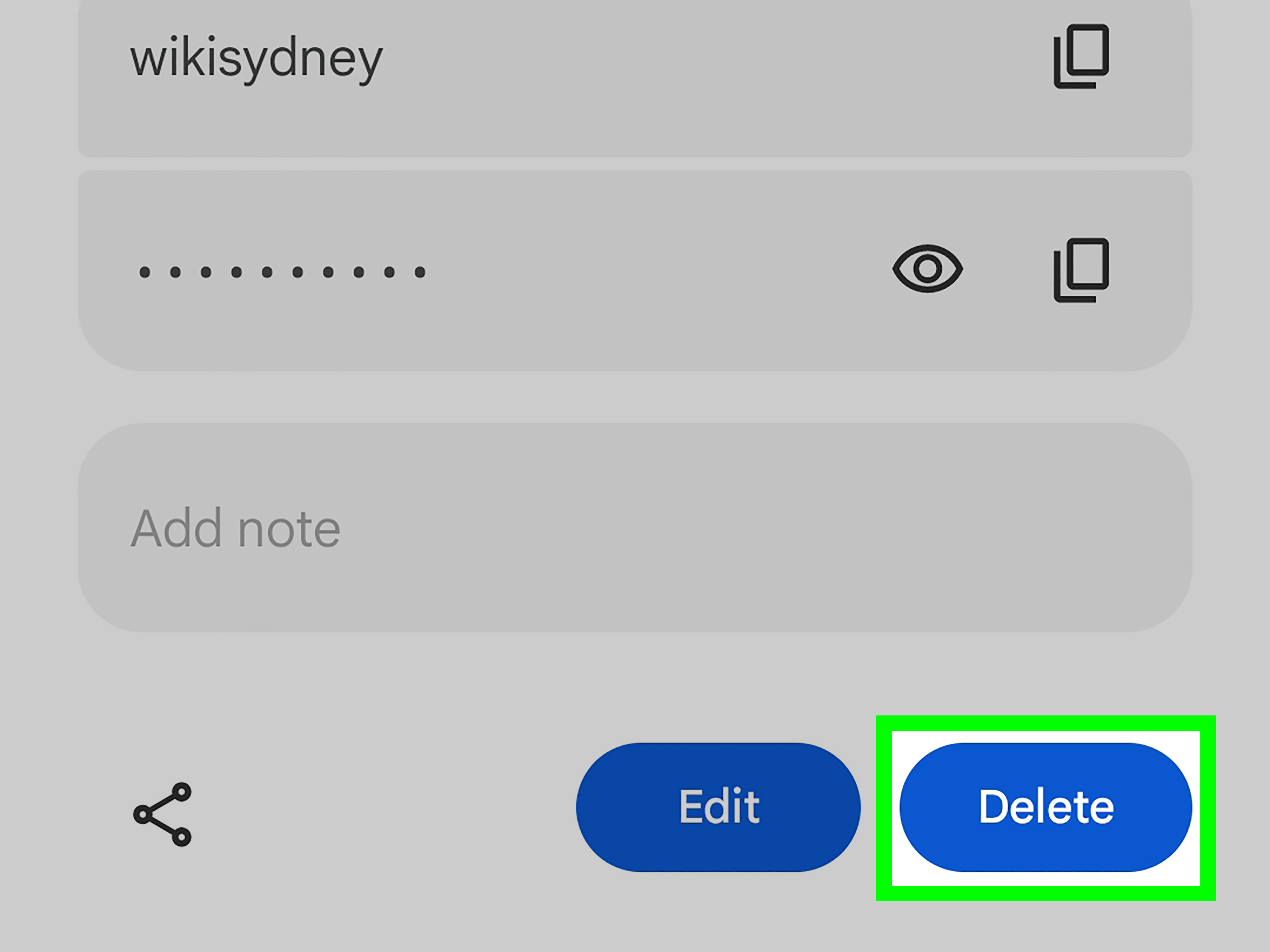
- Tap Edit, then choose Delete Password or Delete Passkey.
This is useful when Instagram no longer shows the remembered account, but your iPhone still suggests the username or password during login. Removing the saved password helps stop automatic autofill prompts.
Method 3: Reinstall Instagram if the Account Still Appears
If the account refuses to disappear, uninstalling and reinstalling the Instagram app can clear stubborn local app data. Before doing this, make sure you know your login details for every account you still need. Reinstalling the app may remove saved drafts or local temporary data, so do not use this as your first move if you have unsaved content.
How to Remove a Remembered Instagram Account on Android
Android users may need to check three places: Instagram’s login screen, Google Password Manager, and the app cache. Most of the time, the login-screen method works. If not, the password manager or cached data may be the reason the account keeps popping back up.
Method 1: Remove the Profile From Instagram
- Open Instagram.
- Log out of the account.
- On the login screen, tap Options.
- Tap Remove profiles from this device.
- Tap Remove next to the account.
Method 2: Delete Instagram Login From Google Password Manager
- Open Chrome on your Android phone.
- Tap the three-dot menu.
- Go to Settings.
- Tap Google Password Manager.
- Search for Instagram.
- Select the saved login and delete it if you no longer want autofill suggestions.
Google Password Manager can save passwords across Android and Chrome. If the Instagram app is clean but your login still appears as an autofill suggestion, this is the place to check.
Method 3: Clear Instagram App Cache
If the remembered account still appears, clearing the app cache may help.
- Open your Android Settings.
- Go to Apps.
- Select Instagram.
- Tap Storage.
- Tap Clear cache.
Avoid tapping Clear data unless you are comfortable resetting the app locally and logging in again. Clearing data can remove app settings and require a fresh login.
How to Remove an Instagram Account From Meta Accounts Center
If you use several Instagram and Facebook accounts, Meta Accounts Center may connect them for easier login, profile syncing, cross-posting, or shared settings. Removing an account from Accounts Center does not delete the Instagram account. It simply separates it from the connected account group.
Steps to Remove an Account From Accounts Center
- Open Instagram.
- Go to your profile.
- Tap the menu icon.
- Select Settings and privacy.
- Tap Accounts Center.
- Go to Accounts or Manage accounts.
- Choose the account you want to remove.
- Tap Remove and confirm.
This is especially helpful when you no longer want one Instagram account linked with another Instagram or Facebook profile. For example, maybe you managed a community account, business profile, or temporary project account and now want it separated from your personal login setup.
How to Remove Instagram From Another Device
Removing a remembered account from your phone only affects your phone. If you logged into Instagram on another device, such as a friend’s phone or a shared computer, you should also check active login sessions.
Check Where You Are Logged In
- Open Instagram.
- Go to your profile and tap the menu icon.
- Tap Accounts Center.
- Go to Password and security.
- Tap Where you’re logged in.
- Select your Instagram account.
- Review the devices listed.
- Log out of any device you do not recognize or no longer use.
This is one of the smartest privacy checks you can do. If you see an unfamiliar location, old phone, school device, borrowed tablet, or browser session you forgot about, log it out. Then change your Instagram password for extra safety.
How to Stop Instagram From Remembering Your Account Again
Removing the account once is good. Preventing it from coming back is better. Instagram may offer to save your login information after you sign in or log out, so be careful with those tiny prompts that everyone taps too quickly.
Best Practices
- Choose Not now when Instagram asks to save login information.
- Do not save Instagram passwords on shared devices.
- Turn off password autofill for Instagram if privacy matters more than speed.
- Remove old devices from Where you’re logged in.
- Use two-factor authentication for better account protection.
Convenience is nice, but privacy is nicer. One-tap login is useful on your own phone, but on shared devices it can become a digital open door.
Troubleshooting: Why Is My Instagram Account Still Showing?
If your account still appears after removing it, do not assume Instagram is personally plotting against you. The issue usually comes from one of these common causes.
1. The Login Was Saved Again
You may have logged out and accidentally tapped Save when Instagram asked whether to save login information. Log out again and choose Not now.
2. The Password Is Stored in Apple or Google Password Manager
Instagram may not be remembering the account directly. Your phone may simply be offering autofill. Check iPhone Passwords, iCloud Keychain, Google Password Manager, or Chrome Password Manager.
3. The Account Is Still Connected in Accounts Center
If several accounts are linked, one account may help you access another. Go to Accounts Center and remove accounts that should not be grouped together.
4. App Cache Is Holding Old Data
Android users can clear the Instagram app cache. iPhone users may need to uninstall and reinstall Instagram if the issue continues.
5. You Are Still Logged In Somewhere Else
Use Where you’re logged in to remove old sessions from other devices. This is especially important if you used someone else’s phone or a public computer.
Privacy Tips Before Using Instagram on a Shared Device
Shared devices are where remembered accounts become risky. Whether you are using a family tablet, a friend’s phone, a school device, or a work computer, follow a few simple rules.
- Never save your login information on a device you do not own.
- Log out completely after using Instagram.
- Do not let the browser save your Instagram password.
- Clear browser history and cookies if you logged in through a browser.
- Check active login sessions later from your own phone.
- Change your password if you think someone else may have access.
A remembered Instagram account may seem harmless, but it can expose private messages, saved posts, close friends stories, business conversations, and account settings. Treat your login like a house key, not like a free sticker.
Does Removing a Remembered Account Remove Your Posts or Messages?
No. Removing a remembered account does not remove posts, reels, comments, followers, direct messages, saved collections, archive posts, story highlights, or profile details. It only removes saved login access from that device.
If you log in again with the correct credentials, your account will appear as usual. If you want to permanently delete or temporarily deactivate Instagram, that is a different action inside account ownership and control settings.
Specific Example: Removing a Business Account From Your Personal Phone
Imagine you helped manage a small bakery’s Instagram account. For months, you switched between your personal profile and the bakery profile to post croissant photos, reply to customers, and pretend you were not hungry. Now someone else manages the bakery account, but it still appears on your Instagram login screen.
In that case, you should remove the bakery profile from the login screen, remove it from Accounts Center if it is linked to your personal account, check Where you’re logged in, and delete any saved password from your phone. If the bakery account used your email or phone number for recovery, update that too. This keeps the business account separate and protects your personal privacy.
Specific Example: Removing Your Account From a Friend’s Phone
Maybe your phone died, so you logged into Instagram on a friend’s device “just for a minute.” Famous last words. After using the app, log out and choose Not now when Instagram asks to save your login information. Then remove the profile from the login screen. Later, from your own device, check Where you’re logged in and log out of that friend’s phone if it still appears.
For extra safety, change your password and turn on two-factor authentication. It may feel like overkill, but it is easier than explaining why your friend accidentally opened your DMs while trying to watch cat reels.
Extra Experience: Real-Life Lessons From Removing Remembered Instagram Accounts
The first thing most people learn when removing a remembered Instagram account is that “log out” and “remove saved login” are not always the same thing. Logging out closes the current session, but Instagram may still display the account on the login screen. That can surprise users who think they are fully done. The account is not necessarily open, but the shortcut is still visible, which can feel uncomfortable on a shared device.
A common experience is removing the account in Instagram, then seeing the username appear again when tapping the login field. This is usually not Instagram being stubborn. It is often the phone’s password manager helping a little too enthusiastically. On iPhone, Apple Passwords or iCloud Keychain may still store the login. On Android, Google Password Manager may still suggest it. So the best practical approach is to clean both layers: remove the remembered profile inside Instagram and delete the saved password from the device’s password manager if you do not want autofill.
Another lesson is that Accounts Center can confuse people who manage multiple profiles. If your personal Instagram, business Instagram, and Facebook account are connected, removing only one login shortcut may not fully separate everything. Users who manage client pages, school clubs, side businesses, or shared community accounts should review Accounts Center carefully. Removing an account from Accounts Center can help prevent accidental switching, unwanted cross-login convenience, or confusing account connections.
Many users also discover that old devices remain logged in longer than expected. You may have upgraded phones, borrowed a tablet, used a family computer, or logged in during travel. Checking Where you’re logged in is a simple habit that feels boring until it saves you from a privacy problem. If an old device appears, log it out. If you do not recognize the device, change your password immediately.
From a user-experience perspective, the cleanest routine is this: log out, decline saved login, remove the profile from the login screen, delete saved passwords if needed, and check active sessions. That may sound like a lot, but it takes only a few minutes once you know where everything lives. The payoff is peace of mind, especially if you use Instagram for private conversations, business messages, creator accounts, or personal content.
The biggest mistake is assuming that deleting the app always solves everything. Reinstalling Instagram can help with stubborn local data, but it does not automatically remove saved passwords from Apple, Google, Chrome, or another device. It also does not log you out of every active session. Use reinstalling as a troubleshooting step, not as your only privacy strategy.
Finally, the most useful habit is to slow down when Instagram asks questions during logout. The app may ask whether you want to save login information, and one quick tap can undo your cleanup. Choose Not now when privacy matters. Your future self will thank you, probably while scrolling reels with much less login-screen drama.
Conclusion
Removing a remembered account on Instagram is simple once you know where to look. Start from the Instagram login screen and use Options to remove profiles from the device. If the account still appears, check saved passwords on iPhone or Android, review Accounts Center, clear app cache when needed, and log out of old devices through Where you’re logged in.
The key takeaway is that a remembered account is usually a convenience feature, not a deleted-account setting. Removing it protects privacy without erasing your Instagram profile. Whether you are cleaning up a shared phone, separating a business account, or removing an old login from a device you no longer use, these steps help keep your Instagram account where it belongs: under your control.