Somewhere in your Spotify account, there may be a playlist that remembers who you were better than your own photo gallery does. Maybe it was called “Summer 2018,” “Songs for Studying,” “Road Trip Chaos,” or, if we are being honest, “sad but make it aesthetic.” Then one day, it disappears from sight. You scroll through Your Library, search random song titles, check your profile, and wonder whether Spotify swallowed your masterpiece like a tiny green music dragon.
The good news: old Spotify playlists are often easier to find than they first appear. In many cases, they are not gone at all. They may be hidden by a filter, buried under sorting settings, saved on another account, removed from your profile, tucked inside a folder, or simply deleted recently enough that Spotify still lets you recover them. The trick is knowing where to look and in what order.
This guide walks you through practical, beginner-friendly ways to find old playlists on Spotify using the mobile app, desktop app, web player, account recovery tools, search features, playlist folders, listening history, profile settings, and data download options. Think of it as a search party for your music memoriesflashlights on, snacks packed, no judgment for that 2014 dubstep phase.
Why Old Spotify Playlists Seem to Disappear
Before you panic, it helps to understand why a Spotify playlist may look missing. A playlist can disappear from your immediate view for several reasons. You might have deleted it by accident, unsaved someone else’s playlist, logged into the wrong account, applied a Library filter, changed the sorting order, made the playlist private, moved it into a folder, or lost access to a collaborative playlist owned by someone else.
Another common issue is confusion between playlists you created and playlists you followed. If you created a playlist, it belongs to your account. If you only saved or followed another person’s playlist, you do not control it. If the owner deletes it, makes it private, removes collaborators, or changes the name and cover, it may become much harder to find.
Spotify also updates its app design over time. Buttons move. Icons change. A feature that once lived in one corner of the app may now sit somewhere else wearing a fake mustache. That is why the best approach is not just one method, but a checklist.
1. Start With Your Library
The fastest way to find old Spotify playlists is to open Your Library. This is Spotify’s main storage area for saved music, podcasts, albums, artists, and playlists. On mobile, tap Your Library at the bottom of the app. On desktop or the web player, look for Your Library in the left sidebar.
Once there, choose the Playlists filter if it is available. This narrows the view so you are not digging through albums, podcasts, artists, and other saved items like a raccoon in a recycling bin. If you remember even part of the playlist name, use the search field inside Your Library rather than the global Spotify search. This searches your own saved collection, which is usually more efficient.
Try different sorting options
If the playlist is not visible right away, change the sorting order. Spotify commonly lets users sort or filter lists by options such as recently played, recently added, alphabetical order, creator, or downloaded content. A playlist that seems missing may simply be far down the list because Your Library is sorted in a way that does not match your memory.
For example, if you made a playlist years ago but played it last week, sorting by recent activity may help. If you remember the name, alphabetical sorting may be better. If the playlist was created by another user, sorting by creator can sometimes bring it into view faster.
2. Remove Any Hidden Filters
One sneaky reason playlists go missing is that a filter is active. On mobile, Spotify may show filters such as Playlists, Albums, Artists, Downloaded, or other category chips. If you accidentally tapped a filter, some content may vanish from the view even though it is still saved.
To fix this, go to Your Library and look for selected filters at the top. Tap the active filter again or choose a broader Library view. If you are in Downloads mode, for example, Spotify may only show content downloaded to that device. Your old playlist may be alive and well in the cloud, just not downloaded to your phone.
This is one of the easiest fixes and also one of the most overlooked. Before assuming a playlist is deleted, always clear filters first. It is the music app version of checking whether the printer is plugged in.
3. Use Spotify Search the Smart Way
If Your Library does not work, use Spotify’s main Search feature. Spotify search can help find songs, albums, artists, playlists, podcasts, audiobooks, genres, moods, and profiles. For old playlists, try searching with different clues:
- The exact playlist name, if you remember it
- A unique word from the playlist title
- An artist you know was in the playlist
- A song title that was definitely included
- Your own Spotify display name
- A friend’s username or profile name
For example, if you cannot remember whether your playlist was called “Beach Trip 2020,” “Beach Drive,” or “Beach Stuff,” search for “beach” and check playlist results. If you remember the playlist had a specific song, search for that song and use it as a breadcrumb. Once you find the song, you may remember the playlist theme or rebuild the list from related tracks.
Spotify also supports lyrics search in some cases. If you remember at least a few words from a song but not the title, search those lyrics. This will not directly recover a playlist, but it can help identify tracks that belonged to it.
4. Check Your Spotify Profile
Your profile can be another useful place to find old playlists, especially public ones. Open your Spotify profile and look for playlists displayed there. These are usually public playlists that you have chosen to publish or that Spotify shows by default depending on your settings.
However, remember this important detail: a playlist can be public but not displayed prominently on your profile, depending on your publishing settings. A playlist can also be private, which means other people cannot access it through search, profile browsing, or links. If you made an old playlist private, you should still be able to see it in your own Library, but your friends will not be able to help you find it from their accounts.
Public, private, and profile visibility
Spotify playlist visibility can be confusing because “public,” “private,” and “shown on profile” are related but not always identical in how users experience them. If you are trying to find an old playlist you shared with friends, check whether it was made private or removed from your profile. If a friend says, “I can’t see your playlist anymore,” that does not always mean it is deleted. It may simply be hidden from public view.
To check a playlist’s visibility, open the playlist, tap or click the three-dot menu, and look for options such as Make public, Make private, or profile publishing controls. Exact wording can vary by device and app version.
5. Recover Deleted Spotify Playlists
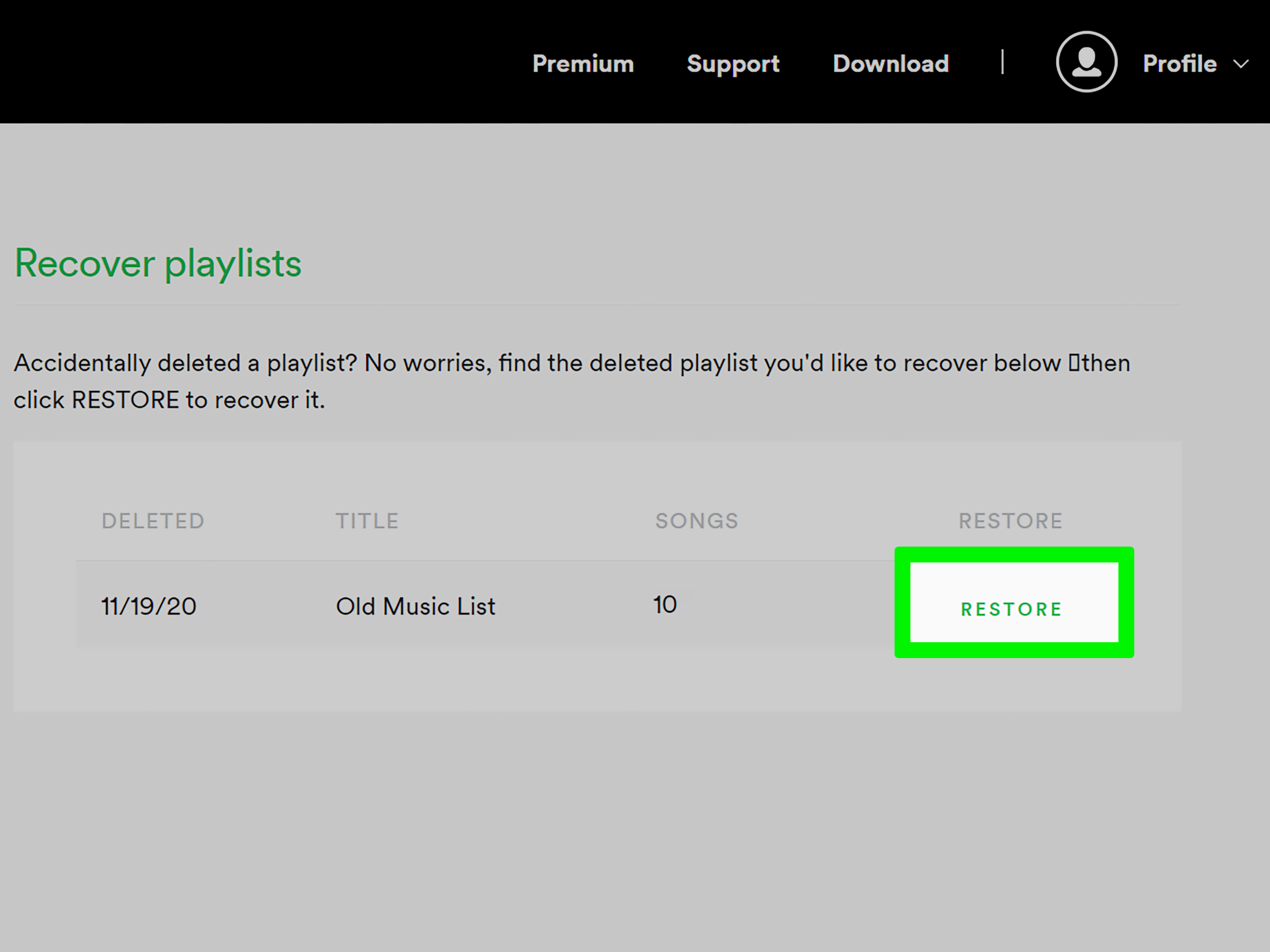
If you actually deleted a playlist, Spotify gives you a built-in recovery optionbut there is a time limit. Deleted playlists can usually be recovered only if they were deleted within the last 90 days. After that window, recovery becomes much less likely through Spotify’s normal tools.
To recover a deleted Spotify playlist, open Spotify in a web browser and log in to your account page. Look for the Recover playlists section. If the playlist is eligible, you should see it listed with a restore option. Click Restore, then return to Spotify and check the bottom of your playlist collection. Restored playlists often reappear there.
If you deleted something seconds ago on desktop, keyboard shortcuts may help immediately. On Mac, try Cmd + Z. On Windows, try Ctrl + Shift + Z. This is especially useful if you just removed a playlist or made a change and your soul briefly left your body.
What if the playlist was deleted more than 90 days ago?
If the playlist was deleted more than 90 days ago, Spotify’s standard recovery page may not show it. At that point, your best options are to search your data, check old shared links, ask friends who followed it, look for screenshots, review listening history, or rebuild the playlist from memory. It is not ideal, but many playlists can be reconstructed surprisingly well if you remember the mood, artists, and time period.
6. Make Sure You Are Logged Into the Right Account
This may sound obvious, but it is one of the most common reasons people cannot find old playlists. Many Spotify users accidentally create more than one account over the years. You may have signed up once with email, once with Facebook, once with Apple, once with Google, and once during a moment of password-related despair.
If an old playlist is missing, log out and try other login methods you may have used. Check old email addresses for Spotify messages or receipts. If you had Premium in the past, payment receipts can help identify the correct account. Your playlists are tied to the account that created or saved them, not necessarily the device you are using now.
A strong clue that you are in the wrong account is an empty Library, missing followers, a different username, or no listening history. If your Spotify looks like it just moved into a new apartment with no furniture, you may not be in your original account.
7. Look Inside Playlist Folders
Playlist folders are helpful for organizing Spotify, but they can also become tiny caves where old playlists hide for years. If you use Spotify on desktop, web player, or a current app version that supports folder management, check any folders in Your Library. Open each folder and scan the contents carefully.
For longtime Spotify users, folders can be especially important. You may have created folders years ago for workouts, travel, studying, parties, or seasonal music. A playlist may not appear where you expect because it is nested inside a folder or grouped with other playlists.
If you find old playlists this way, consider reorganizing them with clear folder names such as “Old Favorites,” “Travel Playlists,” “Workout Archive,” or “Do Not Delete Unless You Hate Joy.” Future you will appreciate the kindness.
8. Check Recent Activity and Listening History
Spotify’s recent activity features can help if you played the playlist recently but forgot its name. On mobile and desktop, look for Recents, Recently played, or similar areas that show music, podcasts, audiobooks, or playlists you have listened to or saved.
This method works best when the playlist is not very old in terms of listening activity. For example, if you played a playlist last month but created it five years ago, recent activity may surface it quickly. If you have not played it since 2017, the feature may not go back far enough.
Still, it is worth checking. Many users rediscover playlists by scrolling through recently played items and spotting a familiar cover image or title. Sometimes your memory does not remember the name, but your eyes recognize the vibe.
9. Search Your Friends’ Profiles
If the old playlist was shared socially, your friends may help. Search for friends’ profiles and look through their public playlists. If they saved, copied, or collaborated on a playlist you made, there may still be a clue on their profile.
You can also ask friends to search their own Spotify Library for the playlist name or a song they remember from it. If they followed your playlist, it may still appear for them unless it was deleted, made private, or removed from availability. If it was collaborative and you were not the owner, ask the owner to invite you again.
This is especially useful for old party playlists, road trip playlists, wedding playlists, college playlists, or shared work playlists. Social playlists often leave social breadcrumbs.
10. Check Collaborative Playlist Access
Collaborative playlists are a special case. If you made the playlist collaborative, other people may have been able to add, remove, or reorder songs depending on the permissions and setup. If you cannot find a collaborative playlist, ask yourself: did you create it, or were you only invited?
If someone else owned the playlist and you simply joined it, you may lose access if you remove it from Your Library, the owner changes sharing settings, the invite expires, or collaborators are removed. In that situation, the fastest fix is to contact the owner and ask for a fresh invitation.
For private playlist sharing, links may not last forever. If an old private playlist link no longer works, ask the owner to generate a new share link or make the playlist public temporarily.
11. Use Spotify Account Data to Rebuild Old Playlists
If a playlist is not recoverable through the normal recovery page, Spotify account data may still help. Spotify allows users to request a copy of certain personal data. Depending on what is included at the time of request, account data may contain playlist information such as playlist names, saved or created playlists, track names, artist names, album names, playlist descriptions, follower counts, and dates related to playlist changes.
This is not always instant, and it may not magically restore a deleted playlist inside the app. But it can help you rebuild an old playlist manually. If you receive a data file showing the songs that were in a playlist, you can create a new playlist and add those tracks again.
This method is best for users who care deeply about a playlist that is outside the 90-day recovery window. It takes more patience, but for a beloved playlistsay, the soundtrack to a first apartment, first marathon, or suspiciously dramatic breakupit can be worth the effort.
12. Look for Old Playlist Links, Screenshots, and Messages
Sometimes the playlist clue is outside Spotify. Search your text messages, email, social media DMs, notes app, old blog posts, Discord chats, Slack messages, or Instagram captions for Spotify links. Search terms like “open.spotify.com/playlist,” “Spotify playlist,” “playlist,” or the name of a friend who may have received it.
If you find an old playlist link, open it while logged into Spotify. If the playlist still exists and you have permission to access it, you may be able to save it again. If it no longer opens, the link can still provide clues, such as the playlist title in the preview text or the context in which you shared it.
Old screenshots can also help. Many people screenshot playlists for parties, workouts, wedding planning, or social posts. A single screenshot with five visible songs can be enough to rebuild the mood of the entire playlist.
13. Try the Desktop App or Web Player
If you usually use Spotify on your phone, try the desktop app or web player. Some Library management tasks are easier on a larger screen. Desktop search, sorting, folders, and profile navigation can feel less cramped than mobile.
The web player is also useful for checking whether a problem is device-specific. If a playlist appears on the web player but not your phone, the issue may be related to app cache, filters, downloads, or syncing. Try updating the app, clearing cache, restarting the device, or logging out and back in.
Do not underestimate the power of checking another device. Many “missing playlist” mysteries turn into “my phone app was being weird” mysteries, which is less dramatic but much easier to fix.
14. Save Versions of Playlists Before They Change
Some playlists, especially editorial or personalized playlists, update regularly. Spotify does not generally let you restore a specific older version of an updating playlist. If you love the current version of a playlist, save the tracks into your own playlist before it changes.
To do this, open the playlist, use the three-dot menu, and look for an option such as Add to other playlist. You can create a new playlist from those songs and name it something clear, such as “Discover Weekly – May 2026” or “Old Chill Mix Backup.”
This habit is excellent for Spotify playlists that refresh weekly or daily. If you hear a collection that feels perfect, capture it before the algorithm changes its mind and wanders off to recommend banjo covers of synth-pop songs.
15. Be Careful With Third-Party Playlist Tools
There are third-party tools that claim to export, organize, transfer, or back up Spotify playlists. Some can be useful, especially for exporting playlist track lists to a text or CSV file. However, be careful before granting account access. Review what permissions the tool requests, choose reputable services, and revoke access later if you no longer need the tool.
Never enter your Spotify password into an unofficial form. Reliable tools should use Spotify’s secure authorization process rather than asking directly for your login details. If a website promises impossible recovery, guaranteed playlist restoration after years, or “secret access” to deleted Spotify content, treat it like a suspicious email from a prince with a mixtape.
Quick Checklist: How to Find an Old Spotify Playlist
- Open Your Library and select the Playlists filter.
- Clear hidden filters such as Downloaded or category filters.
- Change sorting to recent, recently added, alphabetical, or creator.
- Search Spotify using playlist names, keywords, artists, or songs.
- Check your Spotify profile for public playlists.
- Use the account page to recover playlists deleted within 90 days.
- Try other login methods to make sure you are in the right account.
- Look inside playlist folders.
- Review recent activity or recently played items.
- Ask friends or collaborators if they still have access.
- Search old messages, emails, screenshots, and shared links.
- Request Spotify account data if you need clues for rebuilding.
- Try desktop, web player, and mobile to rule out app-specific issues.
Common Problems and What They Mean
“I restored the playlist, but I still cannot see it.”
Give Spotify a few minutes to sync, then check the bottom of your playlist collection. Also try refreshing the app, switching devices, or logging out and back in.
“I followed someone else’s playlist and now it is gone.”
The owner may have deleted it, renamed it, made it private, or changed access. Search the owner’s profile or ask them to share it again.
“My playlist is missing on mobile but visible on desktop.”
Check mobile filters, app version, cache, and login status. The playlist may still exist, but your mobile view may be hiding it.
“I deleted a playlist years ago. Can I recover it?”
Spotify’s normal deleted playlist recovery is time-limited. If it is beyond the recovery window, try old links, account data, screenshots, friends, and manual rebuilding.
Experience Notes: What It Feels Like to Hunt Down an Old Spotify Playlist
Finding an old Spotify playlist can feel strangely personal. It is not just a list of songs. It is a tiny time capsule with better rhythm. You open Spotify looking for one playlist, and suddenly you are remembering the apartment where you played it, the friend who sent you that one track, the bus ride where you looped the same chorus seventeen times, and the questionable haircut that somehow seemed brave at the time.
One of the most useful habits is to search emotionally before searching technically. That sounds dramatic, but it works. Ask yourself what the playlist was for. Was it a workout playlist? A breakup playlist? A road trip playlist? A cleaning playlist with the energy of someone pretending chores are a music video? Once you remember the purpose, you can usually remember one or two artists. Those artists can lead you back to songs, and those songs can help you rebuild the playlist if the original is gone.
Another helpful experience-based trick is to check your old communication trails. People often share playlists in moments: before a party, after a date, during a study session, while planning a trip, or when recommending music to a friend. Searching messages for “Spotify” or “playlist” can bring back links you forgot existed. Even if the link no longer works, the surrounding conversation may remind you of the playlist name or the songs inside it.
Desktop Spotify is also underrated for playlist archaeology. The larger screen makes it easier to scan folders, sort lists, and recognize old cover art. On mobile, everything can feel compressed, especially if your Library is crowded. On desktop, you can move slowly and methodically. It feels less like frantic scrolling and more like opening old boxes in a garageexcept the boxes contain indie pop, gym motivation, and one song you definitely added ironically.
If you do recover an old playlist, do yourself a favor and organize it right away. Rename it clearly if the title is vague. Add it to a folder. Consider making a backup copy by adding the songs to another playlist. If it is a playlist you never want to lose again, export or save the track list somewhere outside Spotify. It may sound excessive, but anyone who has lost a carefully curated playlist knows that “I’ll remember the songs” is a lie we tell ourselves with confidence.
Finally, accept that rebuilding a playlist can be part of the fun. Sometimes you will not recreate the original perfectly, but you will create a better version. You will keep the songs that still hit, skip the ones that aged like milk in a hot car, and add new tracks that match the same feeling. In a way, finding old playlists on Spotify is less about recovering the past exactly and more about reconnecting with it. The playlist may have started years ago, but your relationship with the music is still playing.
Conclusion
Old Spotify playlists are not always lost. Many are simply hidden behind filters, sorting settings, folders, account confusion, privacy changes, or device syncing issues. Start with Your Library, clear filters, search smartly, check your profile, try desktop, and confirm you are using the correct account. If you deleted the playlist recently, use Spotify’s recovery page as soon as possible. If the recovery window has passed, look for clues in account data, old links, screenshots, friends’ profiles, and listening history.
The best long-term solution is prevention. Save playlist versions before they update, organize important playlists into folders, keep memorable names, and consider exporting track lists for playlists you truly care about. Your future self may not remember what “vibes 3 final final” means, but with a little organization, at least they will be able to find it.
Note: Spotify features, labels, and button locations can vary by device, region, app version, and account type. Always check the latest Spotify app or account page if a menu name looks slightly different.