Changing your Tumblr profile picture sounds like one of those tiny internet chores that should take ten seconds. Then suddenly you are three menus deep, wondering whether Tumblr calls it a profile picture, avatar, blog icon, or “that little image that follows you around like a very stylish digital hamster.” Good news: on Tumblr, your profile picture is usually referred to as your avatar, and updating it is simple once you know where to look.
This guide walks you through how to change your profile picture on Tumblr using the web version and the mobile app. You will also learn the best image size, supported file formats, troubleshooting tips, and small design choices that can make your Tumblr avatar look sharp instead of mysteriously crunchy.
What Is a Tumblr Profile Picture?
Your Tumblr profile picture is the image attached to your blog identity. It appears beside your posts, replies, reblogs, asks, blog page, and sometimes in search or recommendation areas. Tumblr often calls this image an avatar, while many users casually call it a profile photo, profile picture, icon, or pfp.
One important detail: Tumblr is built around blogs, not just accounts. That means if you manage more than one Tumblr blog, each blog can have its own avatar. Your main blog can use a selfie, your art blog can use a logo, and your chaotic reblog cave can use a possum wearing sunglasses. Tumblr will not judge. Probably.
Before You Start: Pick the Right Image
Before you open Tumblr settings, choose an image that works well at small sizes. Tumblr profile pictures are often displayed as tiny circles or squares, so avoid images with tiny text, crowded backgrounds, or important details near the edges.
Best Tumblr Profile Picture Size
The commonly recommended Tumblr avatar size is 128 x 128 pixels. You can upload a larger square image, but a clean 1:1 ratio usually gives the best result. Tumblr supports common formats such as JPEG, PNG, and WEBP, and the file should be under the platform’s upload limit. If you use an animated GIF as an avatar, do not expect it to stay animated everywhere; Tumblr may convert it into a static image.
Quick Image Tips
Use a centered subject, strong contrast, and a simple background. If your image includes a face, logo, pet, drawing, or character, keep the main subject in the middle. Since Tumblr may crop avatars into circles in some places, the corners are not prime real estate. Do not place your masterpiece’s emotional climax in the top-right corner unless you enjoy tragedy.
How to Change Your Profile Picture on Tumblr: 10 Steps
Here is the clean, beginner-friendly version of the process. Menu labels can shift slightly as Tumblr updates its interface, but the general path is the same: go to your blog, open appearance settings, select the avatar, upload your image, and save.
Step 1: Log In to Tumblr
Open Tumblr in your browser or launch the Tumblr mobile app. Sign in to the account connected to the blog you want to edit. If you manage multiple accounts or blogs, double-check that you are in the right place before changing anything. Nothing says “oops” like giving your serious writing blog the same avatar as your meme blog.
Step 2: Go to Your Account or Blog Area
On desktop, look for the account or settings area in the sidebar. On mobile, tap the account icon, usually represented by a small person-shaped symbol. This takes you to the area where your blogs and blog settings live.
Step 3: Select the Correct Tumblr Blog
If you only have one blog, this part is easy. If you have multiple blogs, choose the blog whose profile picture you want to update. Remember, Tumblr avatars are tied to individual blogs, so changing one blog’s avatar does not automatically change every other blog you own.
Step 4: Open Blog Settings or Edit Appearance
On the web version, select your blog and look for an option such as Edit appearance or Blog settings. In the mobile app, open your blog and look for the appearance editor, often shown with a palette or edit icon. This is the control room for your blog’s visual identity.
Step 5: Click or Tap Your Current Avatar
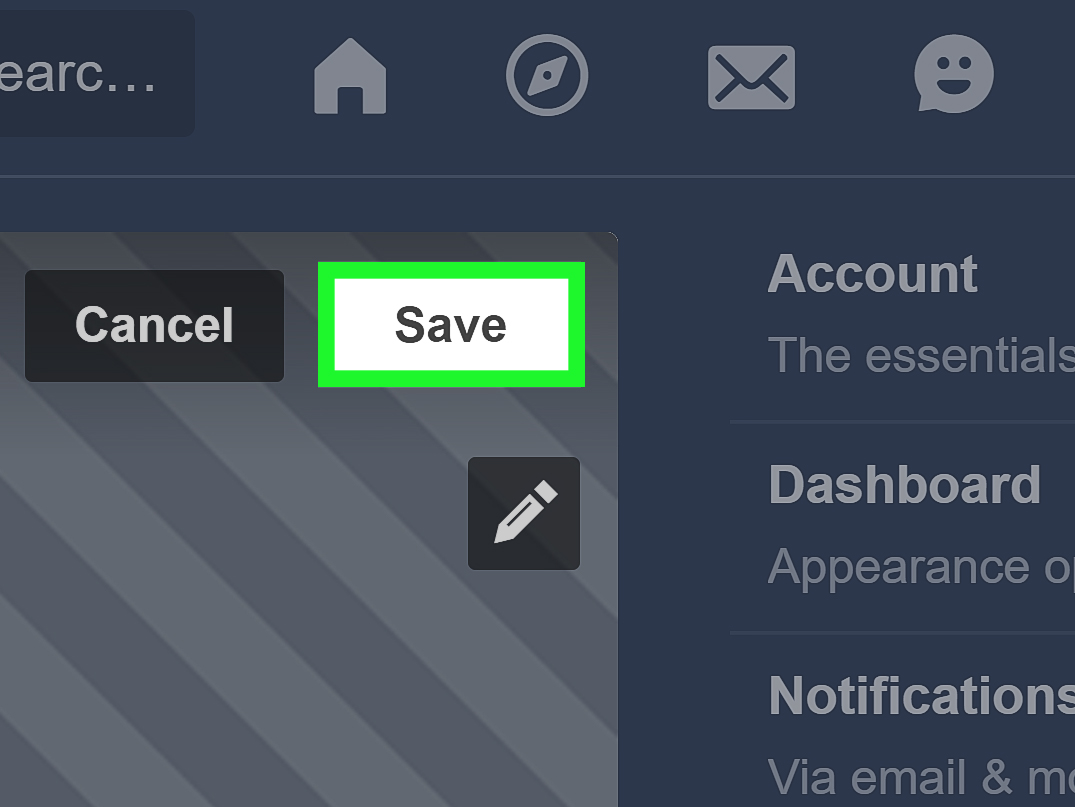
Once you are inside the appearance editor, find your current avatar. It may be a default image, your old profile picture, or something you uploaded during a mysterious burst of creativity in 2017. Click or tap the avatar. On desktop, you may see a pencil icon over or near the profile picture. On mobile, tapping the avatar usually opens upload or edit options.
Step 6: Choose Upload or Change Image
Select the option to upload a new image. Tumblr may let you choose a file from your computer, camera roll, or device gallery. Pick the image you prepared earlier. A square image works best because it reduces awkward cropping.
Step 7: Adjust the Crop
If Tumblr gives you cropping controls, use them carefully. Center the most important part of the image. For a face, keep the eyes and main features comfortably inside the crop. For a logo, leave breathing room around the edges. For a cat, just accept that the cat is now your brand manager.
Step 8: Preview the New Profile Picture
Look at the preview before saving. Ask yourself: Is the image clear? Is anything cut off? Does it still make sense when it appears small? A beautiful full-size photo can turn into a tiny blur when squeezed into an avatar. If the preview looks messy, crop again or choose a simpler image.
Step 9: Save Your Changes
After uploading and adjusting the image, save the changes. This step matters. If you close the page or app too early, Tumblr may not apply the update. Wait for confirmation or check whether the new avatar appears in the editor.
Step 10: Refresh and Check Your Blog
Visit your blog, dashboard, or a recent post to confirm that the new Tumblr profile picture appears correctly. If the old image still shows, refresh the page, restart the app, or wait a few minutes. Sometimes profile images take a little time to update across different parts of Tumblr because cached images can linger like a ghost with excellent Wi-Fi.
How to Change Your Tumblr Profile Picture on Desktop
If you are using Tumblr on a computer, the process is usually easiest from the web dashboard. Log in, open Settings, select the blog you want to customize, and choose Edit appearance. Click the pencil icon or avatar area, upload your new image, adjust it, and save.
Desktop is especially helpful if you are uploading a carefully edited image, such as a brand logo, digital illustration, or polished profile photo. A larger screen makes it easier to spot cropping problems before the image goes live.
How to Change Your Tumblr Profile Picture on Mobile
On the Tumblr app, tap the account icon, choose the blog you want to update, and open the appearance editor. Tap your avatar, select a photo from your device, crop it if needed, and save. Mobile is convenient if your image is already in your camera roll or if you want to take a new picture quickly.
If the app does not show the option you expect, update the Tumblr app from your device’s app store. Interface changes often arrive through app updates, and an outdated version may hide features or behave strangely.
Why Your Tumblr Profile Picture Might Not Update
Sometimes you follow every step correctly and Tumblr still shows the old avatar. Annoying? Yes. Rarely permanent? Also yes. Here are the most common causes.
Browser or App Cache
Your browser or app may be showing a saved version of the old image. Try refreshing the page, clearing your browser cache, closing and reopening the app, or checking from another device.
Image File Problems
If the file is too large, unsupported, corrupted, or oddly formatted, Tumblr may fail to upload it properly. Convert the image to JPEG, PNG, or WEBP and keep the file size reasonable. A simple square image is usually the safest choice.
Weak Internet Connection
An unstable connection can interrupt the upload. If the save button spins forever or the image reverts back, switch networks and try again.
Wrong Blog Selected
This happens more often than people admit. If you manage multiple Tumblr blogs, make sure you changed the avatar on the correct one. Your main blog and side blogs can have separate profile pictures.
Best Practices for a Great Tumblr Avatar
A good Tumblr avatar should be recognizable at a glance. It does not need to be fancy; it needs to be clear. Think of it as your blog’s tiny handshake.
Use a Consistent Visual Style
If your Tumblr is about art, use your own illustration or a detail from your work. If it is a personal blog, use a photo or symbol that feels like you. If it is a fandom blog, choose an image that matches the blog’s theme without becoming visually cluttered.
Avoid Tiny Text
Text usually performs badly in avatars unless it is large, bold, and simple. A full quote, slogan, or paragraph will shrink into decorative dust. Save the deep message for your blog description.
Think About Circle Cropping
Even if your avatar is uploaded as a square, Tumblr may display it as a circle in some areas. Keep important details away from the edges. Center the subject and leave space around it.
Match Your Header and Theme
Your avatar does not have to match your header image perfectly, but it should feel like it belongs. A neon avatar on a soft pastel blog can work if that is your style, but accidental visual chaos can make a profile feel unfinished.
Common Questions About Tumblr Profile Pictures
Is a Tumblr Profile Picture the Same as an Avatar?
Yes. On Tumblr, the terms profile picture, avatar, icon, and blog image are often used to describe the same thing. Tumblr’s official settings commonly use the word avatar.
Can I Hide My Tumblr Avatar?
Tumblr appearance settings may include options to hide or customize how your avatar appears. Availability can vary depending on whether you are using the app, desktop version, or a custom blog theme.
Can Each Tumblr Blog Have a Different Profile Picture?
Yes. Since Tumblr lets users manage multiple blogs, each blog can have its own avatar, title, description, header, and visual style.
Why Does My Avatar Look Blurry?
Your image may be too small, too detailed, or heavily compressed. Try uploading a clean square image with a centered subject. Avoid screenshots of screenshots of screenshots. By the third generation, even your avatar starts questioning its identity.
Extra Experience: What I Learned From Changing Tumblr Profile Pictures
Changing a Tumblr profile picture seems like a tiny design decision, but it can completely change how a blog feels. I have seen blogs go from “abandoned digital attic” to “cozy creative corner” just by replacing a default avatar with a clear, intentional image. The funniest part is that people often spend hours customizing colors, fonts, headers, and themes, then leave the avatar as an afterthought. But the avatar is usually the first thing other users notice in the dashboard.
One useful lesson is that simple images almost always win. A detailed landscape might look beautiful full-size, but as a Tumblr avatar it can become a postage stamp of confusion. A close-up crop, bold illustration, simple logo, or high-contrast symbol works much better. If you are choosing between a complicated image and a clean one, pick the clean one. Tumblr avatars live in small spaces, and small spaces reward clarity.
Another experience-based tip: always check the avatar on both desktop and mobile. An image that looks perfect on your laptop might feel too zoomed-in on your phone. Mobile displays tend to make cropping issues more obvious because the avatar appears in different contexts. If your subject is too close to the edge, circle cropping can slice it in a very rude way. Give your image some padding. Your future self will thank you.
It is also smart to keep a backup copy of your avatar file. If you are building a recognizable Tumblr identity, consistency matters. Save the original image somewhere easy to find, especially if you use the same profile picture across other platforms. That way, if you change your theme, update your header, or accidentally upload the wrong image, you can quickly restore your look without digging through 4,000 unnamed files called “final_final_REAL.png.”
Finally, do not overthink the update. Your Tumblr profile picture should support your blog’s personality, not trap you in a branding crisis. If your blog is casual, your avatar can be casual. If your blog is artistic, make it expressive. If your blog is mysterious, choose something moody. The best Tumblr avatars feel like a tiny front door: they invite the right people in and give them a hint of what kind of internet house they are entering.
Conclusion
Learning how to change your profile picture on Tumblr is easy once you know where Tumblr keeps the avatar controls. Whether you use desktop or mobile, the basic process is the same: open your blog settings, edit appearance, tap or click your avatar, upload a new image, crop it, save it, and check the result.
For the best look, use a square image, keep the subject centered, avoid tiny text, and remember that Tumblr may show your avatar as either a circle or square depending on the context. A strong profile picture makes your blog easier to recognize and gives your Tumblr presence a polished, personal touch. Tiny image, big personality. Very Tumblr.
SEO Tags
Note: This article was created from current Tumblr profile, avatar, appearance, and image-upload guidance, rewritten in original American English for web publishing.