Sometimes you want to play Call of Duty: Modern Warfare II without assembling a six-person squad, joining voice chat, or explaining why you ignored three invitations while quietly leveling an unloved assault rifle. There is nothing wrong with wanting a peaceful session. Even virtual soldiers need personal space.
Unfortunately, appearing offline in CoD: Modern Warfare 2 is not always as simple as flipping one universal switch. The game uses an Activision account for cross-platform features, while Steam, Battle.net, PlayStation Network, and Xbox each operate their own social systems. As a result, hiding on one friends list may not hide you on another.
This guide explains three practical ways to appear offline in Modern Warfare 2, including the in-game status option, platform-level privacy controls, and Activision account settings. It also covers common problems that can leave you visible after you have supposedly vanished.
Why Modern Warfare 2 Has More Than One Online Status
Modern Warfare II, the 2022 release, supports PlayStation, Xbox, Steam, and Battle.net. Your multiplayer progress is tied to an Activision account, allowing linked platforms to share progression. That cross-platform convenience also creates multiple social layers: your platform friends list, your Activision friends list, your launcher status, and your current in-game presence.
Think of it like closing the blinds while leaving the front door open. Your Xbox friends may see you as offline, but an Activision friend could still notice you in the Call of Duty social menu. Steam may show you as invisible while a recently joined party still knows you are playing. Privacy, apparently, has its own Gunsmith system.
Menu names can also differ slightly after interface updates. Modern Warfare II has received social-menu changes, launcher adjustments, and fixes for bugs that incorrectly displayed players as offline. Therefore, focus on the purpose of each setting rather than expecting every button to appear in precisely the same location forever.
Way 1: Change Your Status Inside Modern Warfare 2
The fastest option is to look for an online-status control directly inside the game. This setting is useful because it targets the Call of Duty social interface rather than only your console or PC launcher.
How to Use the In-Game Appear Offline Setting
- Launch Call of Duty: Modern Warfare II and wait for the main menu to load completely.
- Open the main side menu or Call of Duty menu by pressing the appropriate menu button on your controller or keyboard.
- Navigate to your profile icon, player card, or account panel.
- Find the option labeled Online Status, Appear Online, or something similar.
- Select Appear Offline.
- Close and reopen the Social menu to confirm that the new status has been applied.
On some versions of the interface, PC players can reach the status menu by selecting their profile near the top of the screen. Controller users may need to move between menu tabs with RB or R1 until the profile section appears. Gaming guides covering the original Modern Warfare II interface have documented this profile-based status control, although its availability has varied across platforms and updates.
When This Method Works Best
Use the in-game option when you primarily want to hide from Activision friends who normally find you through the Call of Duty Social screen. It is also convenient when you do not want to change your entire console or launcher presence.
However, this setting may not conceal everything. Friends on your native platform could still see that you are using the game, especially if your PlayStation, Xbox, Steam, or Battle.net profile remains online. If the in-game option is missing, grayed out, or ineffective, move to the second method.
Way 2: Appear Offline Through Your Platform or Launcher
Your platform status controls what friends on that specific network can see. The correct steps depend on where you own Modern Warfare II.
Steam: Use Invisible Status
- Open the Steam desktop client.
- Click Friends & Chat near the lower-right corner.
- Select the arrow beside your Steam profile name.
- Choose Invisible.
Invisible is usually preferable to Steam’s full Offline Mode. Invisible status allows you to remain connected while appearing offline to Steam friends. Offline Mode is designed for using Steam without an active connection and can interfere with games that require online authentication or multiplayer services. Steam’s support materials distinguish social visibility controls from its separate game-launching Offline Mode.
This change mainly affects Steam friends. Activision friends who added you through your Activision ID may still see your Call of Duty presence.
Battle.net: Select Appear Offline
- Open the Battle.net desktop application.
- Click your profile image or account name.
- Open the status menu.
- Select Appear Offline.
- Launch Modern Warfare II after changing the status.
Battle.net’s setting hides your online presence from Battle.net friends, making it helpful when you want to play without generating launcher-level activity notifications. Because Modern Warfare II also has an Activision friends system, changing Battle.net alone may not provide complete cross-platform invisibility.
PlayStation 5 and PlayStation 4
On PlayStation 5:
- Press the PS button to open the Control Center.
- Select your profile image.
- Choose Online Status.
- Select Appear Offline.
You can also adjust privacy settings to hide specific games or gaming activity from other users. PlayStation officially notes that selecting Appear Offline from the profile screen prevents other players from seeing what you are currently playing through normal PlayStation presence features.
On PlayStation 4, open your profile or the Quick Menu, choose Online Status, and select Appear Offline. The wording can differ slightly depending on system software, but the status control remains attached to your PlayStation profile.
Xbox Series X|S and Xbox One
- Press the Xbox button to open the guide.
- Go to Profile & system.
- Select your gamerpic or profile.
- Choose your current online status.
- Select Appear offline.
Xbox also provides privacy controls for deciding who can see your online activity. Its official support instructions allow players to switch directly between appearing online and appearing offline without disconnecting the console from Xbox services.
Do not confuse Appear offline with the Xbox network option called Go offline. The first changes what people see; the second disconnects the console from online services. One is a privacy curtain. The other turns off the building’s electricity.
Way 3: Adjust Your Activision Account Visibility
If platform-level settings do not hide you from cross-platform friends, review the account connected to your Activision ID. This method is particularly relevant when someone added you through Activision rather than Steam, PlayStation Network, Xbox, or Battle.net.
How to Review Activision Visibility Settings
- Open the official Activision website in a browser.
- Sign in using the same Activision account linked to Modern Warfare II.
- Open your profile, account management, privacy, or account-linking section.
- Locate the platform connected to your Activision account.
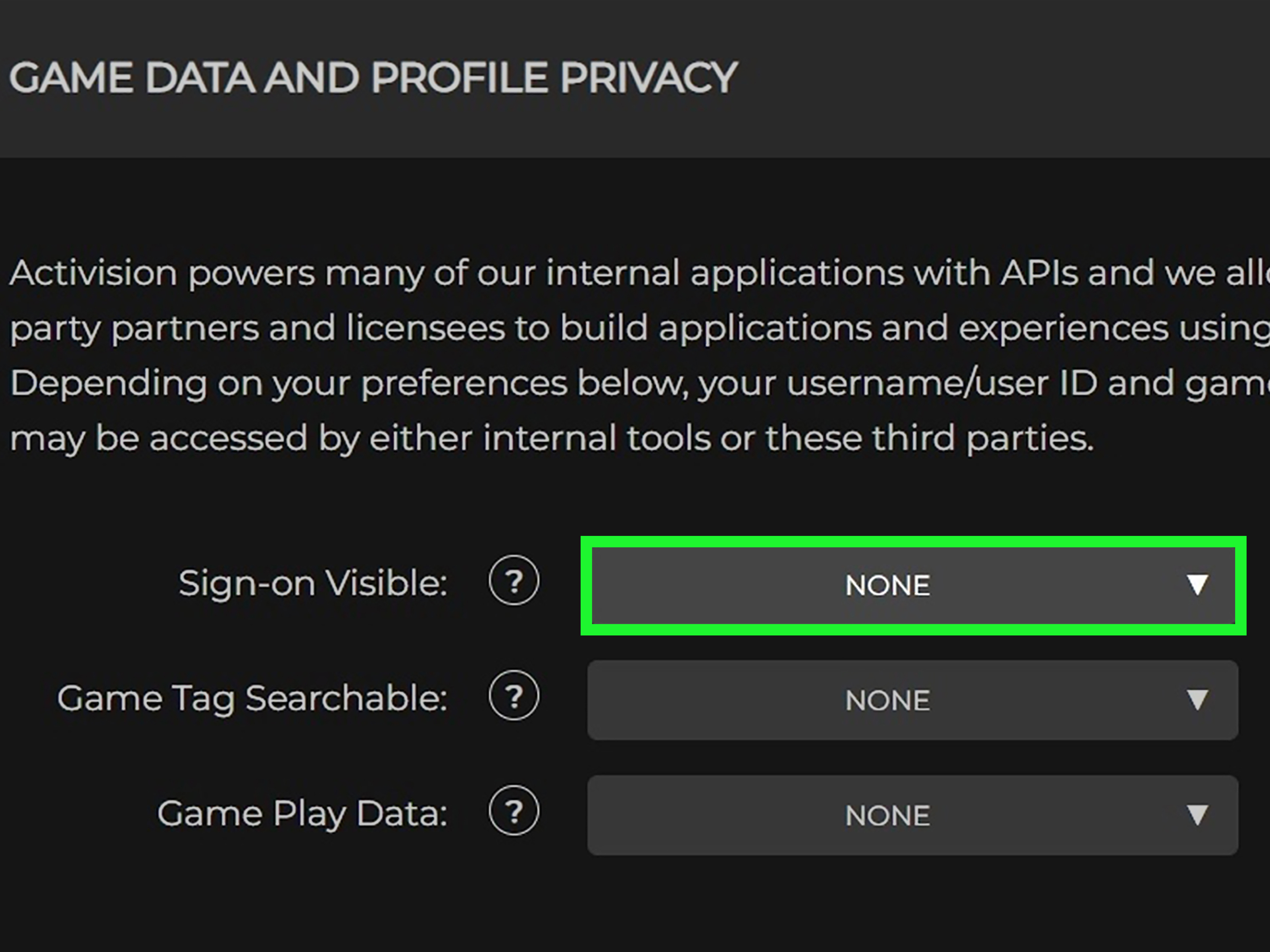
- Look for a visibility option such as Sign On Visible.
- Set the option to None or disable sign-on visibility, when that control is available.
- Save the change, sign out of the game, and restart your launcher or console.
Older versions of Activision’s account-management interface placed Sign On Visible under linked-account settings. Gaming publications have documented this method as a way to stop platform sign-ins from being visible through the Activision social layer. The present account site may organize the controls differently, so check profile, privacy, and linked-account pages rather than relying on one exact menu path.
Why the Activision Setting Matters
Setting your PlayStation profile to appear offline mainly affects PlayStation friends. The same principle applies to Xbox, Steam, and Battle.net. An Activision friend can exist outside those networks, so Activision account visibility may need to be adjusted separately.
For the strongest result, combine the Activision setting with your in-game and platform status. It is less elegant than pressing one giant “leave me alone” button, but it covers more of the game’s social ecosystem.
Which Method Should You Use?
| What You Want to Do | Best Method |
|---|---|
| Hide from Call of Duty friends | Use the in-game status and review Activision visibility |
| Hide from Steam friends | Set Steam status to Invisible |
| Hide from Battle.net friends | Choose Appear Offline in Battle.net |
| Hide from PlayStation friends | Set your PlayStation online status to Appear Offline |
| Hide from Xbox friends | Set your Xbox profile to Appear offline |
| Reduce visibility across multiple networks | Combine the platform, in-game, and Activision methods |
What to Do If You Still Appear Online
Restart the Game and Launcher
Online presence can remain cached after you change a setting. Completely close Modern Warfare II and restart Steam, Battle.net, or your console. Do not simply return to the title screen and assume the status has refreshed.
Check That You Changed the Correct Account
Players who own the game on several platforms sometimes have multiple profiles, old email addresses, or incorrectly linked accounts. Confirm that the Activision ID shown in the game matches the account you edited in the browser.
Test With Two Different Friends
Ask one platform friend and one Activision friend to check your status. This helps identify which social layer is exposing your activity. If your Xbox friend sees you as offline but your Activision friend sees you in a lobby, the Xbox setting worked; the Activision layer did not.
Change Your Party Privacy
Appearing offline does not necessarily close your party. Review your party or lobby settings and use Invite Only, Closed, or the closest available option. Otherwise, a friend who already knows you are playing may still be able to join.
Disable Invitations and Social Notifications
If your real goal is uninterrupted play rather than perfect invisibility, reducing invitations may solve the problem more effectively. Check the game’s notification settings and your platform’s communication preferences. You can hide from the world, but if the invitation sound still fires every thirty seconds, the world has technically won.
Allow Time for Status Synchronization
Cross-platform presence is not always updated instantly. Wait a few minutes after changing your status, especially when editing an account setting through a browser. A delayed update does not automatically mean the method failed.
Consider a Temporary Social-Menu Problem
Modern Warfare II has previously received fixes for Recent Players and Social lists incorrectly showing users as offline. The reverse situation can also feel similar from a player’s perspective: a privacy control may appear to be selected while another social surface displays stale information. Restarting, checking service status, and testing again later can rule out a temporary synchronization issue.
Does Appearing Offline Affect Matchmaking?
Normally, no. Appear Offline and Invisible settings are designed to change social presence, not disable multiplayer connectivity. You should still be able to search for public matches, earn progression, complete challenges, and access online modes.
The exception is when you accidentally select a true offline mode. Steam Offline Mode, Xbox’s Go Offline network setting, or disconnecting the console from the internet can prevent online matchmaking. Always choose a presence setting rather than a network-disconnection option.
Can Friends Still Discover That You Are Playing?
Appearing offline improves privacy, but it is not an invisibility cloak borrowed from a wizard. Someone may infer that you are active from recent statistics, leaderboard movement, shared matches, mutual friends, party activity, or messages you send. A friend who encounters you in matchmaking will also receive a fairly convincing clue.
If you want privacy from a specific person, consider removing or blocking that account rather than relying permanently on offline status. If you merely want an hour of solo camo grinding, appearing offline is usually enough.
Experience Notes: What Playing Modern Warfare 2 Offline Actually Feels Like
The first lesson from using offline status is that changing one setting rarely covers every type of friend. A PlayStation player may switch to Appear Offline, launch Modern Warfare II, and assume the operation has been completed with special-forces precision. Five minutes later, an Activision friend sends a party invitation. The problem is not necessarily that the PlayStation setting failed. It successfully hid the player on PlayStation Network, while the separate Activision friends list continued reporting activity.
The most practical routine is to decide whom you are trying to avoid before changing anything. When the invitations normally come from Steam friends, Steam’s Invisible status may be all you need. When they come from cross-platform teammates, the in-game status or Activision visibility setting becomes more important. Changing every available privacy control works, but it can also create confusion later when you forget which switch made you disappear.
Another useful experience is testing the result rather than trusting the icon beside your name. Ask a friend to check your profile before and after the change. Ideally, test with one person from your native platform and another person who added you through Activision. This simple experiment reveals whether you are hidden everywhere or merely wearing camouflage on one side of the map.
Restarting also matters more than most players expect. Social menus often keep old presence information for a while, especially after the game has been suspended, resumed, or left running in the background. On consoles, completely closing the game can produce a different result from returning to the home screen. On PC, exiting both the game and its launcher may be necessary. It feels excessive, but restarting remains gaming’s most decorated field technician.
Party privacy is the setting people most often forget. You can appear offline and still leave your party open or joinable. A determined friend may not see the usual green online indicator, yet still find a route into your lobby through a recent invitation, group, or shared teammate. Switching the party to Invite Only creates a second barrier and is often more effective than status privacy alone.
There is also a social advantage to appearing offline that has nothing to do with avoiding people. Solo sessions let you practice unfamiliar weapons, adjust sensitivity, learn maps, and complete tedious challenges without feeling pressure to perform for a team. You can experiment with a questionable loadout, lose several matches, and blame absolutely nobody but the person who designed ityou.
Still, offline status should be treated as a convenience rather than a permanent solution to unwanted interactions. If one particular account repeatedly bothers you, use the game’s mute, remove, report, or block functions where appropriate. Appearing offline is excellent for creating quiet time. It is less effective as a long-term substitute for managing your friends list and communication boundaries.
In everyday use, the best combination is usually simple: set the launcher or console to appear offline, select the same status inside Call of Duty when available, and make the party private. Only visit the Activision account page when cross-platform visibility continues to cause trouble. That approach provides privacy without turning a ten-minute gaming break into a cybersecurity audit.
Conclusion
There are three main ways to appear offline in CoD: Modern Warfare 2: change your in-game presence, use the offline or invisible status provided by your launcher or console, and adjust the visibility of your linked Activision account. Because Modern Warfare II combines platform friends with cross-platform Activision friends, one method may not hide you from everyone.
Start with the easiest option for your platform. If invitations continue arriving, combine it with the in-game setting, Activision visibility controls, and a private party. Once everything is configured, you can finally grind weapons alone without your friends forming a rescue squad every time your name turns green.
SEO Data
Note: Menu labels and account controls may change after game, launcher, or platform updates. If an option is unavailable, use the equivalent profile, privacy, presence, or linked-account setting provided by your current version.