Splitting a restaurant bill used to involve mental math, loose change, and one friend mysteriously disappearing when the check arrived. Facebook Messenger offers a simpler option: eligible users can send or request money directly from a private conversation.
The feature is commonly associated with Meta Pay, formerly called Facebook Pay. Depending on your account and the latest app rollout, Messenger may process the transfer through Meta Pay or ask you to connect a supported PayPal or Venmo wallet. Either way, the basic idea is the same: open a chat, select the money-transfer option, enter an amount, review the details, and confirm.
This guide explains how to send money through Facebook Messenger, request repayment, manage payment methods, avoid scams, and solve common transaction problems. The instructions reflect U.S. availability as of July 2026, but Meta frequently rearranges buttons as though app menus were living-room furniture.
Can You Still Send Money Through Facebook Messenger?
Yes, person-to-person payments remain available to eligible Messenger users in the United States. However, the feature is not universally available, and several requirements apply.
Messenger payment eligibility requirements
To send or receive money, both participants generally must:
- Be physically located in the United States.
- Be at least 18 years old.
- Have active Facebook accounts.
- Use U.S. dollars as their preferred currency.
- Have an accepted payment method or supported wallet connected.
- Use Messenger on a supported mobile device.
Since December 16, 2024, Messenger person-to-person payments have not been available when either participant is located in Wisconsin. Meta also states that money cannot be sent or received through a group chat. Use a private, one-to-one conversation instead.
Availability can vary by account, device, app version, payment provider, and security status. If the payment button is absent, that does not necessarily mean you overlooked it. The feature may not be enabled for your account or location.
What You Need Before Sending Money
Before attempting a transfer, update Messenger through the Apple App Store or Google Play Store. An outdated version can hide newer controls or produce the technological equivalent of a blank stare when you tap a button.
Set up an accepted payment option
Messenger may offer a native Meta Pay setup, a linked PayPal account, a connected Venmo wallet, or another supported funding option. The exact choices shown depend on the version available to you.
For Meta Pay settings, open Facebook or Messenger and look under your profile, Settings, Accounts Center, Orders and Payments, or Meta Pay. Menu names change periodically, so use the settings search bar if one is available.
Follow the prompts to add an eligible debit card or connect a supported wallet. A PayPal-powered transfer may let you select a PayPal balance, bank account, debit card, or credit card, depending on PayPal’s rules and your account. Always review the funding source before confirming because different providers may apply different fees.
Add payment security
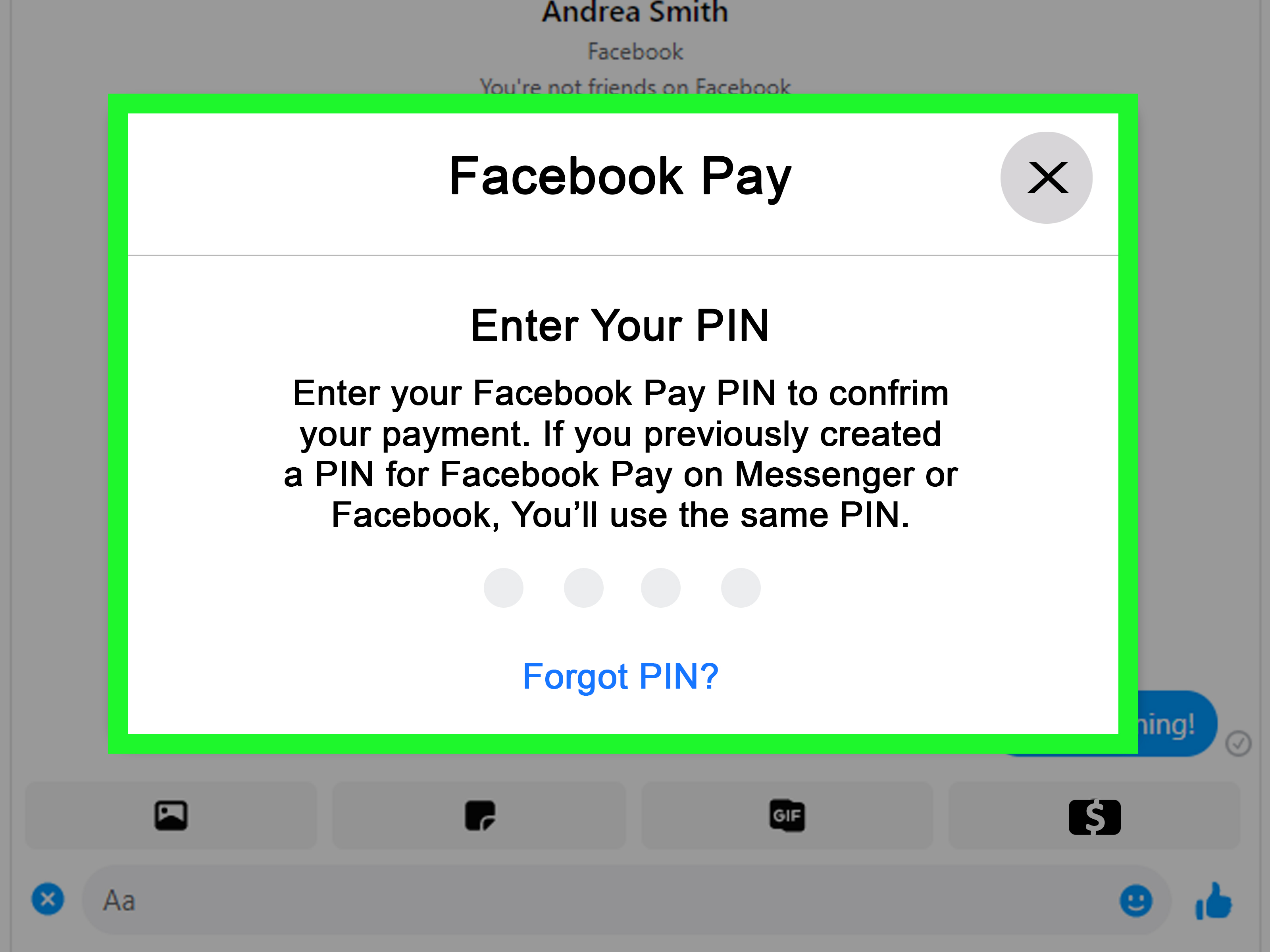
Meta Pay may ask you to create a payment PIN. In supported situations, you can also enable Face ID, Touch ID, or another biometric confirmation method. This payment PIN is separate from any PIN Messenger uses to restore encrypted chats.
Also protect the underlying Facebook account with a strong, unique password, login alerts, and two-factor authentication. A four-digit payment PIN is useful, but it should not be expected to perform every security job by itself.
How to Send Money with Facebook Messenger
The precise button labels differ among iPhone, iPad, and Android versions, but the usual process is straightforward.
Step 1: Open a private conversation
Launch the Messenger mobile app and open the one-to-one conversation with the person you want to pay. Check the recipient’s full profile carefully, especially when multiple contacts have similar names or identical enthusiasm for sunset profile photos.
Step 2: Find the payment feature
Tap the plus sign beside the message field, the four-dot menu, the conversation information icon, or another actions button. Select an option labeled Payments, Pay, Send Money, or Money Transfer.
If you cannot find it, update the app and confirm that both people meet the eligibility requirements. Remember that the feature is mobile-only and unavailable in group conversations.
Step 3: Enter the amount
Type the amount you want to send. Add a short note explaining the payment, such as “half of dinner,” “July utilities,” or “reimbursement for the emergency birthday cake.” A clear description makes the transaction easier to recognize later.
Step 4: Select the funding source
If Messenger presents multiple payment methods, choose the one you intend to use. Some accounts may remain inside a Meta Pay screen. Others may be redirected securely to PayPal or Venmo to connect a wallet and select a bank account, card, or wallet balance.
Review any fee disclosure before continuing. Meta’s native person-to-person payment feature has traditionally not charged a Messenger fee, but PayPal, Venmo, a card issuer, or another provider may charge for certain funding methods, transaction types, instant transfers, or currency services.
Step 5: Review and confirm
Before tapping Pay, Send, or Confirm, verify:
- The recipient’s name and profile.
- The dollar amount and decimal point.
- The selected funding method.
- Any displayed fee.
- The purpose or payment category, if one is offered.
Complete the required PIN or biometric verification. A payment card should then appear in the conversation, and the transfer should also appear in your transaction history.
How to Request Money on Facebook Messenger
A payment request is useful when someone owes you a specific amount. It also reduces the risk that the payer will select the wrong profile or send $230 when the taco bill was $23.
Request money through a Messenger chat
- Open a private conversation with the person who owes you money.
- Tap the plus sign, actions menu, or conversation information button.
- Select Payments, Money Transfer, or a similar option.
- Choose Request rather than Pay.
- Enter the amount and add a clear note.
- Review the information and send the request.
The other person can open the request card, review it, choose an available funding source, and approve the payment. A request is not an automatic charge. It is closer to a digital nudgepolite, specific, and much harder to pretend was lost under a refrigerator magnet.
Use a payment link if Request is unavailable
Some accounts may show a send option without a native request button. If Messenger directs payments through PayPal, you can create a PayPal request link and share it privately in the conversation. Do not post a payment link publicly. Anyone with access to certain links may be able to use or claim them, depending on the link type.
How to Receive Money
When an eligible friend sends you money, Messenger displays a payment notification in your chat. If your payment method or wallet is already connected, the transfer may process automatically. First-time recipients may need to accept the payment, link an eligible method, verify their identity, or connect PayPal or Venmo.
The time required for funds to become available depends on the payment route, recipient setup, bank, card issuer, security review, weekends, and holidays. An on-screen success message means the transfer was initiated; it does not always mean the recipient’s bank has completed posting it.
Open the payment card or your transaction history to check whether a transfer is completed, pending, declined, or canceled. Never rely on a screenshot supplied by a buyer or stranger. Confirm the payment inside your own account before handing over an item, issuing a refund, or declaring the pizza debt officially settled.
How to Find Your Messenger Payment History
You can usually inspect a transaction by tapping its payment card in the conversation. Messenger and Facebook may also place payment records under a path such as:
- Profile or Menu
- Settings or Accounts Center
- Meta Pay, Orders and Payments, or Payments
- Activity or Transaction History
If PayPal or Venmo processed the transfer, check that wallet’s Activity section as well. Save relevant transaction IDs, dates, amounts, status messages, and correspondence when reporting a problem.
Can You Cancel a Messenger Payment?
Do not assume that a completed person-to-person payment can be canceled. Transfers through payment apps often behave more like cash than credit-card purchases. Once the recipient receives or claims the money, recovery may require the recipient to return it voluntarily.
A transaction that remains pending because the recipient has not connected or claimed the payment may sometimes have a cancellation option. Open its details in Messenger, Meta Pay, PayPal, or Venmo and look for Cancel. The available action depends on the processor and transaction status.
If you sent money to the wrong person, contact them immediately, report the mistake through the appropriate payment service, and notify your bank or card issuer. A mistaken authorized payment and an unauthorized transaction are not the same type of dispute, so describe the situation accurately.
Why a Messenger Payment May Fail or Stay Pending
One participant is not eligible
The sender or recipient may be outside the United States, under 18, located in Wisconsin, using a non-USD preference, or missing an accepted payment method. Payments also fail when attempted in a group chat or on an unsupported computer interface.
The bank or wallet declined the transaction
A debit card may be expired, locked, unsupported, or short on funds. A bank can also block a payment as suspicious. Contact the financial institution using the number printed on the card or displayed in its official appnot a number sent by a helpful stranger in Messenger.
Meta Pay was restricted
Meta may disable payments after detecting unusual activity. You may be asked to confirm your identity or payment method. Check your Support Inbox and complete verification only through the official Facebook, Messenger, PayPal, or Venmo interface.
The app is outdated or malfunctioning
Install available updates, check your internet connection, close and reopen Messenger, and restart the device. You can also verify that Facebook and Messenger are logged into the same intended account. Avoid downloading unofficial or older app packages as a workaround; solving a payment problem by creating a security problem is not a bargain.
How to Use Messenger Payments Safely
Messenger makes transfers convenient, but convenience does not perform background checks. Treat a person-to-person payment like cash and use it mainly with people you know and trust.
- Confirm unexpected requests through a phone number you already know.
- Double-check the recipient and amount before approving a transfer.
- Never share your password, payment PIN, or verification code.
- Ignore anyone claiming you must pay to unlock a prize or protect your account.
- Do not send money to a new online romantic interest or supposed emergency contact without independent verification.
- Use official in-app support instead of telephone numbers included in suspicious messages.
- Review transaction history and bank statements regularly.
Be especially cautious with Marketplace transactions. A friends-and-family transfer is designed for trusted personal payments, not necessarily for buying goods from strangers. Use an eligible checkout method with applicable purchase protection when available, and never ship an item based solely on an email, message, or screenshot saying you were paid.
If you suspect fraud, report the account and transaction to Meta and the payment processor immediately. Contact your bank or card issuer, secure your Facebook account, change compromised passwords, and report the incident to the Federal Trade Commission at ReportFraud.ftc.gov.
Real-World Experiences and Lessons from Messenger Payments
The easiest Messenger payment experiences usually involve small, clearly explained transfers between people who already communicate in the app. Imagine four friends returning from lunch. One person paid the $92 bill, and another owes $23. A private request labeled “Lunch splitThursday” gives both parties the amount, purpose, and conversation history in one place. No spreadsheet, no archaeological search through old texts, and no debate about who ordered the extra guacamole.
Clear notes matter more than they seem. A vague transfer labeled “money” may be puzzling three months later. “August electric billhalf” is far more useful when roommates reconcile shared expenses. For repeating costs, include the month and category. The conversation becomes a lightweight record, although important financial records should still be preserved outside Messenger when necessary.
A cautious first transfer can prevent larger mistakes. When paying a new contact for the first time, confirm the person through another trusted channel. If the amount is substantial, consider a small test transfer and ask the recipient to verify receipt before sending the remainder. This adds a minute, but sending $1 to confirm an account is considerably less exciting than sending $1,000 to the wrong Alex.
Another common experience is the mysteriously missing payment button. Before assuming the account is broken, run through the eligibility checklist. Are both people adults in the United States? Is either person in Wisconsin? Is the conversation one-to-one? Are both using the updated mobile app? Is a supported payment option linked? These checks explain many problems more quickly than repeatedly tapping the same blank panel with increasing emotional intensity.
Pending payments require patience and verification. A first-time recipient may need to connect a payment method, accept updated terms, or complete an identity check. Banks may also take additional time to post a transfer. The practical response is to inspect the transaction status, confirm the recipient’s setup, and contact the relevant provider if the status does not change. Sending the same payment repeatedly can turn a delay into several completed transfers.
Money requests also require judgment. A request appearing inside a familiar chat is not automatically legitimate because social accounts can be compromised. If a cousin unexpectedly asks for $600 for an emergency, call the cousin using a known number. Scammers thrive on urgency, secrecy, and the natural human impulse to help. A genuine relative may be briefly annoyed by the verification call; a scammer will be much more annoyed, which is rather the point.
Finally, Messenger payments work best as a tool for trusted personal reimbursementsnot as a universal replacement for protected commercial checkout. Use them for splitting dinner, reimbursing household expenses, or paying back someone you know. For tickets, electronics, rentals, and Marketplace purchases from strangers, choose a payment method that clearly identifies the transaction as a purchase and provides appropriate dispute or buyer-protection options.
Final Takeaway
To send or request money with Facebook Messenger, open an eligible private mobile chat, select the payment or money-transfer option, enter the amount, choose Pay or Request, verify the funding source, and confirm securely. The process takes only a few taps when both accounts meet Meta’s requirements.
The most important step happens before the final tap: verify the person, amount, funding method, and transaction purpose. Messenger can make repayment delightfully quick, but it cannot make an accidental or fraudulent recipient suddenly honorable.