Note: This guide reflects current iPhone workflows for creating and editing spreadsheets with Apple Numbers, Google Sheets, and Microsoft Excel.
Once upon a time, spreadsheets were chained to desktop computers like grumpy office goblins. Then smartphones got smarter, apps got better, and now you can build a budget, track freelance invoices, log calories, manage a packing list, or organize your side hustle right from your iPhone. No swivel chair required.
If you have ever wondered how to make a spreadsheet on iPhone without turning your thumbs into unpaid interns, the good news is that it is easier than it looks. The trick is choosing the right method for the kind of spreadsheet you actually need. Some people want a fast, clean sheet for personal use. Others need real-time collaboration, cloud syncing, formulas, and the ability to send a file to coworkers who treat Excel like a religion.
In this guide, you will learn three simple ways to create a spreadsheet on iPhone: with Apple Numbers, Google Sheets, and Microsoft Excel. Each option has its own personality. Numbers is polished and friendly, Google Sheets is collaboration royalty, and Excel is the heavyweight champ for people who live in rows and columns. We will also cover which one is best for different situations, common mistakes to avoid, and what using spreadsheets on a phone is really like in daily life.
Why Making a Spreadsheet on iPhone Is Easier Than Most People Think
The phrase make a spreadsheet on iPhone sounds like the kind of thing people say right before they regret every life choice. But modern iPhone spreadsheet apps are surprisingly capable. You can start from a blank sheet or template, enter data, format cells, use formulas, sort information, autofill patterns, create charts, and share files with other people. For many everyday tasks, your iPhone is more than enough.
That said, “more than enough” is not always the same as “identical to desktop.” A phone screen is smaller, long formulas can feel like texting a robot accountant, and some advanced features are easier on a laptop. Still, for grocery budgets, expense tracking, attendance sheets, editorial calendars, habit logs, client lists, and quick business records, an iPhone can absolutely get the job done.
The key is using the app that matches your workflow. Let’s break down the three easiest methods.
Method 1: Use Apple Numbers on iPhone
If you are already living comfortably inside the Apple universe, Numbers is the smoothest way to create a spreadsheet on iPhone. It is designed for iPhone, works well with iCloud, and makes spreadsheets look less like a tax form and more like something a normal human would willingly open.
How to Make a Spreadsheet in Numbers
- Open the Numbers app on your iPhone.
- Tap Choose a Template or the create button.
- Pick a blank spreadsheet if you want to start from scratch, or choose a template for budgets, invoices, lists, and more.
- Tap into a cell and start entering your data.
- Add rows, columns, tables, charts, or formulas as needed.
- Save the file to iCloud Drive if you want syncing across Apple devices.
Numbers is especially good for beginners because it does not throw a wall of tiny buttons at your face like a spreadsheet-themed jump scare. Templates are genuinely useful, and the app lets you build attractive, organized documents without much setup.
Why Numbers Works So Well on iPhone
Numbers was built with touch controls in mind, so it feels natural on a phone. You can start with templates that already include tables, formulas, and charts, which is perfect if you are creating a personal budget, savings tracker, study planner, or invoice. The app also supports autofill, so if you enter a pattern like dates or numbers, you can continue it without manually typing every cell like a 19th-century clerk.
Another big advantage is cloud syncing. If Numbers is set up with iCloud Drive, your spreadsheet can stay updated across your Apple devices. That means you can start a sheet on your iPhone while standing in line for coffee and finish it later on a Mac without emailing yourself a file like it is still 2009.
Best Use Cases for Numbers
- Personal budgets
- Household expenses
- Travel planning
- Simple invoices
- Class schedules
- Visually polished spreadsheets
Potential Downsides
Numbers is excellent for casual and moderate spreadsheet work, but if you often exchange files with people who insist on Microsoft Excel, you may prefer Excel itself or Google Sheets. Numbers can collaborate through iCloud and works well inside the Apple ecosystem, but it is not always the first choice for cross-platform office workflows.
Method 2: Use Google Sheets on iPhone
If your life involves shared documents, team edits, instant syncing, or working across iPhone, Android, Mac, and Windows, Google Sheets on iPhone is one of the easiest and most practical options. It is basically the social butterfly of spreadsheet apps.
How to Make a Spreadsheet in Google Sheets
- Download and open the Google Sheets app on your iPhone.
- Sign in to your Google account.
- Tap the plus button to create a new spreadsheet.
- Choose a blank sheet or start from a template if available in your workflow.
- Tap cells to enter data, then use formatting, formulas, sort, filter, and autofill tools.
- Share the sheet with others if you want them to view, comment, or edit.
Google Sheets is fantastic when collaboration matters more than visual design. It automatically saves your work, lets you share files quickly, and makes teamwork feel less like a chain of messy attachments and more like one living document everyone can update.
Why Google Sheets Is Great for Collaboration
Google Sheets shines when multiple people need access to the same spreadsheet. You can send a share link, assign permissions, and let teammates edit in real time. That makes it ideal for content calendars, inventory logs, event planning, family budgeting, or team checklists.
It also works well offline if you make files available offline in advance. That is useful when you are on a plane, in a spotty-signal coffee shop, or pretending you enjoy camping but still need to update an expense sheet. Once your connection returns, your changes sync back to Google Drive.
What You Can Do in the App
Google Sheets on iPhone lets you format cells, add formulas and functions, sort data, filter columns, and autofill lists or number sequences. For example, you can make a quick home-renovation budget with columns for item name, estimated cost, actual cost, and difference. Then add a formula to total spending and sort by highest cost. That is real spreadsheet usefulness, not just glorified note-taking wearing a tie.
Best Use Cases for Google Sheets
- Shared work documents
- Editorial calendars
- Project tracking
- Class group assignments
- Collaborative budgets
- Any spreadsheet you need on several devices
Potential Downsides
Some advanced formatting or highly specific spreadsheet features can feel more limited on a phone than on desktop. Also, typing formulas on a smaller screen can be a little fiddly. Not impossible, just slightly more “careful thumb surgery” than “speed wizardry.”
Method 3: Use Microsoft Excel on iPhone
If you need the classic spreadsheet experience, Microsoft Excel on iPhone is the most familiar option. It is especially useful if you already work with Excel files, use Microsoft 365, or store documents in OneDrive. In other words, if your job contains the sentence “Please update the workbook,” this is your lane.
How to Make a Spreadsheet in Excel on iPhone
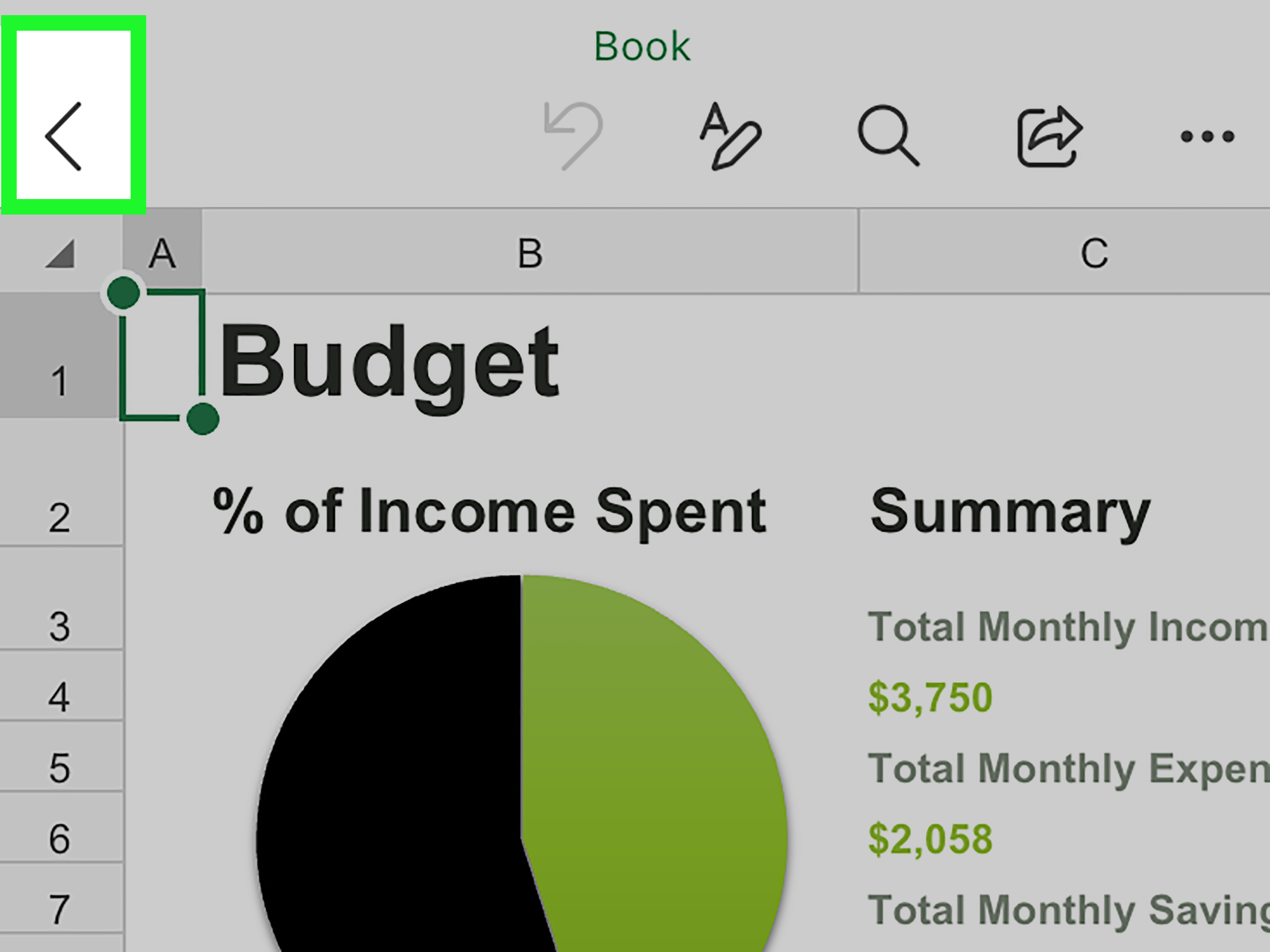
- Download and open the Microsoft Excel app on your iPhone.
- Sign in with your Microsoft account.
- Create a new workbook or open an existing spreadsheet.
- Enter your data by tapping cells and editing values directly.
- Use tools like AutoSum, fill handles, formatting, and charts.
- Save the file to OneDrive or your preferred location for syncing and collaboration.
Excel on iPhone is powerful enough for serious day-to-day spreadsheet work. You can create, edit, share, fill data across rows and columns, use formulas, and build charts. For professionals who already rely on Excel, using the mobile app means there is less friction when opening existing workbooks from email, OneDrive, or shared folders.
Why Excel Is the Best Fit for Business Users
Excel feels familiar to people who already use Microsoft tools. If you manage sales reports, client rosters, budgets, timesheets, or inventory data, using Excel on iPhone keeps your workflow consistent. You are not translating between formats or praying a carefully built workbook survives an app switch with all its dignity intact.
Excel is also a strong choice when you want better compatibility with traditional office files. If a coworker sends an .xlsx file, opening it in Excel is often the cleanest way to edit it on your phone without awkward formatting surprises.
Best Use Cases for Excel
- Workbooks shared in a business environment
- Financial tracking
- Timesheets
- Sales logs
- Reports that need Excel compatibility
- Users already invested in Microsoft 365
Potential Downsides
Excel is powerful, but it can feel busier than Numbers. For a simple personal list, it may be more app than you need. Think of it like bringing a power drill to hang one tiny picture frame. It works beautifully, but it is slightly dramatic.
Which Spreadsheet App on iPhone Should You Choose?
Here is the simple version:
- Choose Numbers if you want a clean Apple-native experience and attractive templates.
- Choose Google Sheets if collaboration and cloud access matter most.
- Choose Excel if you need strong compatibility with business spreadsheets and Microsoft workflows.
If you are still undecided, ask yourself one question: Who else needs to use this file? If the answer is “just me,” Numbers is lovely. If the answer is “my team,” Google Sheets is usually easiest. If the answer is “my boss who breathes Excel,” then yes, just use Excel and save yourself a follow-up email.
Bonus Options Beyond the Big Three
There are other ways to work with spreadsheets on iPhone too. If you prefer browser-based Apple tools, you can use Numbers on iCloud.com. If your files live in cloud storage, services like Dropbox and Box can support Office-based workflows. There are also alternative spreadsheet platforms like Zoho Sheet, and database-style tools such as Airtable that can feel spreadsheet-like for organizing structured information.
Still, for most users, the three easiest ways to make a spreadsheet on iPhone are Numbers, Google Sheets, and Excel. They are widely supported, familiar, and good enough for everyday use without making you download seven experimental apps that promise productivity but mostly deliver confusion.
Common Tips for Making Better Spreadsheets on iPhone
Start Small
On iPhone, simple layouts win. Keep your columns clear, use short headers, and avoid creating a giant labyrinth of tabs unless you truly enjoy suffering.
Use Templates When Possible
Templates save time and reduce setup mistakes. A ready-made budget or invoice template can get you moving in seconds.
Freeze the Idea Before the Formula
Before adding fancy functions, decide what the sheet needs to do. Track expenses? Count inventory? Compare estimates? A spreadsheet works better when the purpose is clear.
Use Autofill and Basic Formulas
You do not need to become a formula wizard on day one. Start with totals, dates, repeated patterns, and simple math. That alone handles most everyday spreadsheet tasks.
Share Carefully
When collaborating, double-check whether people should have viewer or editor access. A spreadsheet can go from “helpful planning tool” to “accidental chaos document” faster than you think.
Real-World Experiences: What It Is Actually Like to Make a Spreadsheet on iPhone
Let’s be honest: making a spreadsheet on iPhone feels a little weird the first time. There is a moment where your brain says, “Surely this is laptop territory,” while your thumb hovers over a tiny cell like it is defusing a bomb. But once you get used to the layout, it becomes surprisingly practical.
One of the most common experiences is using your phone for spreadsheets in short bursts. You are not always sitting down for a grand two-hour data session. More often, you are adding a few grocery prices while shopping, updating a content idea while commuting, entering mileage after a meeting, or checking off inventory in a stockroom. That is where the iPhone really shines. It turns spreadsheet work into something you can do in the middle of real life instead of something that waits for a desk.
Another very real experience is discovering that templates are your best friend. People often imagine a spreadsheet starts with a blank grid and a mild panic attack. In reality, opening a budget, schedule, list, or invoice template makes the process feel much less intimidating. Suddenly, you are not “building a spreadsheet.” You are just replacing sample text with your information. Much less scary. Much more productive.
Collaboration also feels different on iPhone. When you use Google Sheets or Excel, sharing a document from your phone can be incredibly convenient. You can send a link, make a quick edit, and move on with your day. But it also teaches you one unforgettable lesson: never give everyone editing access unless you truly mean it. There is always that one well-meaning person who color-codes half the sheet into a neon rainbow and calls it “cleaner.”
Typing formulas on iPhone is another experience worth mentioning. Simple formulas feel fine. Totals, averages, and basic references are manageable. But long, complicated formulas on a phone can feel like trying to write legal contracts on a sticky note. It is possible. It is not always elegant. Many users find that the sweet spot is creating or reviewing simple formulas on iPhone, then saving the monster calculations for a larger screen later.
There is also the quiet joy of instant access. A spreadsheet on your iPhone is always with you. That means no more emailing a file to yourself, forgetting which version is current, or promising to “update it later” and then absolutely not doing that. If the sheet lives in iCloud, Google Drive, or OneDrive, it can become part of your normal routine. Check it, edit it, share it, done.
In day-to-day use, the iPhone is not replacing a full desktop spreadsheet setup for every situation. It is doing something more useful: making spreadsheet work more available. And for many people, that accessibility is the difference between keeping organized and keeping a heroic pile of random notes that one day may or may not become a system.
Final Thoughts
Learning how to make a spreadsheet on iPhone is less about technical skill and more about choosing the right app. Apple Numbers is excellent for elegant personal sheets, Google Sheets is perfect for collaboration, and Microsoft Excel remains the strongest choice for traditional office workbooks. All three make it easy to create a spreadsheet on iPhone, enter data, format cells, use formulas, and keep your information close at hand.
If your goal is convenience, your iPhone is already enough. Start simple, use a template, and build from there. Your spreadsheet does not need to be beautiful on day one. It just needs to work. And if it also looks good, well, that is the kind of overachievement we can all respect.