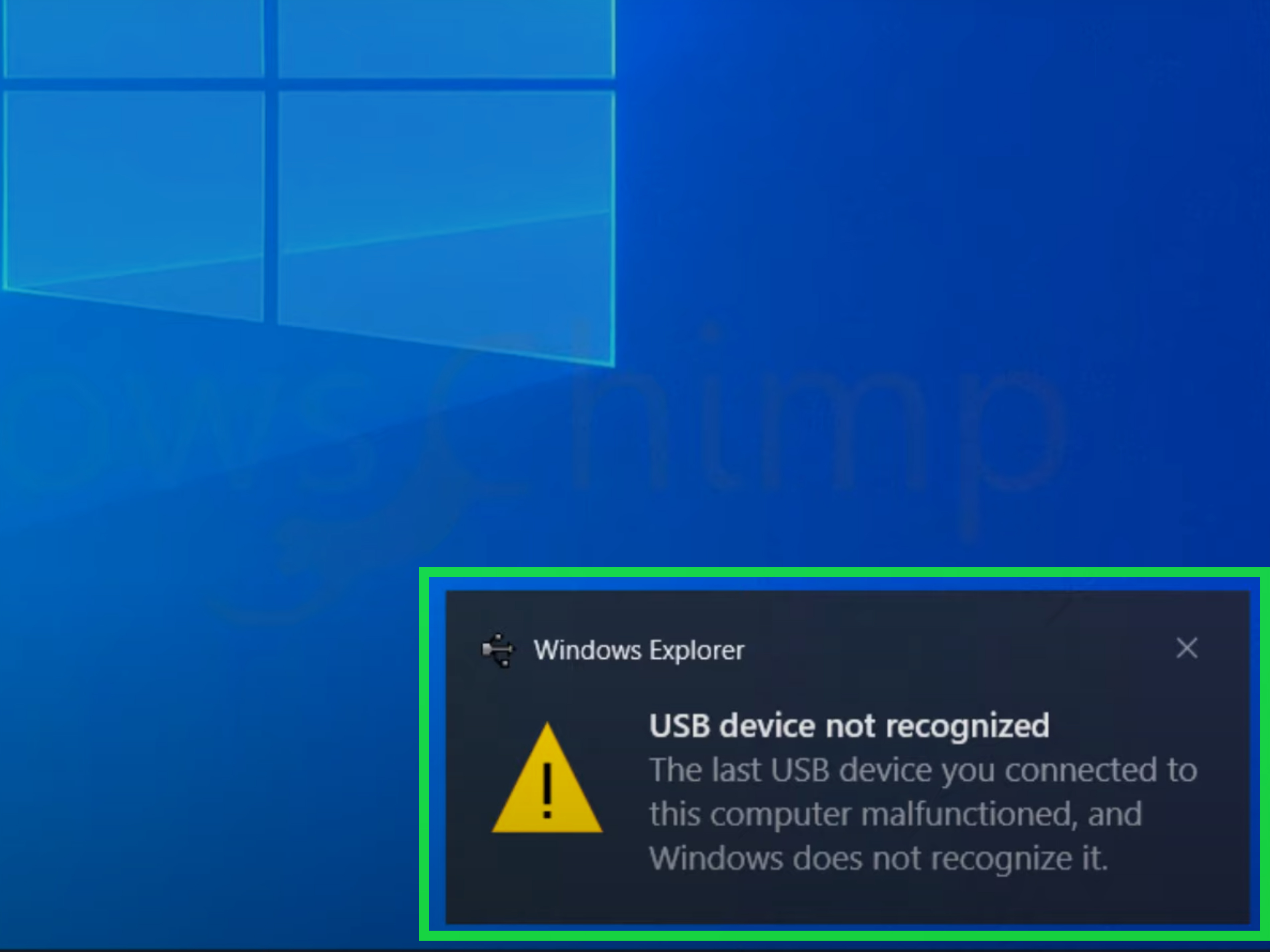
Your PS5 is powered on. The controller lights up. You’re mentally halfway through a boss fight. And then your TV hits you with the digital equivalent of a shrug: No Signal. Brutal.
If your PS5 HDMI is not working, you’re usually dealing with one of a handful of troublemakers: the wrong TV input, a flaky HDMI cable, a bad HDMI handshake, a display setting your TV hates, an AV receiver in the middle causing drama, or physical damage to the PS5’s HDMI port. The good news? A lot of these problems are fixable without sacrificing your weekend or your wallet.
This guide walks through 11 quick fixes that actually make sense, in the order you should try them. We’ll keep it practical, plain-English, and only slightly judgmental toward mysterious black screens.
Why a PS5 HDMI Connection Fails in the First Place
Before jumping into fixes, it helps to know what’s probably happening. HDMI problems are often less “catastrophic hardware failure” and more “two devices refusing to agree on how to talk.” Your PS5 and your TV or monitor have to negotiate resolution, refresh rate, HDR, HDCP copy protection, and input format. If one piece in that chain says, “No thanks,” the result can be a black screen, flickering, signal dropouts, weird colors, or no picture at all.
That’s why one PS5 can work perfectly on a living room TV but fail completely on a monitor, soundbar pass-through, or older receiver. It’s not always the console. Sometimes the TV settings are wrong. Sometimes the cable is tired. Sometimes the HDMI port is physically damaged. And sometimes HDMI just decides to be HDMI.
11 Quick Fixes for a PS5 HDMI Problem
1. Make sure you’re on the correct HDMI input
This sounds almost too obvious, which is exactly why it gets missed. Many TVs have three or four HDMI ports, and not all of them support the same features. If your PS5 is plugged into HDMI 3 but the TV is set to HDMI 1, you’ll get nothing except confusion.
Use your TV remote to cycle through inputs manually. If your TV labels devices automatically, don’t trust the label blindly. Some TVs get creative and identify things incorrectly. Also make sure the PS5 is fully on. A solid white power light means the console is running; an orange light means it’s in Rest Mode.
2. Power cycle both the PS5 and the display
HDMI handshakes can fail after a crash, a sudden input switch, Rest Mode weirdness, or a firmware hiccup. A full power cycle often resets the connection cleanly.
Turn off the PS5 completely, not Rest Mode. Shut off the TV or monitor too. Unplug both devices from power for a bit, then plug them back in and restart. This forces a fresh HDMI negotiation instead of trying to resume a broken one. It’s basic, yes, but basic fixes earn respect when they work.
3. Reseat the HDMI cable on both ends
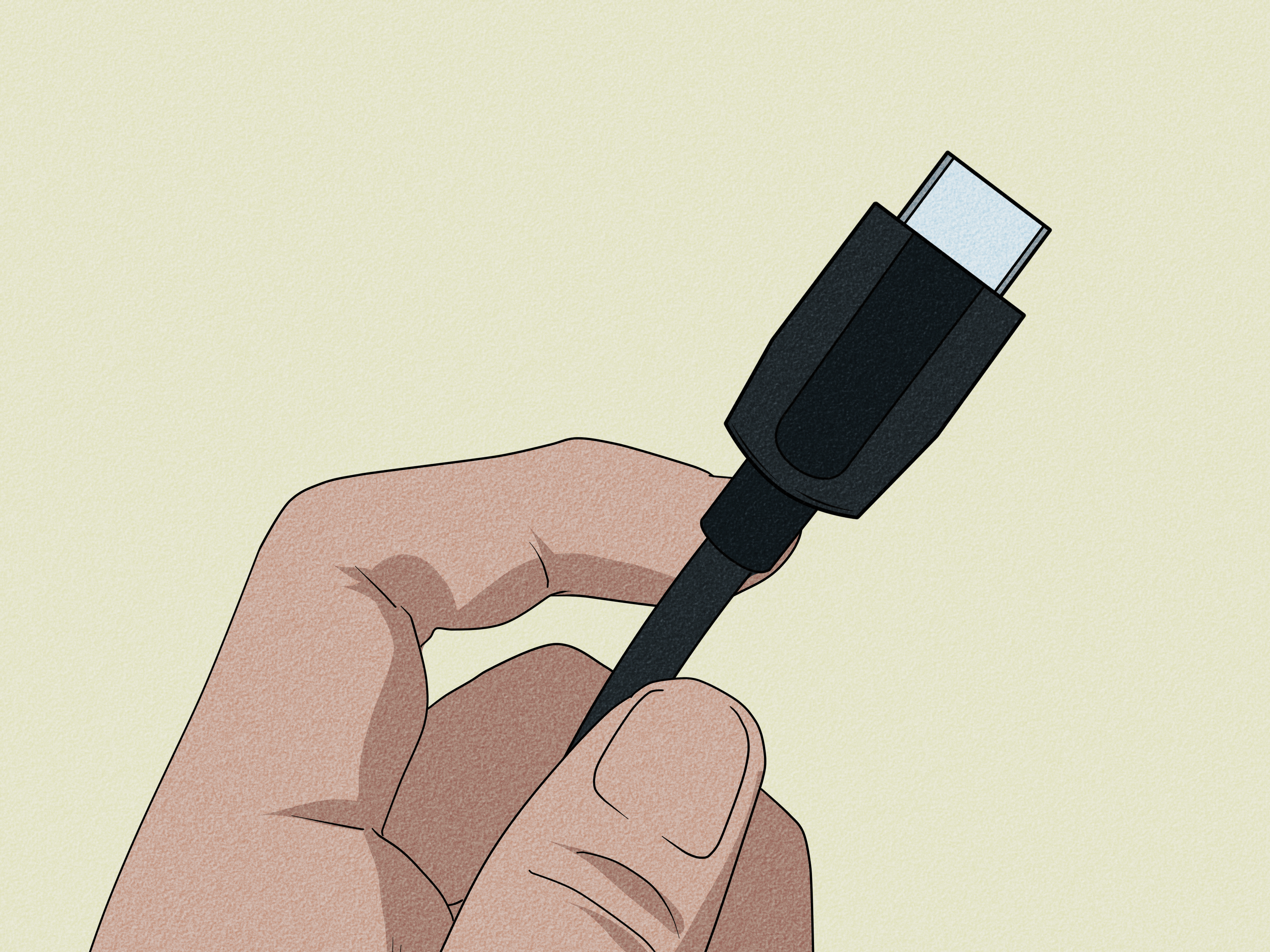
Loose HDMI connections cause more “PS5 no signal” complaints than people like to admit. Pull the cable out from the back of the PS5 and the TV, then reconnect it firmly. You want a snug fit, not a cable that feels like it’s loosely renting the port month to month.
While you’re at it, check whether the cable is bent sharply, pinched behind furniture, or wobbling in the port. A cable that only works when held at a weird angle is already writing its resignation letter.
4. Try a different HDMI cable
A bad cable can cause a black screen, flicker, sparkles, audio cutouts, or intermittent signal loss. If you still have the cable that came with the PS5, test with that first. If not, use a known-good HDMI cable that has worked with another 4K device.
For 4K, HDR, and 120Hz gaming, cable quality matters more than people think. If you’re using an old mystery cable from a drawer full of forgotten tech, it may not handle the bandwidth your setup needs. Even when the console works at 1080p, the cable can start failing at higher video settings.
5. Switch to a different HDMI port on your TV or monitor
The issue may be the display port, not the console. Move the PS5 to another HDMI input and select that input manually on the screen. If it suddenly works, congratulations: your original port was the diva.
This matters even more on modern TVs because not every HDMI port supports the same features. One port may support 4K at 120Hz or VRR, while another may be limited or configured differently. If one input behaves badly, another may be more stable.
6. Connect the PS5 directly to the display
If your PS5 runs through an AV receiver, soundbar, HDMI switch, capture card, or splitter, remove all that extra stuff for testing. Connect the PS5 straight to the TV or monitor.
Why? Because every extra device adds another place for HDCP, HDR, 120Hz, or pass-through compatibility to go sideways. Older receivers are especially famous for this. If the picture appears when the PS5 is connected directly to the display, the middle device is the problem, not the console.
Once the signal returns, you can rebuild the chain one piece at a time. That approach beats guessing and dramatically reduces the odds of blaming the wrong gadget.
7. Boot into Safe Mode and change the video output
If your PS5 is outputting a resolution or video mode your display doesn’t like, Safe Mode can rescue you.
Here’s the move: turn the PS5 off completely. Then press and hold the power button until you hear the second beep. Connect your controller with a USB cable, then enter Safe Mode. Choose Change Video Output and lower the resolution. This is especially useful if the PS5 was last used on a different TV, monitor, or receiver with more advanced settings.
It’s one of the best fixes for a black screen after enabling 4K, 120Hz, or other display features that your current screen doesn’t support properly.
8. Change HDCP mode if the signal keeps failing
HDCP is copy protection, and when it goes wrong, it goes wrong in a very annoying way. You may see no picture, flickering, or handshake failures, especially with older TVs, projectors, receivers, or capture setups.
In PS5 Safe Mode, choose Change Video Output and try the HDCP option. If your setup is choking on modern HDCP behavior, switching to a more compatible mode can bring the signal back. This won’t be necessary for everyone, but when HDCP is the problem, this fix can feel like wizardry.
9. Temporarily turn off demanding video features
If the PS5 picture appears only sometimes, or only after a reboot, the issue may be tied to advanced display features rather than a dead HDMI port.
Once you get back into the system, go to the video settings and temporarily simplify things. Turn off or reduce features like 120Hz output, VRR, or HDR for testing. If the connection becomes stable, you’ve learned something important: the console and display can talk, but they’re arguing over premium features.
This is especially common with older 4K TVs, certain monitors, and setups using receivers or soundbars that don’t pass every signal cleanly.
10. Check your TV’s HDMI settings and firmware
This is one of the most overlooked fixes. On many TVs, the HDMI port connected to a PS5 needs a specific input mode enabled before it will properly accept higher-bandwidth signals.
The exact name varies by brand. On some Samsung TVs, it may be called Input Signal Plus or UHD HDMI Color. On Sony sets, you may see HDMI signal format with options like Standard or Enhanced. LG often uses HDMI Ultra HD Deep Color. Vizio may use an HDMI mode setting such as Auto or Standard. Roku TVs may also have HDMI control settings that can affect connected devices.
Here’s the trick: if a high-bandwidth option is disabled, the PS5 may fail to display 4K or HDR correctly. But if it’s enabled on a setup that doesn’t support it cleanly, you can also get instability. So test both directions. Also update your TV firmware. Bug fixes matter, and display manufacturers quietly patch HDMI compatibility all the time.
11. Inspect the PS5 HDMI port for damage
If you’ve tried different cables, ports, screens, and Safe Mode settings and still get nothing, inspect the PS5’s HDMI port carefully with a flashlight.
Look for bent pins, debris, looseness, or a port that seems pushed inward or wobbly. Signs of HDMI port damage can also include a picture that cuts in and out when the cable moves, odd pink or green artifacts, or total failure across multiple displays.
Do not start poking around with metal tools like you’re defusing a bomb in an action movie. If the port is physically damaged, it usually needs professional repair. HDMI port replacement on a PS5 is real hardware work, not a settings menu miracle.
Bonus Fix: Disable HDMI Device Link or CEC if things get weird
Some setups act up because HDMI-CEC features are trying a little too hard to be helpful. Your TV turns on the console, the console switches the input, the soundbar jumps in, and suddenly the whole system behaves like a committee with no chairperson.
If your black screen or signal dropouts happen when switching inputs, waking from Rest Mode, or powering devices on and off together, try disabling HDMI Device Link on the PS5 and, if needed, HDMI-CEC on the TV. You can always turn it back on later if it wasn’t the culprit.
When It’s Probably Not a Quick Fix
Sometimes the answer is simple but annoying: the HDMI port is damaged. This is more likely if the cable was yanked hard, the console was moved while still connected, the connector feels loose, or the PS5 has never displayed properly on any screen.
At that point, stop buying random cables in a panic. Test with one known-good cable on one known-good display. If the result is still the same, repair is the logical next step. A professional can confirm whether the issue is the port itself, the motherboard connection, or something deeper in the video path.
How to Avoid PS5 HDMI Problems in the Future
Once you get everything working again, protect that victory. Don’t force the HDMI cable in at an angle. Don’t move the console around while the cable is attached. Use a stable cable instead of one stretched tight behind the stand. And if you change TVs or monitors often, double-check resolution and video settings before assuming the console suddenly died.
Also, keep your PS5 system software and your TV firmware updated. It’s not glamorous, but neither is staring at a black screen that arrived because your devices haven’t spoken politely to each other since last spring.
Final Thoughts
A PS5 HDMI problem can look dramatic, but it’s often fixable with a calm, methodical approach. Start with the easy stuff: input, cable, power cycle, and direct connection. Then move into Safe Mode, HDCP changes, and TV-side settings. Save the repair-shop conclusion for after you’ve ruled out the obvious. That order matters.
And remember: “No Signal” does not always mean “Your console is doomed.” Sometimes it just means HDMI is being HDMI, which is somehow both a technical explanation and a personality trait.
Common Real-World Experiences With a PS5 HDMI Issue
In real life, PS5 HDMI problems rarely show up in a neat, textbook way. One of the most common experiences is the “everything was fine yesterday” scenario. A player finishes a session, puts the console into Rest Mode, comes back later, and the TV suddenly says there’s no signal. That often sends people straight into panic mode, but the fix can be as simple as a full shutdown and a fresh HDMI handshake. Rest Mode is convenient, but it can sometimes leave the display chain in a strange state where the TV, console, and any connected sound system stop agreeing with one another.
Another common situation happens after moving the PS5 from one screen to another. Maybe it was hooked up to a newer 4K TV in the living room, then moved to an older bedroom TV or a gaming monitor. The console may still be trying to output settings that made perfect sense on the first screen but confuse the second one. That’s when Safe Mode becomes the hero of the story. A resolution reset can make the difference between “my PS5 is dead” and “oh, never mind, it just needed to calm down.”
A lot of people also run into the receiver or soundbar trap. The setup looks fancy, the cable routing is beautiful, and then the picture disappears at exactly the wrong moment. The PS5 might work when connected directly to the TV but fail when routed through an audio device that doesn’t fully support the signal being passed through. This is especially frustrating because the console seems broken when the real issue is in the middle of the chain. It’s a classic case of the innocent device getting blamed because it’s the one you can see.
Then there’s the cable problem, which many people resist because cables feel too boring to be the villain. But they absolutely are. A worn HDMI cable can create black screens, flashing images, weird color glitches, or signal dropouts that only happen during HDR gameplay or high refresh rate modes. That makes the issue feel random and spooky, when it’s actually just a cable that has decided to retire without filing paperwork.
Finally, there’s the physical port damage experience, and this one is usually different from the rest. People often describe it as a connection that only works if the cable is held a certain way, or a signal that flickers when the console gets nudged. Sometimes there’s visible looseness. Sometimes there are odd visual artifacts. In those cases, settings changes usually don’t solve much, because the problem is mechanical, not digital. It’s not the most cheerful ending, but recognizing the pattern early can save a lot of wasted time and a suspicious number of unnecessary cable purchases.