If you have ever looked at your old Wii collection and thought, “These games deserve better than fuzzy cables and a television that weighs as much as a refrigerator,” Dolphin Emulator is your new best friend. Dolphin lets you play Wii games on a PC with sharper visuals, flexible controller options, save states, and a level of convenience that the original console never quite mastered. It is the closest thing to giving your Wii library a modern glow-up without hiring a fairy godmother.
This guide walks you through how to play Wii games on Dolphin Emulator on a PC, from installation and setup to controller configuration, graphics tuning, and real-world troubleshooting. It is written for beginners, but it also includes enough practical detail to help you avoid the classic emulation mistakes: bad settings, broken controls, mystery lag, and that one moment when you realize your gamepad is somehow mapped to both “swing sword” and “pause.”
One important note before we jump in: use game files you legally own and dump yourself. Dolphin is emulator software, not a magic pirate ship. The ethical and safest route is to back up games from discs you actually own and use those files in the emulator.
Why Dolphin Emulator Is Still the Go-To Choice for Wii Games on PC
Dolphin has been around for years, and it remains the standard for Wii and GameCube emulation on PC for a simple reason: it works remarkably well. On a decent modern computer, many games look cleaner and run more comfortably than they ever did on original hardware. You can increase internal resolution, smooth out jagged edges, map controls to modern gamepads, and even use a real Wii Remote if you want the authentic arm-flailing experience.
That flexibility is the big selling point. Some players want the original feel with a real Wii Remote, sensor bar, and Nunchuk. Others would rather play New Super Mario Bros. Wii on an Xbox controller while sitting three inches from a mechanical keyboard and pretending this is a normal lifestyle choice. Dolphin supports both camps.
Another reason Dolphin is popular is compatibility. Most tested titles fall into the “Perfect” or “Playable” range, which means the odds are pretty good that your favorite game can run well with the right setup. Still, “playable” does not always mean “perfect,” so smart setup matters.
What You Need Before You Start
Your PC
You do not need a space station, but you do need a reasonably modern 64-bit Windows PC. Dolphin benefits from a stronger CPU more than people expect, because emulation leans heavily on processor performance. A system with a modern multi-core CPU, updated graphics drivers, and a GPU that can comfortably handle Vulkan, Direct3D, or OpenGL will make life much easier.
If your machine is older, do not panic. Many Wii games still run well with modest settings. You might simply need to keep internal resolution lower and avoid aggressive enhancements.
The Dolphin Emulator
Download Dolphin from the official site and choose the latest release if you want a more stable experience. If you like the newest fixes and features and do not mind a little experimentation, a current development build can also be a good choice. On Windows, make sure the required Visual C++ runtime is installed. If Dolphin refuses to open and starts complaining about missing DLL files, that runtime is often the missing piece of the puzzle.
Your Wii Game Files
Dolphin supports several common game dump formats, including ISO, WBFS, and RVZ. For many players, RVZ is a particularly nice option because it saves space without turning your storage drive into a sad little parking lot of giant disc images. Organize your dumped games in one folder so Dolphin can scan them cleanly.
Your Controller Setup
You have a few choices:
- Standard PC controller: Great for many Wii games, especially ones that do not rely heavily on motion controls.
- Keyboard and mouse: Works in a pinch, although some motion-heavy games can feel like you are trying to solve algebra with oven mitts.
- Real Wii Remote: Best for authentic motion control, pointer-heavy games, and titles that simply feel better with original hardware.
- Real Wii Remote plus sensor bar: Ideal for aiming-based games and pointer controls.
Step 1: Install Dolphin on Your PC
- Download Dolphin from the official Dolphin Emulator website.
- Extract the files to a normal folder on your PC. Do not run it directly from the compressed archive.
- Launch Dolphin.exe.
- If Windows prompts you about runtimes or missing components, install the recommended Microsoft Visual C++ package and try again.
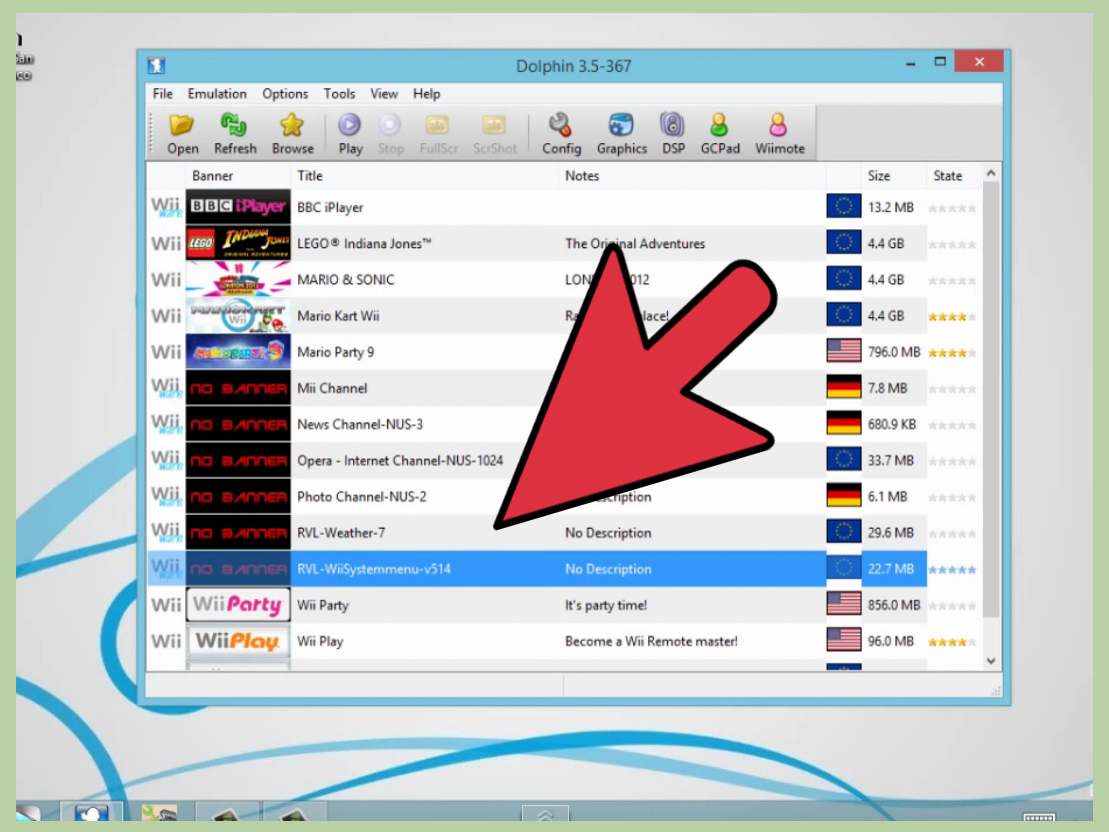
Once Dolphin opens, you will see the main interface. If it looks suspiciously empty, that is normal. The emulator is waiting for you to point it to your games.
Step 2: Add Your Wii Games to Dolphin
- Open Dolphin.
- Click Config.
- Go to the Paths tab.
- Click Add and select the folder that contains your Wii game files.
- Click OK.
Dolphin will scan that folder and list compatible games in the main window. This is where life gets satisfying: box art, titles, regions, and file details all start to appear, and suddenly your PC looks like it swallowed a Wii library in the most organized way possible.
If a game does not appear, check the file format, confirm the folder path, and make sure the dump is intact. A bad or incomplete dump can waste an absurd amount of your time.
Step 3: Configure Graphics the Smart Way
This is the step where people get greedy. Yes, Dolphin can make Wii games look much better. No, turning every setting to the moon is not always wise. Start modestly, then improve visuals once the game runs well.
Safe Starter Settings
- Backend: Start with Vulkan on most Windows PCs. If a game behaves oddly, try Direct3D 11. OpenGL can still be useful in specific cases, but it is often not the first choice on Windows.
- Aspect Ratio: Auto is the safest setting. Force 16:9 only if the game actually behaves well in widescreen.
- V-Sync: Useful for reducing tearing, but if a game runs at exactly half speed on a laptop or odd display setup, test with V-Sync off.
- Internal Resolution: Start at 2x or 3x native for a sharp HD look. If performance drops, lower it.
- Anisotropic Filtering: Usually safe to raise.
- Anti-Aliasing: Nice to have, but not essential if your GPU is already working hard.
How to Avoid Stutter
One of the most common Dolphin issues is shader stutter. Translation: the game runs fine, then suddenly hiccups as new visual effects are generated. In many cases, this improves naturally as you keep playing and Dolphin builds its shader cache.
If you want a smoother experience, experiment with shader compilation settings carefully. Hybrid options can reduce visible stutter, while more aggressive options may need stronger hardware. In plain English: if your game chugs every time something flashy happens, the fix may be in the graphics settings, not in your imagination.
Step 4: Set Up Controllers for Wii Games
Option 1: Use a Standard PC Gamepad
This is the easiest way to start.
- Click Controllers in Dolphin.
- Under Wii Remotes, choose Emulated Wii Remote for Player 1.
- Click Configure.
- Map your buttons, stick directions, motion inputs, and extensions.
This setup works well for many Wii games, especially platformers, racing games, and titles that use simple button inputs. You can also enable options like Sideways Wii Remote for games designed to hold the controller horizontally, or attach an emulated Nunchuk for titles that require it.
For example:
- New Super Mario Bros. Wii feels great with a standard gamepad and sideways remote mapping.
- Mario Kart Wii is easy to play on a modern controller.
- Skyward Sword is a lot trickier without a motion-friendly setup.
Option 2: Use a Real Wii Remote
If you want the authentic Wii experience, this is where Dolphin gets fun.
- Open Controllers.
- Set a Wii Remote slot to Real Wii Remote.
- Click Refresh in the controller window.
- Press 1 + 2 on the Wii Remote, or the sync button on certain models.
Important: for Wii Remotes specifically, Dolphin works best when it handles the connection itself. Do not pair the remote through Windows Bluetooth settings first, because the operating system can interfere with the connection process.
If the remote does not connect:
- Confirm your PC has Bluetooth enabled.
- Update or reinstall the Bluetooth driver if Windows has been moody lately.
- Make sure another nearby Wii or Wii U is not trying to claim the remote like a jealous ex.
- Turn on continuous scanning in Dolphin if you plan to reconnect often.
Do You Need a Sensor Bar?
For pointer-heavy Wii games, yes, you usually want one. The Wii Remote uses infrared reference points for aiming, and the sensor bar provides that target. If you are using a real Wii Remote for games like Metroid Prime 3: Corruption, Resident Evil: The Umbrella Chronicles, or menu-heavy pointing sections in other Wii titles, a sensor bar makes the experience far more natural.
If you are using an emulated Wii Remote with a regular controller, you can still map pointer movement manually, but it rarely feels as elegant as the real thing.
Step 5: Launch and Play Your First Wii Game
Once your games are added and your controls are ready, starting a game is easy:
- Double-click the game in Dolphin’s library.
- Wait for the game window to open.
- Test movement, pointer input, and audio immediately.
- If something feels wrong, stop there and fix it before diving in for a two-hour session and blaming the universe.
When the game boots properly, congratulations: you are now playing Wii games on a PC, which is either a beautiful achievement in digital preservation or a very creative way to replay Mario Kart Wii again. Probably both.
Best Dolphin Settings for Most PC Players
If you want a balanced setup instead of a science project, this is a strong starting point:
- Use the latest stable release unless a specific game needs a newer fix.
- Start with Vulkan, then test Direct3D 11 if needed.
- Use 2x or 3x internal resolution.
- Keep widescreen settings conservative.
- Use emulated Wii Remote for simple controller play.
- Use a real Wii Remote and sensor bar for motion or pointer-heavy games.
- Do not over-tweak hacks unless you know exactly what they do.
Dolphin usually makes sensible decisions on its own. The biggest beginner mistake is assuming every checkbox marked “enhancement” is free. It is not. Your GPU may forgive you, but your frame rate will write angry letters.
Common Problems and How to Fix Them
Game Runs Too Slow
Lower internal resolution, reduce anti-aliasing, and try a different graphics backend. Also check whether your laptop is using integrated graphics instead of the dedicated GPU. That switch alone can change Dolphin from “cinematic slideshow” to “actually playable.”
Audio Is Stuttering
In Dolphin, audio stutter is usually a symptom of performance issues, not broken sound. If the emulator is not running at full speed, the audio will break up. Improve performance first, then judge the sound.
Wii Remote Will Not Connect
Do not pair it through Windows first. Let Dolphin handle the connection. Make sure Bluetooth is active, refresh the controller list, and update the Bluetooth driver if needed.
Pointer Controls Feel Wrong
If you are using a real Wii Remote, check your sensor bar position and IR sensitivity. If you are emulating the Wii Remote with a gamepad, revisit your pointer mapping. Some games need careful tweaking before aiming feels natural.
Graphics Look Broken
Try another graphics backend, reset overly aggressive enhancements, and resist the urge to “fix” things by randomly enabling hacks. Random clicking is not troubleshooting. It is digital improv comedy.
Quick FAQ
Can you play Wii games on Dolphin without a Wii Remote?
Yes, many Wii games work well with an emulated Wii Remote mapped to a PC controller or keyboard. Some motion-heavy or pointer-heavy titles are still much better with a real Wii Remote.
What is the best controller for Dolphin Wii games?
It depends on the game. A standard gamepad is perfect for many titles, while a real Wii Remote is the best option for games built around motion or pointing.
What file format is best for Dolphin?
RVZ is a great choice for storage efficiency, but ISO and WBFS are also commonly used. The most important thing is having a clean, legal dump.
Can Dolphin make Wii games look better than the original console?
Absolutely. Higher internal resolutions, cleaner textures, and modern display output can make Wii games look surprisingly sharp on a PC monitor.
What the Experience Is Really Like After Setup Is Done
Once everything is configured properly, playing Wii games on Dolphin Emulator on a PC feels less like “running an old console through software” and more like rediscovering a library that had more potential than the original hardware could always show. The first thing most people notice is visual clarity. Games that once looked soft and blurry over old display connections suddenly appear cleaner, brighter, and more detailed. It is not magic, and it does not turn every Wii title into a modern blockbuster, but it does make many games easier on the eyes and more enjoyable on a contemporary monitor.
The second big change is convenience. On an actual Wii, jumping between games meant standing up, swapping discs, syncing controllers, and pretending that this process was somehow part of the fun. On Dolphin, your library sits in one place, ready to launch with a double-click. That sounds small until you realize how much smoother it makes short play sessions. It becomes much easier to revisit older games because there is less friction between “I feel like playing this” and actually playing it.
There is also a strange kind of joy in tailoring the experience to your preferences. Maybe you want Mario Kart Wii on a modern controller because that feels natural now. Maybe you want a real Wii Remote for Wii Sports Resort because anything else would feel vaguely illegal to your muscle memory. Dolphin lets you build the version of the Wii experience that fits you instead of forcing you back into 2008 living-room limitations.
Of course, it is not always instant perfection. Some games need controller adjustments. Some titles want a sensor bar. Some settings demand a little patience. The first hour with Dolphin can feel like part gaming, part home renovation, except instead of arguing about paint colors, you are asking why your pointer keeps drifting into the upper-left corner of existence. But once that setup hurdle is behind you, the payoff is real.
Many players also find that Dolphin makes them appreciate Wii design more. The system had a lot of creative, oddball, charming games that were sometimes buried under hardware quirks. On PC, with cleaner visuals and more flexible input options, those ideas can shine in new ways. Games feel less like historical artifacts and more like genuinely fun experiences that still hold up.
That is probably the best way to describe the Dolphin experience overall: it is not just about emulation. It is about access, comfort, preservation, and replayability. It gives older Wii games room to breathe on modern hardware. And when it all clicks, it feels wonderfully simple. You stop thinking about settings, backends, and controller profiles. You just play. Which, in the end, is the whole point.
Conclusion
If you want to play Wii games on a PC, Dolphin Emulator is still the best place to start. It offers excellent compatibility, flexible controls, better visuals than the original hardware, and enough customization to satisfy both casual players and tinkerers. The key is not to rush the setup. Start with legal game backups, use sensible graphics settings, choose the right control method for each game, and troubleshoot with patience instead of panic.
Get those basics right, and Dolphin turns your PC into a surprisingly polished Wii machine. No dusty console shelf required.