Starting a new job is exciting. It is also one of those life updates that can make you stare at Facebook for five minutes, wondering why the “add workplace” button appears to be playing hide-and-seek.
Whether you want a quiet profile update, a polished career announcement, or a full “new chapter unlocked” post complete with celebratory coffee photo, Facebook gives you several ways to add and share a new workplace. The best choice depends on how public you want the news to be, who should see it, and whether you want the update to stay on your profile long after the congratulatory comments stop rolling in.
This guide explains how to add a workplace on Facebook, how to share a new job on Facebook, and how to control your privacy while doing it. No confetti cannon required, although Facebook reactions may provide a digital substitute.
Before You Add a Workplace on Facebook
Facebook treats your workplace as profile information. That means it can appear in your profile’s About or details area, depending on the version of Facebook you are using. You can usually add your company name, job title, location, work dates, and a short description.
Sharing the news is a separate choice. Adding a workplace to your profile does not always mean everyone will see a post about it in their Feed. You may need to create a Life Event or make a regular Facebook post if you want friends, colleagues, or followers to notice the update.
Decide What You Want People to See
Before editing anything, choose your goal. A private professional update might only need a profile entry visible to Friends or Only Me. A major career move may deserve a Life Event. A new role at a company you genuinely love may call for a regular post with a few words about the opportunity.
Also consider timing. If your employer has not announced your hiring yet, wait until you have permission to share the news. Surprise is fun for birthday parties, not always for human resources departments.
Choose the Correct Company Page
When Facebook suggests a company or employer, select the official Page whenever possible. Look for the correct name, logo, and location. This helps your workplace entry look more credible and may make it easier for people to visit the business Page from your profile.
Be careful with similar names. “Acme Digital,” “Acme Digital LLC,” and “Acme Digital Fans” may not be the same organization. One of them may be your employer. One may be a fan page. One may be a person named Kevin with too much free time.
Way 1: Add Your New Workplace to Your Facebook Profile
The first method is the most practical because it creates a lasting workplace entry on your Facebook profile. This is the best option when you want your employment information to remain visible without publishing a big announcement post.
How to Add a Workplace on Facebook Mobile
- Open the Facebook app and go to your profile.
- Look for an option such as See your About info, See more about yourself, Edit profile, or Edit public details.
- Find the Work and Education section.
- Select Add a workplace, Add work, or the edit icon next to your current employment information.
- Enter the company name and choose the correct employer Page if Facebook suggests one.
- Add your position, city, work dates, and any optional details you want to include.
- Choose who can see the workplace entry by adjusting the privacy or audience setting.
- Tap Save.
How to Add a Workplace on Facebook Desktop
- Log in to Facebook from a browser and open your profile.
- Select About, Details, or a similar profile-information tab.
- Open the Work and Education category.
- Click Add a workplace or use the edit option beside your work information.
- Enter your employer, position, location, and dates.
- Set the audience for the entry before saving.
- Click Save or Save Changes.
Why This Method Works Best for Long-Term Profile Updates
A workplace entry is useful when you want people to find your current employer later. Friends may visit your profile months from now, recruiters may view your public information, and former coworkers may recognize your new role.
Think of it as the nameplate on your digital office door. It does not need to be loud. It simply tells people where you work.
Privacy Tip for Workplace Information
Use the audience selector carefully. You may be able to choose options such as Public, Friends, Friends Except, Specific Friends, or Only Me. The available options can differ by account and device.
For most people, Friends is a sensible default. Public may be useful for creators, freelancers, business owners, or people building a visible professional presence. Only Me works well when you want your profile organized but do not want anyone else to see the information.
Way 2: Share Your New Job as a Facebook Life Event
A Facebook Life Event is designed for moments that feel a little more memorable than “I changed my email address.” Starting a new job, getting promoted, launching a business, or moving into a new career can all work well as Life Events.
This method is ideal when you want the workplace update to appear on your timeline as a milestone. It gives the announcement more context than a plain employment entry and can include a date, photo, description, and audience setting.
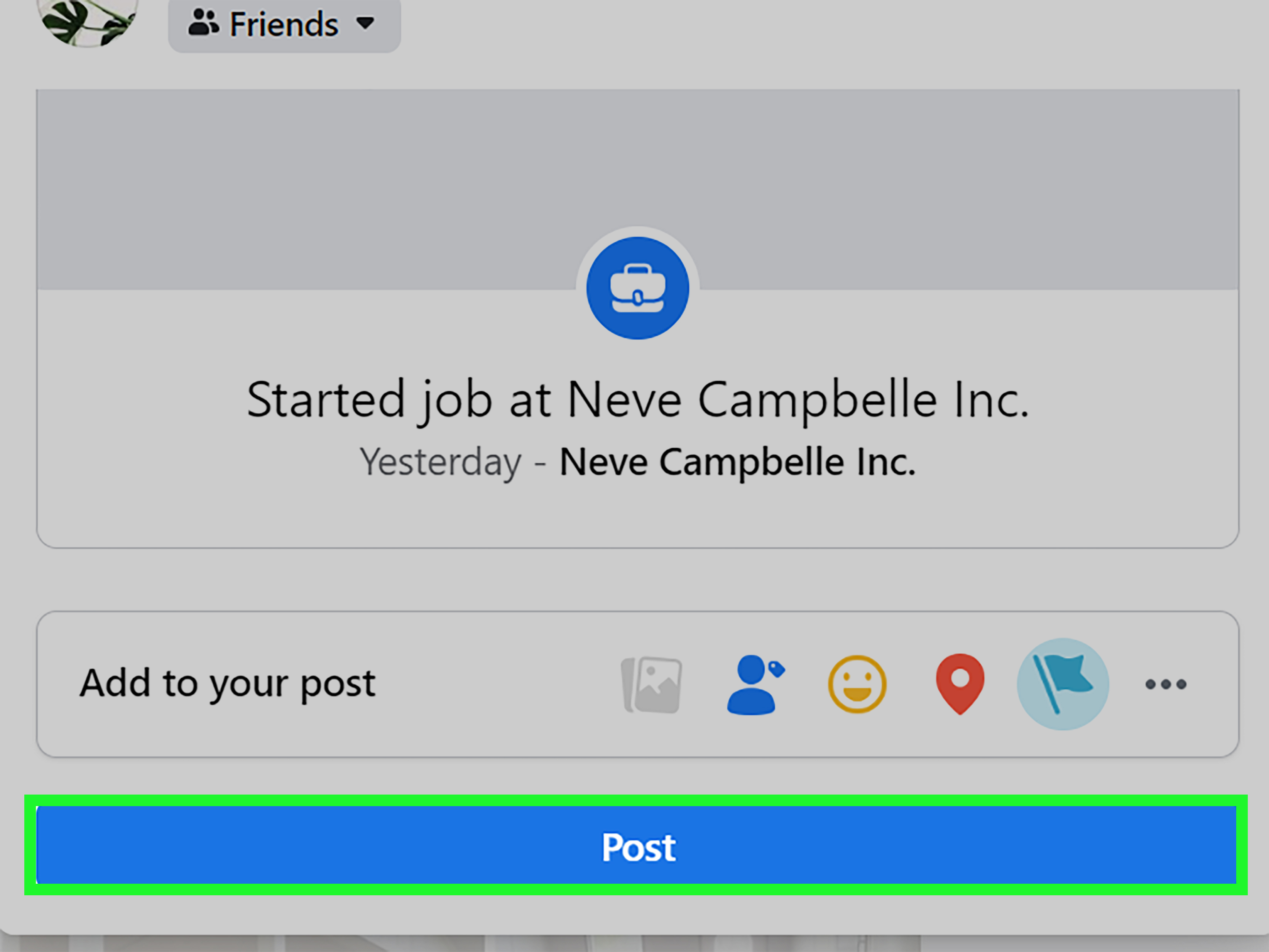
How to Create a New Job Life Event on Facebook
- Go to your Facebook profile.
- Find the post composer, usually near the area where you would write a status update.
- Select Life Event.
- Choose a category related to work or education.
- Select an option such as Started a Job, Promotion, or create a custom Life Event if the available choices do not fit.
- Add your employer, title, date, location, and a short message.
- Add a photo if you want, such as a professional headshot, office photo, team image, or something appropriately celebratory.
- Choose the audience for the post.
- Select Share.
What to Write in a New Job Life Event
You do not need to write a novel. A Life Event works best when it is warm, clear, and specific enough to feel real. Mention the company, your role, and one reason you are excited about the opportunity.
Example:
“Excited to share that I have started a new role as Marketing Manager at Brightfield Media. I am grateful for everyone who supported me during the transition and cannot wait to help the team build great things.”
You can make the message more casual if that fits your personality:
Example:
“New job, new desk, new collection of passwords I will probably forget by Friday. Thrilled to be joining Brightfield Media as Marketing Manager!”
When a Life Event Is Better Than a Basic Profile Update
Choose a Life Event when the change is meaningful and you want people to celebrate with you. It works especially well for a first job, a major promotion, a move to a dream company, a return to work after a career break, or the launch of your own business.
Remember that a Life Event is a timeline post. It is more visible than a quiet workplace entry, so confirm the audience before publishing. The difference between Friends and Public can be the difference between hearing from your college roommate and hearing from someone you met once at a conference in 2017.
Way 3: Announce Your New Workplace With a Regular Facebook Post
A normal Facebook post gives you the most creative control. You can tag the employer’s official Page, add photos, thank colleagues, share a personal story, or keep the message short and professional.
This is often the best method for people who want an announcement that feels human rather than automated. It also works well if you have already added the workplace to your profile and simply want to tell your network about the change.
How to Share a New Workplace in a Facebook Post
- Open Facebook and select the option to create a post.
- Write your announcement.
- Tag your employer’s official Facebook Page if appropriate.
- Add a photo, video, or link only if it supports the message.
- Use the audience selector to choose who can see the post.
- Review the post for confidential information, spelling mistakes, and accidental oversharing.
- Select Post.
Simple Facebook New Job Announcement Examples
Professional: “I am happy to share that I have joined Northstar Consulting as a Senior Account Executive. I am looking forward to working with an incredible team and helping clients solve meaningful challenges.”
Warm and personal: “A new chapter begins today. I am excited to join Northstar Consulting and grateful to everyone who encouraged me along the way.”
Friendly and funny: “Officially starting a new job at Northstar Consulting today. My first task is learning where the good coffee lives. My second task is everything else.”
For a promotion: “I am excited to step into a new role as Director of Operations at Northstar Consulting. Huge thanks to the mentors, teammates, and family members who made this journey possible.”
Should You Tag Your Employer?
Tagging your company can help friends find the official Page and make your post look more connected to the organization. However, do it only when the employer has publicly announced your hiring or when you know the company is comfortable with employee mentions.
If you are joining a small business, startup, government agency, school, or client-facing organization, ask whether there are social media guidelines. A cheerful post should not accidentally reveal a confidential project, client list, office location, or launch date.
Which Method Should You Use?
Use a Profile Workplace Entry When You Want a Quiet Update
Adding a workplace to your profile is best when you want accurate employment information without a big announcement. It is useful for keeping your Facebook work and education details current.
Use a Life Event When the Career Move Is a Milestone
A Life Event works well for a meaningful transition that deserves a permanent timeline moment. It is more formal than a standard post but still personal enough for friends and family.
Use a Regular Post When You Want More Personality
A standard post is your best option when you want to write in your own voice, share photos, tag coworkers, or explain why the opportunity matters to you. It is also the easiest way to add humor without making your profile look like it was updated by a spreadsheet.
How to Edit or Remove a Workplace on Facebook Later
Jobs change, companies rebrand, departments reorganize, and occasionally someone discovers that their “dream opportunity” involves twelve meetings before lunch. Fortunately, workplace information is editable.
To update or remove your workplace:
- Return to your profile and open the About, Details, or Work and Education section.
- Find the workplace entry you want to change.
- Select the edit option.
- Update the employer, job title, dates, description, or audience.
- Save your changes.
If you posted a Life Event or regular job announcement, remember that it may need to be edited separately. Updating your profile workplace does not necessarily rewrite old timeline posts. Facebook is powerful, but it is not yet a time machine with a human resources department.
Common Problems When Adding a Workplace on Facebook
You Cannot Find the Employer Page
Try searching for the exact company name, including abbreviations, city names, or the legal business name. If the company has a small Facebook presence, it may not appear as a suggestion.
In that situation, add the workplace as text if Facebook allows it, or verify the official business Page through a search before trying again. Avoid selecting a similarly named Page just because it has a nicer logo.
The Work and Education Section Is Missing
Facebook changes its layouts frequently. Look for options such as Edit Profile, See Your About Info, Edit Public Details, About, Details, or Manage Profile Information. Updating the Facebook app or trying the desktop version can also help.
Your Workplace Is Visible to the Wrong People
Open the workplace entry and review its audience setting. You may need to adjust the visibility for the profile entry itself and separately change the audience for any job announcement post or Life Event.
You Want to Keep the Employer Private but Share the Career Change
You can write a broad announcement without naming the company. For example: “I am excited to begin a new leadership role in the healthcare technology space.” This lets friends celebrate while keeping employer details private.
Privacy and Professionalism Tips Before You Share
- Do not post your employee ID, work badge, security pass, schedule, or internal documents.
- Avoid revealing confidential clients, unreleased products, sales figures, or upcoming projects.
- Check whether your new employer has a social media policy.
- Use Friends or a custom audience when the update is personal rather than promotional.
- Review your public profile before making a career-related post visible to everyone.
- Keep your job title accurate, especially if the company uses a formal title that differs from the casual one you use in conversation.
A workplace entry can help you stay connected, but it should not reveal more than you are comfortable sharing. You can be proud of your new job without publishing the floor plan, Wi-Fi password, and Tuesday snack schedule.
Real-World Experiences: What Usually Works Best When Sharing a New Workplace
In practice, the smoothest Facebook workplace updates usually happen when people treat the profile update and the announcement as two separate actions. First, they add the job to their Facebook profile so the information is accurate. Then, if they want to celebrate, they create a Life Event or write a regular post. This approach keeps the permanent profile information clean while giving the announcement a more personal tone.
One common experience is that people update their workplace too early. They receive an offer, feel thrilled, and immediately want to post the news. Then they discover the company has not announced the hire, the start date changes, or a background check is still being completed. A safer approach is to wait until the first official day, the signed paperwork, or the employer’s approval to share. The excitement will still be there. So will the Facebook reaction button.
Another useful lesson is that privacy settings deserve more attention than the wording of the post. Many people spend fifteen minutes rewriting a sentence and two seconds selecting Public. That is backwards. A short, honest announcement shared with the right audience is more valuable than a perfectly polished paragraph seen by people you never intended to reach. Before posting, check whether you want the update visible to friends, coworkers, family, followers, or everyone on the internet.
People who are self-employed often find that a standard post works better than a simple workplace entry. A freelancer, consultant, artist, or business owner may want to explain what they do, who they help, and how people can contact them. In that case, the job announcement becomes a gentle introduction rather than a loud sales pitch. For example, “I am excited to share that I have launched my own bookkeeping practice for small businesses” feels clearer and friendlier than simply listing “Self-Employed” on a profile.
For traditional employees, a shorter post often performs better socially than a long corporate announcement. Friends generally want to know that you are happy, what you are doing, and maybe why the move matters. They do not need a twelve-paragraph mission statement that sounds like it escaped from an annual report. A few sincere lines, a photo if appropriate, and a thank-you to supportive people is usually enough.
There is also a practical benefit to tagging the correct company Page. Friends who are curious can visit the Page, learn about the business, or recognize mutual connections. However, tagging should be intentional. If the organization is small, private, sensitive, or not very active on Facebook, naming the company without tagging may be the better choice.
Finally, many people discover that it is perfectly fine not to announce a new workplace at all. A Facebook profile can remain accurate without becoming a press release. You may choose to share the update only with close friends, post it weeks later, or skip the announcement entirely. Your new job is real whether it receives three hundred likes, thirty likes, or one heart reaction from your aunt followed by a comment asking whether you are still coming to dinner on Sunday.
Final Thoughts
Learning how to add a workplace on Facebook is simple once you separate the profile update from the public announcement. Add your employer through the Work and Education section when you want lasting profile information. Use a Facebook Life Event when the change is a milestone. Create a regular post when you want more control, personality, and room to tell the story behind the move.
Whichever method you choose, keep the details accurate, review the audience setting, and share only what feels right for your career and privacy. A new workplace can be a professional update, a personal celebration, or a quiet note to yourself that says: “Yes, I really did survive the interview process.”