Editor’s note: This guide is written for web publication and reflects current Snapchat behavior, including the important difference between unpinning a regular chat, unpinning My AI, and unpinning a Snapchat+ #1 Best Friend.
Introduction: When Your Snapchat Chat List Needs a Tiny Cleanup
Pinning someone on Snapchat is usefuluntil it is not. Maybe you pinned your best friend during a group project, your cousin during vacation planning, or someone you were texting every five minutes until the conversation cooled down like yesterday’s pizza. Whatever the reason, learning how to unpin someone on Snapchat helps you take back control of your Chat screen without deleting messages, blocking anyone, or creating digital drama.
The good news: unpinning a Snapchat conversation is usually quick. The slightly annoying news: the exact option you see can depend on your device, Snapchat version, and whether you are talking about a regular pinned conversation, My AI, or the Snapchat+ “#1 Best Friend” feature. That is why many users search for “how to unpin someone on Snapchat iPhone,” “how to unpin someone on Snapchat Android,” or “why can’t I unpin someone on Snapchat?” and end up more confused than before.
This guide explains the steps for iPhone, iPad, and Android in plain English. You will also learn what unpinning does, what it does not do, why the Unpin Conversation option may be missing, and how to fix common Snapchat pinning problems without panic-tapping every button in the app.
What Does “Pinned” Mean on Snapchat?
On Snapchat, pinning a conversation keeps that chat near the top of your Chat screen. It is basically Snapchat’s way of saying, “This person is important enough that you do not want to scroll past 42 streaks, three group chats, and one mysteriously silent friend named Kyle.”
A pinned conversation does not change your friendship status. It does not notify the other person. It does not tell them, “Congratulations, you have been promoted to top-of-the-chat energy.” It simply changes how the conversation appears on your own device.
Unpinning someone does not delete the chat
When you unpin someone on Snapchat, the conversation returns to its normal place in your Chat feed. That usually means it will be sorted based on recent activity. If they message you later, the chat can move upward again naturally, just like any other conversation.
Unpinning is not the same as blocking or removing a friend
Unpinning is a personal organization setting. It does not block the person, remove them as a friend, erase saved messages, mute notifications, or end a Snapstreak. Think of it as moving a sticky note off the front of your fridgenot throwing away the whole fridge.
How To Unpin Someone On Snapchat on iPhone
If you are using Snapchat on an iPhone, the regular conversation unpinning process is straightforward. In most cases, you can remove a pinned chat in less than ten seconds.
Step-by-step instructions for iPhone
- Open the Snapchat app on your iPhone.
- Swipe right from the Camera screen, or tap the Chat icon to open your Chat screen.
- Find the pinned conversation at the top of your chat list.
- Press and hold the person’s name or group chat.
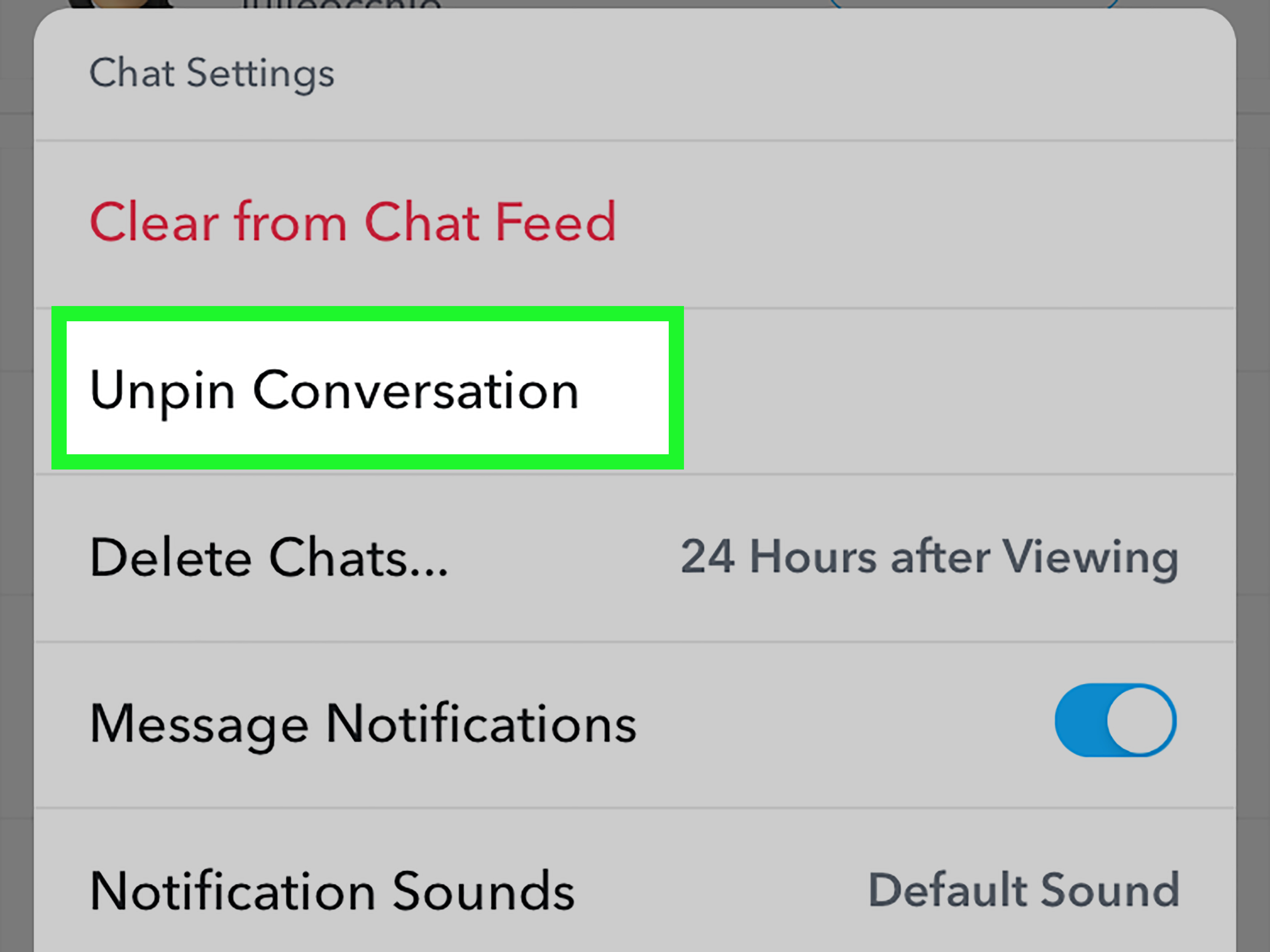
- Tap Chat Settings.
- Tap Unpin Conversation.
After that, the conversation should no longer stay fixed at the top of your Chat screen. It will return to its normal position based on recent messages and activity.
Will the other person know you unpinned them?
No. Snapchat does not send a notification when you pin or unpin a conversation. The other person will not receive an alert, badge, message, dramatic violin soundtrack, or any other clue. It is private to you.
How To Unpin Someone On Snapchat on iPad
Snapchat now has improved iPad support, which makes using the app on a tablet less like peeking through a tiny phone-shaped window. If you are using Snapchat on an iPad, the unpinning process is generally the same as on iPhone because both devices use Snapchat’s iOS/iPadOS app experience.
Step-by-step instructions for iPad
- Open Snapchat on your iPad.
- Go to the Chat screen.
- Locate the pinned conversation near the top.
- Tap and hold the conversation.
- Select Chat Settings.
- Choose Unpin Conversation.
If your iPad is using an outdated version of Snapchat, update the app first. App menus can look slightly different depending on version, screen size, and rollout timing. If the option is missing, check the troubleshooting section below before assuming your iPad has personally betrayed you.
How To Unpin Someone On Snapchat on Android
Android is where things get a little more complicated. Snapchat’s official guidance has historically treated regular conversation pinning as an iOS feature. Some Android users may see similar chat settings depending on app updates, region, or feature rollout, but others may not have the regular Pin Conversation or Unpin Conversation option at all.
If your Android app shows Unpin Conversation
If your Android version of Snapchat does show the option, try these steps:
- Open Snapchat on your Android phone.
- Tap the Chat icon or swipe right from the Camera screen.
- Find the pinned chat near the top of the list.
- Press and hold the conversation.
- Tap Chat Settings or Chat and Notification Settings.
- Tap Unpin Conversation, if available.
If Android does not show Unpin Conversation
If you do not see Unpin Conversation, your app may not support regular conversation pinning on Android at this time. Before giving up, update Snapchat through Google Play, force close and reopen the app, and check whether the conversation is actually pinned or simply appears near the top because it was recently active.
If the missing pin is related to My AI or Snapchat+ #1 Best Friend, use the separate sections below. Those are different features with different menu paths.
How To Unpin My AI on Snapchat
My AI is not exactly the same as a normal friend chat. If My AI is pinned at the top of your Chat feed, you may need to manage it through Chat and Notification Settings or Snapchat+ settings, depending on what option your account has.
Steps to unpin My AI
- Open Snapchat and go to the Chat screen.
- Press and hold My AI.
- Tap Chat and Notification Settings.
- Choose Unpin Conversation if the option appears.
- If available, you may also see an option to clear or remove My AI from the Chat feed.
Some My AI controls may depend on Snapchat+ availability or Snapchat’s current feature rollout. If your menu does not match another person’s menu exactly, that does not necessarily mean you are doing anything wrong. Snapchat menus can change faster than a group chat changes plans.
How To Unpin Your #1 Best Friend on Snapchat+
Snapchat+ includes a feature that lets subscribers privately pin one friend as their #1 Best Friend. This is different from pinning a conversation to the top of your Chat screen. It is more like telling Snapchat, “This is my main person,” but privately.
Steps to unpin a #1 Best Friend
- Open Snapchat and go to the Chat screen.
- Press and hold the friend you pinned as your #1 Best Friend.
- Look for the option labeled Pinned as your #1 BFF or similar.
- Tap it to remove the checkmark or disable the pin.
- Tap Done, if Snapchat shows a confirmation button.
You can only pin one #1 Best Friend at a time. Unpinning that person does not remove them as a friend, delete your chat, or notify them. It simply removes that private Snapchat+ designation.
Why Can’t I Unpin Someone on Snapchat?
If Snapchat will not let you unpin someone, there are several possible reasons. Most are simple and not worth sacrificing your afternoon to the tech-support gods.
1. You are using Android and regular conversation pins are unavailable
The most common explanation is device support. If you are on Android and do not see the regular unpin option, the feature may not be available in your current Snapchat version.
2. Snapchat needs an update
Old app versions can cause missing menus, glitchy buttons, or features that appear for your friend but not for you. Update Snapchat from the App Store or Google Play, then reopen the app and check again.
3. You are looking at the wrong type of pin
A regular pinned conversation, My AI pin, and Snapchat+ #1 Best Friend pin are not the same thing. If one method does not work, identify which type of pin you are dealing with first.
4. The chat is not pinned
Sometimes a conversation appears near the top simply because it is recent. Look for a pin icon or check whether the chat stays at the top even after other conversations become active.
5. Temporary app glitch
Snapchat can occasionally glitch. Close the app, reopen it, restart your phone, or clear the app cache if needed. If nothing works, reinstalling Snapchat may help, but make sure you know your login details first.
What Happens After You Unpin Someone?
After you unpin a Snapchat conversation, the chat stops being fixed at the top of your Chat screen. It returns to the regular chat list, where conversations are generally organized by recent activity.
Here is what does not happen:
- The person is not notified.
- Your saved messages are not automatically deleted.
- Your Snapstreak does not disappear just because you unpinned the chat.
- You do not remove the person as a friend.
- You do not block or mute them.
If you want to stop receiving alerts from someone, use notification settings. If you want to remove a conversation from the Chat feed, look for clear conversation options. If you want to stop someone from contacting you, that is a different privacy action entirely.
Unpin vs. Mute vs. Clear From Chat Feed: What Is the Difference?
Snapchat has several chat management tools, and mixing them up can lead to confusion. Here is the simple version.
Unpin Conversation
This removes a conversation from the pinned area at the top of your Chat screen. It is best when you still want the chat but no longer need it locked in the VIP section.
Mute Notifications
Muting stops or reduces alerts from a friend or group. The conversation can still exist, and the person can still message you. This is useful for loud group chats that treat your phone like a popcorn machine.
Clear From Chat Feed
Clearing a conversation removes it from your visible Chat feed, but it does not necessarily erase all saved content or remove the friend. Use this when you want a cleaner chat list, not just a lower-priority conversation.
Remove Friend or Block
Removing or blocking someone changes the relationship and privacy status. These are stronger actions than unpinning and should only be used when you actually want to limit contact.
Tips for Keeping Your Snapchat Chat Screen Organized
Unpinning one person is easy. Keeping your Chat screen sane over time is the real art form. Snapchat can get crowded quickly, especially if you have streaks, group chats, school friends, family, coworkers, creators, and My AI all competing for attention.
Only pin chats you use daily
A pinned chat should earn its spot. If you have not messaged someone in two weeks, they probably do not need front-row seating.
Review pinned chats once a month
Every month, check your pinned conversations and ask, “Do I still need this at the top?” If the answer is no, unpin it. Congratulations, you have performed digital housekeeping without buying tiny storage baskets.
Mute noisy group chats instead of unpinning important ones
If a group chat is important but too active, muting may be better than unpinning. That way, you can still find it quickly without receiving an alert every time someone sends “lol.”
Use search when you cannot find someone
After unpinning, a conversation may move lower in your chat list. Use Snapchat’s search feature to find the person quickly instead of scrolling like you are exploring ancient ruins.
Common Questions About Unpinning Someone on Snapchat
Can someone see if I unpin them on Snapchat?
No. Pinning and unpinning are private organization actions. Snapchat does not notify the other person.
Does unpinning delete saved messages?
No. Saved messages remain saved unless you or the other person unsaves or deletes them, depending on Snapchat’s chat rules and settings.
Can I unpin a group chat?
Yes, if the pinning feature is available on your device. Press and hold the pinned group, open chat settings, and choose Unpin Conversation.
Why is someone still at the top after I unpinned them?
They may have recently messaged you, or the app may not have refreshed yet. Close and reopen Snapchat. If the chat is still pinned, repeat the unpin steps.
Can I pin and unpin the same person again later?
Yes. Unpinning is reversible. If you decide that person belongs back at the top, you can pin them again if your device and app version support the feature.
Real-Life Experiences: What It Feels Like To Unpin Someone on Snapchat
Unpinning someone on Snapchat sounds tiny, but in real life, it can feel surprisingly satisfying. A pinned conversation is like a digital bookmark in your social life. Sometimes that bookmark is helpful. Other times, it is just sitting there, reminding you of a conversation that no longer needs premium screen space.
One common experience is the “temporary planning pin.” You pin a friend because you are organizing a birthday party, trip, school project, gaming session, or weekend plan. For a few days, it is perfect. Their chat is right there, easy to open, and you do not have to dig through your list. Then the event ends. The cake is eaten, the project is submitted, the trip photos are posted, and suddenly that pinned chat feels like leaving holiday decorations up until March. Unpinning it restores order.
Another familiar situation is the “accidental emotional pin.” Maybe you pinned someone during a time when you were talking constantly. Then the rhythm changed. Nobody did anything wrong; life just moved. Seeing that chat at the top every day can feel a little awkward, like your phone is trying to make you revisit a chapter you have already closed. In that case, unpinning someone is not rude. It is simply adjusting your space to match your current habits.
Some users also unpin people because their Chat screen gets too noisy. Snapchat is fun, but it can become a miniature airport departure board of messages, streaks, Bitmojis, groups, and alerts. When too many conversations are pinned or prioritized, the whole point of pinning disappears. A clean Chat screen makes it easier to respond to the right people at the right time.
On iPhone and iPad, the process usually feels smooth: press, tap, unpin, done. On Android, the experience can be more mixed because not every account or app version shows the same regular conversation pinning option. That can be frustrating, especially when your friend says, “Just tap Unpin Conversation,” and your phone replies, spiritually, “What conversation?” In that case, the best move is to update the app, check whether it is a regular chat pin or a Snapchat+ feature, and avoid assuming you missed something obvious.
The nicest part is that unpinning is private. You do not need to explain it. You do not need to make a speech. You do not need to send a message saying, “Dear friend, after careful review, your chat has been relocated.” The other person will not know. Your conversation remains intact. Your social life continues. Your Chat feed just becomes a little more organized.
In practice, the best Snapchat setup is flexible. Pin the people or groups you need right now. Unpin them when they are no longer daily priorities. Use mute when the issue is too many notifications. Use clear chat feed when you want visual cleanup. Use block or remove only when you truly need stronger boundaries. Snapchat gives you several tools, and unpinning is one of the gentlest.
So, if you have been staring at a pinned chat wondering whether it is okay to remove it from the top, the answer is yes. Your Chat screen is your space. Keep it useful, calm, and easy to navigate. Snapchat should feel like a quick way to connectnot a cluttered drawer full of conversations you keep meaning to sort someday.
Conclusion: Unpinning Someone on Snapchat Is Simple Once You Know the Pin Type
Learning how to unpin someone on Snapchat is mostly about knowing which pin you are dealing with. On iPhone and iPad, regular pinned conversations can usually be removed by opening Chat, pressing and holding the pinned conversation, choosing Chat Settings, and tapping Unpin Conversation. On Android, the same option may not always appear for regular chats, so updating Snapchat and checking feature availability matters.
For My AI, use the Chat and Notification Settings menu. For Snapchat+ #1 Best Friend, press and hold the friend and remove the private #1 BFF pin. In every case, unpinning is private, reversible, and much less dramatic than it sounds.
Whether you are cleaning up your Chat screen, moving on from an old conversation, or simply making room for someone you message more often, unpinning helps Snapchat feel easier to use. No awkward notification. No deleted friendship. No digital thunderstorm. Just a cleaner chat listand honestly, sometimes that is exactly what your phone needs.