If the App Store is blank, frozen, spinning forever, or acting like it has gone on a coffee break without telling you, do not panic. In most cases, the problem is caused by a connection issue, an Apple service hiccup, a software glitch, an Apple Account problem, or a cache that needs a gentle digital broom.
Why Is the App Store Blank or Not Loading?
The App Store depends on several things working together: your internet connection, Apple’s servers, your Apple Account, device date and time, software version, payment settings, and local app data. When one of those pieces trips over its shoelaces, the App Store may open to a white screen, show endless loading, fail to display search results, or refuse to download and update apps.
On iPhone and iPad, users often see the App Store stuck on the Today tab, a blank search page, a loading circle that never finishes, or app downloads that pause for no obvious reason. On Mac, the Mac App Store may open but display nothing, fail to sign in, hang after an update, or show “Cannot connect to App Store.” The good news: most fixes are simple, safe, and do not require a tiny screwdriver or a dramatic visit to the Genius Bar.
Below are seven easy fixes for the App Store not loading on iOS, iPadOS, and macOS. Try them in order, because the early steps solve many cases quickly.
1. Check Apple System Status First
Before blaming your iPhone, Mac, Wi-Fi router, neighbor’s Wi-Fi router, or Mercury being in retrograde, check whether Apple’s App Store service is having an outage. Apple services occasionally experience temporary interruptions. When that happens, the App Store may appear blank, downloads may fail, or updates may get stuck even though your device is perfectly fine.
What to do
Open Apple’s System Status page in a browser and look for App Store, Mac App Store, Apple Account, and related services. If there is an outage, the smartest fix is patience. You can restart your device twelve times if you enjoy the animation, but it will not repair Apple’s servers from your couch.
If Apple’s services look normal, move to the next fix. That means the issue is probably local to your device, network, account, software, or app cache.
2. Force Quit the App Store and Reopen It
The App Store is an app, and apps sometimes get stuck. A blank screen can happen when the App Store fails to refresh its session or load fresh content. Closing and reopening the app forces it to start again and reconnect.
On iPhone or iPad
Open the App Switcher, find the App Store, and swipe it up to close it. Then return to the Home Screen or App Library and open the App Store again. This is especially useful if the App Store opens but search, updates, or app pages refuse to load.
On Mac
Click the App Store in the menu bar and choose Quit App Store. If it will not respond, press Command + Option + Esc, select App Store, and choose Force Quit. Then reopen it from the Dock, Launchpad, or Applications folder.
On Mac, you can also try pressing Command + R while the App Store is open. This refreshes the page and may bring back a blank store window without needing a full restart.
3. Test Your Internet Connection, Wi-Fi, Cellular, VPN, and Security Tools
A blank App Store often means your device can open the app but cannot reach Apple’s servers properly. The connection may be weak, blocked, filtered, or confused. Yes, “confused Wi-Fi” is not a technical diagnosis, but anyone who has restarted a router knows it feels accurate.
Try a quick browser test
Open Safari or another browser and visit a normal website. If nothing loads, the App Store is not the main problem. Restart your router, switch Wi-Fi networks, move closer to the router, or try cellular data if you are on iPhone or iPad.
Check cellular access on iPhone or iPad
If you use mobile data, go to Settings, tap Cellular, and make sure Cellular Data is turned on. Also confirm that the App Store is allowed to use cellular data. A tiny setting can create a surprisingly large headache.
Temporarily disable VPN or security filters
VPNs, DNS filters, firewalls, ad blockers, school or work profiles, and third-party security tools can sometimes block App Store connections. Temporarily turn them off and reopen the App Store. If the App Store loads normally afterward, adjust the VPN or security settings instead of leaving your device unprotected forever.
On shared networks, such as school, hotel, airport, library, or office Wi-Fi, some Apple services may be restricted. Switch to another network or use a trusted personal connection to test.
4. Restart Your iPhone, iPad, or Mac
Restarting is boring. Restarting is basic. Restarting is also weirdly effective, which is why every tech support story begins with it. A restart clears temporary glitches, refreshes network connections, and gives stuck background processes a fresh start.
On iPhone
For iPhone X or later, press and hold a volume button and the side button until the power-off slider appears. Drag the slider, wait about 30 seconds, and turn the iPhone back on. If the device is frozen, use a force restart: press and quickly release Volume Up, press and quickly release Volume Down, then hold the side button until the Apple logo appears.
On iPad
Use the top button and volume button on newer iPads, or the top button on models with a Home button, then slide to power off. Wait a short moment before turning it back on.
On Mac
Choose Apple menu > Restart. If the App Store has been acting strange after a macOS update, a restart may finish background cleanup tasks and restore normal App Store behavior.
5. Check Date, Time, Region, and Apple Account Sign-In
The App Store needs correct date and time settings to connect securely. If your device time zone is wrong, authentication can fail. The result may look like a blank screen, a connection error, or an endless loading wheel.
Set date and time automatically
On iPhone or iPad, go to Settings > General > Date & Time, then turn on Set Automatically. On Mac, go to System Settings > General > Date & Time and enable automatic time settings.
Check region settings
Your App Store region should match your Apple Account region and payment setup. If you recently moved countries, changed your Apple Account region, or switched payment methods, region mismatch can cause App Store problems.
Sign out and back into your Apple Account
If the App Store loads but will not show purchases, download apps, or update existing apps, your Apple Account session may need a refresh.
On iPhone or iPad, open Settings, tap your name, then check Media & Purchases. You can sign out and sign back in. On Mac, open the App Store, click your name or sign-in button, sign out if needed, restart the Mac, and sign in again.
Do this carefully. Make sure you know your Apple Account password and have access to any trusted device or phone number needed for two-factor authentication.
6. Update iOS, iPadOS, or macOS
Software bugs can affect the App Store, especially after a major system update, a failed update, or a long stretch without installing updates. Apple often fixes service connection problems, WebKit issues, security problems, and App Store bugs through software updates.
Update iPhone or iPad
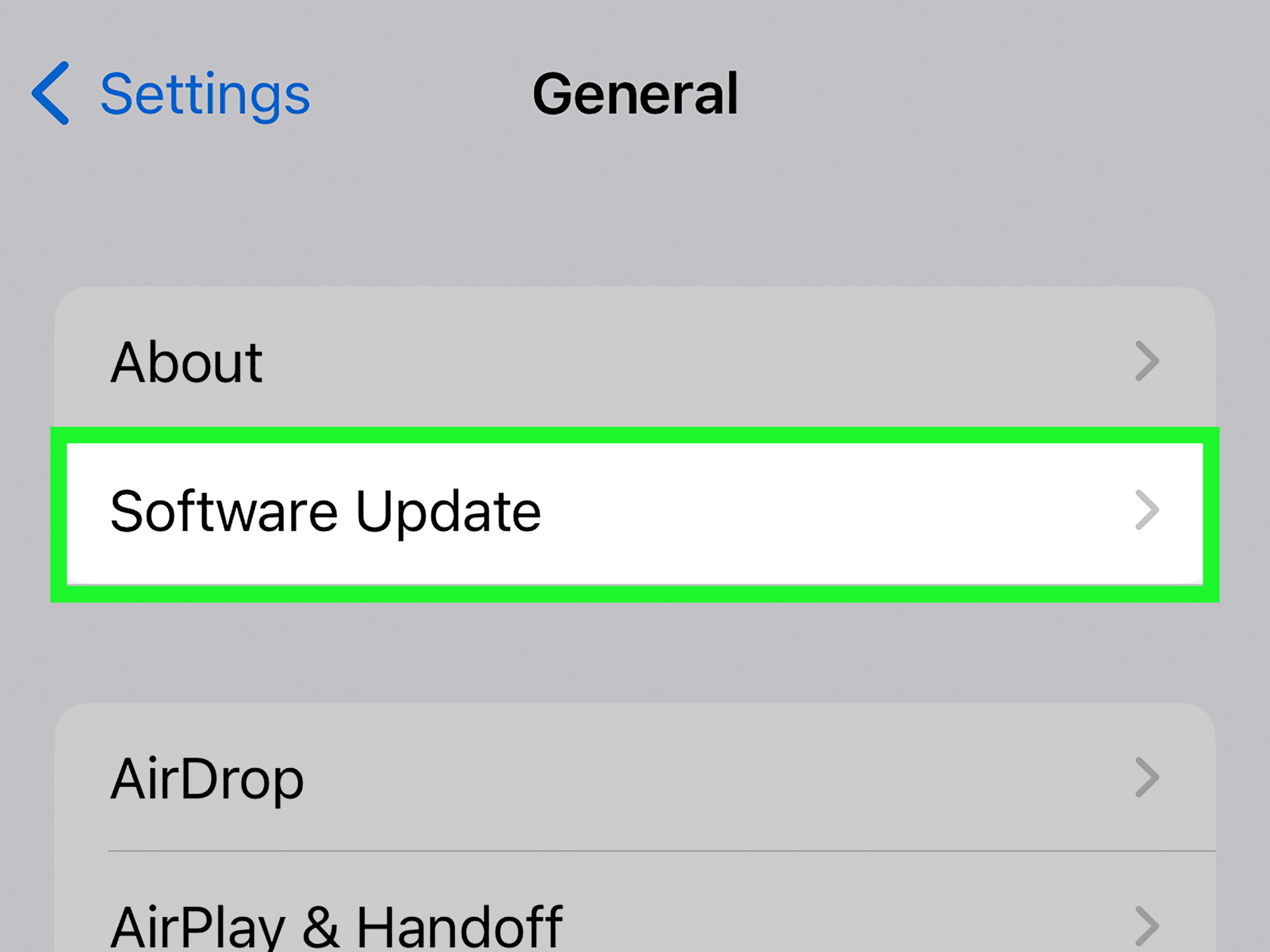
Go to Settings > General > Software Update. If an update is available, install it. Make sure your device has enough battery, enough storage, and a stable Wi-Fi connection.
Update Mac
Go to Apple menu > System Settings > General > Software Update. Install available updates, then restart your Mac and test the App Store again.
If your App Store problem started immediately after an update, updating again may still help. Small follow-up releases often clean up issues that appeared in earlier versions. Technology is glamorous like that: sometimes the fix for an update is another update.
7. Clear App Store Cache, Use Safe Mode on Mac, or Reset Network Settings
If the App Store is still blank after the easy fixes, the issue may be related to cached data, network settings, or a startup item interfering with macOS.
Refresh or clear App Store cache on iPhone and iPad
Older App Store versions had a simple cache-refresh trick where tapping a bottom tab repeatedly could reload App Store data. On newer iOS versions, this method may not always work, but force quitting the App Store, restarting the device, switching networks, and updating iOS are safer and more reliable options.
Try Safe Mode on Mac
Safe Mode starts your Mac with only essential components, checks basic system items, and can clear certain caches. This is helpful when the Mac App Store opens blank after a macOS update or when login items, fonts, extensions, or cached data may be involved.
On Apple silicon Macs, shut down the Mac, press and hold the power button until startup options appear, select your startup disk, hold Shift, and click Continue in Safe Mode. On Intel Macs, restart and hold Shift as the Mac starts up. After testing the App Store in Safe Mode, restart normally and check again.
Reset network settings on iPhone or iPad
If every app works except the App Store, resetting network settings can help when hidden Wi-Fi, DNS, VPN, or cellular settings are misbehaving. Go to Settings > General > Transfer or Reset iPhone > Reset > Reset Network Settings. This removes saved Wi-Fi passwords and network preferences, so use it after easier fixes.
Check storage and payment settings
If the App Store loads but downloads or updates fail, check available storage and your payment method. Even free apps can sometimes require a valid payment method on file, especially if there is an unresolved billing issue. On iPhone or iPad, go to Settings > your name > Payment & Shipping. On Mac, open the App Store, click your name, choose Account Settings, and review payment information.
Common App Store Problems and What They Usually Mean
The App Store opens to a white or blank screen
This usually points to a loading issue, cache problem, network block, Apple service outage, or a temporary software glitch. Start with force quitting the app, checking Apple System Status, switching networks, and restarting.
The App Store says “Cannot Connect to App Store”
This often involves internet access, VPN restrictions, incorrect date and time, Apple server issues, or Apple Account authentication. Check your connection first, then date and time, then sign out and back in.
Apps will not download or update
This may be caused by low storage, a paused download, payment verification, software bugs, or unstable Wi-Fi. Try restarting, updating software, checking payment settings, and touching and holding the app icon to prioritize or resume the download.
The Mac App Store is blank after a macOS update
Try Command + R in the App Store, force quit and reopen it, restart your Mac, update macOS again if another update is available, and test in Safe Mode. If Safe Mode helps, a login item or cache may have been involved.
When Should You Contact Apple Support?
Contact Apple Support if the App Store still will not load after trying the seven fixes above, especially if you also see Apple Account errors, repeated payment verification messages, missing purchases, or problems across multiple Apple devices. If the issue appears on your iPhone, iPad, and Mac at the same time, it may be account-related or service-related rather than a device problem.
You should also seek help if your device cannot update, repeatedly fails to connect to Apple services, or shows unusual sign-in warnings. Do not share your Apple Account password with anyone, and avoid “miracle fix” downloads from random websites. The App Store being blank is annoying, but installing mystery tools from the internet is how annoyance graduates into regret.
Real-World Experience: What Usually Works Best
In real-world troubleshooting, the fastest fix is often not the most dramatic one. People tend to jump straight to scary solutions like factory resets, but the App Store usually does not require that level of digital thunderstorm. Most blank App Store cases are solved by checking Apple’s service status, switching networks, restarting the device, or signing out and back into the Apple Account.
One common situation happens on iPhones connected to public Wi-Fi. The user opens Safari, sees that websites load, and assumes the connection is fine. But some public networks have captive portals, restrictions, or filtering rules that allow basic browsing while blocking parts of Apple’s services. In that case, the App Store may show a blank page or spin endlessly. Switching to cellular data or a trusted home Wi-Fi network often makes the App Store load instantly. It feels like magic, but it is really just fewer network gatekeepers standing in the way.
Another frequent case appears after a software update. A Mac user updates macOS, opens the App Store, and sees a blank window. The first instinct is to think the update broke everything. Sometimes the fix is as simple as quitting the App Store, restarting the Mac, and opening it again. If that fails, Safe Mode can be surprisingly useful because it starts macOS in a cleaner environment and clears certain cached items. After restarting normally, the Mac App Store may behave again, as if it simply needed a stern conversation in a quiet room.
Apple Account issues are another sneaky cause. The App Store may open, but purchases, updates, or downloads fail. The screen may load slowly, or the account page may refuse to display. Signing out and back in can refresh the authentication session. However, this step should be done with care. Users should know their Apple Account password and be ready for two-factor authentication. Nothing adds spice to a normal afternoon like signing out and then realizing the trusted phone number is attached to an old SIM card hiding in a drawer.
Payment problems can also look unrelated at first. A person may try to download a free app and wonder why payment settings matter. But if there is an old billing issue or verification requirement, the App Store may block downloads or updates until the payment method is fixed. Checking Payment & Shipping on iPhone or payment settings in the Mac App Store can clear the roadblock.
For iPhone and iPad users, resetting network settings is best saved for later, not first. It can fix stubborn connection issues, but it also removes saved Wi-Fi networks and passwords. That is fine if you know your Wi-Fi password. It is less fun if the password is written on a sticker behind a dusty router guarded by cables that look like spaghetti.
The biggest lesson is simple: troubleshoot from least disruptive to most disruptive. Start with service status, connection, force quit, and restart. Then check date and time, Apple Account, payment method, software updates, and storage. Only then move to Safe Mode, network reset, or deeper support. This approach saves time, avoids unnecessary data loss, and keeps you from turning a small App Store glitch into a full evening project.
Most importantly, do not install third-party “App Store repair” tools unless they come from a trusted, well-known developer and you fully understand what they do. The App Store is part of Apple’s system software, and legitimate fixes rarely require random utilities. When in doubt, use built-in settings, official updates, and Apple Support. Your device deserves help, not a suspicious download wearing a fake mustache.
Final Thoughts
A blank or not-loading App Store can look serious, but it is usually fixable. The most effective steps are checking Apple System Status, refreshing the app, testing your internet connection, restarting your device, correcting date and time, signing back into your Apple Account, updating software, and clearing deeper Mac or network issues when needed.
Think of the App Store as a very polished doorway. If the door does not open, the problem may be the lock, the key, the hallway, or the building on the other side. Work through the fixes calmly, and you will usually find the culprit without wiping your device or yelling at your router. Although, to be fair, the router probably had it coming.
Note: This article is based on current public troubleshooting guidance for iOS, iPadOS, macOS, Apple Account, App Store connectivity, software updates, payment verification, Safe Mode, and common real-world App Store loading issues.