So, you downloaded an ebook, opened your computer with the confidence of a person who “knows technology,” double-clicked the file, and Windows or macOS stared back like you had just handed it a sandwich. Welcome to the surprisingly common world of MOBI files.
MOBI was once a popular ebook format, especially for Kindle-friendly reading. Today, it is more like that old charger in your drawer: still useful, occasionally essential, but not always welcomed by modern devices. The good news is that opening a MOBI file on a PC or Mac is easy when you know which app to use and when to convert the file instead.
This guide explains how to open MOBI files on Windows and macOS in five simple steps. You will learn which MOBI reader to choose, how to handle files that will not open, when to convert MOBI to EPUB or PDF, and how to avoid common problems such as DRM, wrong file extensions, and messy ebook libraries.
What Is a MOBI File?
A MOBI file is an ebook file format originally associated with Mobipocket and later connected to early Kindle reading workflows. In plain English, it is a digital book file designed to store text, chapters, links, images, bookmarks, and reading structure in a way that ebook readers can understand.
MOBI became popular because it worked well on older Kindle devices and in several ebook apps. However, the ebook world has moved toward newer formats, especially EPUB for flexible reading across many devices and PDF for fixed-layout sharing and printing. That does not mean MOBI is useless. It simply means you may need the right reader or a quick conversion before your computer stops acting offended by it.
The most important detail is this: MOBI files are not always the same. Some are DRM-free, meaning you can open or convert them with compatible software. Others may be protected by digital rights management, usually because they were purchased from a store. DRM-protected files may only open in authorized apps or accounts. If a file refuses to open even in a good reader, DRM may be the invisible bouncer at the door.
How to Open MOBI Files on PC or Mac in 5 Easy Steps
Step 1: Confirm That You Really Have a MOBI File
Before downloading apps, converting files, or blaming your computer for personal betrayal, check the file extension. A MOBI file usually ends in .mobi. Sometimes you may also see related ebook files such as .azw, .azw3, .prc, or .epub.
On Windows, right-click the file, choose Properties, and look at the file type. On Mac, click the file, press Command + I, and check the “Kind” or name extension section. If file extensions are hidden, enable them so you can see exactly what you are working with.
This matters because “MOBI” and “MOI” or “MOB” are not the same thing. One is an ebook. The others may be video-related or unrelated files. Digital files are picky like that.
Step 2: Choose the Best MOBI Reader for Your Computer
The easiest way to open a MOBI file is to install a reader that supports it. For most users, the best all-around option is Calibre. It works on Windows and macOS, opens MOBI files, manages ebook libraries, edits metadata, and converts ebooks into other formats. If ebooks had a Swiss Army knife, Calibre would be it, except less pointy and much better at organizing Jane Austen.
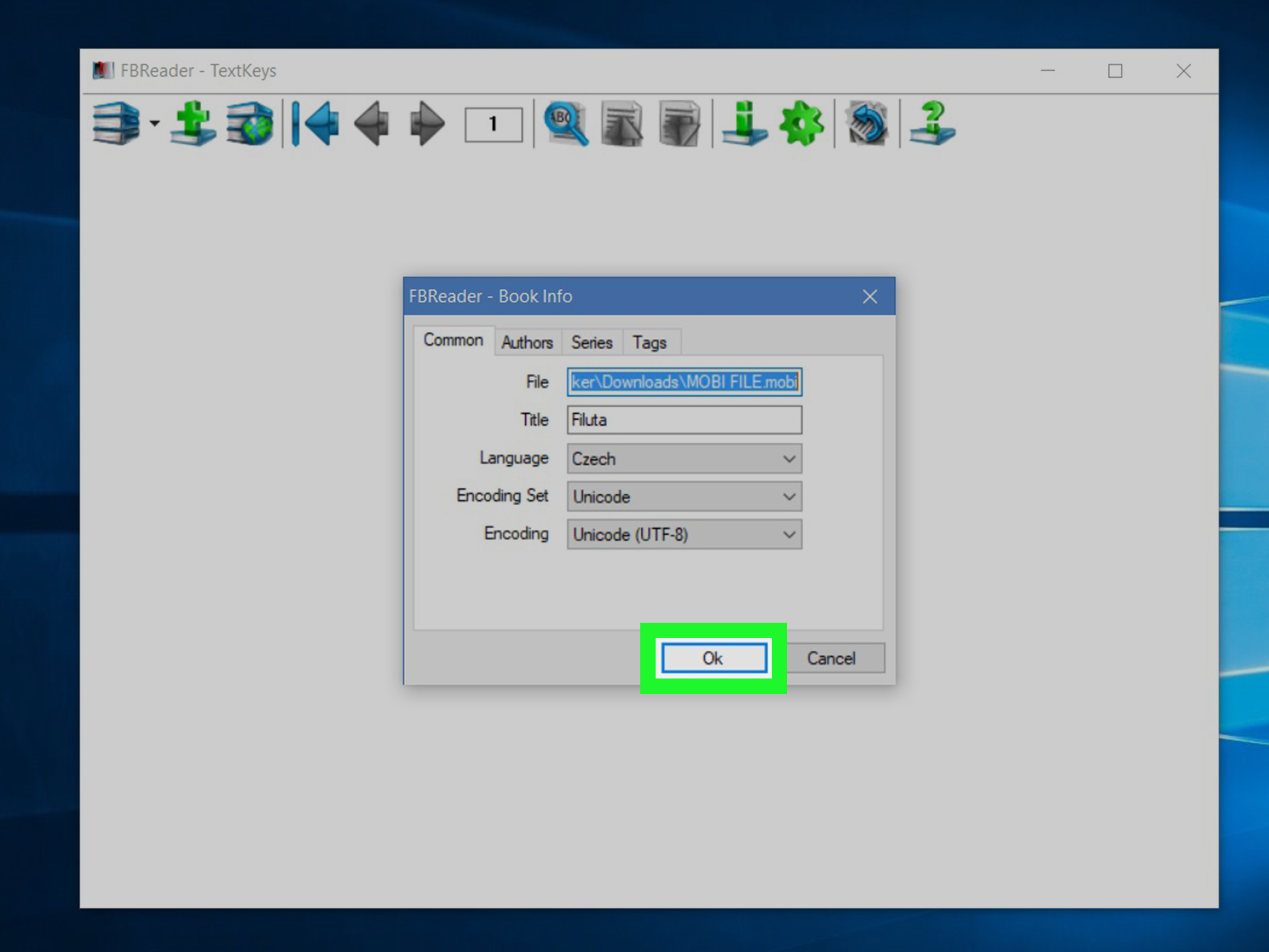
FBReader is another strong choice for both PC and Mac. It is lightweight, clean, and focused on reading rather than managing a giant library. If you want to open a MOBI file quickly without building a full ebook command center, FBReader is a friendly option.
Windows users can also consider SumatraPDF. Despite the name, it is not only for PDFs. It supports several document and ebook formats, including MOBI, EPUB, and comic book formats. It is fast, minimal, and useful if you want a no-drama reading experience.
Mac users who want to read in Apple Books should know one important thing: Apple Books is excellent for EPUB and PDF files, but MOBI is not its native comfort zone. In that case, convert the MOBI file to EPUB first, then import it into Books.
Step 3: Install the Reader and Open the MOBI File
Once you choose an app, install it from the official website or trusted app store. Avoid random download pages that promise “super fast MOBI magic” and then ask permission to install twelve mysterious extras. Your ebook should not arrive with a side order of browser toolbars.
To open the file in Calibre, launch the app, click Add books, select your MOBI file, and then double-click the book title in your Calibre library. The built-in ebook viewer should open the file. You can adjust font size, search the text, use bookmarks, and read much like you would in a normal ebook app.
In FBReader, open the app, add the book to your library, and select it for reading. In SumatraPDF on Windows, you can often open the file directly from the File menu or by right-clicking the MOBI file and choosing Open with.
After confirming the file opens correctly, you may want to set that app as the default MOBI reader. On Windows, right-click the file, choose Open with, then Choose another app, and select “Always.” On Mac, use Get Info, choose the app under Open with, and click Change All.
Step 4: Convert MOBI to EPUB or PDF If Needed
Sometimes opening the MOBI file is not the final goal. Maybe you want to read it in Apple Books, send it to a modern ebook device, print it, annotate it, or share it with someone who thinks “MOBI” sounds like a small robot from a children’s movie. In those cases, conversion is the answer.
For most readers, EPUB is the best conversion target. EPUB works well with many modern reading apps because it reflows text, adjusts to screen size, and behaves like a proper ebook. If you want a fixed layout for printing or sharing, choose PDF instead.
Calibre is the best desktop tool for this job because it gives you control over the output. Add the MOBI file, select it, click Convert books, choose EPUB or PDF as the output format, and start the conversion. Afterward, open the new file in your preferred app.
Online converters such as CloudConvert or Zamzar can also convert MOBI files to EPUB or PDF. They are convenient when you do not want to install software. However, use them wisely. If the book contains private notes, client material, unpublished writing, paid content, or anything confidential, use a desktop converter instead. Uploading sensitive files to an online service is convenient, but so is leaving your diary on a park bench. Convenient does not always mean smart.
Step 5: Troubleshoot Common MOBI Problems
If your MOBI file will not open, do not panic. Start with the simple fixes. First, try a different reader. A file that fails in one app may open perfectly in Calibre or FBReader. Second, check whether the file is corrupted. If the download was interrupted, download it again from the original source.
Third, check for DRM. If the file came from a store account, it may be locked to a specific app, device, or user account. Legal DRM restrictions can prevent third-party readers from opening or converting the file. In that case, use the official app or service connected to the purchase.
Fourth, convert the file to EPUB or PDF. This often solves compatibility issues, especially on Mac. Fifth, rename the file only if the extension is clearly wrong. Do not change “book.mobi” to “book.pdf” and expect magic. That is like putting a tuxedo on a raccoon and calling it a waiter.
Best Apps for Opening MOBI Files on Windows and Mac
| App | Works On | Best For |
|---|---|---|
| Calibre | Windows, macOS, Linux | Opening, organizing, editing metadata, and converting MOBI files |
| FBReader | Windows, macOS, mobile platforms | Simple reading with a lightweight interface |
| SumatraPDF | Windows | Fast, minimal reading of MOBI, EPUB, PDF, and other formats |
| Apple Books | macOS | Reading EPUB or PDF after converting from MOBI |
| Online Converters | Any browser | Quick conversion to EPUB or PDF for non-sensitive files |
MOBI vs EPUB vs PDF: Which Format Should You Use?
MOBI is still useful when you already have older ebooks or legacy Kindle files. However, for long-term convenience, EPUB is usually the better modern ebook format. It supports flexible text, adjustable fonts, chapters, navigation, and a smoother reading experience across many devices.
PDF is different. It preserves layout, which is great for printing, forms, manuals, and documents with exact formatting. But PDFs can feel awkward on small screens because the text does not always reflow nicely. Reading a PDF on a phone can feel like peering through a keyhole at a billboard.
If you simply want to read a novel, convert MOBI to EPUB. If you need to print, quote page numbers, or preserve a layout, convert MOBI to PDF. If you just want to open the file today and start reading before your tea gets cold, use Calibre or FBReader.
Is Kindle Still the Best Way to Open MOBI Files?
Kindle is still a major name in ebooks, but MOBI support has changed. Modern Kindle workflows increasingly favor EPUB, PDF, and other supported document formats rather than old MOBI uploads. That means a MOBI file you used years ago may not behave the same way today when you try to send it to a Kindle library.
If your MOBI file is DRM-free and you only want to read it on a PC or Mac, do not overcomplicate things. Use a desktop reader. If you want to read it across newer devices or apps, convert it to EPUB. This gives you more flexibility and fewer “why is this not supported anymore?” moments.
Safety Tips Before Opening or Converting MOBI Files
Ebook files are usually harmless, but you should still practice basic file safety. Only download MOBI files from trusted sources, especially if the file is free. Public-domain libraries, official publishers, author websites, and recognized ebook stores are safer than mysterious pop-up pages with six flashing download buttons.
Also, keep a backup of the original file before converting it. Conversion is usually smooth, but formatting can shift. Images may move, tables may become less elegant, and chapter spacing can occasionally develop a personality. If the output looks odd, try different conversion settings in Calibre or convert to another format.
Personal Experiences and Practical Lessons from Opening MOBI Files
In real-world use, opening MOBI files is rarely difficult once the correct app is installed. The tricky part is knowing which path fits the situation. For example, a Windows user who simply wants to read an old ebook from a folder can install SumatraPDF or Calibre and be reading in under a minute. A Mac user who wants the same book inside Apple Books will usually have a better experience converting the MOBI file to EPUB first.
One common experience is the “double-click disappointment.” Many people assume every ebook file opens automatically like a PDF. Then the computer asks which app should open it, or worse, says it cannot open the file at all. This does not mean the MOBI file is broken. It usually means the operating system has no default MOBI reader. Installing Calibre solves this for many users because it gives the computer a clear tool for handling the format.
Another frequent lesson involves ebook organization. A single MOBI file is easy to manage. Fifty MOBI files named “book-final,” “book-final-new,” and “download-7” are less charming. Calibre is especially helpful here because it can store titles, authors, covers, tags, series names, and publication details. If you collect ebooks for school, research, work, or personal reading, building a clean library early saves time later.
Conversion also teaches a useful lesson: not every format should become every other format. MOBI to EPUB usually works well for novels, essays, guides, and other text-heavy books. MOBI to PDF can be useful, but the result may not look like a professionally designed print book unless the source formatting is simple. If your goal is comfortable reading, EPUB is usually better. If your goal is printing or sharing a fixed document, PDF makes sense.
Users also learn quickly that DRM is not the same as a technical error. If a legally purchased ebook will not open in a third-party reader, the issue may be account authorization, not the file itself. In that case, the best approach is to use the official reading app connected with the purchase. Trying to force a locked file into another reader usually leads to frustration and a suspicious amount of muttering at the screen.
Finally, online converters are best treated as convenience tools, not permanent workflow tools. They are great for a quick, non-sensitive ebook conversion when you are away from your main computer. But for private files, unpublished manuscripts, business documents, or academic materials, desktop software is safer. The practical rule is simple: if you would not email the file to a stranger, do not upload it casually to a converter.
The smoothest MOBI workflow is this: use Calibre as your main library and conversion tool, use a lightweight reader when you only need quick access, convert to EPUB for modern reading apps, and keep original files backed up. Once you set that up, MOBI files stop feeling like digital fossils and start behaving like ordinary books again.
Frequently Asked Questions
Can Windows open MOBI files without extra software?
Usually, no. Windows does not include a built-in MOBI reader for general ebook reading. Install Calibre, FBReader, or SumatraPDF to open MOBI files easily.
Can Mac open MOBI files in Apple Books?
Apple Books is designed for formats such as EPUB and PDF. For the best experience, convert the MOBI file to EPUB first, then import it into Apple Books.
What is the best free MOBI reader?
Calibre is the best overall choice because it opens, organizes, and converts ebooks. FBReader is excellent for simple reading, while SumatraPDF is a fast Windows-only option.
Should I convert MOBI to EPUB or PDF?
Convert MOBI to EPUB for comfortable ebook reading across modern apps and devices. Convert MOBI to PDF when you need printing, fixed layout, or easier document sharing.
Why will my MOBI file not open?
The file may be corrupted, protected by DRM, mislabeled with the wrong extension, or unsupported by the app you are using. Try opening it in Calibre or FBReader, and download a fresh copy if needed.
Conclusion
Opening MOBI files on a PC or Mac is simple once you stop expecting your computer to understand every ebook format automatically. First, confirm that the file is truly a MOBI file. Next, install a reliable reader such as Calibre, FBReader, or SumatraPDF. Then open the file, set a default app if needed, and convert it to EPUB or PDF when you want better compatibility.
For most people, Calibre is the easiest long-term solution because it handles reading, organization, and conversion in one place. Mac users who prefer Apple Books should convert MOBI to EPUB. Windows users who want speed and simplicity may enjoy SumatraPDF. And anyone dealing with sensitive files should avoid online converters unless privacy is not a concern.
MOBI may be an older format, but it is far from impossible. With the right tool, your ebook can go from “mysterious file icon” to “comfortable reading session” in just a few minutes. Your computer was not being rude. It just needed a translator.