Changing your Nintendo Switch theme sounds like it should unlock a candy store of colorful menus, animated backgrounds, Mario jumping across your Home screen, maybe even a tiny Korok hiding behind your game icons. In reality, Nintendo keeps the Switch Home Menu very simple. Very, very simple. We are talking “one black coffee or one glass of milk” simple.
Still, if you want to know how to get Nintendo Switch themes, the good news is that you can change the system’s background appearance in just a few taps. The catch? Official Nintendo Switch themes are limited to two choices: Basic White and Basic Black. There is no official Theme Shop for Nintendo Switch like there was on Nintendo 3DS, and you cannot normally download custom Home Menu themes from the Nintendo eShop.
That does not mean your Switch has to feel boring. In this guide, you will learn the five official steps to change Nintendo Switch themes, what the current limitations are, how to make your console feel more personal without risky modifications, and what to avoid if you see websites promising “free custom Switch themes.” Spoiler: your console is not a science experiment, and your Nintendo Account deserves peace.
Can You Really Get Nintendo Switch Themes?
Yes, but only in the official sense. Nintendo Switch, Nintendo Switch Lite, and Nintendo Switch OLED Model include a built-in theme setting. This setting lets you choose between a bright white interface and a dark black interface. These are system-level background themes, not full cosmetic packages with music, animations, custom icons, or game-specific artwork.
So when players search for “Nintendo Switch themes,” they often mean one of three things:
- Changing the official Home Menu theme to white or black
- Making the Switch Home screen look more organized and personalized
- Installing unofficial custom themes through modified software
This article focuses on the official, safe, publishable, family-friendly way to change and personalize your Switch. We will also explain unofficial custom themes, but without walking into the risky weeds of console modification. Think of it as looking at the haunted house from the sidewalk, not moving in with a sleeping bag.
How to Get Nintendo Switch Themes: 5 Steps
Follow these five steps to change the theme on your Nintendo Switch. The process works on the main Nintendo Switch family of systems, including the standard Switch, Switch Lite, and Switch OLED Model.
Step 1: Wake Up Your Nintendo Switch and Go to the HOME Menu
Start by turning on your Nintendo Switch and reaching the HOME Menu. This is the main screen where you see your recently played games, News, Nintendo eShop, Album, Controllers, System Settings, and other icons.
You do not need to open a game, visit the eShop, or download anything. The official Switch themes are already built into the system software. That is both convenient and slightly disappointing, like finding out the “secret menu” at a restaurant is just ketchup in a cup.
Before changing themes, make sure your console is functioning normally and not in the middle of a system update. If your Switch has not been updated in a long time, it is a good idea to connect to the internet and update the system software. Theme settings have been part of the Switch for years, but keeping your console updated helps with stability, features, and compatibility.
Step 2: Open System Settings
From the HOME Menu, look along the bottom row of circular icons. Select the gear-shaped icon labeled System Settings. This opens the main settings area for your console.
System Settings is where Nintendo hides the practical stuff: internet, controllers, users, data management, screen brightness, parental controls, and yes, themes. It is not flashy, but it is powerful. It is basically the toolbox under the kitchen sink of your Switch.
If you are helping a child, younger sibling, parent, or new Switch owner, remind them not to change random settings while they are there. Theme settings are harmless, but data management, user accounts, and formatting options are not things to poke like a suspicious mushroom in a Mario level.
Step 3: Scroll Down and Select Themes
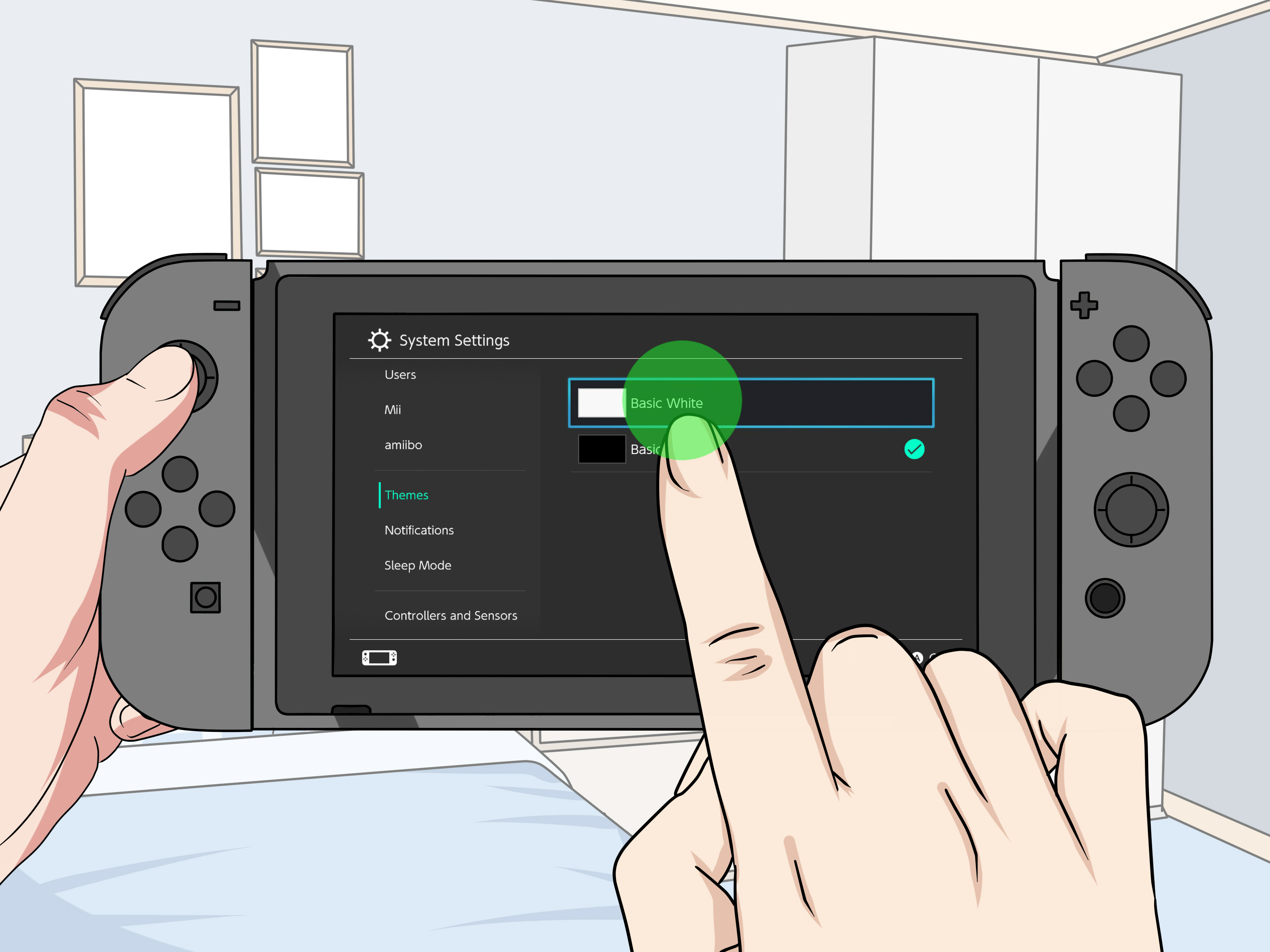
Inside System Settings, look at the left-hand menu. Scroll down until you find Themes. Select it.
This page is where the official Nintendo Switch theme options live. Do not be surprised when the menu is brief. You will not see a long gallery of Zelda, Animal Crossing, Pokémon, or Splatoon backgrounds. You will not find seasonal themes, animated wallpapers, or downloadable designs. The Switch keeps things clean and minimal.
At the time of writing, Nintendo Switch theme choices are limited to:
- Basic White
- Basic Black
Basic White gives your menus a bright, clean background. Basic Black creates a darker interface that many players prefer at night or in dim rooms. If you have ever opened your Switch in bed and been flashbanged by the white background, Basic Black may become your new best friend.
Step 4: Choose Basic White or Basic Black
Now select the theme you want. The change happens immediately, so you can preview the look without restarting the console. If you dislike your choice, simply switch back.
Basic White works well if you like a bright interface, play mostly during the day, or prefer a crisp and airy Home Menu. It can make the screen feel cleaner and more open, especially on the Nintendo Switch OLED Model, where colors and contrast already look sharp.
Basic Black is often the fan favorite because it feels more modern, reduces glare, and is easier on the eyes in low light. It also helps game cover art stand out because the dark background creates more contrast around icons. For many players, Basic Black is the closest thing to Nintendo Switch dark mode.
There is no wrong choice here. You are not choosing a starter Pokémon. Nobody will judge you for picking white, black, or changing your mind every Tuesday. The setting is cosmetic and easy to reverse.
Step 5: Personalize the Rest of Your Switch Experience
Since official Nintendo Switch themes are limited, the best way to make your console feel more customized is to personalize the parts Nintendo does allow you to change. You can adjust your user icon, organize games into groups, manage the order of software icons, and choose a theme that matches your playing style.
Here are practical ways to make your Nintendo Switch feel more like yours:
- Change your user icon: Pick a character icon, background color, or custom Nintendo Switch Online icon if available through Missions & Rewards.
- Create software groups: Organize games by genre, mood, multiplayer titles, unfinished games, cozy games, or “games I bought on sale and swear I will play someday.”
- Reorder your Home Menu naturally: Recently played games appear first, so launching favorite games helps keep them visible.
- Use Basic Black for a sleek look: It pairs well with colorful game tiles and reduces brightness.
- Use Basic White for a clean look: It feels simple, friendly, and easy to read in bright rooms.
These options are not the same as full custom themes, but they help. A well-organized Switch feels faster, calmer, and more personal. It is like cleaning your desk, except instead of finding old receipts, you rediscover a dozen indie games you forgot you bought.
Why Are There Only Two Nintendo Switch Themes?
Nintendo has never given a full public explanation for why the Nintendo Switch has such limited theme options. However, the design fits the company’s broader approach to the Switch Home Menu: fast, lightweight, simple, and game-focused.
The Switch Home Menu loads quickly and avoids visual clutter. Unlike the Nintendo 3DS, which had an official Theme Shop with colorful backgrounds and music, the Switch prioritizes speed and clarity. The interface exists mainly to get you into games, not to become a digital bedroom wall covered in posters.
Some fans love that simplicity. Others wish Nintendo had added more official customization over time. Both opinions are understandable. A minimalist menu is practical, but after years of seeing the same Basic White and Basic Black options, many players naturally wonder why their console cannot dress up for once.
Can You Download More Nintendo Switch Themes from the eShop?
No, not for the system Home Menu. You may see Nintendo eShop listings that use the word “theme” in a game, app, DLC pack, or software description. Those are not system themes for your Switch Home Menu. They are usually in-game cosmetic options, DLC colors, or app-specific design packs.
This distinction matters because searching the eShop for “themes” can be confusing. A product may mention theme colors, dark themes, or visual styles, but that does not mean it changes your Nintendo Switch dashboard. Official Home Menu theme selection remains inside System Settings, not the eShop.
If Nintendo ever adds more official Switch themes, the safest place to check would be the console’s System Settings, official Nintendo support pages, and Nintendo news channels. Until then, be skeptical of third-party sites promising “official Switch theme downloads.” If it sounds too magical, it may come with a dragon guarding the terms of service.
What About Custom Nintendo Switch Themes?
Custom Nintendo Switch themes do exist in online communities, but they are not officially supported by Nintendo. They generally require modified system software or custom firmware. That comes with real risks, including system instability, loss of warranty protection, online service issues, and possible account or console restrictions.
For most users, custom themes are not worth the risk. If your main goal is to make the Switch look a little cooler, it is safer to stick with official settings, personalize your profile icon, organize your library, and consider physical accessories such as Joy-Con colors, carrying cases, skins, screen protectors, or themed docks from reputable sellers.
Also, be careful with websites that offer downloadable theme files while asking you to disable protections, connect your console to suspicious tools, or follow unclear instructions. Your Nintendo Account, saved data, and console health are more valuable than a wallpaper. No background image is worth turning your Switch into a very expensive paperweight.
Best Theme Choice: Basic White vs. Basic Black
Because there are only two official Nintendo Switch themes, choosing the best one depends on how and where you play.
Choose Basic White If You Want a Bright, Classic Look
Basic White is clean and easy to understand. It works well in daylight, on a TV in a bright room, or for players who prefer a cheerful interface. It also resembles the default look many people associate with the Switch, so it feels familiar.
The downside is brightness. In a dark room, Basic White can feel harsh, especially when you open the Home Menu after playing a darker game. Your eyes may react like you just opened the Ark of the Covenant, which is not ideal before bedtime.
Choose Basic Black If You Want Dark Mode Energy
Basic Black is the closest thing to a Nintendo Switch dark mode. It is easier on the eyes at night and gives the Home Menu a sleeker look. Many players prefer it because game icons pop against the darker background.
Basic Black also feels more modern. If you use dark mode on your phone, laptop, browser, and every app that allows it, this is probably the theme you will choose. Your Switch will finally match the rest of your “I respect my retinas” lifestyle.
How to Make Your Nintendo Switch Look More Customized Without Custom Themes
Even without downloadable Home Menu themes, you can create a more personalized Nintendo Switch setup. The trick is to think beyond the background color.
Use a Custom-Looking User Icon
Your user icon appears in several places on the console. It is one of the easiest ways to add personality. Nintendo Switch Online members may also have access to rotating icon elements through Missions & Rewards, including characters, frames, and backgrounds from selected Nintendo games.
These icons do not change the whole Home Menu, but they add a small splash of identity. Whether you choose Mario, Link, Kirby, Isabelle, Samus, or a seasonal design, your profile icon is the tiny flag you plant on your console.
Create Game Groups That Match Your Playing Style
If your game library is large enough, use Groups to organize software. You can create groups for multiplayer games, RPGs, fitness games, family games, cozy games, backlog titles, demos, or favorites.
For example, a useful setup might include:
- Party Night: Mario Kart, Super Smash Bros., Nintendo Switch Sports, Overcooked
- Cozy Games: Animal Crossing, Stardew Valley, A Short Hike, Unpacking
- Big Adventures: Zelda, Xenoblade, Pokémon, Fire Emblem
- Backlog Shame Corner: Every game you bought during a sale and have not opened yet
Groups do not appear exactly like folders on the main Home Menu, but they are still useful for organizing a crowded library. If your Switch has become a digital junk drawer, groups are your label maker.
Match Your Physical Accessories
Physical customization can do what software themes cannot. Joy-Con colors, Pro Controller designs, carrying cases, console skins, thumb grips, and dock covers can make your setup feel themed even when the Home Menu stays basic.
For example, pair Basic Black with neon Joy-Con colors for a bold arcade look. Pair Basic White with pastel accessories for a clean cozy setup. Use a Zelda carrying case, Pokémon thumb grips, or Animal Crossing Joy-Con colors to create a theme around your favorite franchise without changing the system software.
Common Problems When Changing Nintendo Switch Themes
The theme setting is simple, but a few small issues can confuse new users.
You Cannot Find the Themes Option
Make sure you are inside System Settings, not the Nintendo eShop or your user profile page. Themes are listed in the left-side settings menu. Scroll carefully, because the menu contains many categories.
You Expected More Than Two Themes
This is normal. The official Switch theme menu only offers Basic White and Basic Black. There is no hidden gallery waiting behind a secret button combination. Pressing A, B, Start, and hope will not summon a Metroid Prime theme.
Your eShop “Theme” Purchase Did Not Change the Home Menu
That likely means the purchase was for a game, app, or DLC item that uses the word “theme,” not a console Home Menu theme. System themes are changed only through the Switch settings menu.
Your Child Changed the Theme and Wants It Back
No problem. Go back to System Settings, select Themes, and switch it again. The process is reversible and does not affect games, save data, accounts, or downloads.
Experiences and Practical Advice: Living With Nintendo Switch Themes
After using the Nintendo Switch for a long time, the theme situation becomes both funny and strangely charming. At first, many players open the Themes menu expecting a celebration. Maybe a Mario background. Maybe a Zelda forest scene. Maybe something dramatic with Fire Emblem characters staring into destiny. Then the menu appears: Basic White and Basic Black. That is it. The whole buffet is two crackers.
But in daily use, the limited theme selection is not as bad as it sounds. Basic Black, especially, is practical. If you play at night, on a plane, in bed, or in a dim living room, the dark background feels much better than the bright one. It makes the system look cleaner, and the colorful game tiles stand out nicely. For many players, choosing Basic Black is the first setting they change on a new Switch.
Basic White has its place too. It looks bright, simple, and family-friendly. On a TV in a sunny room, it can feel clearer than Basic Black. If multiple people use the same console, Basic White may also feel more neutral. It gives the Switch that original “fresh out of the box” look, which some players genuinely prefer.
The biggest lesson is that customization on Switch works best when you combine small details. Change the system theme, update your user icon, organize your software into groups, and choose accessories that fit your taste. A Switch with Basic Black, a favorite character icon, neatly organized groups, and matching Joy-Con colors can still feel personal. It may not be a fully animated theme shop experience, but it works.
For families, keeping the theme simple can even be helpful. Kids can navigate the Home Menu easily, parents are less likely to get lost in decorative settings, and the console stays focused on games. The Switch interface is not trying to be a social media profile, a desktop wallpaper engine, or a nightclub. It is trying to launch games quickly. In that job, it succeeds.
Still, it is completely fair to wish Nintendo offered more official themes. A handful of safe, downloadable designs based on Mario, Zelda, Animal Crossing, Kirby, Metroid, Splatoon, and Pokémon would make many players happy. Even simple color options would be welcome. Red, blue, purple, green, and gray themes would add personality without slowing anything down. Until that happens, players have to get creative with the customization tools that exist.
The best advice is to avoid unofficial theme hacks unless you fully understand the risks and are willing to accept them. For everyday players, families, students, and casual fans, the official route is safer. Your Switch is meant to play games, survive road trips, handle multiplayer chaos, and occasionally disappear under a couch cushion. Keeping it stable matters more than forcing a custom background onto the Home Menu.
In the end, getting Nintendo Switch themes is easy. Getting more than two official themes is the impossible part. Choose Basic Black if you want dark mode comfort. Choose Basic White if you want classic brightness. Then personalize everything around it. Your Switch may not have a wardrobe full of outfits, but with a little organization and style, it can still look sharp enough for game night.
Conclusion
Learning how to get Nintendo Switch themes takes only a minute, but understanding the limits saves a lot of confusion. Officially, the Nintendo Switch offers just two system themes: Basic White and Basic Black. You can change them through System Settings, and the process is quick, safe, and reversible.
If you want deeper customization, focus on safe personalization: user icons, Nintendo Switch Online icon elements, software groups, accessory colors, and smart organization. Avoid risky unofficial custom theme methods unless you fully understand the consequences. For most players, Basic Black plus a tidy game library is the sweet spot: clean, comfortable, and stylish without risking your console.
Note: Nintendo Switch does not currently support official downloadable Home Menu themes beyond the built-in light and dark options. Be cautious with third-party sites or tools that claim to install custom themes, because they may require unsupported console modification.