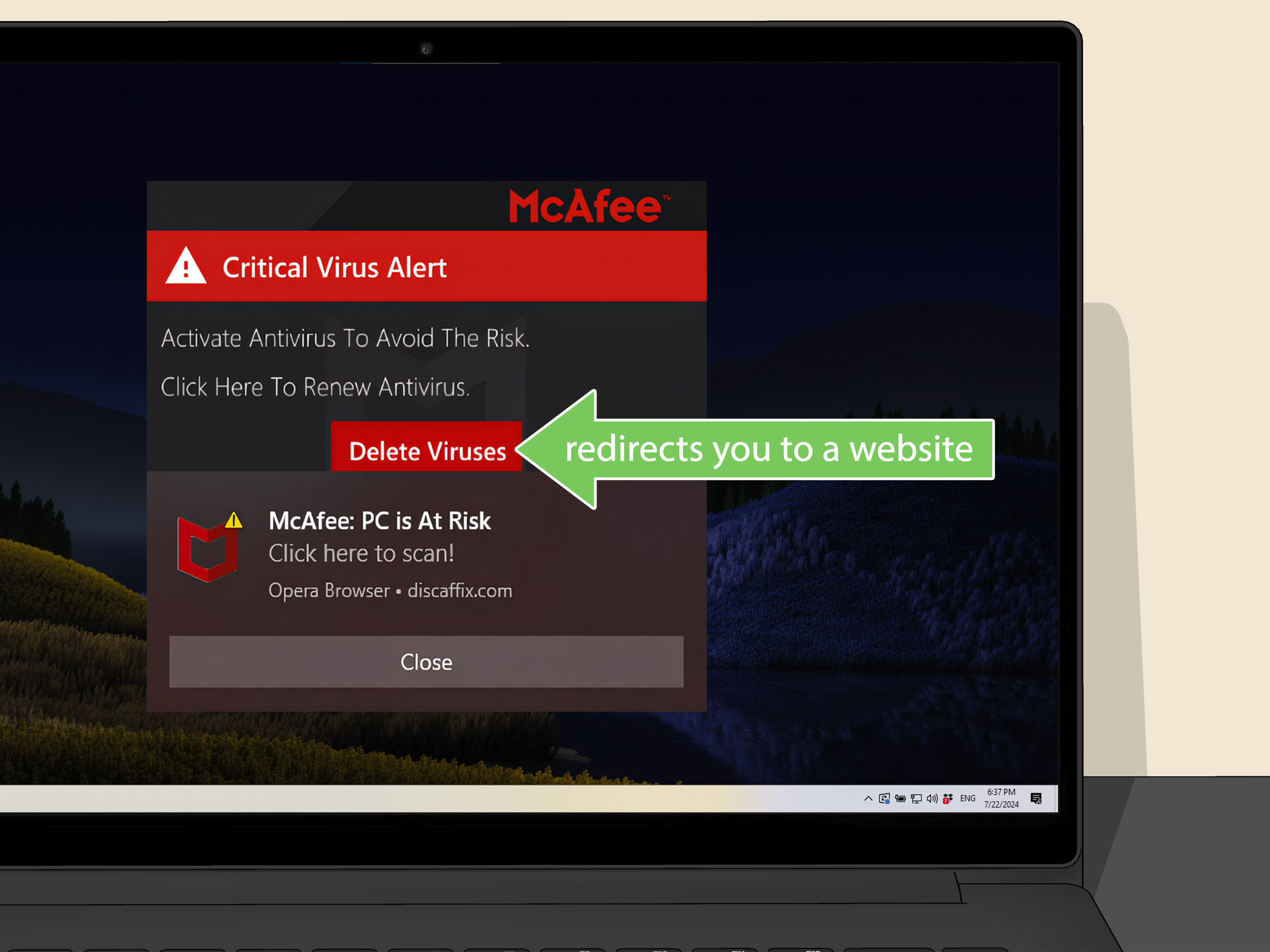
McAfee pop-ups have a special talent: they appear precisely when you are presenting a report, watching a movie, or attempting to remember why you opened your laptop in the first place. Some are legitimate antivirus notifications. Others are promotional messages. A third group consists of browser notifications wearing a McAfee costume, while the worst offenders are scams designed to frighten you into clicking, calling, or paying.
The good news is that you can usually stop McAfee pop-ups without throwing your computer out the window. The correct solution depends on where the alert originates, so this guide begins with diagnosis before moving through Windows settings, McAfee preferences, browser permissions, malware scans, and complete removal.
First, Identify What Kind of McAfee Pop-Up You Are Seeing
Before changing settings, look carefully at the alert. Closing the wrong notification source may provide temporary peace while leaving the actual problem untouched.
1. A legitimate McAfee application notification
A genuine notification usually appears as a standard Windows or macOS banner. It may report that a scan finished, your subscription is expiring, a feature is disabled, or an update is available. Clicking it generally opens the installed McAfee application rather than an unfamiliar website.
McAfee provides controls for adjusting alerts and general application settings, although the available categories depend on the product installed. Genuine alerts should be managed through the McAfee application or the operating system’s notification controlsnot through a random webpage.
2. A promotional McAfee message
Promotional messages advertise upgrades, additional tools, renewal offers, identity monitoring, PC optimization, or related services. They may be legitimate, but that does not mean you must invite them to breakfast every morning.
These messages often contain phrases such as “special offer,” “recommended protection,” “upgrade now,” or “your subscription expires soon.” They may appear inside the McAfee interface, as desktop banners, or through a related utility such as PC Optimizer.
3. A browser notification pretending to be McAfee
If alerts appear in the corner of the screen while Chrome, Edge, Firefox, or Safari is openor even while the browser is running in the backgroundthe source may be a website that received permission to send notifications.
These alerts often claim that several viruses were found, your protection has expired, or your device is “at risk.” A website cannot perform a complete antivirus scan merely because you visited a page. It may, however, display a notification designed to look like a security result.
4. A fake antivirus or tech-support scam
Be especially suspicious when a warning includes a telephone number, countdown timer, loud alarm, request for remote computer access, or demand for immediate payment. The Federal Trade Commission warns that scammers frequently imitate well-known security brands, including McAfee, and use fake warnings or renewal notices to pressure people into calling. Real security pop-up warnings do not instruct users to call a telephone number.
Step 1: Close a Suspicious Pop-Up Safely
Do not click buttons inside a suspicious alert, including a large “X” that may be part of the webpage rather than a real close button. Some deceptive pages make every visible element clickable.
Try these safer methods:
- Close the browser tab using the tab’s real close button.
- Press Alt + F4 on Windows to close the active window.
- Press Command + W on a Mac to close the tab or Command + Q to quit the browser.
- If the browser is frozen, open Task Manager on Windows or Force Quit on macOS and end the browser process.
- Do not restore the previous browsing session if reopening the browser immediately reloads the scam page.
Apple similarly recommends avoiding interaction with questionable pop-ups because fake advertisements may contain buttons designed to resemble normal close controls.
Step 2: Turn Off McAfee Notifications in Windows
If the alerts are genuine Windows notifications sent by an installed McAfee product, you can silence the application without disabling notifications for everything else.
- Open the Start menu.
- Select Settings.
- Go to System > Notifications.
- Scroll through the list of applications and senders.
- Find McAfee, McAfee Security, McAfee WebAdvisor, PC Optimizer, or another related product.
- Turn its notification switch off.
You can also select the application instead of disabling it completely. Windows may let you turn off notification banners while keeping alerts in Notification Center, disable sounds, hide lock-screen content, or lower the application’s priority.
This approach is useful when you want McAfee to keep running but would prefer that it stop announcing every minor event like a town crier with unlimited battery life.
Step 3: Disable Promotional Messages Inside McAfee
Open the installed McAfee application directly from the Start menu rather than through a pop-up. Depending on the version, look for an account icon, gear icon, settings menu, or general settings section.
- Open the McAfee application.
- Select Account, Settings, or the gear icon.
- Open General Settings, Alerts, or Informational Alerts.
- Turn off promotional messages, product suggestions, special offers, informational alerts, or similar optional categories.
- Keep critical security warnings enabled unless you have another reliable way to monitor protection status.
For McAfee PC Optimizer, McAfee’s support guidance places promotional controls under the product’s settings. Look under General settings for options such as Hints and tips or Desktop messaging, then clear the relevant checkbox.
Do not worry if your screen does not match every label exactly. Security applications are redesigned regularly, and computer manufacturers sometimes install customized editions.
Step 4: Block Fake McAfee Notifications in Google Chrome
Blocking ordinary pop-up windows is not always enough. Browser push notifications use a separate permission, which explains why an alarming message may continue appearing after you have activated Chrome’s pop-up blocker.
- Open Chrome.
- Click the three-dot menu.
- Select Settings.
- Go to Privacy and security > Site settings > Notifications.
- Review sites listed under those allowed to send notifications.
- Remove or block unfamiliar, misspelled, or suspicious domains.
- Consider selecting the option that prevents sites from asking to send notifications.
Next, return to Site settings and open Pop-ups and redirects. Set the default behavior to block pop-ups and redirects. You can also review the intrusive-ad setting and remove any unwanted applications or extensions associated with persistent advertising.
Do not block McAfee’s official website merely because a fake alert uses the McAfee logo. The sender’s actual domain is what matters. Scam domains often use unrelated words, random characters, excessive hyphens, or misleading variations of a brand name.
Step 5: Stop McAfee-Style Notifications in Microsoft Edge
- Open Microsoft Edge.
- Click Settings and more, represented by three dots.
- Select Settings.
- Go to Privacy, search, and services > Site permissions > All sites.
- Select the suspicious website.
- Find Notifications and change the permission to Block.
You can also visit the offending site, click the site-information icon beside the address bar, open its permissions, and block notifications there. Microsoft documents both methods for controlling website alerts in Edge.
To block ordinary pop-up windows, open Edge’s site-permission controls and confirm that Pop-ups and redirects is set to blocked. Check the exception list as well; an unwanted site may have been manually allowed.
Step 6: Remove Notification Permissions in Firefox
- Open Firefox.
- Open the menu and select Settings.
- Choose Privacy & Security.
- Scroll to the Permissions section.
- Beside Notifications, click Settings.
- Select the suspicious site and change its status to Block, or remove it from the list.
- Click Save Changes.
Firefox also offers an option to block new requests asking for notification permission. Enabling it is helpful if every website seems determined to ask, “May we interrupt you forever?” before you have even read the first paragraph.
For traditional pop-up windows, remain in Privacy & Security and make sure the option to block pop-up windows is enabled. Review any exceptions and delete websites you no longer trust.
Step 7: Block Pop-Ups and Notifications in Safari
On a Mac
- Open Safari.
- Select Safari > Settings.
- Open the Websites tab.
- Select Notifications and deny permission for suspicious websites.
- Select Pop-up Windows and choose Block for unwanted sites.
- Open the Security tab and enable the fraudulent-website warning.
You may also deselect the option that allows websites to ask for notification permission. Safari will then stop presenting new notification requests unless you later change the setting.
On an iPhone or iPad
- Open Settings.
- Tap Apps > Safari.
- Turn on Block Pop-ups.
- Turn on Fraudulent Website Warning.
These settings reduce deceptive windows, but they cannot prevent every misleading element embedded directly inside a webpage. Avoid tapping suspicious buttons even when the browser’s blocker is active.
Step 8: Remove Suspicious Browser Extensions
An unwanted extension can inject advertisements, change search results, open tabs, redirect websites, or restore notification permissions. Review your extensions even when none of them openly mention McAfee.
In Chrome
Open the three-dot menu, select Extensions > Manage extensions, and remove anything you do not recognize or no longer need.
In Edge
Open the three-dot menu, select Extensions > Manage extensions, and uninstall questionable additions.
In Firefox
Open the menu, select Add-ons and themes, choose Extensions, and remove suspicious items.
In Safari
Go to Safari > Settings > Extensions, select an unfamiliar extension, and uninstall or disable it.
Be especially cautious with extensions installed shortly before the pop-ups began. Coupon finders, video downloaders, search assistants, file converters, and “security” tools from unknown publishers are common places for unwanted advertising behavior to hide.
Step 9: Clear Browser Data or Reset the Browser
Clearing cookies and cached site data can remove stored components associated with a deceptive webpage. Start by clearing data for the suspicious site. If the problem continues, clear a broader date range.
A browser reset is more aggressive. It typically restores startup pages, search settings, new-tab behavior, pinned tabs, site permissions, and disabled extensions to safer defaults. Saved bookmarks and passwords are often preserved, but you should review the browser’s confirmation screen before proceeding.
Use a reset when:
- The same fake McAfee page opens whenever the browser starts.
- Your search engine changes without permission.
- Removed notification permissions repeatedly return.
- Unexpected extensions reappear.
- You are redirected to advertising or download pages.
Step 10: Scan the Device for Adware or Malware
Persistent pop-ups can indicate adware or another unwanted program, particularly when they appear outside the browser, continue after all browsers are closed, or return after permissions have been removed.
If you currently use McAfee, update it and run a full scan from the application. If you use Windows Security, open Windows Security > Virus & threat protection, start with a quick scan, and choose a deeper scan when suspicious behavior continues. Microsoft recommends an offline scan when a more complete examination is needed.
Unexpected advertisements, pop-ups, and browser redirects are among the symptoms Microsoft identifies as possible signs of malware. A clean scan does not prove that every browser permission is safe, so complete both the scan and browser-cleanup steps.
Step 11: Uninstall McAfee When You No Longer Want It
If the notifications are genuinely coming from an installed McAfee product and you no longer have a subscription or do not intend to use the software, uninstalling it may be the most direct solution.
- Open Start > Settings.
- Select Apps > Installed apps.
- Search for McAfee products.
- Select the three-dot menu beside each product.
- Choose Uninstall.
- Follow the removal prompts.
- Restart the computer when requested.
You may see several components, including McAfee Security, WebAdvisor, Safe Connect, Personal Security, or PC Optimizer. Remove only the products you have decided not to use. Microsoft also allows traditional desktop programs to be removed through Control Panel > Programs > Programs and Features.
After uninstalling security software, open Windows Security and confirm that a trusted antivirus provider is active. Do not leave the computer unprotected merely to win an argument with a notification banner.
How to Recognize a Fake McAfee Warning
A fake alert often reveals itself through several clues:
- It says dozens of viruses were detected after a brief webpage visit.
- It demands immediate action or displays a countdown.
- It instructs you to call a telephone number.
- It requests remote access to your computer.
- It asks for gift cards, cryptocurrency, wire transfers, or payment-app transfers.
- The web address is unrelated to McAfee’s official domain.
- The message contains awkward wording, inconsistent logos, or exaggerated warnings.
- The alert returns even though McAfee is not installed.
The FTC advises users to contact a company through independently verified information rather than using a telephone number or link displayed in a warning. If a message claims that a McAfee subscription renewed, check your bank or credit-card account directly before doing anything else.
What to Do If You Already Clicked the Pop-Up
Clicking once does not automatically mean the computer is compromised, but the next steps depend on what happened afterward.
If you only opened a webpage
Close it, remove the site’s notification permission, clear its stored data, and run a security scan.
If you downloaded a file
Do not open it. Delete it, empty the Recycle Bin or Trash, and run a scan. If you already launched the file, disconnect from sensitive accounts until the device has been checked.
If you installed remote-access software
Disconnect the computer from the internet, uninstall the remote-access application, change important passwords from a different trusted device, and contact your bank when financial information may have been exposed.
If you paid a scammer
Contact the payment company or financial institution immediately. Explain that the transaction resulted from a tech-support impersonation scam and ask whether it can be stopped or reversed. Report the incident to the appropriate fraud-reporting authority.
Common Questions About McAfee Pop-Ups
Why do McAfee pop-ups appear when McAfee is not installed?
The alert is probably a website notification, advertisement, or scam using McAfee’s name and logo. Check notification permissions in every installed browser.
Will blocking notifications disable McAfee protection?
Disabling Windows notification banners generally stops the visual alerts rather than the security application itself. However, you may miss legitimate warnings, so periodically open the application and confirm that protection remains active.
Why do the alerts continue after I block pop-ups?
Pop-up windows and push notifications are separate browser permissions. You must review both Pop-ups and redirects and Notifications.
Should I click “unsubscribe” inside a fake warning?
No. Use the browser’s permission settings to block the sender. Clicking an unsubscribe button inside a suspicious alert may confirm that your browser is active or send you to another deceptive page.
Can reinstalling the browser fix the problem?
Sometimes, but it is rarely the best first step. Synced settings or extensions may return after reinstallation. Remove permissions, extensions, startup pages, and suspicious programs before considering a reinstall.
Practical Experience: The Cleanup Order That Usually Works Best
Real-world troubleshooting becomes much easier when the user first notes where the message appears. A banner in the lower-right corner of Windows is often assumed to be part of McAfee because it displays the company’s logo. In many cases, however, Windows is merely showing a notification delivered by Chrome or Edge. Blocking notifications inside the McAfee application does nothing because McAfee never sent the message.
The fastest diagnostic test is to close every browser completely. If the pop-ups stop, reopen browsers one at a time. When the alert returns, inspect that browser’s notification permissions. This simple test can save a great deal of unnecessary uninstalling, reinstalling, and dramatic sighing.
Another common experience involves users who have already enabled a pop-up blocker but continue receiving alerts. The confusion comes from treating every interruption as the same technology. Traditional pop-ups are new browser windows or tabs. Push notifications are messages sent through previously granted site permission. A browser can block the first while allowing the second. Checking both settings is therefore essential.
A particularly stubborn case usually involves multiple browsers. Someone may remove a bad permission from Chrome and assume the job is finished, while Edge remains installed and continues running in the background. The notification may even appear while neither browser window is visible. Reviewing every browsernot only the preferred oneoften solves the mystery.
Promotional messages from a legitimate McAfee installation require a gentler approach. Turning off all Windows notifications immediately creates silence, but it also hides useful warnings. A better sequence is to disable marketing, hints, tips, and optional informational alerts inside the McAfee application first. If unnecessary banners continue, Windows can then be configured to suppress McAfee banners while preserving notifications in Notification Center.
Scam pages introduce a different problem: panic. Users often click the warning because it says their files are being deleted, their bank account is under attack, or their computer will be disabled within minutes. The most effective response is deliberately boring. Close the browser, disconnect if necessary, verify the issue through installed security software, and use official contact information. Scammers depend on speed and emotion; a calm pause ruins their business model.
Extensions are another frequently overlooked source. Removing notification permission may stop the visible alert for a day, but an unwanted extension can redirect the browser to new sites and restart the cycle. When pop-ups return after cleanup, sort extensions by memory rather than by name: ask which ones were intentionally installed and why. Anything without a convincing answer deserves closer examination.
Finally, many successful cleanups follow the same order: close the suspicious page, revoke browser notifications, block pop-ups and redirects, inspect extensions, clear site data, scan the device, and only then consider uninstalling McAfee. This order addresses the most likely causes first while preserving legitimate protection. It is less exciting than smashing the laptop with a frying pan, but replacement screens are expensive.
Conclusion
Getting rid of McAfee pop-ups begins with identifying the sender. Genuine application alerts can be adjusted through McAfee or Windows notification settings. Browser-based warnings require removing website permissions. Repeated redirects may call for extension cleanup, browser resetting, or a malware scan. Fake alerts that demand telephone calls, remote access, or urgent payment should be closed without interaction.
Work through the steps methodically instead of clicking whatever button promises instant relief. Once the source is removed, your computer should return to its preferred state: quietly doing its job and interrupting you only when the operating system decides it is time for another update.